Toshiba Hard Drive Test: Check Health and Speed
Discover the essential tools and techniques to run a comprehensive Toshiba Hard Drive Test with Qiling Software. Three powerful tools are covered: Qiling Disk Master, TOSHIBA Storage Diagnostic Tool, and CMD, which provide valuable information on diagnosing Toshiba hard drives, testing their health and speed, and highlighting their features and capabilities.
Users are seeking a way to test their Toshiba hard drives, a common issue that has been discussed on platforms like Reddit.
To check the integrity of a Toshiba hard drive, you can use the Toshiba Storage Controller or the HDParm tool, which can be found on the Toshiba website. However, if you're having trouble finding these tools, you can also use a third-party diagnostic software like CrystalDiskInfo or HDSentinel, which are widely available and can run diagnostics on Toshiba drives. These tools can help identify any issues with your drive and determine if it's failing or needs to be replaced.
This blog post provides a step-by-step guide on how to check various aspects of your Toshiba hard drive, including speed, health status, temperature, and bad sectors, with detailed explanations to help you navigate the process.
The Toshiba hard drive test can be run using three different tools, each with its own set of functionalities. The first tool allows users to select the test type and run the test, while the second tool provides additional options for customizing the test, such as setting the test duration and selecting specific test parameters.
| Features | TOSHIBA Storage Diagnostic | CMD | |
|---|---|---|---|
| Test Health Status | ✔ | ✔ | ✔ |
| Check Bad Sectors | ✔ | ✔ | |
| Capacity | ✔ | ✔ | |
| Disk Serial Number | ✔ | ||
| Security State | ✔ | ✔ | |
| Test Speed | ✔ |
Run Toshiba Hard Drive Test - Qiling Disk Master
Qiling Disk Master is a powerful software that allows you to manage disk partitions with ease. Its user-friendly interface and robust features make it an excellent choice for running the Toshiba hard drive test, enabling you to check the speed, health condition, temperature, and bad sectors of your Toshiba hard drive.
You can use Qiling Disk Master to run Toshiba hard drive speed tests, health tests, and check for bad sectors on your Toshiba hard drive. With this tool, you can assess the performance and condition of your Toshiba hard drive, ensuring it's running smoothly and efficiently.
In this section, we will provide three guides to help you perform tests using Qiling Disk Master: these guides will walk you through the process of testing, providing detailed instructions and information to ensure a smooth and successful testing experience.
Guide 1: Run Toshiba Hard Drive Speed Test
Step 1. Launch Qiling Disk Master and click the download button to activate the "Surface test" feature under the "Disk management" section.

Step 2. Select the target drive, test data, and block size by clicking on the drop-down box.

Step 3. Once everything is configured, click "Proceed" to start the disk test. This will display the Sequential read speed, I/O, and Delay data.

Guide 2: Run Toshiba Hard Drive Health Test
Step 1. Launch Qiling Disk Master and click the blue arrow to activate the "Disk Health" feature under the "Tools" section.

Step 2. To check the health condition of your disk, select the target disk and click the "Refresh" button. This will display the current status of your disk.

Video tutorial for test Toshiba hard drive health:
Guide 3: Check Bad Sectors on Toshiba Hard Drive
Step 1. Open Qiling Disk Master, right-click the target disk and select "Surface Test".
Step 2. The operation will be performed immediately and all bad sectors will be marked as red.
Qiling Disk Master Key Features:
- Check hard drive health
- Clone Toshiba hard drive
- Format Toshiba hard drive
- Test temperature of Toshiba hard drive
- Check hard drive errors
- Merge/split/create/delete/resize partitions on Toshiba hard drive
- Initialize a hard drive from Toshiba/Seagate/WD
Qiling Disk Master offers a wide range of features that can be enjoyed by downloading the tool and unleashing the full potential of your Toshiba hard drive.
Run Toshiba Hard Drive Test - TOSHIBA Storage Diagnostic Tool
While the TOSHIBA Storage Diagnostic Tool is a viable option for testing your Toshiba hard drive, we suggest using Qiling Disk Master for more detailed and comprehensive test results.
Here are the steps to utilize the TOSHIBA Storage Diagnostic Tool:
Step 1. To troubleshoot issues with Toshiba storage devices, download and install the Toshiba storage diagnostic tool from the official Toshiba website.
Step 2. To test a Toshiba storage device, open the Toshiba storage diagnostic tool and select the drive you want to test.
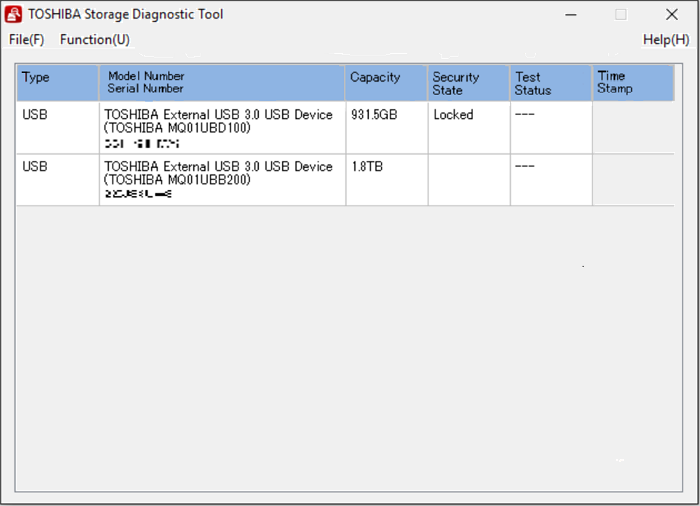
Step 3. Now click on "Function(U)" and "Start/Stop Diagnostics Scan."
Step 4. Click "Quick Scan" and click "Yes."
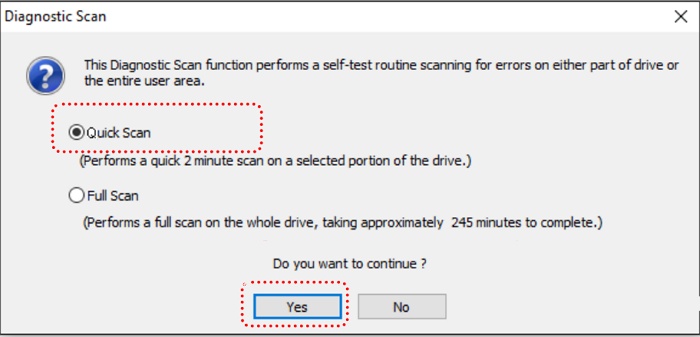
- Quick Scan: Performs a quick scan on the part of the hard disk.
- Full Scan: The program scans the entire hard drive, which can take a long time.
Step 5. The "Test Status" column displays the progress and results of tests run on the targeted TOSHIBA hard drive.
Also Read: How to Get Toshiba Laptop to Boot From USB
Run Toshiba Hard Drive Test - CMD
Although CMD offers a command-To test your Toshiba hard drive, you can use a simple line interface that provides two essential guides: checking the SMART Status, which gives you information about the drive's health, and running a CHDKSK test, which checks the drive for errors and bad sectors.
Guide 1. Check SMART Status
S. M. A. R. T. stands for Self-Monitoring Analysis and Reporting Technology (MART) thoroughly examines all components of a hard drive, providing a comprehensive report on its condition and performance.
Follow the steps:
Step 1. To run the Command Prompt as an administrator, open the Command Prompt, right-click on it, and select "Run as administrator".
Step 2. The command "wmic diskdrive get status" is used in the Command Prompt (CMD) to retrieve the status of all disk drives connected to the computer. When you type this command and press Enter, the output will display the status of each disk drive, indicating whether it's healthy, unhealthy, or unknown.
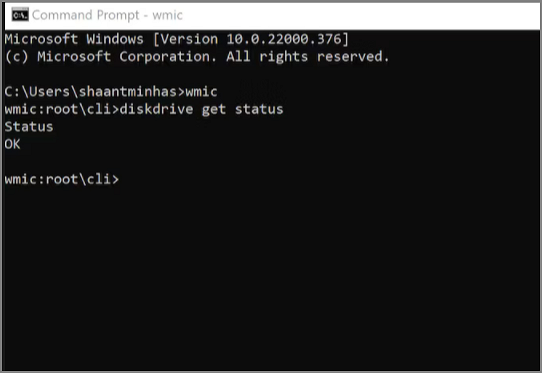
If you see an "OK" result, it means your Toshiba hard drive is healthy, but a "Pred Fail" result indicates there might be an error or problem in your hard drive, so be cautious.
To check the health of your SSD on Windows 10/11, you can use the built-in command line tool. Open Command Prompt as administrator, type "wmic diskdrive get status" and press Enter.
Guide 2. Run CHDKSK
CHKDSK is a command-line utility that can scan and fix errors on a hard drive, including Toshiba hard drives. It can verify the integrity of the drive's file system and repair any errors or inconsistencies it finds.
Follow the steps:
Step 1. To open Command Prompt as an administrator, simply type "CMD" in the search box of the taskbar, and once it appears, right-click on it and select "Run as administrator."
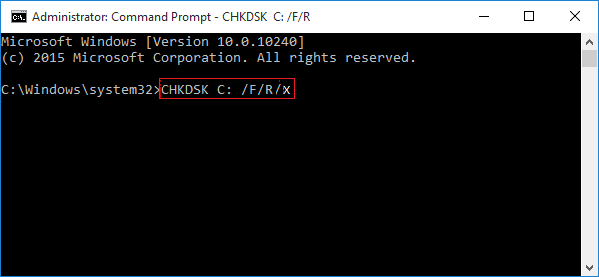
Step 2. To test your Toshiba hard drive, type the command "chkdsk C: /F/R/X" and press Enter, replacing "C" with the drive letter of the Toshiba hard drive.
- Notice:
- If the Toshiba hard drive is currently in use, you may receive a prompt saying Chkdsk can't run because another process is using the volume. You'll be asked if you want to schedule the volume to be checked the next time the system restarts, with the option to type "Y" to agree.
CHKDSK is a command-line utility in Windows that checks the integrity of the file system and identifies any errors or issues. It can be run from the command prompt or from within the Windows Explorer.
Editor's Thought
Qiling Disk Master stands out as the top choice for running a Toshiba hard drive test, offering a user-friendly interface, comprehensive features, and reliable results. With it, users can easily check the speed, health status, temperature, and bad sectors of their Toshiba hard drives.
Qiling Disk Master provides a seamless testing experience and additional key features for managing disk partitions effectively, making it accessible for both novice and advanced users alike. Its intuitive interface allows users to navigate through the software effortlessly, while the advanced options enable users to optimize their disk performance and ensure the overall health and speed of their Toshiba hard drives.
The table provides a comparative analysis of the three tools, highlighting their key features and differences. By examining the table, you can see the various characteristics of each tool, such as their strengths and weaknesses, making it easier to choose the most suitable one for your needs.
| Tool | Operation Difficulty | Brand Supported | Test Results |
|---|---|---|---|
| Qiling Disk Master | Low | All brands | Reliable |
| TOSHIBA Storage Diagnostic Tool | Medium | Toshiba Only | Limited |
| CMD | High | All brands | Limited |
The three methods discussed in this article for testing Toshiba hard drives are Qiling Disk Master, HD Tune, and CrystalDiskInfo. However, Qiling Disk Master stands out as the best choice due to its user-friendly interface, comprehensive features, and reliable test results.
Run Toshiba Hard Drive Test FAQs
Do you finish running the Toshiba hard drive? What tools do you choose? If you have further questions, you can find answers to common queries below:
1. What HDD diagnostic tools should I use on a Toshiba hard drive?
The recommended HDD diagnostic tools for Toshiba hard drives are Qiling Disk Master, TOSHIBA Storage Diagnostic Tool, and CMD, which can help identify and resolve any issues with the drive.
2. How to test Toshiba hard drive speed on Windows?
To test the speed of your Toshiba hard drive on Windows, download and launch Qiling Disk Master, choose 'Discovery' and select DiskMark, and then follow the guide to test the speed of your Toshiba hard drive in just two simple steps.
3. Why is my Toshiba hard drive not working?
If your Toshiba hard drive isn't working, it might be due to viruses, bad sectors, file system errors, or other issues. You can try searching online for solutions or contacting Toshiba's technical support for personalized help.
Related Articles
- How to Perform Xbox Series S Internal SSD Upgrade💡
- Windows Password Unlocker - Download for Windows🔥
- How to Fix Service Host Superfetch High Disk Usage
- Fixed: SMART Status Bad Backup and Replace Error💡
- How to Recover and Repair USB Drive/SD Card Partition in 2026
Here, you can find a simple solution to repair a damaged USB partition. Additionally, Qiling partition recovery software can help recover, undelete, or unformat lost data from USB drives. - A Starter Guide to the Windows Disk Management
What is disk management? This guide gives you an overall glimpse of Windows disk management. If you want to use this Windows-built tool to set up a hard drive, start from the definition to all features.
Products
Articles & Tutorials
- Data Recovery
- Data Backup
- File Recovery
- File Backup
- System Backup and Restore
- Disk and Partition Clone
- Technical articles
- Mobile articles
- Disk Master Help
- Windows Data Recovery Tutorials
- Windows Secure Delete Tutorials
- Windows Partition Management Tutorials
- Windows File Backup and Restore Tutorials
- Windows System Backup and Restore Tutorials
- Windows Disk Backup and Restore Tutorials
- Windows Clone Tutorials