[Fixed] Windows Resource Protection Found Corrupt Files but Was Unable to Fix Some of Them
Error: Windows Resource Protection found corrupt files
Windows Resource Protection detected corrupted files but was unable to repair some of them. The details of the issue can be found in the CBS.Log file located at windir\Logs\CBS\CBS.log, specifically in the file C:\Windows\Logs\CBS\CBS.log.
When running the System File Checker tool (sfc) and using the sfc/scannow command to repair missing or corrupted system files, the error 'Windows Resource Protection found corrupt files but was unable to fix some of them' is often encountered, indicating that the sfc/scannow command has failed, and manual repair of the corrupted files may be required.
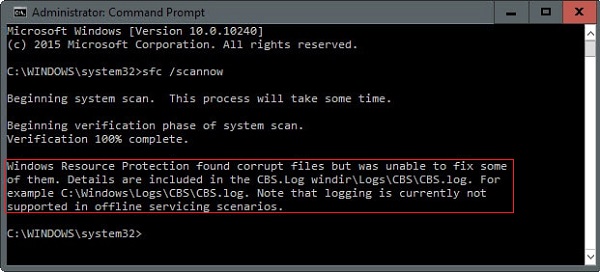
A quick overview of methods for solve Windows Resource Protection found corrupt files but was unable to fix some of them problem:
| Workable Solutions | Step-by-step Troubleshooting |
|---|---|
| Fix 1. Check and repair hard disk | To resolve the issue where sfc /scannow finds corrupt files but can't fix them, first check and repair any errors or bad sectors on your hard disk. This can often resolve the problem and allow the System File Checker (SFC) to successfully repair any corrupted system files. |
| Fix 2. Run DISM command | When the SFC utility is unable to resolve a problem, you can use the DISM tool to troubleshoot and repair issues with Windows installation images, which can help resolve problems that SFC may not be able to fix. |
| Fix 3. Run SFC Scan in Safe Mode | If an interfering 3rd party application is causing the issue, you can try running the System File Checker (SFC) and Deployment Image Servicing and Management (DISM) tools in a clean boot state, which can help isolate the problem and allow you to troubleshoot further. |
| Fix 4. Run SFC from WinRE | To fix SFC errors, you can run the SFC /SCANNOW command from the Windows Recovery Environment (WinRE) even when your computer is offline. This allows you to troubleshoot and repair system files without needing to boot into Windows. |
| Fix 5. Perform a repair install | To resolve the issue where SFC /scannow found corrupt files that it could not repair, a clean install or repair install of Windows is often effective. This involves reinstalling Windows while keeping the same version and edition, which can help to replace any corrupted system files and resolve the issue. |
About Windows Resource Protection System File Checker
The System File Check (sfc.exe) utility in Windows is integrated with Windows Resource Protection, which safeguards critical system files and registry keys. To run sfc, you can use the Windows Command Prompt, and the command "sfc /scannow" scans all protected system files. If issues are detected, sfc attempts to replace the problematic files with a cached copy located in the compressed folder at %WinDir%\System32\dllcache.
The sfc/scannow command, which is designed to automatically fix corrupted system files, may not be effective if the file is not in the dll cache or has become corrupted, resulting in the error 'Windows Resource Protection found corrupt files but was unable to fix some of them'.
When faced with troubles, don't be afraid to take action. Instead, take charge and fix the issue yourself using practical methods. This approach can help you resolve problems efficiently and effectively, without relying on others. By doing so, you'll not only save time but also gain a sense of accomplishment and confidence in your ability to handle challenges.
5 Fixes for Windows Resource Protection found corrupt files but was unable to fix some of them
The System File Checker may be disabled and show 'Windows resource protection found corrupt files but was unable to fix some of them' error messages in several common scenarios. To resolve this issue promptly, various general troubleshooting methods can be employed, including addressing the scenarios that cause the issue, such as Windows updates, disk errors, and malware infections.
Fix 1. Check and repair hard disk
If you're experiencing issues with your hard drive, you might encounter the 'sfc scannow found corrupt files but was unable to fix some of them' problem. To resolve this, check and repair any errors or bad sectors on your hard disk using a free partition manager like Qiling Partition Master Free, which has a 'Check File System' feature to make this process easy.
Qiling Partition Master offers a range of disk partition options beyond hard disk repairing, including resizing or moving partitions to address low disk space issues, cloning disks, merging partitions, creating, deleting, or formatting partitions, wiping data, and converting disk or partition types (such as converting FAT32 to NTFS), all of which are free.
Download this powerful disk management tool and follow the steps to repair your hard disk and solve the Windows Resource Protection found corrupt files issue.
Step 1. Right-click the target partition that has a problem.
Step 2. Choose "Advanced" > "Check File System".
Step 3. In the Check File System window, select the option to "Fix the error on the disk".
Step 4. Click "Proceed" to check errors on your partition.
If you don't prefer a third-To run a party repair utility, you can run chkdsk in the Command Prompt to check corrupted files and fix them.
- To open the Command Prompt as an administrator, press the Windows key and type "cmd". Then, right-click on "Command Prompt" in the search results and select "Run as administrator".
- Run the command "chkdsk E: /f /r" to check the drive E for errors, fix them and recover any readable information that can't be accessed due to errors.
Fix 2. Run DISM command to fix corrupt files
When Windows resource protection finds corrupt files but can't fix them, you can use the DISM utility to repair the Windows image.
DISM uses the Windows Update component to replace a corrupted file with a stable copy from the local storage, which may also be corrupted, so a stable internet connection is required before running the scan.
Using the RestoreHealth command of DISM to automatically scan the Windows Image for any corruption and perform necessary repair automatically. Here are the steps you can follow.
Step 1. To open an elevated Command Prompt, you can press the Windows key + R to open the Run dialog box, then type 'cmd' and press Ctrl + Shift + Esc. This will open the Command Prompt with administrator privileges.
Step 2. The command to check for component store corruption, record it, and fix it is: `DISM /Online /Cleanup-Image /CheckHealth` followed by `DISM /Online /Cleanup-Image /RestoreHealth` and finally `DISM /Online /Cleanup-Image /CheckHealth` again. However, a more straightforward approach is to use the following command: `DISM /Online /Cleanup-Image /RestoreHealth`. This command will check for corruption, record it, and fix it in one step.
dism /Online /Cleanup-Image /RestoreHealth
Or use this command if you are in repair mode of Windows DVD/USB:
Dism /Image:C:\ /Cleanup-Image /RestoreHealth
Run the System File Checker (SFC) tool to scan and replace corrupted system files. This process may take a while, depending on your PC's configuration. Once complete, restart your computer and run the SFC scan again in an Administrative command prompt at the next startup to verify if the issue has been resolved.
If the first method doesn't work, try the next one. If the 'Windows Resource Protection' still can't fix the corrupt files, you'll see a message saying 'Windows Resource Protection found corrupt files but was unable to fix some of them.' just move on to the next method.
Fix 3. Run an SFC/DISM Scan in Safe Mode
If the above solutions don't work, running the SFC command in Safe mode can help resolve the issue caused by an interfering 3rd party application that's preventing the System File Checker utility from fixing corrupted system files.
To troubleshoot issues with the SFC scan, you can try running it in Safe Mode or a clean boot state, where only basic system programs and services start. This can help determine if a third-party software, driver, service, or startup program is interfering with the scan. To run SFC in Safe Mode, follow a quick guide that provides step-by-step instructions.
Step 1. To open the System Configuration screen, press the Windows key + R to open the Run dialog box, type "msconfig" and press Enter.
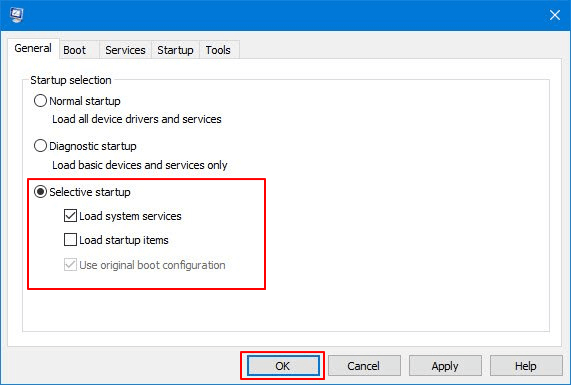
Step 2. Go to the "General" tab and choose "Selective startup". Under Selective startup, uncheck the "Load Startup items" box.
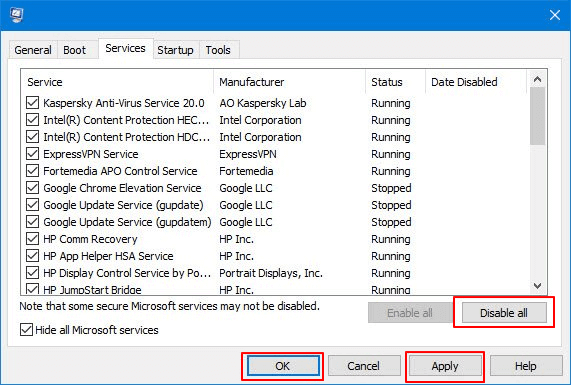
Step 3. To disable all services, click the "Services" tab, check "Hide all Microsoft services", click "Disable all", then click "Apply" and restart your computer.
Step 4. After your computer restarts in a clean boot state, press Windows key + R to open another Run dialog box. Then, open Command Prompt and run SFC or DISM again, inputting the following command lines.
DISM command line:
DISM.exe /Online /Cleanup-image /Restorehealth
SFC command line:
sfc /scannow
If Windows Resource Protection successfully fixes corrupt files in Safe Mode, it suggests that the issue might be due to software conflicts.
Fix 4. Run SFC from the Windows Recovery Environment (WinRE)
To fix Windows Resource Protection found corrupt files but was unable to fix some issue by running SFC utility in Windows Recovery Environment (WinRE), you can boot your PC from a Windows installation media, go to Troubleshoot > Advanced Options > Command Prompt, and then run the command "sfc /scannow" to scan and replace corrupted system files. This approach allows you to bypass the usual Windows boot process and directly access the SFC utility, which can help resolve the issue of Windows Resource Protection finding corrupt files but being unable to fix them.
Step 1. Boot from Windows installation DVD.
Step 2. Select "Repair Your Computer".
Step 3. Choose your target system.
Step 4. In the recovery tool panel, choose Command Prompt.
Step 5. In the command prompt window, type sfc scannow and press Enter.
If the SFC scan now found corrupt files but was unable to fix some of them, the error may persist. In this case, proceed to the final method, which involves replacing all Windows components to resolve the issue.
Fix 5. Perform a Windows 10 Repair-Upgrade
To fix Windows Resource Protection found corrupt files but was unable to fix some of them on Windows 10, one can perform a Windows 10 Repair-Upgrade, which replaces the system files with a known good version, potentially resolving the issue. This method can be initiated by going to Settings > Update & Security > Recovery, and selecting the "Reset this PC" option, which will allow you to choose to keep or remove files and apps.
A clean/repair install of Windows will erase all data on the installation drive, including personal files, system settings, and preferences. However, it's often the best solution to resolve issues.
To perform a repair install of Windows 10, follow the detailed instructions in the article "How to install Windows 10 from USB".
Conclusion
The post discussed various solutions to the Windows resource protection found corrupt files but was unable to fix Windows 10 error, including running the System File Checker, checking and repairing disk errors, running the Windows Update Troubleshooter, and reinstalling Windows. The post also mentioned using the Windows 10 installation media to repair the system, and using the Command Prompt to run the DISM tool to repair the system image. Additionally, the post suggested checking for malware, running a full system scan, and using the System Restore feature to restore the system to a previous point.
- Tip
- If none of the methods resolve the Windows Resource Protection issue, contacting the tech support team for 1-on-1 remote assistance via email or live chat may be helpful.
FAQs About Windows Resource Protection found corrupt files
The following are the highly relevant questions about sfc scannow found corrupt files but was unable to fix some of them. You can check the brief demonstrations if you also have any of these problems.
How do you fix Windows Resource Protection found corrupt files but was unable to fix some of them?
To resolve the issue with sfc /scannow unable to repair some files, you can try the following approaches. One possible solution is to run the command with administrator privileges, as running it as an administrator may resolve the issue.
- Check and repair hard drive errors
- Run DISM Command to fix corrupt files
- Run sfc / scannow in safe mode
- Run SFC from the Windows Recovery Environment (WinRE)
- Perform a Windows 10 repair install
How do I fix corrupted files in SFC Scannow?
You can run the command sfc/scannow in the Command Prompt to check and repair corrupted system files on your Windows device.
1. To open the Command Prompt with administrator privileges on a Windows computer, click the Search button and type "CMD" in the search bar. Right-click on the Command Prompt result and select "Run as Administrator" from the context menu. This will open a new Command Prompt window with elevated privileges.
2. Type SFC /scannow and hit enter
3. Wait for this process to complete
How do I fix SFC unable to fix corrupt files Windows 10?
Run the Windows update troubleshooter to see if it resolves the problem with Windows Updates. This tool is designed to identify and fix common issues that might be preventing Windows Updates from working properly.
Press the Windows Key, type "troubleshoot" and select it from the list.
2. To resolve the issue, select the "View all" option on the left panel and run the Windows update troubleshooter from the list.
3. To access the advanced settings, click on the "Advanced" option. Make sure the box next to "Apply repairs automatically" is checked.
4. Click "Next" and follow the on-screen instructions to complete the troubleshooting.
After that, run the System File Checker (SFC) scan to check if the issue persists.
Can corrupted files be restored? How do I fix corrupted files?
A corrupted file is a computer file that becomes unusable due to various reasons, but may be recoverable or require deletion and replacement.
You can use the corrupted file recovery tool - Deep Data Recovery within three steps:
1.Scan the hard disk for the corrupted files.
2.Select and preview the corrupted files you want to restore.
Fix corrupted files and recover them to a storage device.
Related Articles
- SFC SCANNOW Finds Corrupted Files But Unable to Fix [Solved]
- How to Use SSD and HDD Together at the Same Time
- Fix 'System C Drive Full' Error in Windows Server 2019/2016/2012
- How to Fix Service Host Superfetch High Disk Usage
- How to Fix SSD Health at 99% [Full Guide in 2024]
This guide will help you determine if SSD health at 99% is normal or not, and provide you with a tool to quickly and easily check SSD health. Additionally, you'll get some tips on how to maintain your SSD performance. - SSD Reports Wrong Size? Reasons and Fixes Here!
This guide is about addressing the problem of SSDs reporting the wrong size and some possible causes, and how to solve this issue to ensure excellent SSD performance.
Products
Articles & Tutorials
- Data Recovery
- Data Backup
- File Recovery
- File Backup
- System Backup and Restore
- Disk and Partition Clone
- Technical articles
- Mobile articles
- Disk Master Help
- Windows Data Recovery Tutorials
- Windows Secure Delete Tutorials
- Windows Partition Management Tutorials
- Windows File Backup and Restore Tutorials
- Windows System Backup and Restore Tutorials
- Windows Disk Backup and Restore Tutorials
- Windows Clone Tutorials