External SSD Slow Write Speed? Here are 4 Efficient Fixes
External SSDs are a great option for companies or individuals who need to transfer large amounts of data quickly and securely, offering faster access times than HDDs. However, some users have reported that their external SSDs have slowed down in writing, a problem that has been observed across various brands, including Seagate, Western Digital, and Toshiba. Fortunately, Qiling has conducted research and identified 4 effective methods to resolve this issue, which have helped many users overcome the "External SSD Slow Write Speed" problem.
How to Test External SSD Speed Accurately
If you suspect your external SSD is slowing down, you can use speed measurement software like Qiling Disk Master to get accurate read and write speeds, which is a more user-friendly option than using a command from the command prompt.
Step 1. To activate the "Surface test" feature in Qiling Disk Master, launch the software and navigate to the "Disk Management" tab page. Then, click the download button to enable the "Surface test" feature.
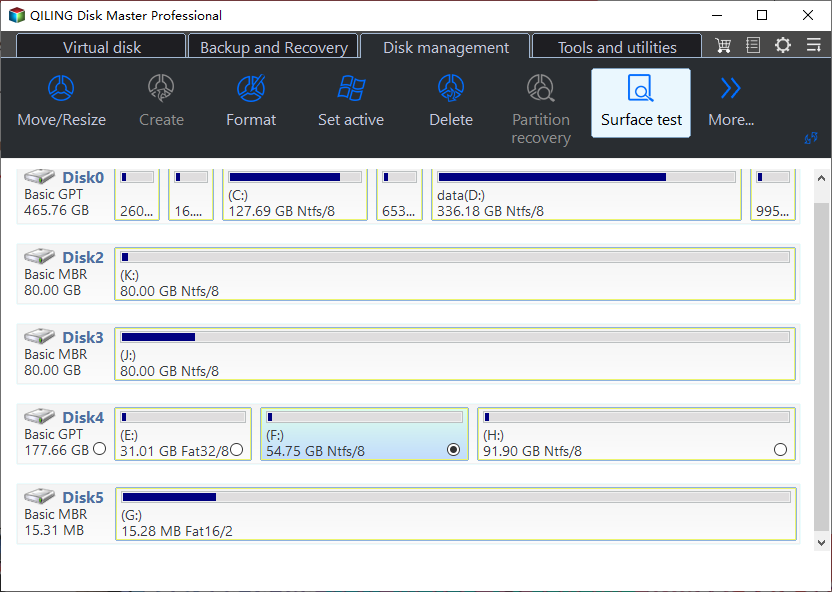
Step 2. To choose the target drive, test data, and block size, click on the drop-down box to select the desired options. This will allow you to specify the drive you want to test, the type of data to use for the test, and the block size for the test.
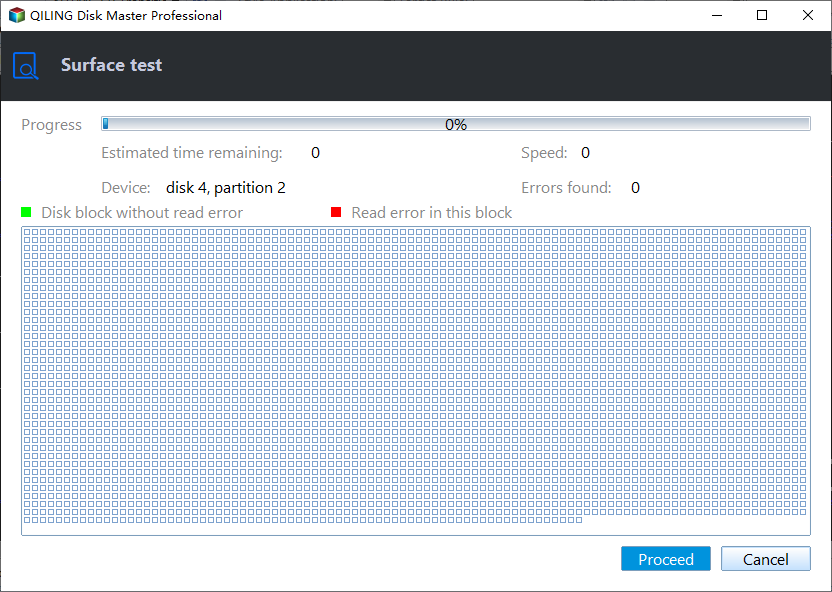
Step 3. Once everything is configured, click "Proceed" to begin the disk test, which will display sequential read speed, I/O, and delay data.

If you're experiencing slow speeds with your external SSD, compare the test result to the normal speed it should have. If it's significantly slower, it may be detrimental to your experience, especially if you frequently use your computer for tasks that require reading large amounts of data, such as video editing or playing games. To improve the situation, try the following fixes.
You can check out this video for more information on testing the speed of your SSD.
How to Fix External SSD Slow Write Speed Issue [4 Fixes]
Here are four effective ways to solve the slow writing speed of an external SSD:
- Fix 1. 4K Align the External SSD
- Fix 2. Clear cache in external SSD
- Fix 3. Choose Better Performance
- Fix 4. Check for Bad Sectors and Free Up Space on External SSD
Optimizing defragmentation on an external SSD can significantly improve its performance and speed. By following the steps outlined in Fix 1, you can effectively defragment your external SSD and enjoy faster data transfer rates and overall system responsiveness.
Fix 1. 4K Align the External SSD
4K alignment is a process that optimizes SSD performance by aligning partitions with the physical storage space, ensuring efficient data processing and minimizing read and write times. If not done, partitions may access twice the physical space, leading to slower performance and reduced optimal SSD operation.
We found a reliable third-party software, Qiling Disk Master, that can align SSD 4K in Windows 7, 8, 10, and 11, maximizing external SSD performance and speeding it up. The software proved to be effective, and the results were satisfactory. You can download it now.
Follow these steps to align an external SSD 4K with Qiling Disk Master:
Step 1. Go to "Toolkit" and choose "4K Alignment".
Step 2. Select the disk you want to align. Click the "Proceed" button.
Qiling Disk Master offers a range of features to manage SSDs and external SSDs, including disk cloning, disk wiping, and disk partitioning, among others, providing a comprehensive solution for users to maintain and optimize their storage devices.
- Test SSD read and write speed
- Merge/split partitions on SSD
- Locate bad sectors on external SSD
- Check file system error for external SSD
- Check SSD health on Windows 10/8/7/11
- Check SSD temperature on Windows 10/11
This tool allows you to manage your external SSD, improving its performance by optimizing its settings and features. It provides a user-friendly interface to monitor and control the SSD's activity, ensuring it runs smoothly and efficiently.
Fix 2. Clear Cache in External SSD
If an external SSD provides high transfer speeds for a short period but slows down after transferring a large amount of data, it's likely due to excessive caching. To resolve this, let the external SSD sit idle, connect it to a computer, and keep both the computer and external SSD awake for at least an hour. This allows the cache to clear, optimizing write performance.
Step 1. To connect an external SSD to a Windows PC, open the Settings app, navigate to System, and click on Storage. Then, choose the target external SSD from the list to prepare it for use.
Step 2. To delete temporary files, go to the "Temporary files" section, select the files you want to remove, and then click the "Remove Files" button.
Fix 3. Enable Write Caching for External SSD
Write caching uses volatile memory (RAM) to improve performance by collecting write commands sent to storage devices, but you need to safely remove the external storage device before disconnecting it from the computer.
Step 1. Connect your external SSD to your laptop/computer, then right-click on My Computer and select Manage.
Step 2. Select Device Manager, and expand Disk Drives. Next, right-click the external SSD for which you want to turn write caching on or off, and select Properties.
Step 3. To optimize storage performance, click on the Policies tab and select the option for Better Performance. Additionally, enable write caching on the device to improve data transfer efficiency.
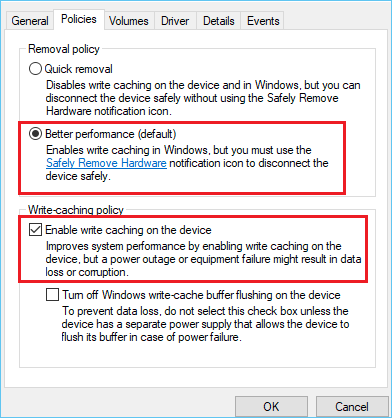
Step 4. Finally, click OK.
Fix 4. Check for Bad Sectors And Free Up Space on External SSD
Bad sectors and low disk space can cause a slow external SSD. To resolve this, you can check for bad sectors on your external SSD and free up space on it by deleting unnecessary files and emptying the recycle bin. This can help improve the performance of your external SSD.
Guide 1. Locate Bad Sectors on External SSD
Qiling Disk Master can help locate bad sectors on your external SSD by running a disk surface test. You can download it and follow the steps below to do so.
Step 1. Open Qiling Disk Master, right-click the disk you want to check and select 'Surface Test' to run the surface test.
Step 2. The operation will be performed immediately, marking all bad sectors as red.
Guide 2. Free Up Space on External SSD
When an external SSD runs out of storage space, its performance slows down, affecting read and write speeds. To resolve this, you can free up space by deleting unnecessary files, programs, or duplicate files.
The Qiling Partition software has an "analyze the disk space" feature that allows users to examine the storage structure of their external SSD, identify the files consuming the most space, and remove them with a single click.
Why Does the External SSD Slow Write Speed Issue Appear
External SSDs can be frustrating when they slow down, but here are some common causes: issues with the drive's firmware, corrupted files, overheating, physical damage, or compatibility problems with the computer or operating system. These problems can cause the drive to become sluggish or unresponsive, making it difficult to access files or transfer data. Regular maintenance, such as updating firmware and checking for physical damage, can help prevent slowdowns and ensure optimal performance.
- 🧩Too much cache;
- ⚙️Insufficient storage space;
- 🚩The insufficient power supply of the interface;
- 💡External SSD has bad sectors or viruses;
Large data transfers on some external SSDs may cause performance issues when the drive cache is filled, while storing excessive data or malware can also slow them down.
You may also like the following topics:
If you're wondering whether your external SSD has become slow, there are ways to check and test its performance. You can start by checking the drive's specifications and comparing them to its actual performance. Look for signs of wear and tear, such as physical damage, excessive heat, or unusual noises.
Conclusion
External SSDs can become slower over time due to cache buildup, fragmentation, and bad sectors, among other issues. Clearing cache and defragmenting the SSD can help, but more advanced solutions are available. Qiling Disk Master can optimize external SSD performance through 4k alignment and defragmentation, and also identify bad sectors through surface tests. If you find these methods helpful, consider sharing this article to spread the word.
External SSD Slow Write Speed FAQs
If you're experiencing slow write speeds with your external SSD, it may be due to a variety of factors, including the type of interface used (USB 2.0, USB 3.0, or USB-C), the SSD's capacity and speed, and the computer's processing power. Additionally, issues with the SSD itself, such as a faulty controller or worn-out NAND flash memory, can also contribute to slow write speeds.
1. Why do I get a very slow SSD write speed on Mac?
SSDs often report speeds below their maximum capabilities due to various factors. The constant reading and writing to the boot drive can lead to poor performance, while the SSD itself performs maintenance and garbage collection routines, including TRIMming, which can also slow it down. When the SSD is wiped and the system boots from an external drive, speeds may approach the rated speed, but once the SSD's write cache is exhausted, performance will decline.
2. Why is the SSD slow when loading a game?
If you're experiencing a low disk space error or high SSD temperature, try cooling down your SSD and freeing up space on it. This should resolve the issue and allow you to load the game again.
3. How to fix my M.2 SSD slow write speed error?
A slow write speed issue on an SSD can be caused by various factors, including overheating, outdated firmware, disk fragmentation, low disk space, or insufficient power supply. To resolve this error, consider enabling write caching, freeing up more space on the drive, installing a heatsink to prevent overheating, or 4K aligning the SSD to optimize its performance.
Related Articles
- 3 Easy Ways on How To View Partitions (2023)
- How to Wipe Xbox One Hard Drive on Windows - Full Guide
- How to Fix Seagate External Hard Drive Write Protected
- Toshiba USB Flash Drive Write Protected Removal/Format Solutions
- How to Format M.2 SSD? [Easy Instructions]
How to format M.2 SSD? Users have to format a new M.2 SSD before storing data on it. This article will address the steps to install and format M 2 SSD. - How to Format NVMe SSD in Windows 10/11 [Full Guide]
Formatting an NVMe SSD on Windows 10/11 involves a step-by-step process. To easily format your NVMe SSD, consider the following techniques: a tutorial provides a detailed guide, and three great methods are outlined to help you format your NVMe SSD.
Products
Articles & Tutorials
- Data Recovery
- Data Backup
- File Recovery
- File Backup
- System Backup and Restore
- Disk and Partition Clone
- Technical articles
- Mobile articles
- Disk Master Help
- Windows Data Recovery Tutorials
- Windows Secure Delete Tutorials
- Windows Partition Management Tutorials
- Windows File Backup and Restore Tutorials
- Windows System Backup and Restore Tutorials
- Windows Disk Backup and Restore Tutorials
- Windows Clone Tutorials