How to Wipe Xbox One Hard Drive on Windows - Full Guide
Wiping your Xbox One hard drive can be a useful step to protect your privacy, especially if you're selling or replacing your console. To delete everything simultaneously from your Xbox One hard drive, you'll want to learn the proper methods to save time and achieve this goal quickly. Whether you're looking to start fresh or prepare for a new console, this guide will walk you through the steps to wipe your Xbox One hard drive efficiently.
Let's look at the below table; we'll learn these two methods practically:
| ⚙️Complex Level | Low |
| ⏱️Duration | 3-5 Minutes |
| 💻Applies to | The Xbox One X and Series X/S consoles, as well as other Xbox models, have a built-in feature called Quick Resume, which allows users to resume playing games from where they left off. However, if you want to completely wipe the hard drive and start fresh, you can do so by going to Settings > System > Storage > Console Storage, and then selecting the "Clear local saved games" and "Clear local saved game data" options. |
| ✏️Ways |
To wipe an Xbox One's hard drive, you can follow these steps: Go to Settings, then System, and select Storage. From there, choose the option to Clear Local Saved Games, which will delete all user data, but keep the console's system software intact. Alternatively, you can perform a full factory reset by going to Settings, then System, and selecting Reset console.
💡You can format an Xbox One hard drive on either a Windows PC or the Xbox One console. To do so on a Windows PC, you can follow the instructions, while on the Xbox One console, you can simply go to Settings, select Storage, and then choose the "Format" option to erase the drive and restore it to its factory settings.
Wipe Xbox One Hard Drive on Windows PC
To wipe your Xbox One hard drive on Windows, use a reliable tool like Qiling Disk Master, which securely deletes data without recovery. This tool allows you to delete and wipe data from the Xbox One hard drive, making it impossible to recover any information. You can download Qiling Disk Master and follow the steps to wipe your Xbox One hard drive quickly and safely.
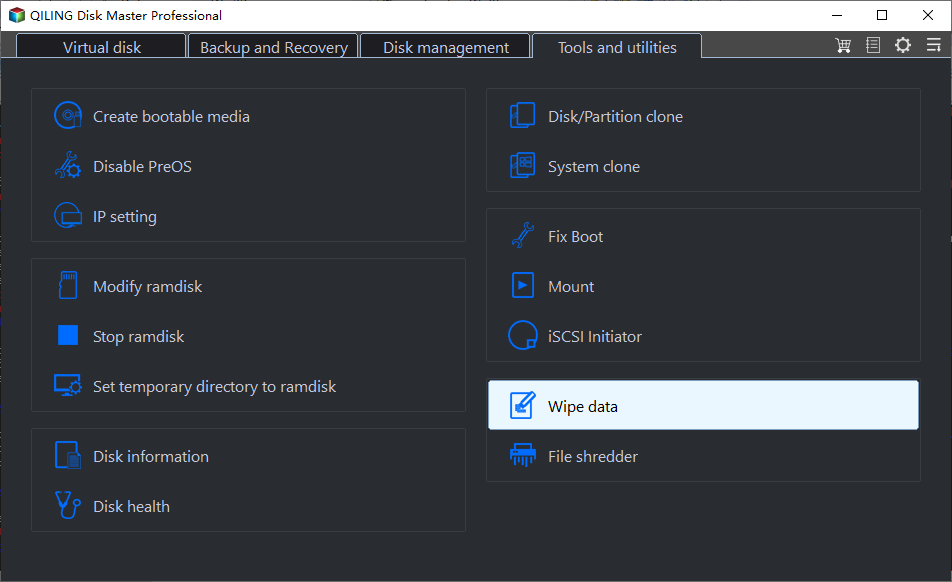
Step 1. Connect the external device to the PC, then right-click on it and select "Wipe Disk" from the context menu.
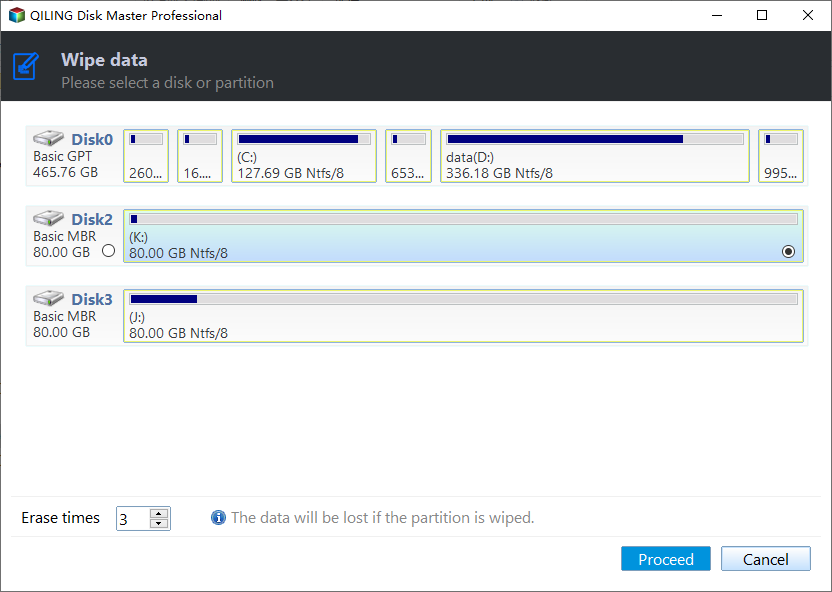
Step 2. Set the number of times to wipe data. You can set it to 10 at most.
Step 3. Click "Proceed" button to start wiping disk.
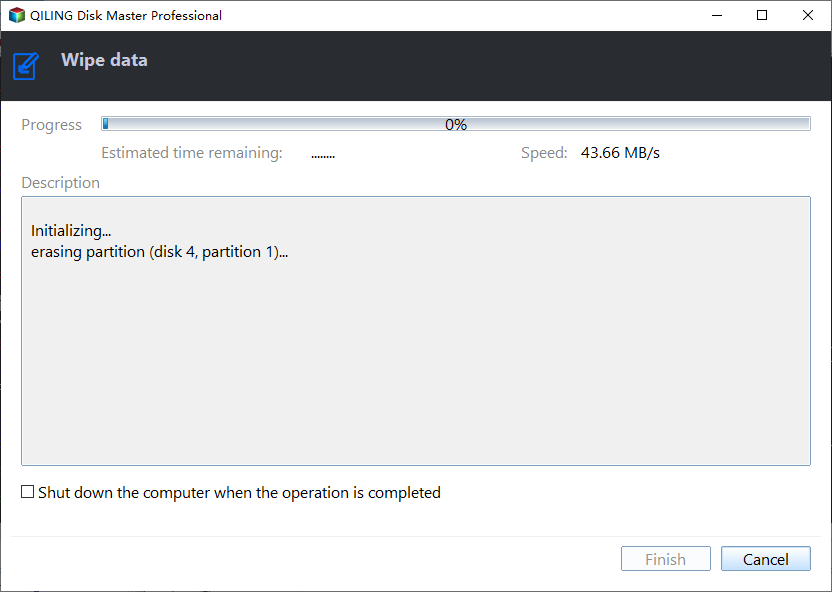
Qiling Disk Master offers a range of advanced features beyond just wiping an Xbox One hard drive, including.
- Wipe unallocated space
- Format SSD for Xbox One
- Upgrade Xbox One hard drive
- Clone Xbox One hard drive
- Wipe the hard drive before selling
- Initialize hard drives for Xbox One
If you're not tech-savvy, Qiling Disk Master can be a helpful tool to manage your Xbox One hard drives, making it easier to use even for those who are not computer experts.
To wipe the hard drive of an Xbox One, you can use a tool like DBAN (Darik's Boot and Nuke) or a similar software, which can completely erase the drive. Alternatively, you can use the built-in Disk Management tool in Windows to format the drive. This process will completely erase all data on the drive, making it suitable for resale or reuse.
- Warning
- Data deleted by Disk Management and Command Prompt can be recovered if someone attempts to do so, provided the right tools and expertise are utilized.
Use Disk Management to Format Xbox One Hard Drive:
Step 1. Right-click the Windows icon and launch Disk Management.
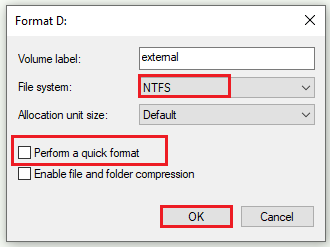
Step 2. To format your Xbox One hard drive, right-click on it and select Format. Choose NTFS as the file system and uncheck the box for "Perform a quick format" to ensure a full format, then click OK to begin the formatting process.
Use Command Prompt to Format Xbox One Hard Drive:
Step 1. To open Diskpart, press the Win + R keys to open the Run dialog, type "diskpart" and press Enter.
Step 2. In the Diskpart window, type the following commands and hit Enter after each command.
- list disk
- select disk * (* represents the number of the Xbox One hard drive)
- list partition
- select partition * (* stands for the number of the disk you want to format)
- format fs=ntfs quick
- exit
To protect your privacy, it's recommended to wipe the Xbox One hard drive before selling it, using Disk Management and Command Prompt to securely erase all data. This will ensure that any personal information is completely removed.
You may also like:
Wipe Xbox One Hard Drive via Resetting Xbox One
If you want to delete everything on your Xbox One hard drive, you can reset your console directly, which will wipe all data, including accounts, stored games, settings, and home Xbox affiliations, making it unrecoverable.
Follow the steps to wipe Xbox One hard drive via resetting:
Step 1. Press the Xbox button to start the guide.
Step 2. Choose Profile & System> Settings > System > Console info.
Step 3. Choose "Reset console."
On the Console screen, after selecting Reset, you'll see three options displayed on the screen.
- The first option resets your console to factory settings, erasing all user data including accounts, installed games, system settings, home Xbox associations, and all game data.
- If you want to troubleshoot, you can choose the option to reset and keep your games and apps, which will reset the OS, delete corrupted data, and keep your games and apps intact.
- To wipe the Xbox One hard drive, we select the first option, "Erase all of my data," which will completely remove all data, settings, and apps. If you've changed your mind, you can choose the "Cancel" option instead. This guide focuses on erasing the hard drive, so we proceed with the first option.
Step 4. The Xbox One's hard drive is completely wiped by selecting "Reset and remove everything," which prompts a wait while the process is completed.
💡This is the official guide provided by Xbox, so you can believe and try it.
When Do I Need to Wipe Xbox One Hard Drive
Wiping the Xbox One hard drive is necessary to maintain privacy and security. This may be required due to personal reasons, but common and crucial reasons include ensuring the console's performance and security, removing sensitive data, and addressing potential issues with the device.
Here are some common cases where you may need to perform a wipe: when you want to remove all data from a device, including personal information and settings, typically before selling or giving away a device; when you want to troubleshoot and resolve software issues by restoring the device to its factory settings; when you want to remove malware or viruses that have infected your device; when you want to remove all data and settings from a device that has been used for business purposes, such as a company phone or tablet, to prepare it for resale or reuse.
Possible cases/situations:
- Before selling or giving away your Xbox One.
- If you're experiencing persistent performance issues or errors, it's possible that the cause lies in the underlying system or hardware, rather than any specific software or application. In this case, a thorough diagnostic analysis may be necessary to identify the root cause of the problem.
- When upgrading to a new Xbox console.
- To reset your Xbox One, follow these steps: Turn off your console, unplug it from power, and wait for 30 seconds. Then, press and hold the Bind button on your controller while plugging the power cord back in.
To wipe an Xbox One hard drive, you can either perform a factory reset or use the built-in storage reset feature. The factory reset will erase all data, including games, apps, and settings, and return the console to its original state. The storage reset will delete all data, but keep the console's settings and apps. Both methods can be done by going to the Settings menu, selecting "System", and then "Storage". From there, you can choose the desired option and follow the prompts to complete the process. This provides you a clean slate and free up space on your hard drive.
Editor's Thought
Wiping your Xbox One hard drive is a crucial step to protect your privacy and ensure that your personal data doesn't fall into the wrong hands. You can accomplish this task using two efficient methods, which are very simple and can be chosen based on personal preference.
Read Also:
For Windows PC users, Qiling Disk Master is a reliable and user-friendly solution that offers features such as secure data wiping and partition management, making it an excellent choice for wiping your Xbox One hard drive, and we highly recommend downloading and using it for a hassle-free experience.
Wipe Xbox One Hard Drive FAQs
If you're looking to wipe your Xbox One's hard drive, you can do so by going to Settings > System > Storage > Clear Local Saved Games and then selecting the option to delete all data. This will erase all data on the hard drive, including games, apps, and saved games. Alternatively, you can also reset your Xbox One to its factory settings, which will also erase all data on the hard drive.
1. Will a hard reset delete everything on my Xbox One?
A hard reset on Xbox One will erase all data, settings, games, apps, and profiles, effectively restoring the console to its factory settings, protecting user privacy and preparing it for resale.
2. How do I factory reset my Xbox to clear everything?
To factory reset your Xbox One, go to Profile and System > Settings > System > Console info, select 'Reset console,' and choose 'Reset and remove everything.'
3. How do I clear my Xbox One cache?
To clear the cache on your Xbox One, power it off, unplug it for 10 seconds, then plug it back in and turn it on. This will automatically clear the cache.
Related Articles
- 5 Best SD Card Formatter FAT32 Free Download for Windows
- Locate, Remove and Delete Large Files in Windows
- [Allocation Unit Size FAT32 Guide] What Allocation Unit Size Should I Use for FAT32
- How to Extend Partition Using Diskpart [Step-by-Step Guide]
- How to Format 128GB SD Card to FAT32
You can download a FAT32 formatting tool to format a 128GB SD card to FAT32, as Windows may not allow it natively. - Three Simple Ways to Format a Bootable SD Card (Useful Tips)
You are going to learn at least three ways to format a bootable SD card in Windows 11/10/8.1/8/7. Among these solutions, formatting an SD card with third-party software is my recommendation.
Products
Articles & Tutorials
- Data Recovery
- Data Backup
- File Recovery
- File Backup
- System Backup and Restore
- Disk and Partition Clone
- Technical articles
- Mobile articles
- Disk Master Help
- Windows Data Recovery Tutorials
- Windows Secure Delete Tutorials
- Windows Partition Management Tutorials
- Windows File Backup and Restore Tutorials
- Windows System Backup and Restore Tutorials
- Windows Disk Backup and Restore Tutorials
- Windows Clone Tutorials