How Do I Password Protect My Files and Folders [All You Should Know]
You likely have sensitive files and folders on your computer that you don't want others to access, such as financial records, personal photos, or a confidential document you've been working on for months.
Password protecting your files and folders is a great way to keep them safe, and it's a simple process. To do this, you can use the built-in security features of your computer or mobile device, such as setting a password or PIN, or using a third-party app like a password manager. This will ensure that only authorized individuals can access your sensitive information, keeping it secure and private.
What Is the Difference Between Password Protection and Encryption?
People often confuse password protection with encryption. To clarify, password protection involves securing access to files and folders by requiring a login or password, whereas encryption scrambles data to make it unreadable to unauthorized parties. Understanding the difference between these two methods is essential to effectively safeguard your digital assets.
File protection is a way to ensure that only authorized individuals can access your files. This can be achieved by setting a password, for instance, which prevents unauthorized people from accessing your files unless they know the password.
File encryption is a method of encoding data, making it unreadable to unauthorized individuals, even if they gain access to the files.
How Do I Password Protect the Files and Folders?
To protect files and folders, you can use the built-in Windows feature called "File Explorer" to create a password-protected folder or file. This will require the user to enter a password to access the contents.
Password Protecting Files and Folders Using the 7-Zip Method
Step 1. To get started, download and install the latest version of 7-Zip on your personal computer.
Step 2. Select "7-Zip File Manager" in your Windows directory.
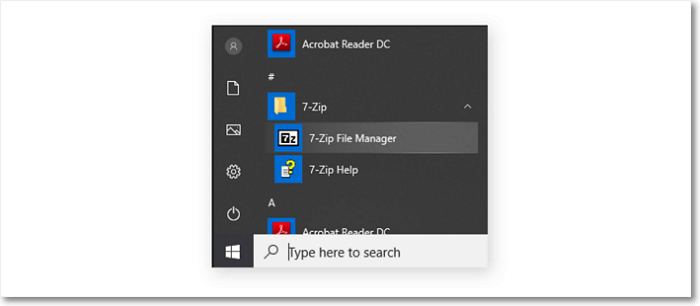
Step 3. To password protect a file or folder using 7-Zip, navigate to the control panel, select the item you want to protect, and click "Add."
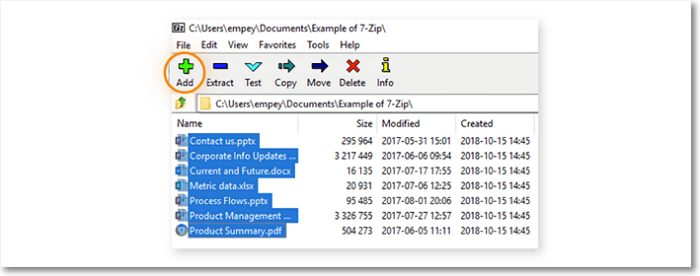
Step 4. To choose any compression options of your liking, see the image below.
- Name your encrypted file with a random name of your choice. This will help keep your encrypted file anonymous and secure.
- Now it's time to set a strong password under the encryption section.
- Set the compression level to High and the compression method to AES-256.
- Click "OK."

Step 5. To decompress your folder, simply right-click on it and select "Extract All" from the context menu. This will extract all the files from the compressed folder, giving you access to them.
- In your 7-Zip, choose the folder or file you want to open.
- Next, tap on the "Extraction" button.
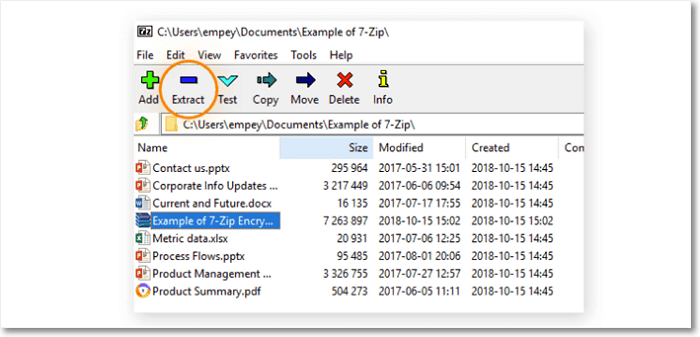
Step 6. To log in to the system, enter your password in the dialogue box, and click "OK."
Why Do You Password Protect the Files and Folders?
Protecting folders with passwords is crucial because it safeguards sensitive information and prevents unauthorized access. This is particularly important for personal and professional files that contain confidential data, financial information, or business strategies. By password-protecting folders, you can ensure that only authorized individuals have access to the contents, reducing the risk of data breaches, identity theft, and other security threats.
Reason 1. Provides Another Level of Security
Security is the most common and important reason to password protect your files and folders, providing an additional layer of protection to sensitive information or data.
Password protection adds an extra layer of security to critical or confidential files, preventing unauthorized access. If someone tries to access password-protected files without the correct password, they will be denied access.
Reason 2. Protects Your Files During Transmission
Password protection of files and folders encrypts their contents, making them secure during transmission. It requires the user's password to decrypt, restricting access to authorized individuals. This ensures that only the intended person can open or access the file or folder.
Reason 3. It Limits the Chances of Hacking
Password protection is an excellent option for adding an extra layer of security to sensitive files and folders, reducing the risk of unauthorized access.
Conclusion
If you want to password protect your files and folders, you can use various methods, such as the 7-Zip method, which we used. The choice of method depends on your specific needs and preferences.
We recommend using the built-If you're looking for a simple way to encrypt files on Windows, you can use the built-in encryption tool. However, for a more secure solution, consider using a third-party tool like TrueCrypt or VeraCrypt, and always keep your passwords safe and secure.
FAQs
1. How to create a private folder?
You can password protect your files and folders using a third-party application, such as Folder Lock on Windows or Concealer on Mac, to add an extra layer of security.
To create a password-protected ZIP file on Windows, right-click on the file or folder you want to protect, select "Add to ZIP," and enter a password in the "Encryption" field. This will add an extra layer of security to your file or folder, keeping it safe from unauthorized access.
On a Mac, you can password protect your files by creating an encrypted disk image using Disk Utility, selecting "Read/Write" format and "AES-128" encryption.
You will be prompted to enter and confirm a password for the disk image. Once created, you can drag and drop files into it like any other folder.
2. What does an encrypted folder mean?
When you encrypt a folder, it scrambles the files inside, making them unreadable without a key or password, adding an extra layer of security to protect sensitive data.
3. How to password protect a folder in an email?
To protect a folder in an email, open your email client, click Tools, then Options, and select the Security tab. From there, check the box next to Always require a password and click OK to save the changes.
Related Articles
- How to Create an Encrypted Virtual Drive on Windows
Store sensitive files inside an encrypted virtual drive instead of relying on folder-level password protection. - How to Hide Files with Encryption on Windows
Hide files by encrypting them inside a password-protected container instead of just locking a folder. - Forgot Encrypted Drive Password? What to Do
Understand why encryption has no recovery key, and build a password habit that protects the files you protect. - How to Change the Read/Write Permission on a Flash Disk/Memory Card
- All Information About WannaCry Virus [Updated 2022]
Learn about the WannaCry ransomware virus - its definition, impact, how it spread globally, and preventive measures to protect your computer from future attacks. - Ways to Delete Windows 7 Backup [Updated 2023]
You need to delete Windows 7 backup on your computer, and this article will guide you through the process. It provides information on why deleting the backup is necessary and offers a step-by-step guide on how to do it.
Products
Articles & Tutorials
- Data Recovery
- Data Backup
- File Recovery
- File Backup
- System Backup and Restore
- Disk and Partition Clone
- Technical articles
- Mobile articles
- Disk Master Help
- Windows Data Recovery Tutorials
- Windows Secure Delete Tutorials
- Windows Partition Management Tutorials
- Windows File Backup and Restore Tutorials
- Windows System Backup and Restore Tutorials
- Windows Disk Backup and Restore Tutorials
- Windows Clone Tutorials