How to Install Windows 11 Without Microsoft Account
Windows 11 is Microsoft's latest operating system, offering dependability, safety, and an improved user experience. Many users want to install it on their computers, but some may wonder how to do so without a Microsoft account.
If you want to set up Windows 11 without a Microsoft account, don't worry - this article from Qiling has got you covered. It explains the various ways to do so and provides an easy-to-use tool called Qiling OS2Go to make the process even smoother. So, let's get started.
Can Windows 11 Be Installed Without a Microsoft Account
Windows 10 currently dominates the global market share, but its support will end on October 14, 2025. As a result, users are opting for Windows 11, which offers enhanced security features and improved technical support.
On Windows 11 Pro, when installing the 22H2 version or later, you'll be prompted to choose between work or personal use, and you must sign in with a Microsoft account if selecting personal use, while also adhering to Windows 11 requirements.
Under such circumstances, are you wondering questions like, "Do I need a Microsoft account to install Windows 11?", "Can I run Windows 11 without a Microsoft account?" or "How do I skip a Microsoft account when installing Windows 11?"
Windows 11 can be installed without a Microsoft account, specifically for the Home version, and this is also possible for Windows 10.
You don't need a Microsoft account to install Windows 11, and it's free anyway. However, there are some reasons why you might want to install it without one, and in the next part, you'll learn how to do that. So, keep reading!
How to Setup Windows 11 Without Microsoft Account
To bypass Microsoft account settings during Windows 11 setup, you can try the following methods: disable your internet connection before proceeding, use a local account instead of a Microsoft account, or use a Windows 11 ISO file to install the operating system without going through the Microsoft account setup process. These methods can help you avoid setting up a Microsoft account for home or personal use on your computer.
- Way 1. Using Windows Installation Program
- Way 2. Using Task Manager
- Way 3. Using Local Account
- Way 4. Running OOBE\BYPASSNRO command
Way 1. Using Windows Installation Program
Creating a bootable USB drive is a common method for installing Windows, especially when deploying the operating system to multiple computers. A professional tool like Qiling OS2Go can be used to create a bootable USB, making it easier to install an operating system and streamline the process.
Qiling Disk Master is a tool that enables the creation of a Windows To Go Creator, compatible with Windows 11/10/8/7, allowing users to create a bootable USB to install Windows 11 without requiring TPM and Secure Boot, and also without a Microsoft user account.
This tool allows you to create a bootable USB flash drive with or without an ISO file, and can be used to create a Windows 11 bootable USB from ISO, play Windows games on a Mac, install 2 operating systems on a computer, and install Windows 11 without a Microsoft account creation.
To create a Windows 11 installation drive using Qiling OS2Go, you can follow these steps: First, download and install Qiling OS2Go on your computer. Once installed, launch the Qiling OS2Go application and select the Windows 11 version you want to create an installation drive for. Next, choose the desired language and architecture (32-bit or 64-bit) for your installation drive.
After creating the bootable drive, you can use it to clean install Windows 11 without an account.
Way 2. Using Task Manager
Windows Task Manager is an excellent Windows program conducive to coping with problems on your computer. And you can use Task Manager to stop the Network collection flow procedure and get around Windows 11 Home edition's installation requirement for a Microsoft account. Here is how to go for it.
Step 1. To install Windows 11, run the installation process as usual. When the "Let's connect you to a Network" prompt appears, press the Shift + F10 keys to open the Command Prompt.
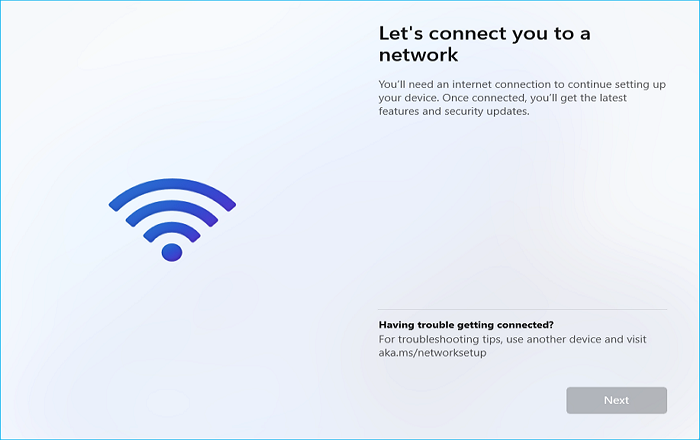
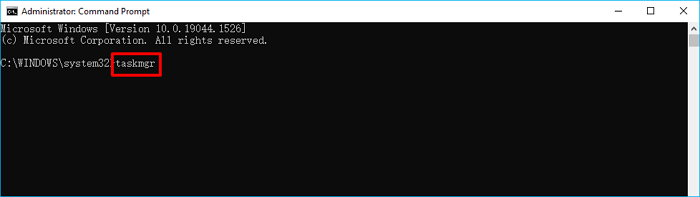
Step 2. Type taskmgr and press Enter to launch the Task Manager.
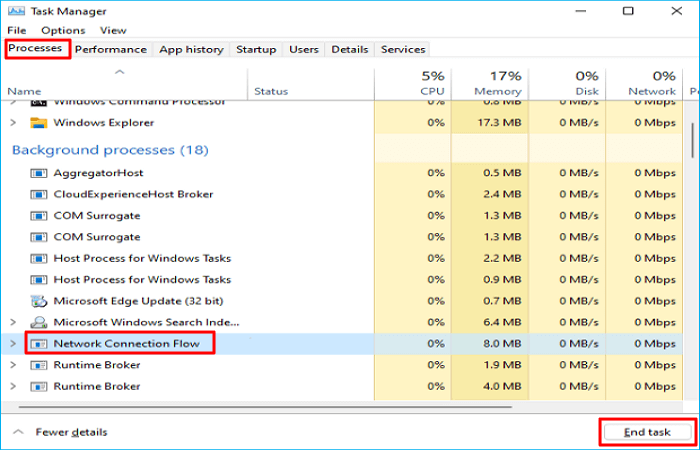
Step 3. To stop the Network Connection Flow process, go to the Processes tab, find Network Connection Flow, click on it, and select End task.
Step 4. Exit Task Manager and Command Prompt. Then, you can return to the Windows 11 setup page, where it will ask you to enter a local account to sign in to this computer. From there, you can follow the setup wizard to install Windows 11 with a local account.
Way 3. Using Local Account
To install Windows 11 Pro without a Microsoft account, you can switch the sign-in method to an offline account during installation. This allows you to install Windows 11 without logging into your Microsoft account. By doing this, you can install Windows 11 Pro without needing a Microsoft account.
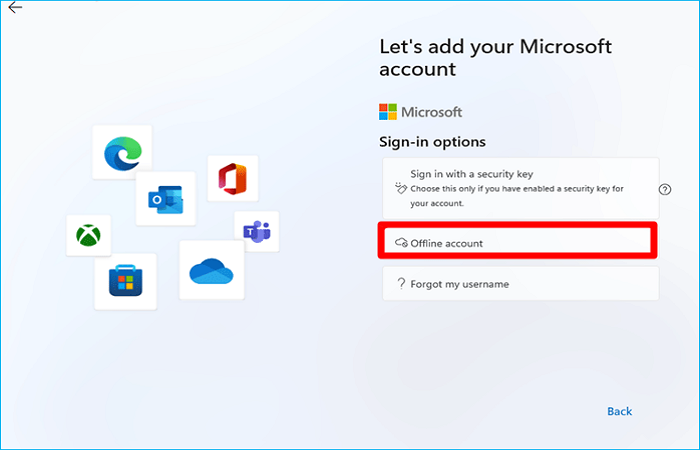
Step 1. To bypass the Microsoft account requirement during the Windows 11 installation process, continue with the installation until it prompts you to add a Microsoft account. At this point, select the "Sign-in" option on the window titled "Let's add your Microsoft account".
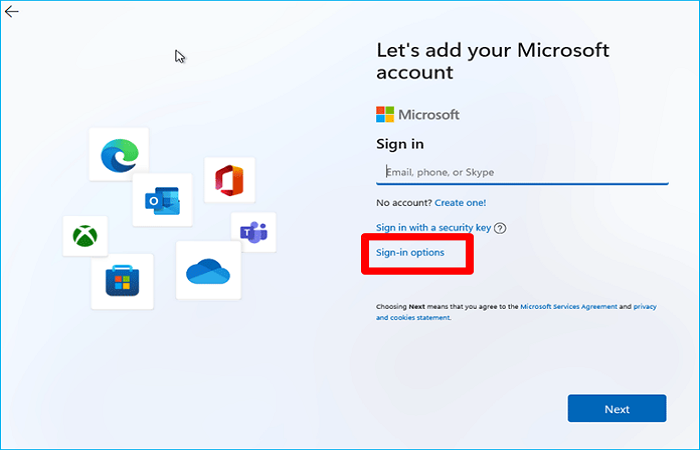
Step 2. Select Offline account.
Step 3. Tap Skip for now.
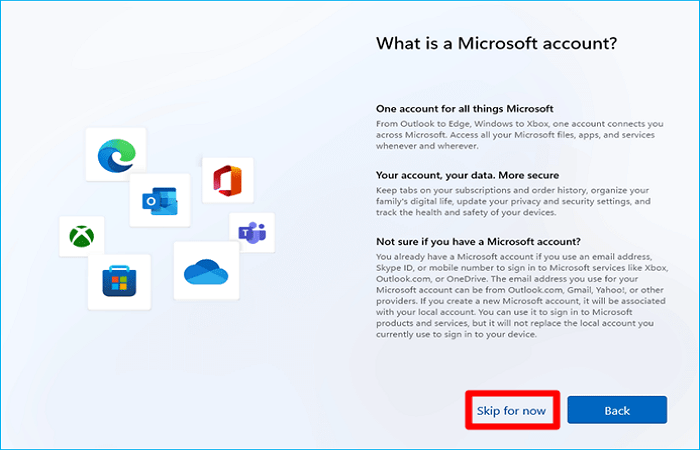
Step 4. To install Windows 11, start by creating a local account on your device. You can do this by following the on-screen wizard and selecting the option to create a local account instead of signing in with a Microsoft account.
Way 4. Running OOBE\BYPASSNRO Command
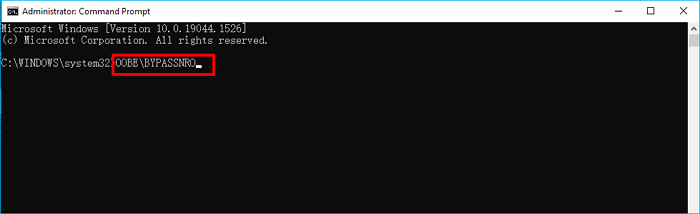
OOBE\BYPASSNRO is a registry key that allows you to bypass the Windows 11 setup requirement for a Microsoft account during the out-of-box experience (OOBE). By executing this command, you can avoid needing a network connection and still complete the setup process. This method can be used to stop the Windows 11 setup requirement for a Microsoft account, allowing you to complete the setup process without an internet connection.
Step 1. Continue the Windows 11 installation process until you see "Let's connect you to a Network" on your screen. Press the Shift + F10 keys simultaneously to launch the Command Prompt.
Step 2. Type OOBE\BYPASSNRO and press Enter.
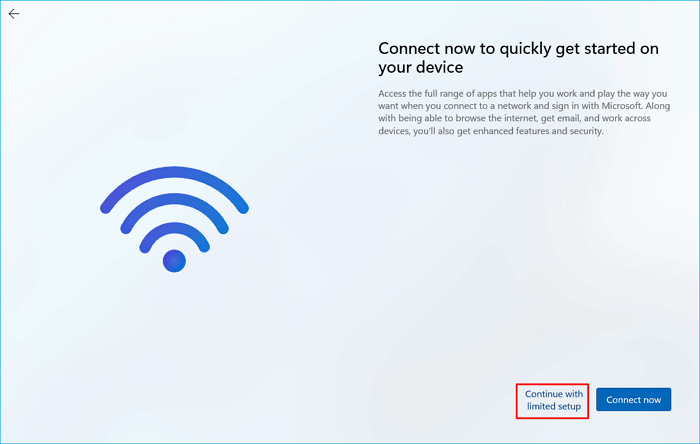
Step 3. You'll then return to the same OOBE page after your computer has been rebooted. Click I don't have internet.
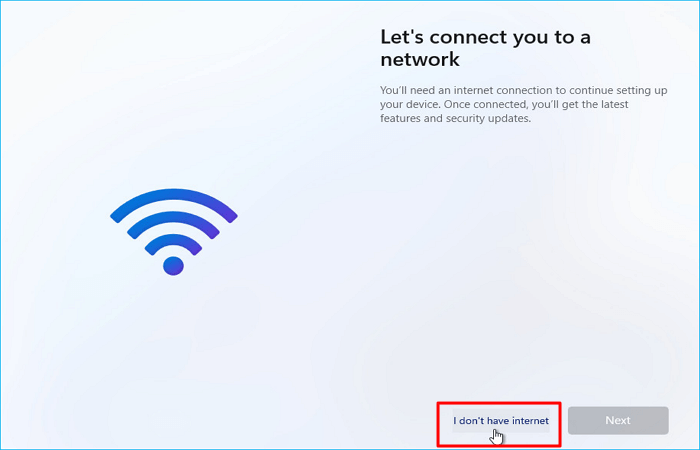
Step 4. To install Windows 11, click "Continue" with limited setup, then use a local account to install the operating system, bypassing the network connection and Microsoft account requirement.
To Wrap Things Up
This tutorial will guide you on how to install Windows 11 without a Microsoft account in 4 different ways. Before proceeding with any method, we recommend that you back up your files or folders.
Qiling OS2Go can assist you in bypassing your Microsoft account for Windows 11 setup, creating a Windows 11 bootable USB, and performing other tasks, providing valuable functions to explore.
FAQs on How to Install Windows 11 Without Microsoft Account
1. What happens if I remove my Microsoft account from my computer?
If you're deleting an MS account that's a local account, you'll lose everything associated with it that's stored on your computer, so make sure to back up your info first. This includes all the data that's currently linked to that account.
2. Is Windows 11 forced to use Microsoft account?
Microsoft has updated its requirements for Windows 11, stating that users will need both an online connection and a Microsoft account to install future versions of the operating system, affecting both Pro and Home users.
3. Why do I need a Microsoft account?
With your Microsoft account, you can manage everything from one place, including tracking your computer's health and safety, monitoring subscriptions and order history, organizing your family's digital life, adjusting privacy and security settings, and earning rewards.
Related Articles
- 3 Ways to Run EXE Files on Mac Computers
- Windows To Go for Mac: How to Install and Use
- How to Effectively Create Bootable Windows 7 USB Drive
- 2 Ways - How to Run Windows Apps on Mac
- Step-by-Step Guide: How to Run Windows 10 from USB Drive
How to run Windows 10 from USB drive? Firstly, make the USB drive bootable and insert the USB into the PC and enter BIOS to change boot order. - How to Transfer Windows 10 to a USB Flash Drive?
If you want to transfer Windows 10 to USB and make it bootable, you can use the Windows 10 built-in function Windows To Go or via third-party software – Qiling Disk Master Professional.
Products
Articles & Tutorials
- Data Recovery
- Data Backup
- File Recovery
- File Backup
- System Backup and Restore
- Disk and Partition Clone
- Technical articles
- Mobile articles
- Disk Master Help
- Windows Data Recovery Tutorials
- Windows Secure Delete Tutorials
- Windows Partition Management Tutorials
- Windows File Backup and Restore Tutorials
- Windows System Backup and Restore Tutorials
- Windows Disk Backup and Restore Tutorials
- Windows Clone Tutorials