How Do I Remove or Repair Programs in Windows Server
How Do I Uninstall and Repair Software in Windows Server?
As a Windows Server user, you may frequently need to uninstall and repair software due to various reasons. Whether it's to resolve issues, update software, or simply remove unwanted programs, this process can be a common occurrence. However, if you're experiencing frequent uninstall and repair needs, it's worth investigating the underlying cause to ensure your server is running smoothly and efficiently.
If you no longer want to use the software, need to free up disk space, or if it's causing issues due to frequent crashes or virus infection, you may need to repair or completely remove it.
If you need to remove or repair programs in Windows Server, you're in the right place! This post will guide you through the process, following the methods below to resolve your issue.
#1. Use App Repair Software to Remove or Repair Programs in Windows Server
Removing or repairing programs in Windows Server processes can be a technical challenge for regular users. However, there's a simpler solution: using third-party tools that can make the process quicker and easier with just a few clicks.
For Windows Server users looking to remove or repair programs, there are several tools available, but the Qiling Disk Master Technician is a highly recommended option. This tool is free to download and offers a free trial for new users, making it a safe and reliable choice. With its advanced technology and valuable features such as file and data transfer, flexible transfer solutions, program transfer, and 24/7 free technical support, the Qiling Disk Master Technician is a great tool for managing applications.
The App management feature in Windows Server allows users to repair or remove apps and programs with ease. The user-friendly interface makes this process straightforward. This tool is effective in quickly repairing and removing programs, making it a useful feature for Windows Server users. To use it, follow the steps provided.
Step 1. To secure your device, go to App Management, click "Start" to uninstall your apps and repair any damaged apps.
Step 2. To uninstall or repair an app on your PC, select the one you want to modify and click on it. If the uninstall process fails, you can click the small triangle icon and select "Delete" to remove the app.
Step 3. To uninstall an app, click the "Uninstall" button. If you want to repair an app instead, click the icon behind "Uninstall" and select "Repair".
#2. Use Control Panel with Programs and Feature Tool to Remove or Repair Programs
To remove or repair programs on a Windows server system, use the Programs and Features option in the Control Panel. This tool allows you to quickly repair or remove problematic programs, and can be accessed by following the exact steps below.
To repair a program via Control Panel
To repair program via Control Panel, follow these given steps
Step1: To access the Control Panel, type "Control Panel" into the search box and click on the "Control Panel" icon. In the Control Panel window, click on the "Programs" menu.
Step 2: To access the list of installed desktop programs, click on the "Programs" option. This will display a list of programs currently installed on your system.
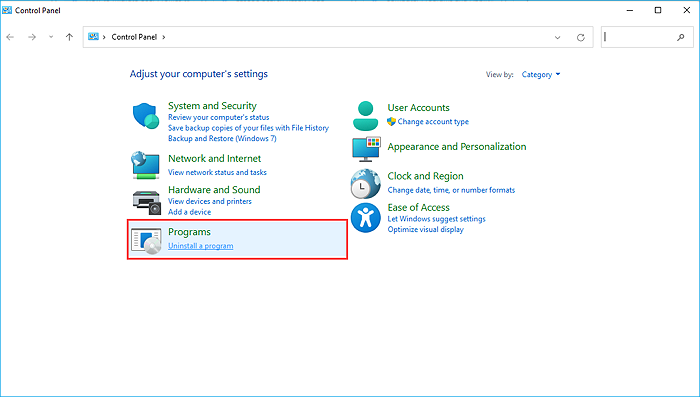
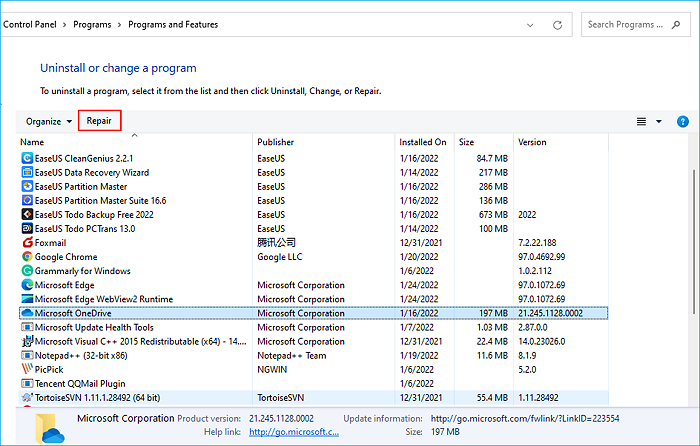
Step 3: Scroll through the list and select the program you want to repair. If available, click the "Repair" button near the top of the list to repair your program.
To remove a program via Control Panel
Similar to repairing the program on your windows server system, you can also remove the program via the Control Panel on your system. Here are the steps to follow to perform this process.
Step 1: To access the Control Panel, type "Control Panel" into the search box, click on the icon that appears, and then select the "Programs" section within the Control Panel.
Step 2: To uninstall a program, go to the Programs and Features list, select the program you want to remove, and click the "Uninstall" button.
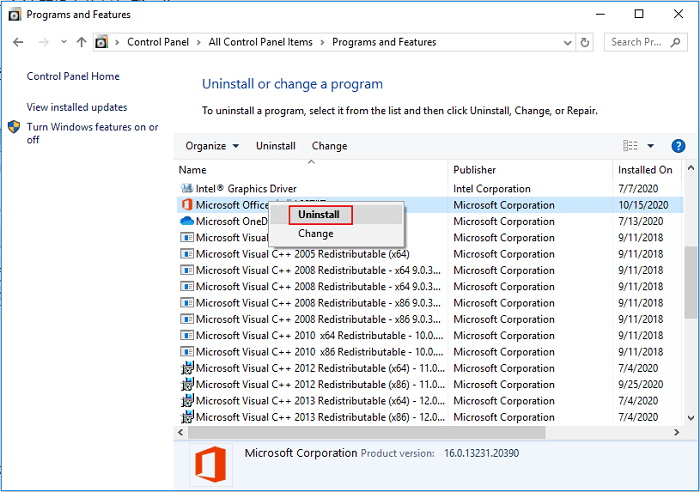
Step 3: The uninstaller may ask if you're sure you want to uninstall the program, and you'll need to click "Yes" to confirm. This will remove the program, including its scheduled tasks, from your system.
Some programs are only removed after a restart, while others cannot be uninstalled while connected to the OS, requiring a restart to complete the process. This includes applications deeply integrated with the OS, which should prompt a server restart after uninstallation.
#3. Use Registry to Uninstall or Repair Programs in Windows Server
Uninstalling programs can be done using the Registry Editor, a database in Windows where settings are stored. When applications install, they create a new entry in the registry, which can be used to remove them. This method is considered crude, but it can be effective in uninstalling programs. However, it's worth noting that using the Registry Editor to uninstall programs can be a complex and potentially risky process, and may require a good understanding of Windows settings and registry entries.
When uninstalling programs, they should remove any registry entries they've made. However, some programs don't, often to preserve user settings, allowing users to retain their previous choices when reinstalling the software.
If users reinstall software, the data is deleted, but if they don't, the data remains in the Registry, making it bigger in size. This can lead to a significant amount of space being occupied by the Registry if multiple software are tested and then removed.
The applications will always create a folder and save all the values inside on this path.
HKEY_CURRENT_USER\Software\Microsoft\Windows\CurrentVersion\App Paths
HKEY_LOCAL_MACHINE\SOFTWARE\Microsoft\Windows\CurrentVersion\App Paths
Note: To ensure the OS stability, take a backup of the existing registry before proceeding with the registry modifications. This will allow you to restore the original settings in case of any issues.
To uninstall a program completely using the Registry in Windows Server, follow these steps:
Step 1: To open the Registry Editor with admin privileges, press Win + R to open the Run prompt, type "Regedit" and press Shift + Enter together. This will launch the Registry Editor with administrative access.
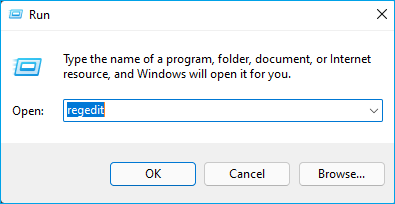
Step 2: Navigate to the path mentioned above, locate the software folder, usually with the same name as the Software or its company name, and if not found, try the other path.
Step 3: You can manually delete installed files found in the folder, specifically keys like Path, which contain actual file paths.
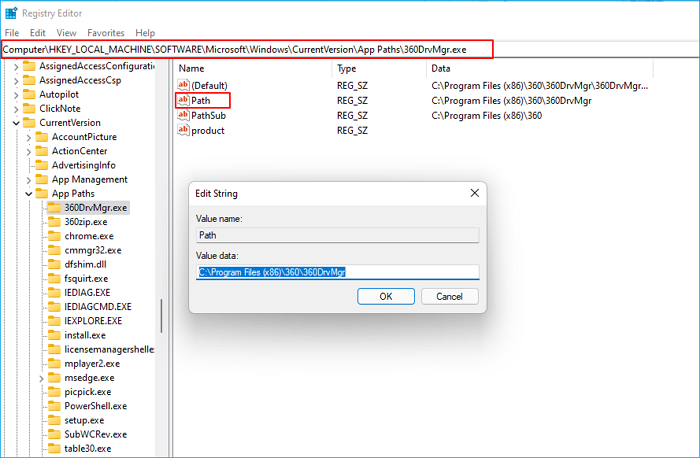
Step 4: After uninstalling the software, locate the remaining files in the folder, right-click on them, and delete them.
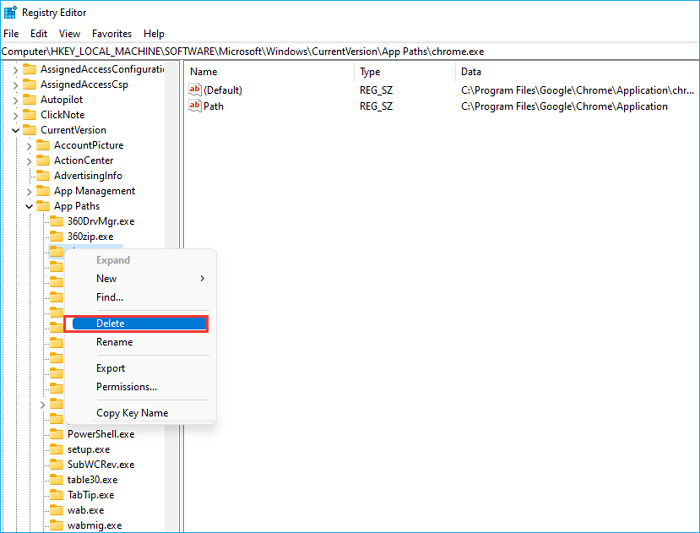
Warning: This tool is only used to completely remove a program, leaving nothing behind, and cannot be used to repair a program. It's not possible to use it for that purpose.
Conclusion
Here in this post, we guide you regarding the three most effective methods to repair and remove programs in Windows server computers. Try all these methods to know which one is comfortable for you. Suppose you are not interested in following the long steps and effortless removal and repair of programs on your system. In that case, we will always recommend you to use the most reliable and trustworthy tool, the Qiling Disk Master Technician tool. This tool will make your job straightforward.
Related Articles
- How to Transfer the Installed Programs, Data to a New Hard Drive
- How to Transfer Google Earth Pro to Another Computer?
- How to Transfer Files from iCloud to iPhone [Easy & Fast]
- How to Transfer Files from PC to Xbox One on A New PC?
- What Is GPT Disk and How to Manage GPT Disk
Understand GPT disk GUID partition table, compare with MBR disks, learn features, conversion methods, and how to partition GPT drives using Windows Disk Management tools. - 2023 Qiling Partition Master Crack + Serial Key Free Download [New]
Qiling Partition Master Crack alternatives with serial keys are available for free download, including Professional, Server, and Technician versions. Additionally, a 20% Off discount is available for the latest Qiling Partition Master license code.
Products
Articles & Tutorials
- Data Recovery
- Data Backup
- File Recovery
- File Backup
- System Backup and Restore
- Disk and Partition Clone
- Technical articles
- Mobile articles
- Disk Master Help
- Windows Data Recovery Tutorials
- Windows Secure Delete Tutorials
- Windows Partition Management Tutorials
- Windows File Backup and Restore Tutorials
- Windows System Backup and Restore Tutorials
- Windows Disk Backup and Restore Tutorials
- Windows Clone Tutorials