How to Transfer Google Earth Pro to Another Computer?
Introduction
Imagine having access to high-resolution images and geographical locations anywhere in the world through a geospatial software application. This tool is perfect for those with a passion for travel or interested in GIS (Geographic Information System). With it, you can view high-resolution photos of any location, mark important destinations using overlays, measure distances, and even share your findings. Plus, you get free access to advanced features that can be super useful for GIS enthusiasts. If you're wondering how it all works, Google Earth Pro is the answer to your questions.
To transfer Google Earth Pro and its files to another computer, it's recommended to have Google Earth Pro installed on your computer and its location data synced across all devices via a Google Account. However, when switching computers, the data becomes inaccessible, even with a linked Google Account. Fortunately, there are methods available to transfer Google Earth Pro and its files to a new computer, ensuring a seamless continuation of your location data and files.
1. About Google Earth Pro
Google Earth has three versions: the basic and standardized one, which allows users to access location images stored in the Earth database, and two other versions that provide additional features and functionality.
Google Earth Pro is a comprehensive tool that allows users to save locations, integrate data, collaborate, share files, and access high-resolution location images. It's particularly useful for tourist guides, solo, or group trip planners, who can mark important places, enter information, share them, and access them anywhere.
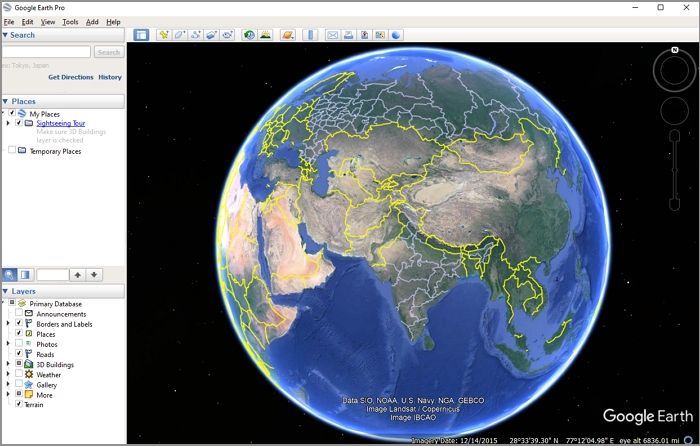
Google Earth Enterprise provides customized locations, data, and images tailored to a company's specific needs, making it a useful tool for businesses.
2. Why do We Need to Transfer Google Earth Pro to Another Computer?
When your computer's requirements exceed its capabilities, it's time to consider upgrading to a new laptop or PC. This might be due to frequent OS crashes, a need for better storage, memory, or graphics. In this situation, it's essential to transfer all your old computer's data, including files and apps, to the new device. This can be a time-consuming process that requires significant resources, including data and external drives. Unfortunately, this method doesn't sync location data and information, nor does it transfer application software.
If you sync all your location information saved on Google Earth Pro Places and even the Google Earth Pro app, you'll ensure that your saved locations, including placemarks, routes, and shapes, are accessible across all your devices and the web. This means you can view, edit, and add new locations from any device with a Google account, and they'll be automatically synced, making it easy to manage your saved locations from anywhere.
Part 2: How to Transfer Google Earth Pro to Another Computer?
You can transfer Google Earth Pro files using several procedures, but only one method allows you to share all your apps, including Google Earth or Google Earth Pro. This method enables you to transfer Google Earth Pro to another computer.
Method 1: Transfer Google Earth Pro to Another Computer via Using A Tool
Changing PCs is a common occurrence, and it's not uncommon to work on your PC and use a laptop at work. However, when you switch devices, you may encounter issues accessing your location data. To avoid this, you can save your locational information using Google Earth Pro, making it easily accessible whenever you need it. One simple way to transfer Google Earth Pro files is by using a third-party tool, which can save you time and effort. This approach is a smart way to manage your files, especially when switching between devices.
Qiling Disk Master is a tool that allows you to transfer files, apps, and data between two computers, making it helpful for sharing Google Earth Pro files or transferring data when upgrading to a new PC.
Transferring data to another computer can be a hassle, but using a third-party tool can make the process much smoother. You can create a backup, access your cloud storage, use external drives and apps like Telegram to transfer various types of files, but a tool can simplify this process for you.
Here's why Qiling Qiling Disk Master is your ultimate r
- Share and transfer any file quickly
- Access files even without a network
- Enable automatic transfer
- Free technical support
- Move user accounts across two computers
- Transfer programs from one computer to another
- No data loss
- No malfunctioning or bugs
However, if you do not want to transfer only Google Earth Pro files, you can use full-fledged methods.
Step 1. Run Qiling Disk Master on both PCs
On the source PC, select File sync on the main screen of Qiling Disk Master and proceed.

Step 2. Connect two computers
1. Connect to your target PC by selecting it via its IP address or device name and then clicking "Connect".
2. To access a target PC, enter the login password of the target PC and click "OK" to confirm.
If the target PC is not listed, you can manually connect it by clicking "Add PC" and entering its IP address or device name.

Step 3. Select apps, programs, and software and transfer to the target computer
1. You can choose what you want to transfer from the current computer to the target PC.
2. To begin the transfer process, select the desired applications and programs, then click the "Transfer" button.

Method 2: Transfer File of Google Earth Pro to Computer via External Drive
External drives, such as USB drives, allow for seamless file transfers between computers and devices, making it easy to transfer and sync Earth Pro files to another computer.
Follow the steps given below on your Windows OS to transfer Google Earth files using External Drive:
Step 1. To access the Windows Event Viewer, open Windows File Explorer, type the path "C:\Windows\System32\eventvwr.exe" in the address bar, and press the Enter key.
%USERPROFILE%\AppData\LocalLow\Google\GoogleEarth
Step 2. Right-click on myplaces.kml, and then select the scissor icon from the drop-down menu to cut the file.
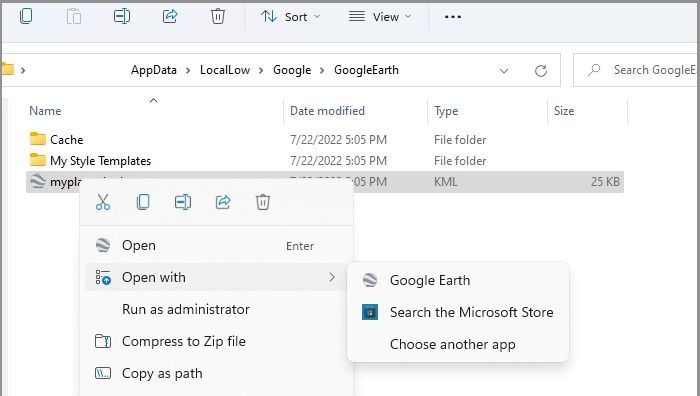
Step 3. To cut the file, press the Ctrl+X keys simultaneously.
Note: Copy-paste option does not work.
Step 4. Now, head over to your External Drive folder, SanDisk USB Drive, in this case.
Step 5. To paste a file into your USB Drive, right-click in the folder, select the clipboard option from the drop-down menu, or press Ctrl+V simultaneously.
On your other Computer:
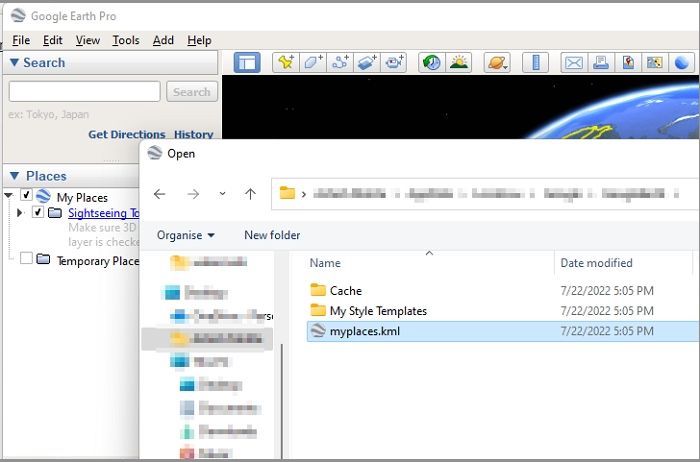
Step 1. To import a KML file into Google Earth Pro, open the application on the PC you want to import, which will launch the program and prepare it for the import process.
Step 2. Click on the File menu, then click on Open.
Step 3. To upload a KML file, first, browse to the external storage or USB drive on your device, then select the KML file you want to upload.
Step 4. When the import is complete, you should see all your files and data from the other PC restored to your current PC, as if you were working on the original PC the whole time.
Method 3: Transfer Files of Google Earth Pro via Email Service
Google Earth Pro allows for seamless file transfer between devices using its Email Place feature, eliminating the need for external drives or hassle, by simply emailing a place folder and importing the file on another PC.
To transfer files to another computer via email, you can use email services like Gmail, Yahoo, or Outlook. First, compress the files you want to transfer into a zip file using a tool like 7-Zip or a built-in tool like Windows Compress or Mac's Archive Utility.
Step 1. To set up your email program, go to the Tools menu, select Options, and then click on Email program. From there, you can choose your preferred email service.
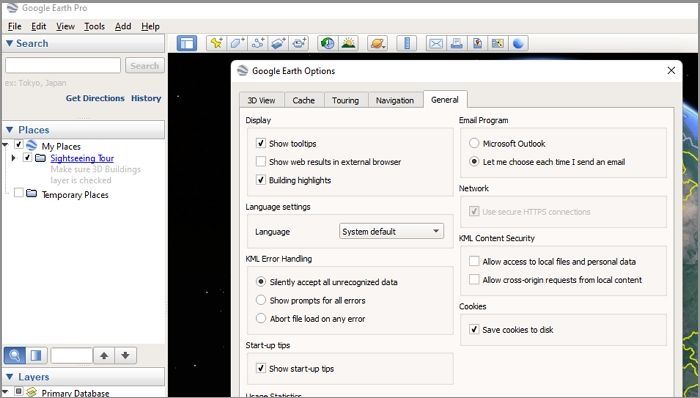
Step 2. To access the email view, click on the File menu and select Email > Email View.
Step 3. Then select the email service, and send it across.
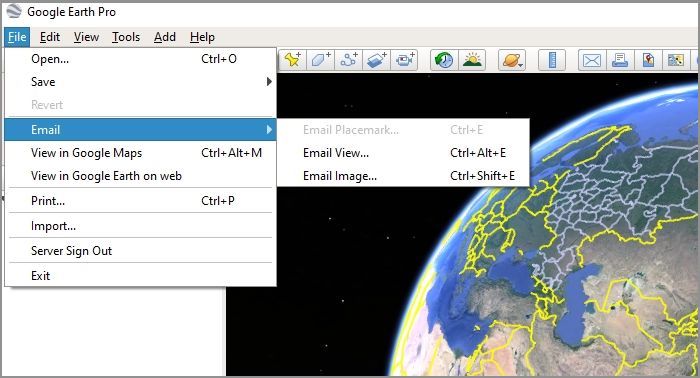
Open Google Earth Pro on the other computer and go to the My Places section. Click on the import the .kml file and select the Email option from the drop-down menu.
Method 4: Sync Google Earth Pro Files on Multiple Computers via cloud storage Service
Google's comprehensive services, including Google Drive, are widely used, but its Cloud Drive has limitations. Unlike Microsoft Drive, Google Drive does not support Google Earth, Google Earth Pro, or any of its versions, which means that even with a Google account, files from Earth Pro will not sync. As a result, users may need to rely on external cloud storage services like Dropbox or iCloud Drive to supplement their storage needs.
To transfer files via Dropbox Cloud Drive, follow the types given below.
Step 1. Upload Places to your computer as a .kmz file.
Step 2. Open Dropbox and import the Place folder on Dropbox.
Step 3. On your other Computer, login to your Dropbox account.
Step 4. To access the Places file in Google Earth Pro, click on the file and select the "Open" option, then choose "Google Earth Pro" from the dropdown menu. This will allow you to view the Places file within the Google Earth Pro application.
The file will now open in Google Earth Pro, allowing you to view and back up your saved file.
The Conclusion
Transferring Google Earth Pro files from one computer to another can be done in several ways, including using a third-party tool, transferring via an external drive like a USB drive, accessing via cloud storage such as Dropbox, or emailing the files.
It is suggested to use a third-The Qiling Disk Master is a handy party tool that allows you to transfer not only files, but also Google Earth Pro files, all with ease and simplicity.
Related Articles
- Is Dell Migrate Worth It in Data Migration Between PCs? How to Use It [2022 New]
- How to Transfer Files from Laptop to Laptop Using Bluetooth on Windows 10
- How to Transfer Files from Dropbox to iCloud
- How Do I Transfer Everything from My Old Computer to My New Computer? Full Guide Is Here!
- Acronis Universal Restore for Windows & Its Alternative
Acronis Universal Restore is a tool that allows you to restore a system image to new hardware, but this article will also explore alternative options that may better meet your needs. - (Easiest) Windows 10 Apps Data Backup: Backup Installed Applications in Windows 10
Step-by-step Windows 10 apps data backup tutorial shows you how to back up installed software in Windows 10 PC. It is helpful when you want to restore missing apps removed by Windows 10 update.
Products
Articles & Tutorials
- Data Recovery
- Data Backup
- File Recovery
- File Backup
- System Backup and Restore
- Disk and Partition Clone
- Technical articles
- Mobile articles
- Disk Master Help
- Windows Data Recovery Tutorials
- Windows Secure Delete Tutorials
- Windows Partition Management Tutorials
- Windows File Backup and Restore Tutorials
- Windows System Backup and Restore Tutorials
- Windows Disk Backup and Restore Tutorials
- Windows Clone Tutorials