How to Transfer Twitter App to Another Drive/PC
How to Transfer Twitter App to Another Drive/PC?
Social media accounts, including Twitter, come with risks such as spam and hijacking. There's also a concern about losing valuable data if one's account is compromised. To mitigate these threats, it's essential to take measures to protect your account.
You can transfer your Twitter account to another computer or drive, which is good news. This article will guide you on how to do it.
Twitter is a social media platform where users share short messages called tweets, with over 330 million monthly active users as of 2019. Its primary purpose is to share and discover real-time information or news, making it a go-to platform for up-to-date news updates. The platform's simplicity, user-friendly interface, quick sign-up process, and ease of use contribute to its popularity among users.
Twitter, despite its popularity, is not immune to security threats, as seen in a 2018 data breach that affected over 100,000 users. The breach occurred when hackers gained access to Twitter's internal systems and user information, highlighting the need for users to consider transferring their Twitter account to a different device or computer.
To transfer your Twitter account to another computer or drive, follow these steps: Save your Twitter account data by going to Settings and Account, then clicking on "Download a tweet archive" or "Download media" to save your tweets, media, or both. Next, sign in to your Twitter account on the new computer or drive.
Transfer Twitter App to Another Drive
Here are two easy methods that you can use to transfer your Twitter account:
1. Move Twitter to Another Drive via Qiling Disk Master
Those who are not tech-Qiling Disk Master is a popular and user-friendly data transfer software that allows even the most savvy users to transfer data with ease. With just a few clicks, this software can transfer data, making it a convenient option for those who need to move files from one device to another.
Qiling Disk Master is a user-friendly software that allows users to transfer data from one disk to another without requiring technical knowledge. It's a risk-free process with no chance of data loss, and the company provides free technical support. The software is compatible with various Windows versions, making it a convenient option for users.
To move Twitter to another drive using this software, follow these steps: 1. 2.
Step 1. Launch Qiling Disk Master and select transfer mode
To proceed, go to the "Backup and recovery" section on the main screen of Qiling Disk Master and click on "File sync".

Step 2. Select apps and another drive to transfer
1. Select the source partition and tick the applications, programs, and software you'd like to migrate.

2. To initiate the migration process, click the browse icon to select a different drive or disk as your target device, and then click "Proceed" to start the transfer.

Step 3. Finish the migration process
When the transferring process finishes, click "OK" to complete.
To ensure all changes are saved and your migrated apps can run again on the other drive, simply restart your PC. This will allow you to access your apps on the other drive as you normally would.
2. Move Twitter to Another Drive via Windows Settings
To change the default location of your Twitter app in the Settings, go to the Settings, find the Twitter app, and change its location to a different folder or drive. However, this method will only work if you're using the same computer and have the Twitter app installed. If you're using a different computer, you'll need to reinstall the app and set the new location on that computer.
Note: To transfer your Twitter account to another computer, you'll need to use Qiling Disk Master, which allows you to transfer your account data and settings to the new computer. This method is the only way to transfer your Twitter account to another computer.
To change the default location of your Twitter app, toggle off the Location Services switch in Settings > Location Services > Twitter, then toggle off the Location Services switch in Settings > Location Services > System Services. Next, toggle on the Location Services switch in Settings > Location Services > System Services, then toggle on the Location Services switch in Settings > Location Services > Twitter.
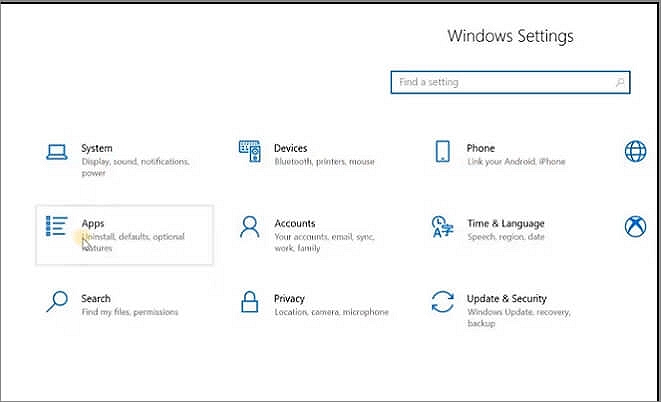
Step 1: To access the Settings in Windows, click the start menu and select the "Settings" icon, then choose the "Apps" option.
Step 2: To access Twitter, go to the "Apps and Features" section, scroll down to "Twitter," and click on it to view its details.
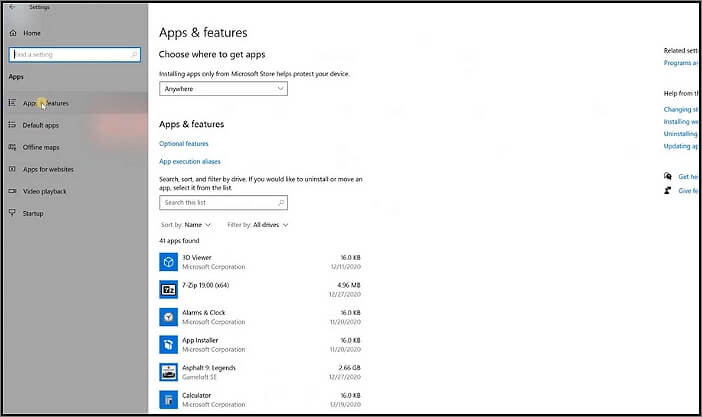
Step 3: Once you have selected "Twitter," click on the "Move" button.
Step 4: To move your Twitter app, select the location where you want to relocate it, and then click the "Move" button to initiate the process.
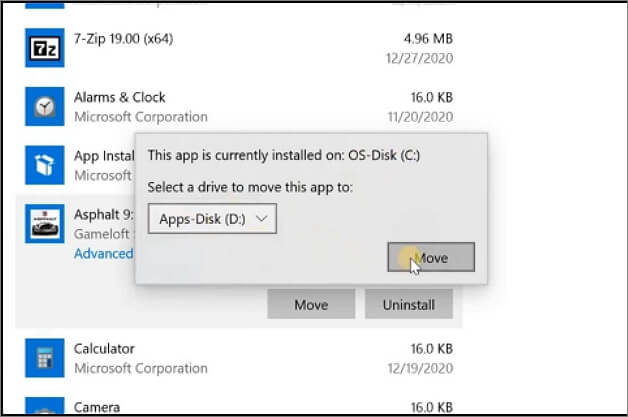
Step 5: To move the Twitter app to the new location, go to the Settings app, then select "Home Screen Layout" and tap "Edit Home Screen." Swipe left until you find the Twitter app, then tap and hold on it until the icons start to jiggle. Drag the Twitter app to the new location where you want it to be.
Congratulations! You have successfully done your job.
Transfer Twitter App to Another PC
To transfer the Twitter app to another PC, follow these steps. Firstly, download and install the Twitter app on the new PC.
1. Move Twitter to Another PC via Qiling Disk Master
Qiling Disk Master is the best data transfer software available, allowing for seamless data transfer with just a few clicks. Its user-friendly interface makes it accessible to anyone, eliminating the need for technical knowledge. This software is ideal for transferring data.
Qiling Disk Master offers a risk-free transfer process, ensuring no data loss during the transfer, and provides free technical support, making it a reliable option that matches the performance and functionality of the original disk.
To move Twitter to another PC, you can follow these steps using the software. First, you need to download and install the software on the PC where Twitter is currently installed.
Step 1. Run Qiling Disk Master on both PCs
On the source PC, select "File sync" on the main screen of Qiling Disk Master and proceed.
Step 2. Connect two computers
1. Connect to a PC via its IP address or device name and click "Connect" to initiate the connection.
2. To log in to a target PC, enter the login password and click "OK" to confirm.
If you didn't see the target PC in the listed devices, you can also manually connect the target PC by clicking "Add PC" and inputting its IP address or device name.
Step 3. Select apps, programs, and software and transfer to the target computer
1. You can pick and choose what you want to transfer from the current computer to the target PC.
2. To begin the transfer process, select the desired applications and programs, then click "Proceed".
2. Move Twitter to Another PC via External Drive
To move Twitter to another device, you can copy it to an external storage device like a USB drive or memory card. However, this method has a significant limitation: most programs, including Twitter, can't run smoothly on another PC by simply copying files.
This method is only suitable for transferring data or files that can be run on any computer without installation, making it a limited option.
Follow these steps to copy the contents of a device to an external storage device:
Step 1: Connect the external storage device to your computer.
Step 2: Then, open the "Twitter" folder from Disk (C) program files.
Step 3: To move the files and folders inside the "Twitter" folder to the external storage device, select all the contents within that folder by pressing Ctrl+A on your keyboard. Then, right-click on the selected items and choose "Copy" from the context menu.
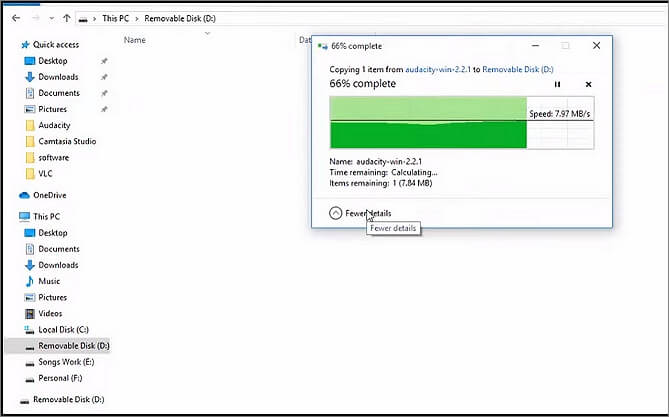
Step 4: After you've copied the files, safely disconnect the external storage device from your computer.
Step 5: Connect the external storage device to the other computer.
Step 6: Then, open the "Twitter" folder on the other computer.
Step 7: Paste all the files and folders you have copied from your computer.
You have successfully transferred the "Twitter" folder to another computer.
Note: To transfer your Twitter account to another computer, you must use the Qiling Disk Master. This will allow you to access your account on the new computer.
Conclusion
If you want to transfer the Twitter app or folder to another PC, you can use Qiling Disk Master, the best software to transfer apps, which can transfer data with just a few clicks without any data loss. Alternatively, if you only need to move the files, you can use the second method. This solution provides the best options for moving the Twitter app or folder to another PC.
Related Articles
- Transfer Zoom App for Windows|Moving Zoom to New PC
- Windows Easy Transfer for Windows XP, Windows 7, Windows 8, Windows 10, and Windows 11
- [Solved] Windows Easy Transfer 7 to 11/10
- Is Intel Data Migration Software Worthy of Trying? Here is the Answer!
- How to Migrate User Profiles to New Server 2021
When moving user profiles from one server to another, it's essential to migrate everything, including user settings, data, and other applications, to ensure a seamless transition and avoid any missed items. - How to Migrate Windows 11 to New Computer
Cloning Windows 11 OS allows for a seamless migration of a new environment to a new computer, eliminating the need to install Windows 11 from scratch.
Products
Articles & Tutorials
- Data Recovery
- Data Backup
- File Recovery
- File Backup
- System Backup and Restore
- Disk and Partition Clone
- Technical articles
- Mobile articles
- Disk Master Help
- Windows Data Recovery Tutorials
- Windows Secure Delete Tutorials
- Windows Partition Management Tutorials
- Windows File Backup and Restore Tutorials
- Windows System Backup and Restore Tutorials
- Windows Disk Backup and Restore Tutorials
- Windows Clone Tutorials