Stepwise Guide | How to Install Windows 7 on a Hard Drive for Another Computer
Windows 7 is an older Microsoft operating system that some users still keep for legacy software or hardware. Microsoft ended extended support for Windows 7 on January 14, 2020, so using it requires extra caution and reliable backups.
This article will explore the possibility of installing Windows 7 on a hard drive for another computer and provide a step-by-step guide on how to do it.
Can You Install Windows on a Hard Drive to Put in Another Computer
Windows 7 is known for a simple interface and stable user experience, which is why some users continue to use it on older PCs.
If you want to transfer your present Windows 7 to a new PC to continue using it, have you ever been stuck on one question like "Can I transfer Windows 7 from one computer to another?"
If you want to use the same system and applications after replacing an old computer, reinstalling Windows and apps is possible, but restoring or cloning the system can save time when hardware compatibility allows it.
The reality is that users don't anticipate having to reinstall their operating system or essential programs, as this process is often time- and labor-intensive.
Fortunately, you have other ways out. You can install Windows on a hard drive for another computer, which is much easier than reinstallation of Windows 7, and this is called universal restore.
Universal restore can help you create a Windows system image on an external drive and restore it to dissimilar hardware using the required software.
2 Ways to Install Windows 7 on a Hard Drive for Another PC
Windows 7 has a built-in tool called Sysprep that can help transfer the operating system to another computer, making it a viable alternative to universal restore for installing Windows 7 on an external drive. This feature allows you to prepare a Windows image for deployment on multiple machines, essentially making it a portable installation. By using Sysprep, you can create a Windows 7 installation on an external drive that can be used on another computer, similar to the functionality provided by universal restore.
Way 1. Using Universal Restore Software
Universal restore allows you to run the same system on a different computer, making it the easiest way to install Windows 7 on a new computer. To do this, create a system image of your Windows 7 computer, store the system backup on an external drive, and then restore it on the new computer. This process enables you to transfer your existing Windows 7 system to a new device with minimal effort.
Qiling Disk Master is a universal restore software that can help you easily and quickly transfer your Windows 7 to another computer.
Qiling Disk Master Pro is a Windows-compatible program that allows you to transfer operating systems, back up systems, files, disks, and partitions, and create different types of backups, including full, incremental, and differential backups.
Key Features of Qiling Disk Master:
- Clone a hard drive
- One-click backup and restore
- Compress backup up to about 80%
- Create WinPE emergency bootable disk
- Encrypt backup with AES-256 encryption
- 250G free Cloud storage and Security Zone provided
- Important
- To create a Windows installation media, you need to prepare an external hard drive, which can be an SSD, HDD, or USB drive, with enough capacity to hold Windows. You should also create a backup of your data on the drive, as the installation process will format it. Additionally, you'll need a USB-to-SATA adapter to connect the external drive to your PC via a USB port. This will allow you to create a bootable Windows installation media.
Guide to installing Windows 7 on a hard drive for another computer
Part 1. Create a Windows 7 system image on the hard drive
Step 1. Launch Qiling Disk Master on your computer, and click "Create Backup" on the home screen and then select backup contents by hitting the big question mark.

Step 2. To back up your Windows operating system, click on the "System backup" option to initiate the backup process.

Step 3. In the next step, you'll be prompted to choose a location to save the system image backup. Your Windows operating system information and all system related files and partitions will be automatically selected, so you don't need to do any manual selection at this step. Simply click on the illustrated area to select a location.

Step 4. The recommended backup location is an external physical drive or cloud, preserving system backup files, and not a local drive, network, or NAS.
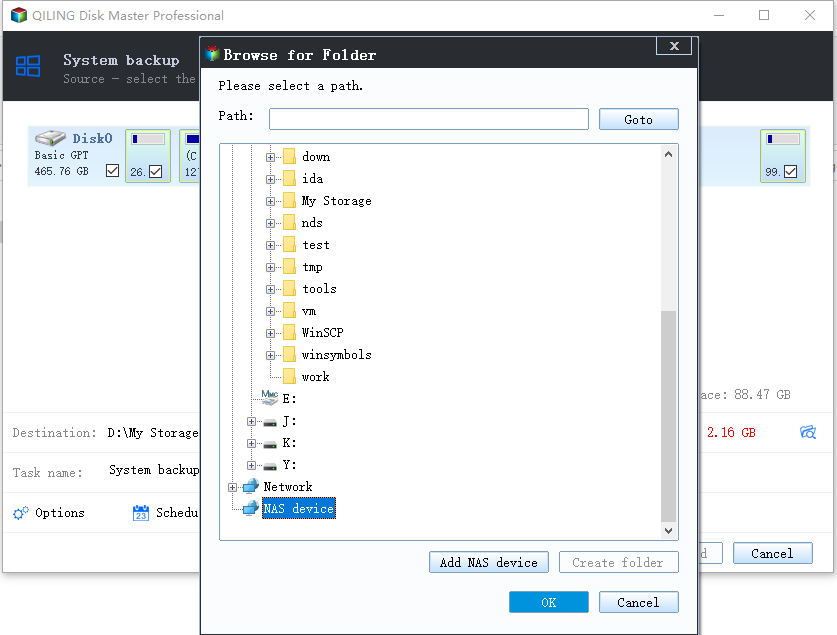
Step 5. The Windows system backup process allows for customization settings such as automatic backup schedules, differential, and incremental backup options. To proceed, click the "Proceed" button, and the backup task will begin. Once completed, the task will display on the left side in a card style.

Part 2. Restore the system image on another computer
To perform system recovery on a non-bootable machine, try to boot the computer through the installation media, such as a USB drive or CD/DVD, to access the recovery options.Qiling Disk Master emergency disk.
Step 1. Launch Qiling Disk Master, click "Browse to Recover".
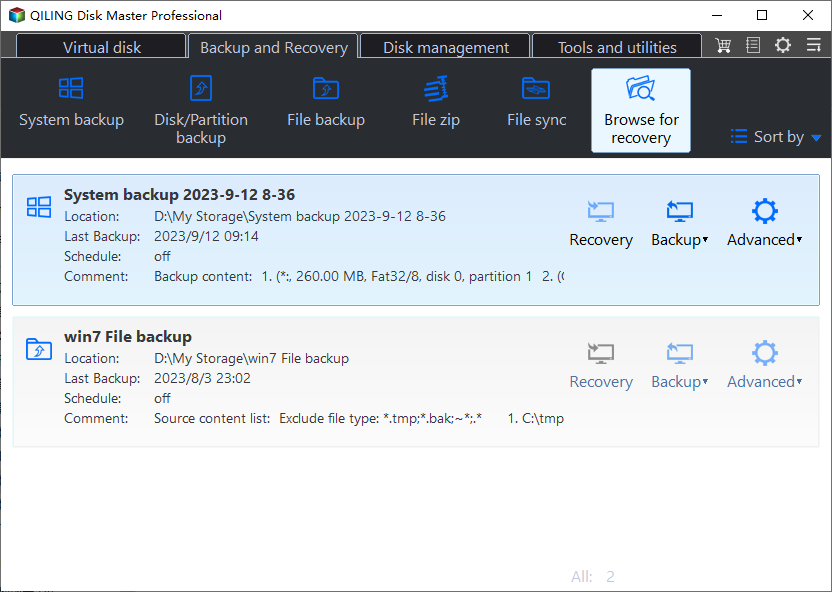
Step 2. To access your backup, go to the destination where you saved your backup and select the system backup file you need. The backup file created by Qiling Disk Master is a pbd file.
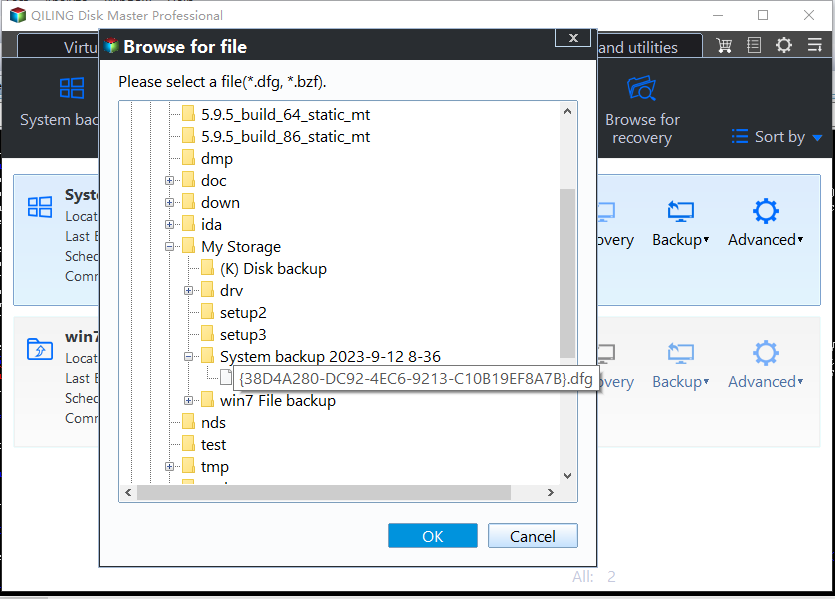
Step 3. To create a recovery disk, select the disk that will serve as the recovery media and ensure it has the same partition style as the source disk. This is crucial for a successful recovery process.
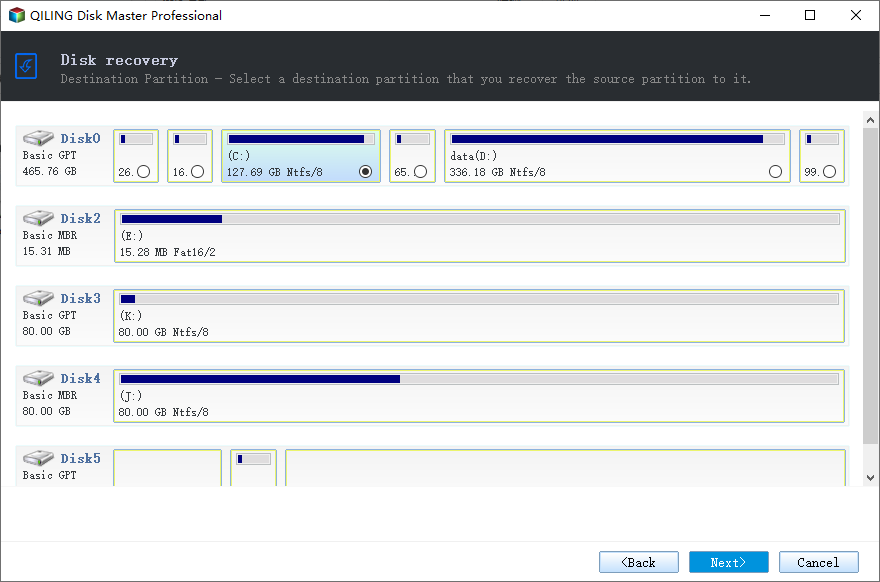
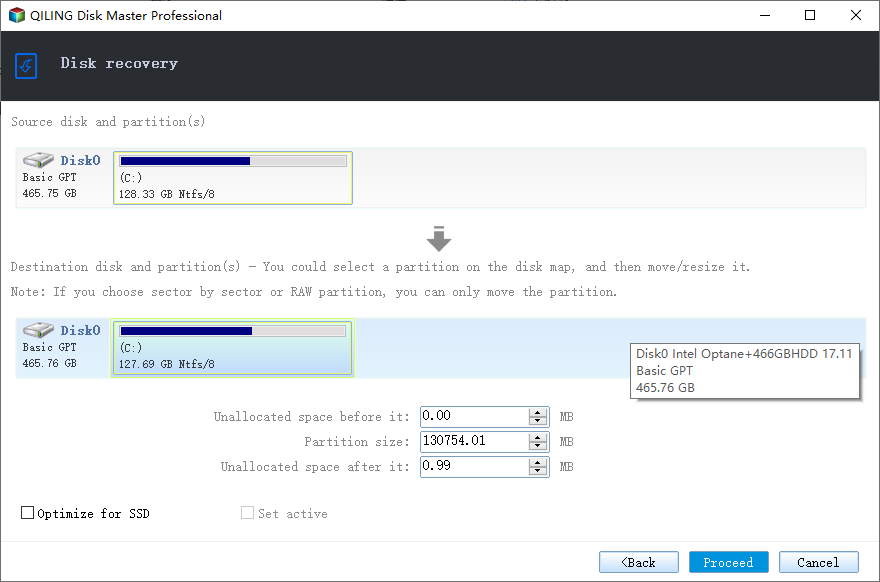
Step 4. You can customize the disk layout according to your needs, then click "Proceed" to start system backup recovery.
Way 2. Using Sysprep
Sysprep is a built-in Windows 7 tool that helps transfer the current Windows 7 installation to a new computer, including installed programs, user profiles, and settings. It can be used to deploy Windows 7 installation to another computer.
- Warning
- You may not be able to renew your OEM edition of Windows 7, and an ungraded Windows installation that includes a repair install cannot be sysprepped, making the tool unavailable in that case.
Part 1. Generalize Windows 7 Installation on Your Old Computer
Step 1. Navigate to the "C:\Windows\System32\Sysprep" folder to run the sysprep.exe.
Step 2. To prepare the system for a fresh out-of-the-box experience, select "Choose Enter System Out-of-Box Experience" from the System Cleanup Action dropdown, then check the Generalize checkbox. Finally, choose "Shutdown" from the Shutdown Options in the System Preparation Tool panel.
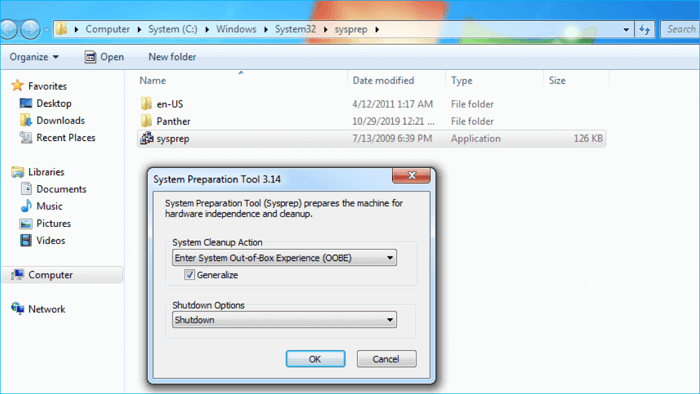
Step 3. To generalize the Windows 7 image, tap OK to confirm the action and shut down your computer.
Part 2. Capture the Windows 7 System Image on Your Old PC
Step 1. Connect a USB drive to your old PC to save the Windows 7 system image. This will allow you to create a backup of your system, which can be used to restore your PC to its current state in case of a problem or hardware failure.
Step 2. Create a bootable WinPE drive to start the computer. If you don't have one, you can first make bootable WinPE media.
Step 3. To open Command Prompt during the Windows Setup process, press and hold the Shift key and press the F10 key. This will open the Command Prompt.
Step 4. To speed up the boot time of your new PC after installing the image, execute the command "dism /image:C:/optimize-image /boot" in the Command Prompt window and press Enter.
Step 5. To capture the Windows system partition (C drive) and create a WIM image file, use the DISM command with the following syntax: `DISM /Capture-Image /ImageFile:D:\Images\win7.wim /CaptureDir:C:\ /Name:win7`. This command will capture the entire C drive, including all files and settings, and save it as a WIM image file named "win7" in the D:\Images directory.
Part 3. Deploy the Windows 7 Image to Your New Computer
Step 1. Connect the USB drive to your new computer.
Step 2. To start your new computer with the bootable WinPE drive, insert the drive into the computer and follow the on-screen instructions to boot from it. Once booted, launch Command Prompt by clicking on the Start button, typing "cmd" in the search bar, and clicking on the Command Prompt icon.
Step 3. To erase the hard drive on your new PC and create new hard disk partitions, use the commands in the Command Prompt window and click "Use" after each one.
- diskpart
- list disk
- Select the disk that contains the Windows installation, usually disk 0.
- clean
- create partition primary
- format fs=ntfs quick label=Windows
- assign letter=W
- exit
Step 4. To restore the Windows image to your new computer, type the following command in the Command Prompt and press Enter: `Dism /Apply-Image /ImageFile:D:\Images\win7.wim /Index:1 /ApplyDir:W:\`.
Step 5. Reboot your PC to see whether it can boot successfully.
To Wrap Things Up
To install Windows 7 on a hard drive for another computer, you can use universal restore software like Qiling Disk Master or Windows 7's built-in tool, Sysprep, to help you install Windows 7 on an external drive for another PC.
Considering the flexibility, time, practicality, and operability, Qiling Disk Master is inevitably your best choice, helping you install Windows 10 from one PC to another and back up your favorite game saves, such as Call of Duty, The Sims, etc. with more valuable functions to explore.
FAQs on How to Install Windows 7 on a Hard Drive for Another Computer
1. Can I use a Windows 7 license on multiple computers?
Windows 7 has 32-bit and 64-bit editions. Installation and activation depend on the edition, product key, and license type, so confirm your license terms before moving Windows 7 to another computer.
2. Can I swap Windows 7 hard drive to another computer?
You can transfer a Windows 7 hard drive to another computer, keeping the same OS and programs, by using a universal restore tool like Qiling Disk Master. This allows you to transfer the entire drive to the new computer, rather than reinstalling Windows and re-adding programs.
3. What happens if I put my hard drive in another computer?
You can put your old hard drive into a new computer, but be aware that it may be prone to failure and data loss, as hard drives are one of the first components to wear out.
Related Articles
- How to Backup Google Drive to External Hard Drive [4 Easy Ways]
- Create Portable Windows 11/10/8/7 USB Drive in 2 Ways
- How to Backup Outlook Emails to External Hard Drive | 2023 Updated
- How to Backup Windows 10 Before Upgrading to Windows 11✅
- How to Copy/Clone Bootable USB Drive in Windows 10/8/7
- Backup Outlook Calendar to a New Computer Easily [2023]
- How to Repair Windows 7 Without CD in 3 Possible Ways
If you're having trouble with Windows 7, there are ways to repair it without a CD. This article presents three methods to help you fix Windows 7, and you can choose the one that best suits your needs.
Products
Articles & Tutorials
- Data Recovery
- Data Backup
- File Recovery
- File Backup
- System Backup and Restore
- Disk and Partition Clone
- Technical articles
- Mobile articles
- Disk Master Help
- Windows Data Recovery Tutorials
- Windows Secure Delete Tutorials
- Windows Partition Management Tutorials
- Windows File Backup and Restore Tutorials
- Windows System Backup and Restore Tutorials
- Windows Disk Backup and Restore Tutorials
- Windows Clone Tutorials