Backup Outlook Calendar to a New Computer Easily [2024]
PAGE CONTENT:
- Why Do You Need to Backup Outlook Calendar?
- Backup Outlook Calendar to a New Computer Automatically
- Backup Outlook Calendar with a USB
- Backup Outlook Calendar to a New Computer FAQs
Outlook stores and organizes emails, contacts, tasks, and calendars. Backing up Outlook Calendar is important when you are moving to a new computer, replacing a damaged device, or protecting meeting schedules from accidental loss.
To back up Outlook Calendar to a new computer, you can use Outlook's Import and Export feature or a dedicated backup tool. Outlook export is suitable for manually saving calendar data, while backup software is better when you want to protect Outlook data regularly.
Why Do You Need to Backup Outlook Calendar?
Regular Outlook backups help prevent the loss of appointments, meetings, reminders, and shared schedules caused by accidental deletion, system failure, malware, or other unexpected issues.
The software can backup various Outlook categories, including the Calendar, and restore data to any device, allowing users to access their backed up data at any time.
Backup Outlook Calendar to a New Computer Automatically
To avoid losing data when switching to a new computer, it's best to back up Outlook automatically. This ensures that all newly saved data are included in the backup. To do this, you'll need software like Qiling Disk Master Pro.
This third-party software can back up important data on your computer, including hard drives, selected disk partitions, files, and file folders. It also creates a free system backup image, allowing you to easily restore your computer to its previous state if needed. Additionally, you can restore Outlook backup with just a few clicks.
Main Features of Qiling Disk Master:
- Backup Outlook Emails from browser
- More than 1000 types of files are supported
- Offer 250GB free Cloud storage
- Restore the backup to a new computer
- Schedule a weekly backup to Microsoft OneDrive
Now, you can download this software from the button below.
To back up your Outlook Calendar to a new computer, first, ensure you have the Microsoft Outlook software installed on the new computer. Next, open Outlook on the new computer and go to File > Open & Export > Import/Export.
On your old computer:
Step 1. Launch Qiling Disk Master on your computer, and click the Backup and recovery tab page.

Step 2. Among the four backup options, click "File backup".

Step 3. To back up your Microsoft Outlook data, find and check the "Microsoft Outlook" option in the list of apps that can be backed up. Select the mailbox addresses you want to make a backup of, choosing to back up your emails, contacts, or calendar.

Step 4. Choose a location to save the Outlook backup by clicking the illustrated area.

Step 5. The backup location can be a local drive, external hard drive, network, cloud, or NAS, with external physical drives or cloud services being the recommended options for preserving backup files.

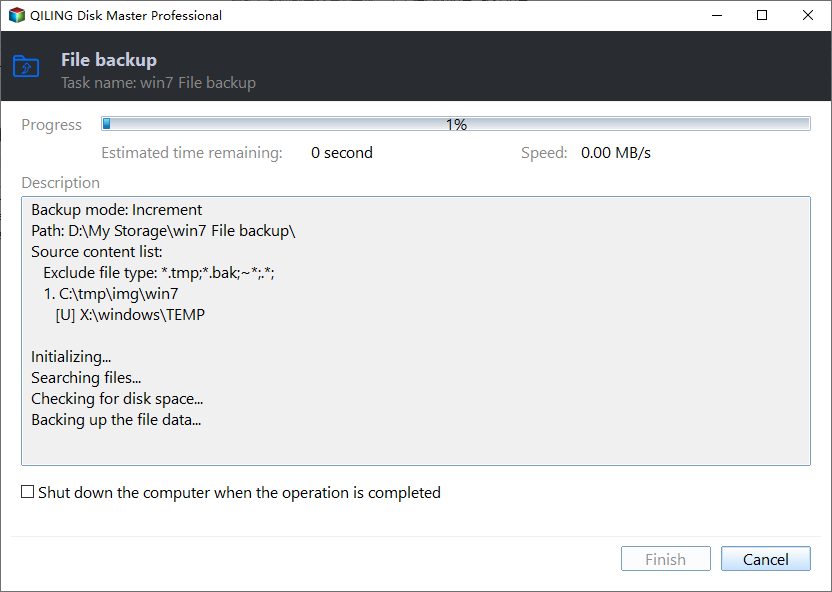
Step 6. The customization settings for automatic backup in Outlook include setting a schedule for daily, weekly, monthly, or upon an event backups, as well as options for differential and incremental backups. To start the backup process, click the "Proceed" button, and the task will be displayed on the left side in a card style once completed.
On your new computer:
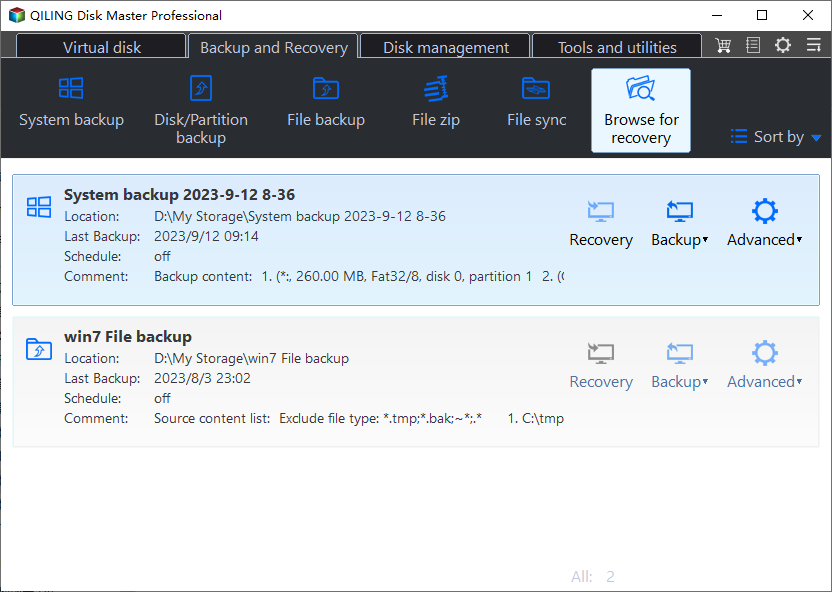
Step 1. Launch Qiling Disk Master, click "Browse to Recover".
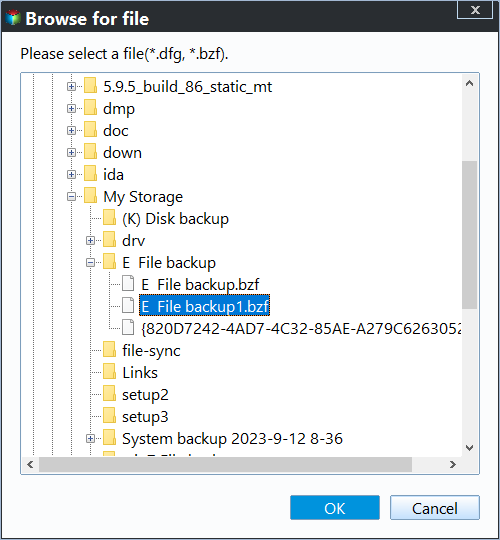
Step 2. To recover data, go to your backup destination and select the backup file you want to recover, which is typically a pbd file created by Qiling Disk Master.
Step 3. You can choose to recover data to a specific location or to its original location.
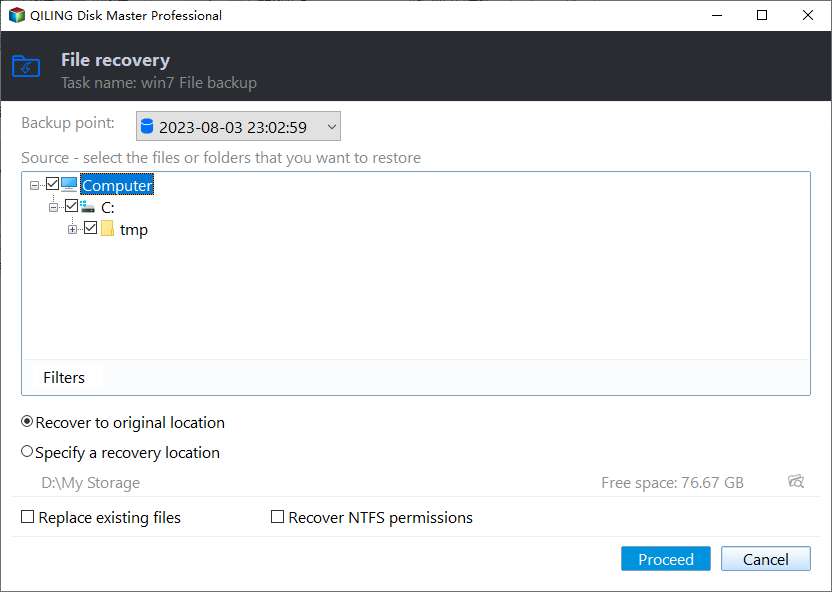
Step 4. Click "Proceed" and the recovery would start.
Backup Outlook Calendar with a USB
You can back up Outlook calendar to a new computer without downloading any software by using a USB device, backing up Emails and Contacts data if needed, and following the given steps to transfer the calendar to the new computer with the USB.
Backup calendar from your old computer:
Step 1. To import emails from another account into Outlook, first click on the "File" tab at the top of the screen and select "Import and Export" from the drop-down menu. This will open the Import and Export Wizard, allowing you to choose the type of data you want to import, including email messages. Select "Import email messages from an additional file" and choose the file type (e.
- Note:
- If you're using Outlook 2010, go to "File" > "Open" > "Import".
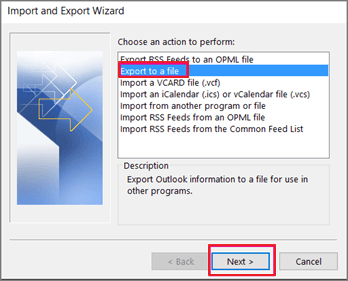
Step 2. Select "Export to a file" and click "Next", then choose "Outlook Data File (.pst)" and click "Next".
Step 3. To proceed, select "Calendar" from the folder list, ensuring "Include subfolders" is checked, and then click "Next" at the bottom.
Step 4. To import data from a USB drive, connect the drive to your computer. Then, click on "Browse" at the top of the Import and Export Wizard, and select your USB drive from the list of available devices. This will allow you to transfer data from the USB drive to your computer.
Step 5. To create a backup, select "Allow duplicate items to be created" and click "Finish", then enter your password and click "OK" to complete the backup process.
Backup calendar to your new computer:
Step 1. To transfer data from an old computer to a new one, connect the USB containing the data to the new computer. Next, open Outlook on the new computer and access the Import and Export Wizard to begin the data transfer process.
Step 2. To import data from another program or file, select the "Import from another program or file" option and click "Next". Then, choose "Outlook Data File (.pst)" and click "Next" at the bottom.
Step 3. To import a backup from an external USB drive, click "Browse" at the top of the Import and Export Wizard, then select your backup file from the external drive.
Step 4. To import files from Google Drive, click "Open" at the bottom and select "Do not allow duplicates". Then, click "Next" at the bottom to select the folders you want to import. Finally, click "Finish" to complete the import process.
Backup Outlook Calendar to a New Computer FAQs
We collected some frequently asked questions related to "backup Outlook Calendar to a new computer". Let's have a look at them now.
1. How do I transfer my Outlook calendar?
You can download Qiling Disk Master Tech and follow the steps below to do so:
- 1. Go to "App Migration" and click "Start" to continue.
- 2. Select the C drive and choose the programs you want to transfer, marking them as "Yes".
- 3. To transfer files from one drive to another, select the destination drive by clicking the triangle icon, and then click "Transfer" to initiate the process.
- 4. Wait patiently until the transferring process finishes and click "OK" to confirm.
2. Why is my Outlook calendar not syncing on my new computer?
The issue might be due to an incorrect calendar being selected for synchronization, a disconnected Outlook account, or a misconfigured third-party application.
3. Can I access my Outlook calendar from another computer?
If you're using desktop Outlook with an Exchange server (Outlook.com or Office.com), your calendars, contacts, and emails will be synced across all devices. Simply log in to your account on another computer to access your synced data.
Conclusion
To back up your Outlook calendar to a new computer, you can use the built-in export feature in Outlook or a third-party tool like Qiling Disk Master. This allows you to transfer your calendar data, including events and appointments, to the new computer. By following the steps and tips provided, you can successfully back up and restore your Outlook calendar, ensuring that your important events and appointments are not lost during the transition. You can download Qiling Disk Master from the provided button.
Related Articles
- How to Ghost a Hard Drive in 3 Steps
- Best Alternative to Carbon Copy Cloner for Windows
- Why Does Windows 10 Backup Say Windows 7? [Methods Provided]
- How to Transfer Operating System from One Computer to Another | 2024 New Tip
- How to Set Automatic Backup to OneDrive in Windows 11/10/8/7[FIXED]
- How to Move Office 2016 to New Windows 11 Computer with Product Key
If you're trying to move Office 2016 to a new Windows 11 computer with a product key, our guide can help you figure it out. We'll walk you through a detailed process and provide you with a few quick methods to make the transition smooth.
Products
Articles & Tutorials
- Data Recovery
- Data Backup
- File Recovery
- File Backup
- System Backup and Restore
- Disk and Partition Clone
- Technical articles
- Mobile articles
- Disk Master Help
- Windows Data Recovery Tutorials
- Windows Secure Delete Tutorials
- Windows Partition Management Tutorials
- Windows File Backup and Restore Tutorials
- Windows System Backup and Restore Tutorials
- Windows Disk Backup and Restore Tutorials
- Windows Clone Tutorials