Windows 11 Size: How Much Space Does Windows 11 Take Up?
Microsoft released Windows 11 on October 5, 2021, making it available for download. To install the latest version, devices must meet the minimum system and hardware requirements for Windows 11.
Windows 11 requires 64GB of storage, but Microsoft's requirements page also warns that additional storage space might be needed to download updates.
How Much Space Does Windows 11 Take on Your Disk?
Windows 11's minimum disk space requirement is 64 GB, but this does not mean the actual size of the Windows 11 installation is 64 GB. This requirement is in place to ensure the smooth operation of the operating system.
Situation 1. You Have Installed Windows 11 Directly (Clean Install)
A clean install of Windows 11 will remove all files, settings, and apps on your computer, making the disk space taken up by Windows 11 the most accurate measurement of its size. To check the size of Windows 11, you can check the disk space on your drive where Windows 11 is installed. This will give you the most accurate measurement of the space taken up by Windows 11.
Step 1. Click "Start" and go to "Settings".
Step 2. To see the disk usage, go to System > Storage > Show more categories. This will display the disk usage details.
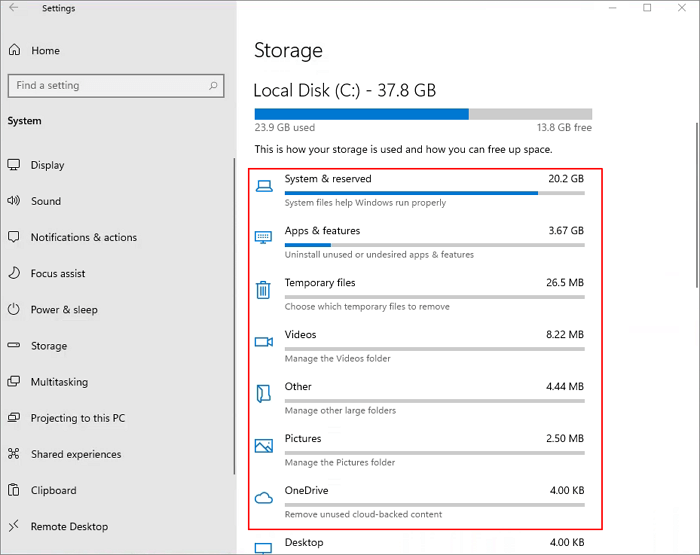
| Option | Size |
| System & reserved | 20.2GB |
| Apps & features | 3.67GB |
| Temporary files | 26.5MB |
| Other | 4.44MB |
| OneDrive | 4.00KB |
The total size is about 24.21GB.
To check the system information, click on "System & reserved" to view the specifics.
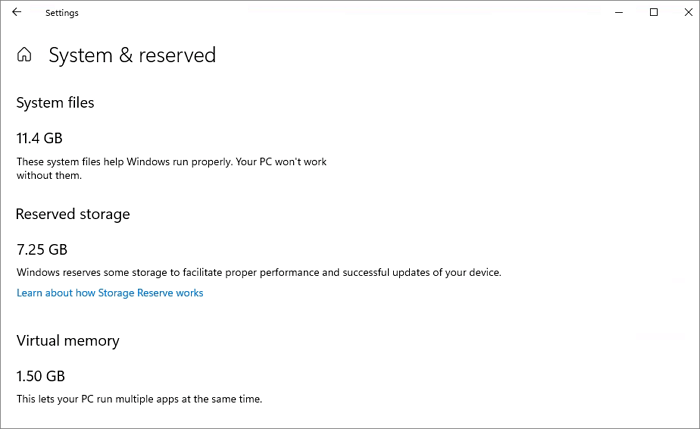
| Options | Size |
| The system files | 11.4GB |
| The reserved storage | 7.25GB |
| The virtual memory | 1.50GB |
You can also click "Apps & features" to see which apps and features are pre-installed on your computer and their sizes, which can help you manage and free up storage space.
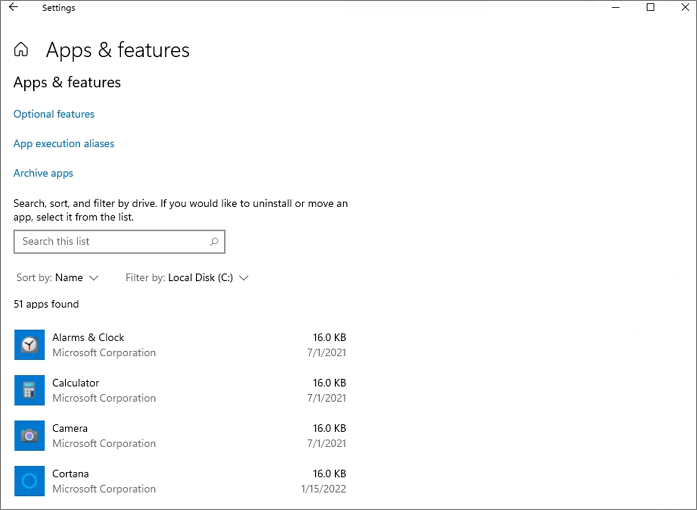
A clean installation of Windows 11 typically takes up around 27 GB of space on the C drive, although the exact size may vary depending on the computer model.
Situation 2. You Have Upgraded to Windows 11
Things could be different if you upgrade your computer to Windows 11 from Windows 10 or another Windows version. The Windows 11 size could change, and to see the disk usage, go to Start > Settings > Storage > Show more categories.
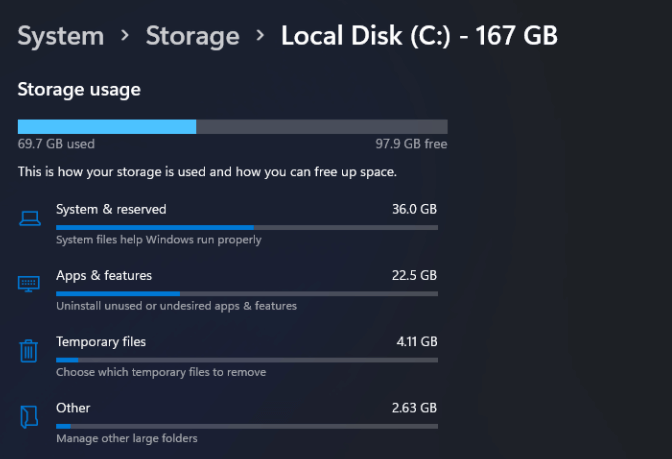
- System & reserved: 36.0GB
- Apps & features: 22.5GB
- Temporary files: 4.11GB
- Other: 2.63GB
System & reserved
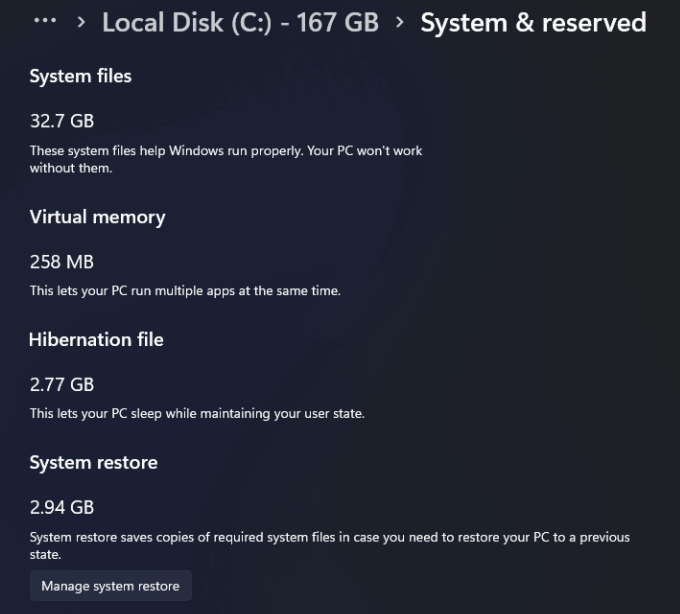
- System files: 32.7GB
- Virtual memory: 258MB
- System restore: 2.94GB
Windows 11 requires more than 64GB of space, but its size varies depending on the computer and system configuration.
How to Free Up Windows 11 Disk Space
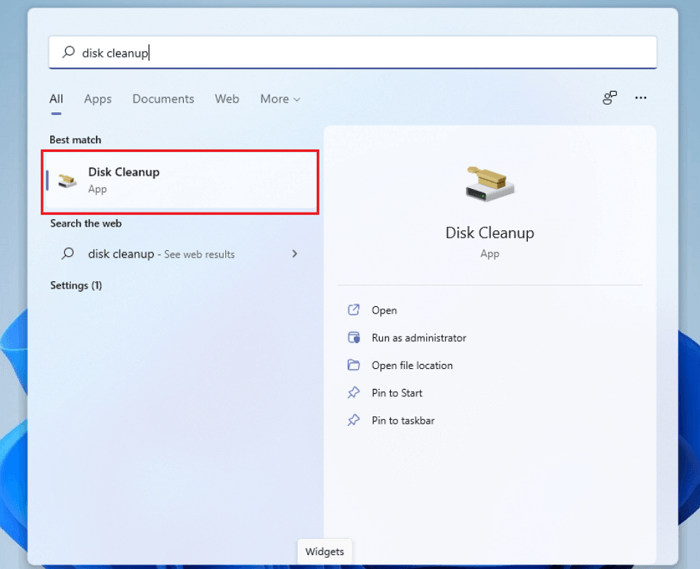
Windows 11 users often find themselves struggling with disk space. To free up disk space and speed up Windows 11, you can clear temporary files, disable unnecessary startup programs, delete system logs, remove unnecessary Windows updates, and use the built-in Disk Cleanup tool.
5 Ways to Free Up Disk Space in Windows 11?
To avoid running out of disk space on your Windows 11 computer, follow these solutions to free up space.
How to Recover Lost/Deleted Files in Windows 11
If you've lost files due to deletion, formatting, a virus, system upgrade, or crash, you can recover them with Deep Data Recovery and data recovery software, as long as they haven't been overwritten by new data.
- Get back data from Windows 11/10/8/7 with simple steps.
- Recover and repair damaged files with ease. Restore MP4/MOV videos, JPG/JPEG, PNG, and BMP images, as well as Word and Excel documents, to their original state.
- Restore data from a variety of storage devices, including external and internal hard drives, solid-state drives (SSDs), USB flash drives, SD cards, and more.
To recover lost data from Windows 11, download and install a data recovery software.
Note: To increase the chances of successful data recovery, install Qiling data recovery software on a different disk from the one where the files were lost. This helps prevent overwriting of the original data.
Step 1.Launch Deep Data Recovery on your Windows 11, Windows 10, Windows 8, or Windows 7 computer, select file types and click "Fast Scan" to begin the recovery process.

Note: You can choose different search modes based on where and why the data was lost.
Step 2. Select the disk partition or storage location where you lost data and click "Scan".

Step 3. After running the recovery software, it will start scanning the disk to locate all lost and deleted files. Once the scan is complete, you can filter the results by clicking "Filter" > "Type" to specify the types of lost files you're looking for.

Step 4.You can use this feature to preview and restore lost Windows files. By double-clicking on the scanned files, you can preview them, then select the target data and click the "Recover" button to save them to a safe spot, either on your PC or an external storage device.
Conclusion
Upgrading from Windows 10 to Windows 11 requires at least 64GB of free space, and the download size is about 3.5GB. If you're installing from an ISO file, you'll need at least 25GB of free space. Additionally, if you're experiencing slow performance, freeing up space can help speed up your Windows 11. If data loss occurs during the process, consider using Qiling data recovery software to recover permanently deleted files.
Related Articles
- Data Rescue 6 Review for Windows/Mac [2022 Latest]
- 4 Ways | How to Fix Word Runtime Error 91
- Elden Ring Lost Progress or No Longer Available on Xbox/PS4/PC
- Fix Error 0x80070490 in Windows Update, Mail App, and Xbox
- Factory Reset ASUS Laptop F9 Not Working [Why & How to Fix]🔥
Read a Data Rescue 6 review for Windows and Mac, including features, pricing, pros and cons, recovery steps, and alternatives. - How to Factory Reset ASUS Laptop from BIOS🔥
There are cases like technical issues or passwords forgotten, and you can't log in to your laptop. You may need to factory reset the ASUS laptop from BIOS. In this article, we'll show you how to restore your ASUS laptop. Read on to find out more.
Products
Articles & Tutorials
- Data Recovery
- Data Backup
- File Recovery
- File Backup
- System Backup and Restore
- Disk and Partition Clone
- Technical articles
- Mobile articles
- Disk Master Help
- Windows Data Recovery Tutorials
- Windows Secure Delete Tutorials
- Windows Partition Management Tutorials
- Windows File Backup and Restore Tutorials
- Windows System Backup and Restore Tutorials
- Windows Disk Backup and Restore Tutorials
- Windows Clone Tutorials