How to Change Wallpaper on Windows 10
To customize your Windows desktop background, you can set it according to your preference by choosing from the available built-in wallpapers or adding your own images. This article will guide you on how to change your desktop background on Windows 10, and also provide tips on how to download high-resolution wallpapers from reputable websites to further personalize your desktop background.
Part 1. How to Change Wallpaper on Windows 10
Some people might not be aware that Microsoft includes several vibrant wallpapers with its operating systems, but never try changing the default background. In this article, we'll discuss how to change the wallpaper on Windows 10, as we've personally never used the default one. We'll explain how to alter your desktop background, so keep reading to find out.
The desktop background, also known as the wallpaper, is an image that can be easily changed in Windows 10. There are several pre-installed wallpapers to choose from, or you can use your own image. Follow the steps below to learn how to change your wallpaper.
Method 1. How to change your background on Windows 10 from the settings option
To change the background on Windows 10, go to the Settings option, where you can add built-in wallpapers or use your own image to set as your desktop background.
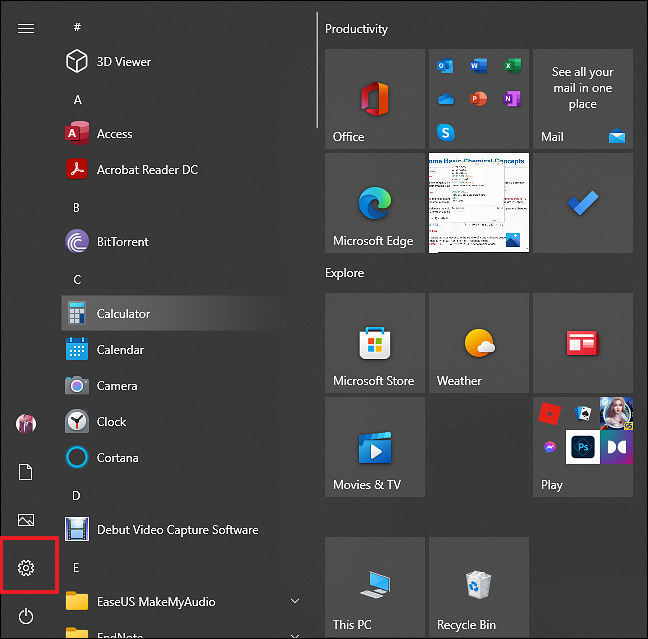
Step 1. Click the "Windows" icon on the bottom left corner and then click "Settings."
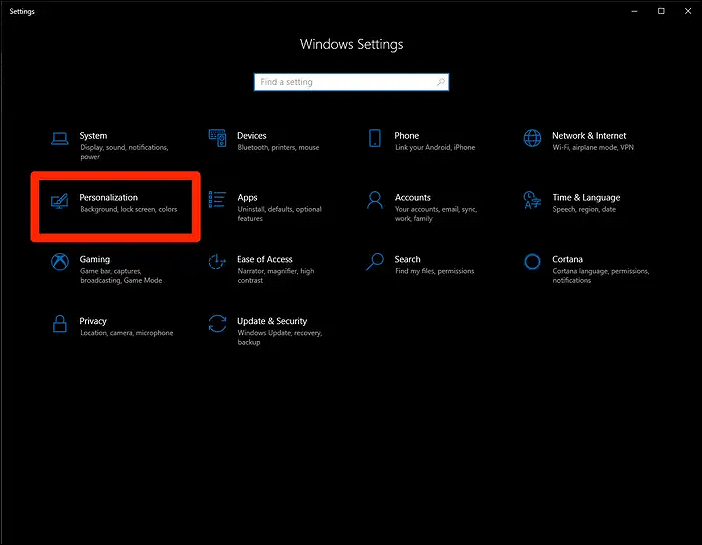
Step 2. Click on "Personalization."
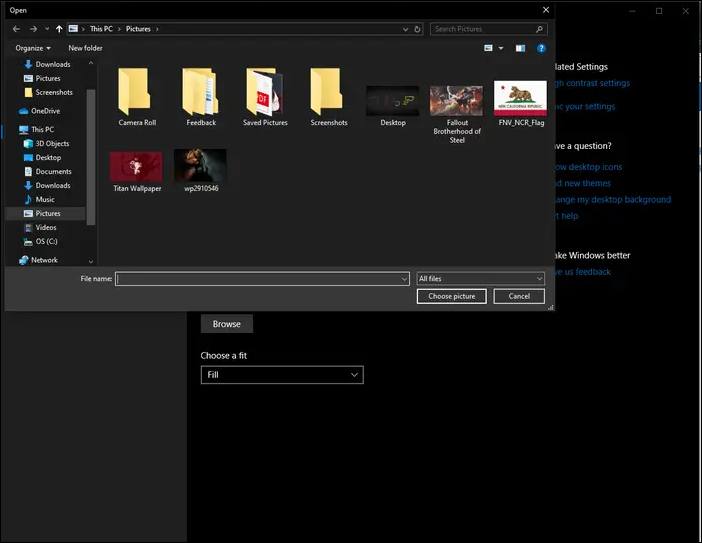
Step 3. Go to "Background" and click "Browse" to select a new background from your PC.
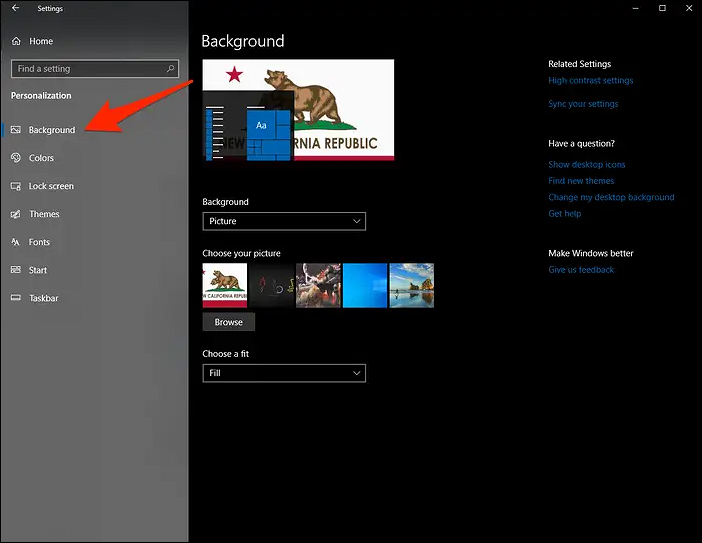
Step 4. To change the background on a computer, select the "background" or "desktop" option, and then choose the "photo" you want to use. Once you've selected the photo, it should go live as your new background.
Method 2. How to change your background on Windows 10 with a shortcut
To change the wallpaper on Windows 10, you can use the File Explorer utility or create a shortcut to set any image on your computer or external storage as the desktop background. Follow these simple steps:
Locate the image file on your computer that you want to set as your background, likely saved in a folder or on your desktop.
Step 1. To set an image as the wallpaper on Windows 10, right-click on the desktop and select "Personalize." In the "Personalization" window, click on the "Background" tab and select the "Browse" button to choose the image you want to use. Select the image you want to set as the wallpaper and click "Open" to apply it.
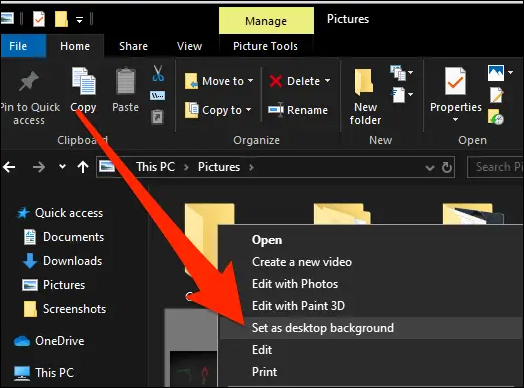
Step 2. Right-click the photo and click "Set as desktop background."
Method 3. How to change the desktop wallpaper in Windows 10 by setting a new Theme
To personalize your desktop by selecting a theme, start by choosing one from the available options. Each theme comes with a collection of backgrounds, window colors, music, and screensavers. You can select one to be used continuously or choose to change it periodically. If you prefer a specific theme, you can set it to be your desktop background by following these steps.
Step 1. Open the Settings app and navigate to Personalization. Select Themes on the left side of the window.
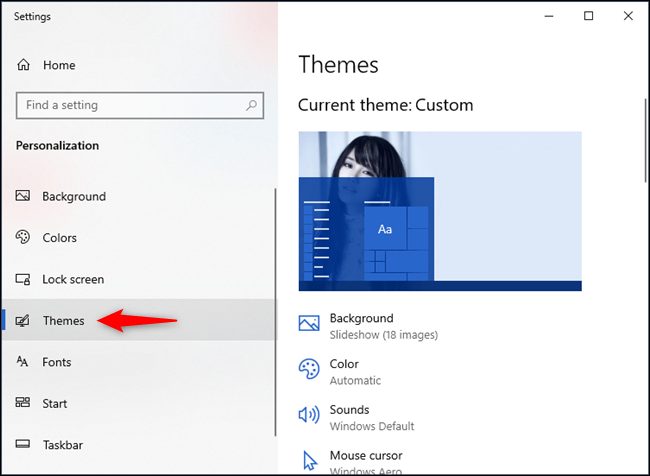
Step 2. Scroll down to see which themes are available on your PC or device and click or tap on a "theme" that appeals to you, and Windows 10 will change your wallpapers, screen colors, sounds, and mouse cursors to those included in that theme.
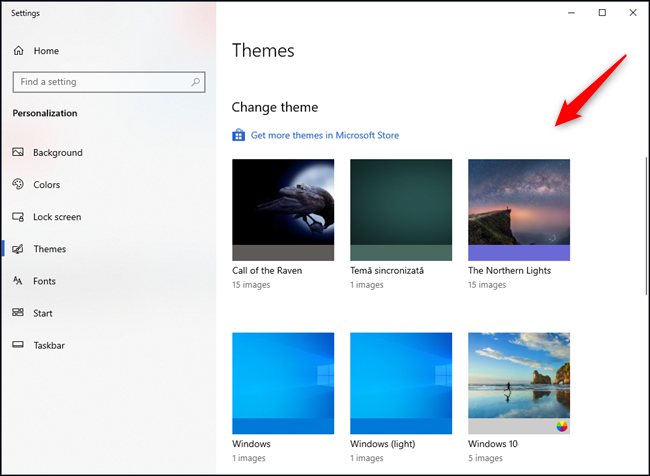
Step 3. Play around with the available choices as much as you like, and if none of the built-in themes pleases you, you can access Microsoft's outstanding collection by clicking on the "Get more themes in Microsoft Store" link.
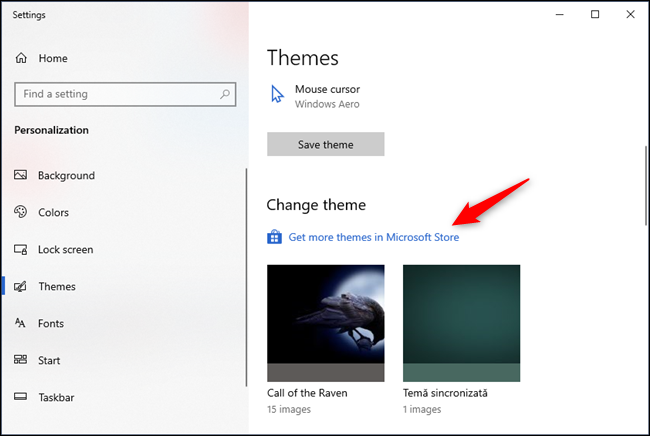
Step 4. Clicking the "Get more themes in Microsoft Store" link will direct you to the Microsoft Store app, where you can browse and download various themes to customize your Windows experience.
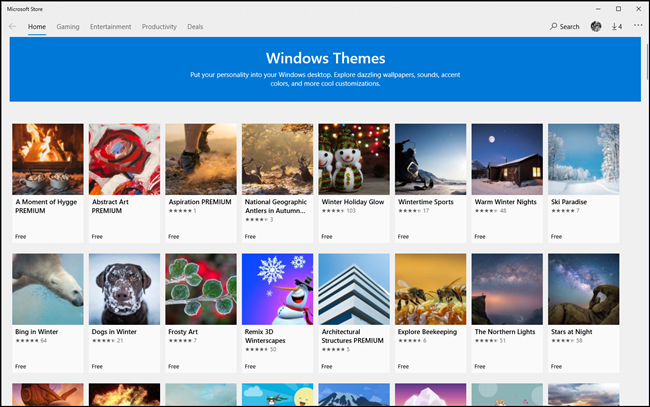
If your wallpaper is missing on Windows 10, you can easily download it again or try to restore the background image to get it back.
Part 2. Best Sites to Download HD Wallpaper for PC (H2)
Having a stunning desktop wallpaper is a desire for many computer users. Whether you have a MacBook, Windows desktop, PC, or laptop, keeping your desktop wallpaper fresh and cool adds to your coolness in front of friends and family. To achieve this, you can download high-resolution wallpapers from various websites, which offer a range of cool and visually appealing options to personalize your digital space.
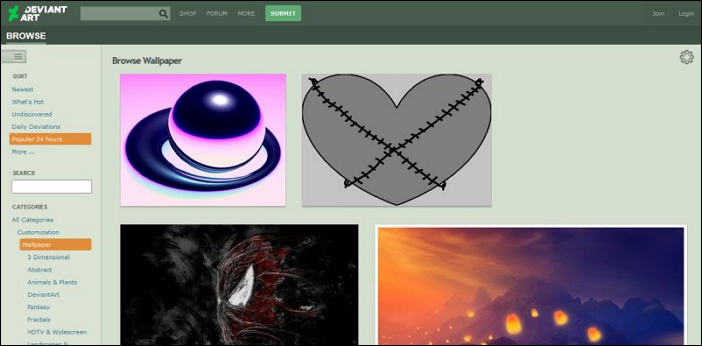
1. DeviantArt Wallpapers
Professional wallpaper designers on DeviantArt host their creations, which have become a standard for various Linux distributions and are also used by Windows PC manufacturers for advertising. These wallpapers are not just collected from various sources, but are original content that can be found on specialized wallpaper websites. DeviantArt serves as a comprehensive graphics resource, allowing users to connect directly with the designers and provide feedback on their work.
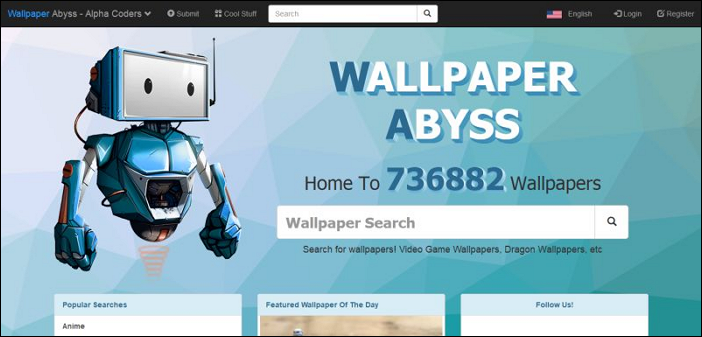
2. Alpha Coders
Alpha Coders is a website with gorgeous high-resolution wallpapers that can be browsed in three ways: Search bar, Popular, Categories, and Resolutions. The Popular category combines search phrases like HD, UltraHD 4k, Retina 5k, and UltraHD 8k wallpapers, while the Categories tab uses a traditional method with search terms like Anime, Celebrity, and Earth. The Resolutions tab allows searching by image resolution or dimensions, offering a wide range of wallpaper resolution options.
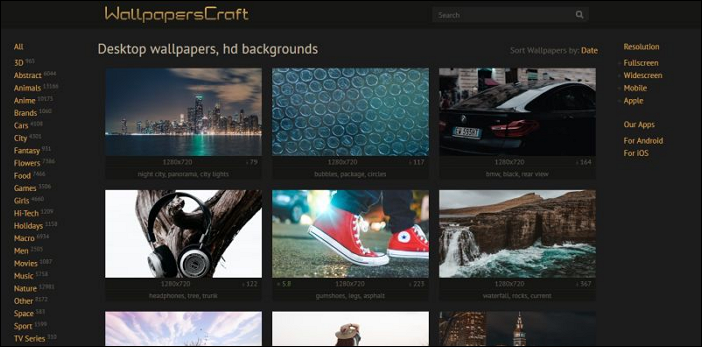
3. WallpapersCraft
WallpapersCraft offers a wide variety of wallpapers for various uses and screen sizes, with options to sort by date, downloads, or rating, and to search by keyword. The website also features a long list of tags for easy categorization, and allows users to choose the resolution for their photographs, including fullscreen, widescreen, mobile, and apple. Users can expand the resolution options to view the available sizes.
4. Unsplash Wallpapers
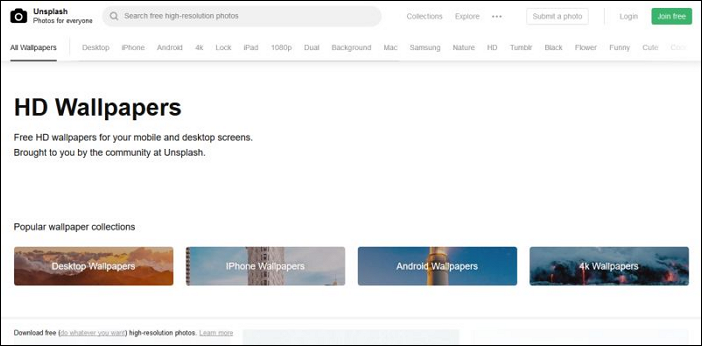
Unsplash offers a vast collection of high-resolution wallpapers, accessible through its dedicated Wallpapers section. The site features four collections: 4k Wallpaper, iPhone wallpaper, Android wallpaper, and Desktop wallpaper. A top bar with a list of Tags is also available, providing information on each wallpaper, including artist name, location, and a details button.
5. Flickr Wallpapers
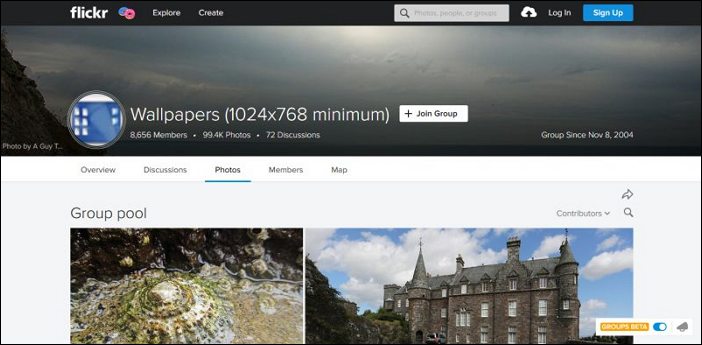
Flickr is home to some of the best pictures on the internet, making it an excellent online backup system for photographers. The site also features various groups dedicated to wallpapers, such as "Wallpapers" (1024*768 minimum), which is its most visited wallpaper group. By visiting these pages, you can discover even more wallpaper groups and find some gorgeous wallpapers to download.
You can download the image that best matches your device's screen from Flickr's collection of many versions (resolutions) of each photograph, which also provides the most comprehensive information about the photograph under headings such as Artist, Camera, Camera Settings, Copyrights, Tags, Location, and Additional info.
6. HDWallpapers (hdwallpapers.in)
HDWallpapers is a popular online platform for discovering and downloading high-definition (HD) wallpaper images, offering a wide range of resolutions, including Ultra HD 4K wallpapers, for users to personalize their digital spaces.

7. WallpaperUP
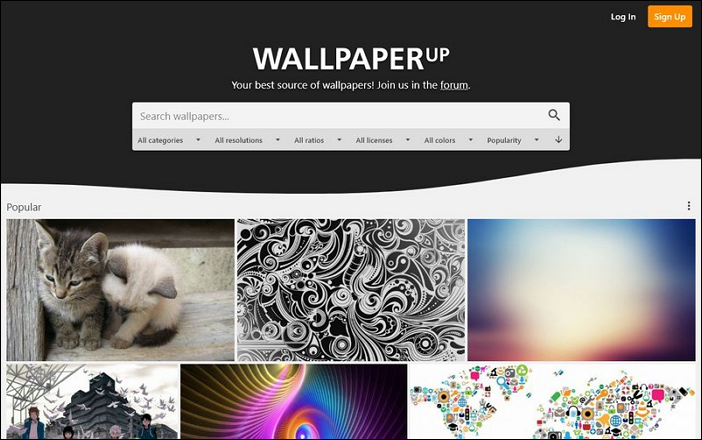
Wallpapers from WallperUP are available for download on WallpaperUP and are compatible with various devices. The website showcases popular wallpapers on the front page and allows for targeted searching within categories, resolutions, and aspect ratios. It also offers a search function for CC-0 public domain photos.
Related Articles
- Complete Guide to Windows Internet Name Service (WINS)
- Turn On Secure Boot for Windows 11 Installation
- How to Change Font Size on Windows 11/10/8/7? [Full Guide 2022]
- What Is Virtual Memory? Everything You Need to Know about It.
- How to Remove Shortcut Virus from Hard Disk/USB/USB Flash Drive Without Losing Data
When a shortcut virus infects your hard disk, USB, USB flash drive, or external hard drive, all files and folders become shortcuts and unopenable. To remove the virus without losing any data, follow the steps to fix the issue and recover all your files immediately. - Restore Accidentally Cleared Data on Kodi
To recover accidentally cleared or deleted data on Kodi, you can download a Kodi (XBMC) data recovery tool. This tool allows you to recover your favourite movies, videos, TV shows, music, pictures, and all multimedia files on Kodi, even without a backup.
Products
Articles & Tutorials
- Data Recovery
- Data Backup
- File Recovery
- File Backup
- System Backup and Restore
- Disk and Partition Clone
- Technical articles
- Mobile articles
- Disk Master Help
- Windows Data Recovery Tutorials
- Windows Secure Delete Tutorials
- Windows Partition Management Tutorials
- Windows File Backup and Restore Tutorials
- Windows System Backup and Restore Tutorials
- Windows Disk Backup and Restore Tutorials
- Windows Clone Tutorials