[Fixed] Function Keys Not Working | 6 Tested Methods
Function Keys Not Working Overview
Function keys are essential for productivity, allowing quick access to tasks like refreshing webpages, printing documents, and adjusting media settings. However, when they malfunction, it can disrupt workflow and hinder productivity.
Function keys not working can be a frustrating issue, but it's often caused by simple problems like dirt accumulation or driver-related issues. Fortunately, these issues can be easily resolved with routine cleaning and configuring keyboard settings and drivers. In this article, we'll explore six quick methods to help you troubleshoot and fix Function keys, ensuring your keyboard operates smoothly for all your tasks and boosting your productivity.
| Workable Solutions | Step-by-step Troubleshooting |
|---|---|
| 1. Run Hardware and Devices Troubleshooter in CMD | Access the Start menu and search for "Command Prompt". Choose the "Best match"...Full steps |
| 2. Update or Reinstall Keyboard Drivers | Right-click the Start button and choose "Device Manager". Expand the keyboard to see installed drivers...Full steps |
| 3. Run Windows Keyboard Troubleshooter | Press the Windows Key and the "I" key simultaneously. It will open the Windows Settings...Full steps |
| 4. Adjust BIOS Settings to Resolve the Problem | Click Start, then select the gear icon for Settings. Scroll down in Settings and click "Update...Full steps |
| More Solutions | Click Start and access settings. After that, select "Update & Security". Then, go to Update...Full steps |
Reasons Why Function Keys Not Working on Windows
The function keys on a keyboard can become non-functional due to wear and tear, dust accumulation, and liquid spills, which can cause electrical shorts and damage the keyboard's circuitry. Additionally, the constant pressing of these keys can lead to mechanical failure, making them unresponsive. Furthermore, the function keys are often located in a way that makes them prone to dust and debris accumulation, which can also contribute to their malfunction.
| Dirt and Debris Buildup | Dirt and debris collecting under function keys can cause them to malfunction. |
| Keyboard Driver Issues | Problems with the keyboard driver can cause specific keys, such as function keys, to not work correctly. |
| Disabled Priority Mode | When the priority mode for function keys is turned off, it can lead to them not functioning properly. |
| Glitches | Operating system glitches can cause function keys to become unresponsive, disrupting their normal functioning. |
Fix 1. Run Hardware and Devices Troubleshooter in CMD
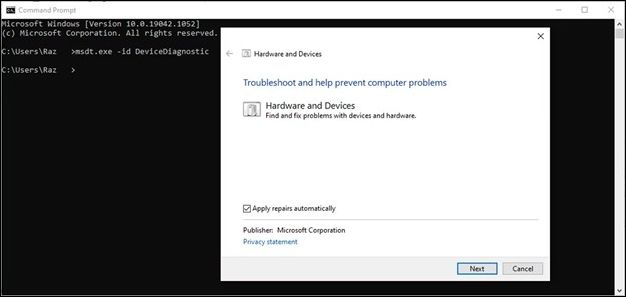
In earlier Windows versions, users could access the Hardware and Device troubleshooter through the Control Panel. However, in newer versions like Windows 10 and 11, accessing this option has been shifted to using the command line instead. To access the Hardware and Device troubleshooter, users can use the command line and type "msdt.exe -id DeviceDiagnostic" to open the troubleshooter.
Step 1. To access the Command Prompt, navigate to the Start menu and search for "Command Prompt". Select the "Best match" from the search results.
Step 2. In the Command Prompt window, type the command: msdt.exe -id DeviceDiagnostic.
Step 3. The Windows Update troubleshooter will start and attempt to resolve the issue. If the troubleshooter is unable to resolve the issue, it will provide a detailed report of the problem and recommend possible solutions. This report can be used to troubleshoot and resolve the issue manually.
Step 4. After the troubleshooter window appears, press the "Next" button to start the troubleshooting process.
Help us spread knowledge! Share this page on your preferred social media platforms and empower others with valuable information.
Fix 2. Update or Reinstall Keyboard Drivers
To address issues with non-To resolve issues with functioning function keys, ensure your keyboard's software is up to date. This is particularly important for keyboards with unique features that require specific Windows-compatible software. Simply visit the manufacturer's website, download the latest driver or software, and install it. This will help resolve any issues with your function keys and ensure they're functioning as intended.
Step 1. Right-click the Start button and choose "Device Manager".
Step 2. Expand the keyboard to see installed drivers.
Step 3. Then, right-click to select "Update Driver".
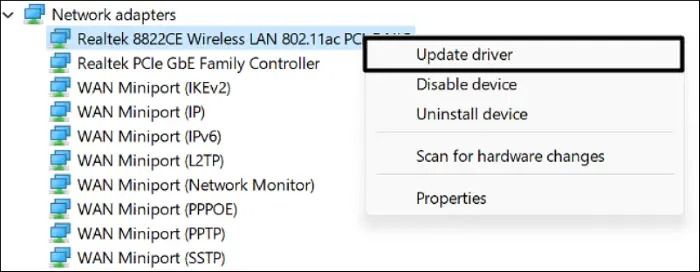
Step 4. A new window will appear, prompting you to choose how to search for updated driver software. Select the option to search automatically and click the "Start" button to begin the driver update process.
In Windows, the update driver function allows users to update the drivers for their hardware devices through the Device Manager or automatically through Windows Update, enabling users to maintain the performance and stability of their devices with minimal effort.
How to Update USB Drivers on Windows 11 [2023 Guide]
To update drivers on Windows 11, follow these steps below. If you're having trouble with your drivers, this article will guide you on how to use and fix them, and you can read more about it by clicking the link.
Fix 3. Run Windows Keyboard Troubleshooter
You can utilize the built-To use the hardware issue troubleshooter in Windows to resolve keyboard problems, follow these steps: Open the Settings app, click on Update & Security, then select Troubleshoot. From the list of available troubleshooters, select Hardware and Devices. Follow the on-screen instructions to run the troubleshooter, which will scan your computer for potential issues related to your keyboard.
Step 1. To open the Windows Settings, press the Windows Key and the "I" key simultaneously. This will open the Windows Settings.
Step 2. In the Windows Settings window, navigate to the "System" category.
Step 3. Select the "Troubleshoot" option from the "System" category.
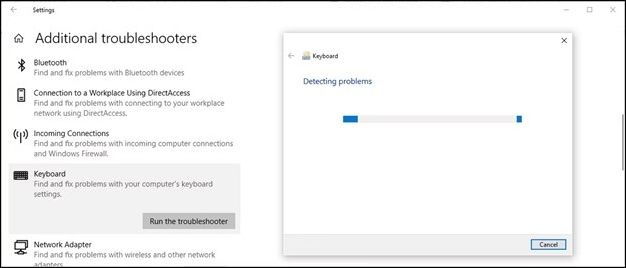
Step 4. Below Other Troubleshooters, scroll down to access the Keyboard section.
Step 5. To troubleshoot keyboard issues, including function keys, click on "Run the Troubleshooter" in the Keyboard section. This will initiate a process to identify and potentially resolve any problems with your keyboard's function keys.
If you're experiencing issues with Windows updates, you can use the Windows Update Troubleshooter to resolve the problem. This troubleshooter can help identify and fix issues that are preventing Windows updates from working correctly.
Fix 4. Adjust BIOS Settings to Resolve the Problem
Adjusting BIOS settings can be crucial in resolving issues when function keys are not working correctly on your computer. The BIOS is responsible for managing hardware configurations, and sometimes, incorrect BIOS settings can lead to conflicts or issues with specific hardware components like function keys. To potentially fix function key issues via BIOS settings, you may need to enter the BIOS setup utility, look for settings related to keyboard or function keys, and adjust them according to the manufacturer's recommendations or try resetting them to their default values. This process may vary depending on your computer's make and model, so it's essential to consult your user manual or manufacturer's support resources for specific guidance.
Step 1. Click Start, then select the gear icon for Settings.
Step 2. Scroll down in Settings and click "Update & Security".
Step 3. Choose "Recovery" from the left sidebar options.
Step 4. In the "Advanced Setup" section, click on the "Restart now" option to initiate the process.
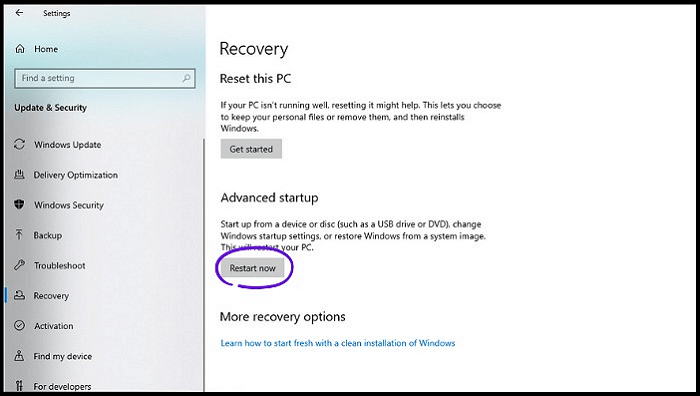
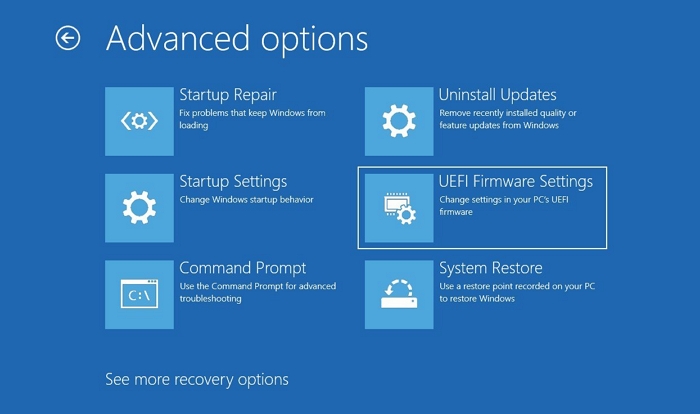
Step 5. Your computer will display a blue screen with advanced troubleshooting options as it restarts.
Step 6. To access UEFI Firmware Settings, go to Troubleshoot, then select Advanced Options and UEFI Firmware Settings, and finally click Restart to proceed.
Furthermore, share this information on social media to help others discover valuable insights.
Fix 5. Update Windows Operating System
Updating the Windows Operating System can resolve the issue of function keys not working. It's also essential to keep your computer running smoothly, securely, and with the latest features and improvements. Regular updates patch vulnerabilities, enhance performance, and offer new functionalities. To update your Windows OS, follow these steps: the steps below.
Step 1. To update your Windows, click Start and access settings. Then, select the "Update & Security" option.
Step 2. Then, go to Update & Security and select Windows Update.
Step 3. Select the "Check for Updates" option and download any available updates.
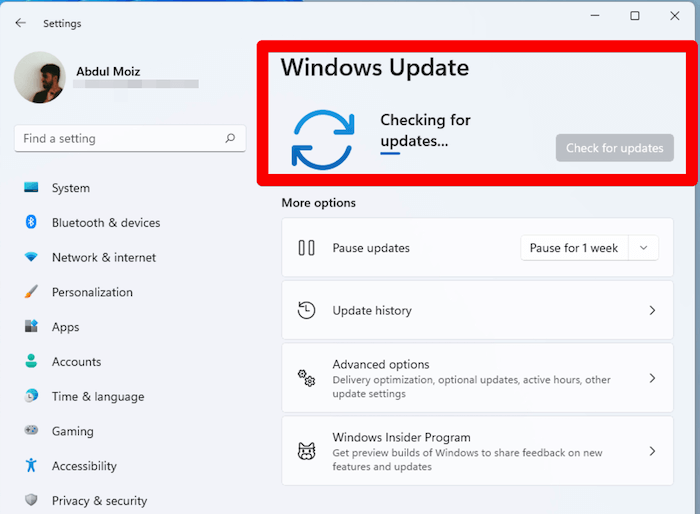
Step 4. Install the updates; your computer may restart.
Step 5. Restart if needed to complete the installation.
Using a reliable data recovery tool like Deep Data Recovery can ease worries about data loss during the Windows update process. This software is engineered to assist users in recovering files after a Windows update, and its dependable recovery features make it a preferred solution for many data loss scenarios, including accidental file deletion, drive formatting, partition loss, system crashes, and virus attacks.
Fix 6. Reset Windows to Factory Settings
Resetting Windows to its factory settings can resolve issues with malfunctioning function keys by eliminating software conflicts or corruption, effectively wiping the slate clean and providing a fresh start for your system. When you perform a factory reset, your operating system reverts to its original state, and your computer will often run more smoothly, with the function keys regaining their proper functionality.
Step 1. To reset Windows, go to the Windows Search bar, type "reset", and select "Reset this PC" from the results.
Step 2. Click "Get started" to begin the process.
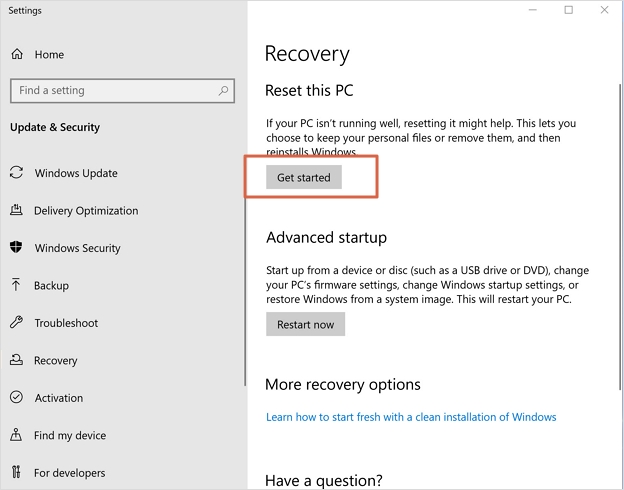
Step 3. The system will prompt you to decide whether to keep or discard your files. Make your selection and initiate the restoration process.
Step 4. After the reset, your system will be refreshed, and you should be able to find the Microsoft Store and other essential applications without any issues.
Deep Data Recovery can be used to recover files after a factory reset without a backup.
Conclusion
When encountering issues with Function keys not working, users can troubleshoot the problem by examining the keyboard settings, updating drivers, and checking for conflicts with other keys or software. By carefully applying these solutions, users can regain control over these essential keys, ensuring a smoother and more efficient computing experience.
To resolve unexpected data loss scenarios, it's essential to remain patient and persistent as the specific solution may vary depending on the root cause. Having a reliable and powerful tool like Deep Data Recovery can be crucial in such situations, and downloading it today can ensure that important files are never lost again.
Function Keys Not Working FAQs
We have answered some common queries of people below.
1. How do you lock and unlock the Fn key?
To lock or unlock the Fn key on Windows, check if your laptop has a dedicated key labeled Fn Lock or FnLk. Pressing this key will toggle the Fn key's behavior. This allows you to switch between using the Fn key to access additional functions and using it as a standard function key.
2. Why are my F1-F12 keys not working?
If your laptop has the Fn key enabled by default, the F1-F12 keys may not work as intended. To access their primary functions, you can press the Fn key along with the desired F1-F12 key. Additionally, you may be able to disable the default Fn key behavior in your laptop's settings.
3. How do you disable the Fn key without BIOS?
You can disable the Fn key without accessing the BIOS using third-party software or keyboard customization tools provided by your laptop's manufacturer. Look for software that allows you to remap or customize key functions.
4. How do I fix Function keys not working on Mac?
If your Mac's Function keys are unresponsive, navigate to System Preferences > Keyboard, then select "Use F1, F2, etc. keys as their default functions" to make them work as intended.
Related Articles
- How to Fix SSD Slow Write Speed on Windows 10/11 [Full Guide]
- How Long Does It Take to Format an External Hard Drive [Full Guide]
- How Do I Format USB Drive on Linux? Linux Beginners in 2024
- How to Backup SD Card on the Go with Every Possible Way
- What Is Cloud NAS (Network Attached Storage)? [Full Information]
Learn about cloud NAS (network-attached storage), how it works, and its advantages compared to on-site NAS - CMR vs. SMR Hard Drive: Which One is Better to be Choosen?
CMR vs. SMR hard drives is two different types of data recording for mechanical hard drives. Both CMR vs SMR have their own pros and cons. It is important to tell the differences and know which one is better to be chosen for different purposes. - Fix Windows 11 Touchpad Not Working (2026 Guide)
Products
Articles & Tutorials
- Data Recovery
- Data Backup
- File Recovery
- File Backup
- System Backup and Restore
- Disk and Partition Clone
- Technical articles
- Mobile articles
- Disk Master Help
- Windows Data Recovery Tutorials
- Windows Secure Delete Tutorials
- Windows Partition Management Tutorials
- Windows File Backup and Restore Tutorials
- Windows System Backup and Restore Tutorials
- Windows Disk Backup and Restore Tutorials
- Windows Clone Tutorials