How to Update Drivers on Windows 11 [Download USB Drivers]
To keep your system's hardware devices running smoothly, it's essential to update the drivers in Windows 11. This ensures optimal performance, reliability, and compatibility. Without up-to-date USB drivers, your computer wouldn't be able to communicate with devices like printers, external hard drives, keyboards, and more.
This article will delve into Windows 11's USB driver update procedure in detail, providing a comprehensive guide on how to install and update USB drivers for Windows 11 and get your device running smoothly.
- 🖲️Updating your USB drivers regularly helps improve the performance of your USB devices and prevents any potential issues they may cause.
- 💻Outdated or missing USB drivers can cause device malfunctions, connectivity issues, and system instability on Windows 11.
- 💾Using the latest drivers for your USB devices on your Windows 11 PC ensures they function at their full capacity.
How to Update USB Drivers in Windows 11
When upgrading to Windows 11, ensure your USB devices are functioning properly by keeping their drivers updated. To do this, follow the step-by-step instructions below. Keeping your USB drivers up-to-date will help prevent any issues with your USB devices.
Now that we have that out of the way, let's get into the specifics of how to update USB drivers in Windows 11:
Step 1. Select "Device Manager" from the Windows key + X menu.
Step 2. Right-click on the Universal Serial Bus controllers in the Device Manager, then select "Update driver" from the context menu.
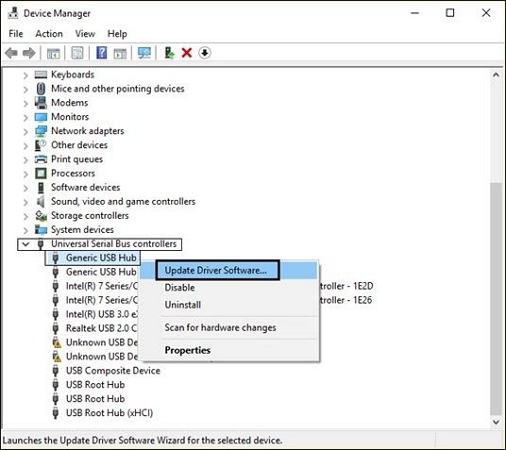
Step 3. In the driver update wizard, choose "Search automatically for updated driver software." Windows will then find the newest USB device online and install drivers if available.
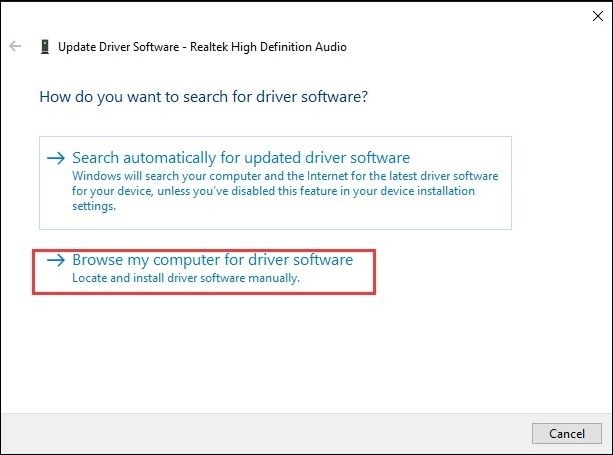
Step 4. If Windows is unable to find the driver, manually update it by selecting "Browse my computer for drivers" and choosing the location of the latest driver file you obtained.
Step 5. Windows may provide a list of drivers. Choose a driver and follow the instructions to install it.
Step 6. Device Manager displays outdated drivers with a yellow exclamation mark or red "X" symbol.
Step 7. Right-click the driver, choose "Properties," then select the "Driver" tab to view the driver version and release date. If outdated, update it.
To upgrade your USB drivers in Windows 11, follow the steps outlined above. For more information on updating USB drivers in Windows 10, click on the linked page.
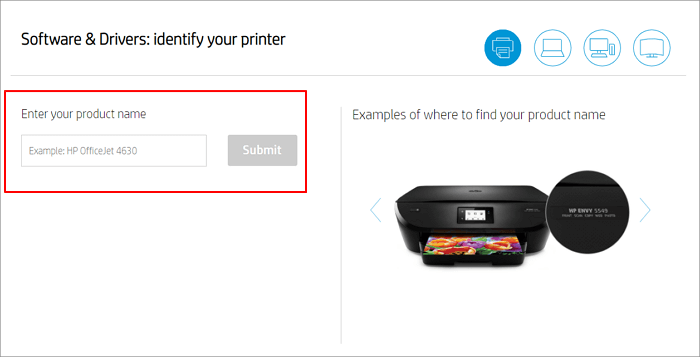
To download and update USB drivers in Windows 10, follow these steps: Go to the official Microsoft Update Catalog website and search for the latest USB driver updates. Alternatively, you can use the built-in Windows Update feature to check for and install any available driver updates.
If the USB driver on your PC malfunctions, it can cause issues with peripherals connected via USB, preventing them from functioning properly.
How to Download USB Drivers Windows 11
To ensure your USB devices work properly on Windows 11, it's essential to keep your USB drivers up to date and obtain specialized drivers for any unrecognized USB devices. This involves checking for updates from the manufacturer's website or using the Device Manager to identify and install the necessary drivers. By doing so, you can prevent any issues with your USB devices and ensure they continue to function as expected.
To protect your data and ensure you're downloading from a reliable source, it's crucial to prioritize your digital safety. Before proceeding with the lesson, please verify that the USB drivers you're about to download are from a trusted source. Here's a concise summary of the necessary steps to obtain USB drivers for Windows 11:
Step 1. To get the USB driver, you need to identify the make and model of your USB device. This information is usually found on the device itself, in the user manual or on the manufacturer's website.
Step 2. Visit the USB device manufacturer's website.
Step 3. Visit the manufacturer's "Support," "Downloads," or "Drivers" page.
Step 4. Find your USB device in the list.
Step 5. To update your Windows 11 driver, you can follow these steps: Find the Windows 11 driver and download it. Save the driver to your PC. Then, go to the Device Manager, find the device you want to update, right-click on it, and select "Update driver.
Step 6. To start the driver installation, double-click the downloaded driver file and follow the on-screen instructions.
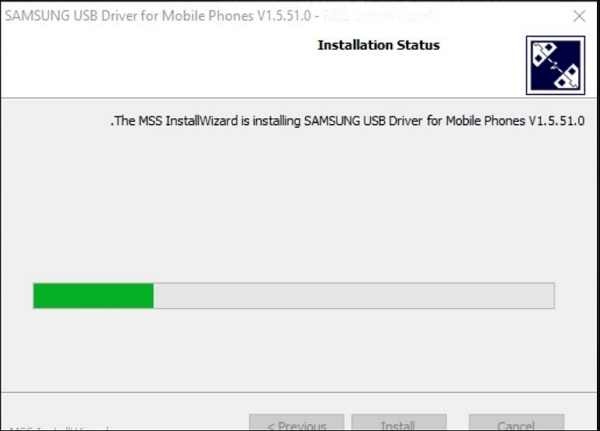
To download Windows 11 USB drivers from the manufacturer, follow these steps: only download drivers from trusted sources to avoid malware and incompatibilities, install drivers by following the manufacturer's instructions, and install USB drivers to ensure your USB devices operate with your PC.

To fix a USB flash drive not showing up in Windows 10/8/7, try the following steps: check the USB port, restart the computer, enable USB selective suspend setting, update the USB drivers, check the file system, and use a different USB port or computer. If none of these methods work, it may be a hardware issue and the USB drive may need to be replaced.
If your USB drive is not showing up or the flash drive is missing in Windows, the computer may not be able to read or recognize the USB flash drive. This can be due to various reasons such as corrupted drivers, incorrect file system, or hardware issues. You can try troubleshooting by checking the USB drive's file system, updating drivers, and checking for hardware issues. If the problem persists, you may need to format the USB drive or seek further assistance.
Recover Data from USB Driver After Update
Upgrading USB drivers on Windows 11 can be risky and may result in information damage or data loss. To secure your vital files and regain any lost information, use a trustworthy data recovery program like Deep Data Recovery, which can help recover files system errors, system crashes, and unintentional deletions.
When your USB driver becomes damaged or unavailable after an upgrade, use Deep Data Recovery to recover flash drive data, including documents, images, movies, audio files, and more, with its intuitive interface and sophisticated scanning algorithms.
Key Features of Deep Data Recovery:
- You have the option to either do a quick scan to find recently deleted files or a more thorough search to find everything.
- You can preview the recoverable files before actually restoring them.
- Select the specific files or directories that need to be recovered, reducing the amount of data that needs to be kept.
- Recover data from flash drives, HDDs, SSDs, and SD cards.
- Bootable data recovery software can create a bootable USB to help recover data from a non-starting PC.
If you've lost files due to a USB driver update in Windows 11, you can use Deep Data Recovery to recover them. This tool can help prevent irreparable data loss when updating drivers.
Note: To increase the chances of successful data recovery, install the Qiling data recovery software on a different disk from the one where the files were lost. This approach helps prevent overwriting of the original data.
Step 1. Launch Deep Data Recovery on your Windows computer, select the disk partition or storage location where you lost data, and click "Scan".

Step 2. This recovery software will start scanning the disk to find all lost and deleted files. Once the scan process is complete, you can click "Filter" > "Type" to specify the types of lost files you're looking for.

Step 3. Preview and restore lost Windows files by scanning for them, previewing the found files, selecting the desired files, and then recovering them to a safe location.

Final Thoughts
Updating the USB drivers on your Windows 11 device is essential for optimal compatibility. To do this, follow the in-depth instructions provided for updating and installing USB drivers on Windows 11. Additionally, to prevent data loss during the update process, you can utilize Deep Data Recovery. With a video explanation and clear procedures, you can successfully update your USB drivers and keep your devices functioning smoothly.
Deep Data Recovery allows you to back up and restore lost files after upgrading to Windows 11, and also helps with updating USB drivers and recovering lost data.
Update Drivers Windows 11 FAQs
Here are 4 additional questions about updating drivers in Windows 11. Check here for the answers.
1. Does Windows 11 install all drivers automatically?
While Windows 11 automatically installs required drivers, not all drivers will be installed automatically. Some drivers may need to be manually updated.
2. How do I download all drivers for Windows 11?
Drivers for Windows 11 can be found on the device manufacturer's website, specifically in the help or downloads section, where the latest drivers for your devices can be located and downloaded.
3. How to download Windows 11 64-bit?
Microsoft offers Windows 11 64-bit. Ensure your machine meets the minimum requirements for Windows 11, and follow the 64-bit download and installation procedures to complete the process.
4. How to update GPU drivers?
GPU drivers can be updated by downloading the latest drivers from your GPU vendor, such as NVIDIA or AMD, or by using driver update software or Windows 11's device manager.
Related Articles
- How to Fix 0x4005(16389) Error | Windows Update Failed
- 2024 Tutorial: Recover RAID Data with RAID Recovery Software
- Fix Stuck at Windows Is Loading Files Loop
- Windows Update Error 0x80070643 | How to Fix
- Fix Unallocated Space Cannot Create Partition in Disk Management [Windows 7/8/10/11]
Are you trying to create a partition in your hard drive with unallocated space and getting the 'Unallocated Space Cannot Create Partition' error? Learn more about this error, its causes, and the possible solutions in the article below. - How to Unblock Websites on School Chromebook 2024
Want to unblock websites on your school Chromebook in 2024 without the hassle? This article is your go-to guide, providing you with the necessary steps to access blocked websites on your school-issued Chromebook.
Products
Articles & Tutorials
- Data Recovery
- Data Backup
- File Recovery
- File Backup
- System Backup and Restore
- Disk and Partition Clone
- Technical articles
- Mobile articles
- Disk Master Help
- Windows Data Recovery Tutorials
- Windows Secure Delete Tutorials
- Windows Partition Management Tutorials
- Windows File Backup and Restore Tutorials
- Windows System Backup and Restore Tutorials
- Windows Disk Backup and Restore Tutorials
- Windows Clone Tutorials