Download Qiling Bootable Data Recovery Software to Recover Files
Boot Failures You May Encounter
There are several common situations that suggest a boot failure.
- The computer is stuck at the "Preparing Automatic Repair" screen or the Automatic Repair loop, which is a common issue that can occur due to various reasons such as corrupted system files, malware, or hardware problems. To resolve this issue, you can try running the Automatic Repair process again, booting in Safe Mode, or using a bootable USB drive to access the system and perform repairs.
- The error message "DISK BOOT FAILURE - INSERT SYSTEM DISK AND PRESS ENTER" typically indicates that the computer is unable to boot from its primary hard drive or disk. This can be due to a variety of reasons such as a faulty hard drive, a corrupted boot sector, or a malfunctioning BIOS.
- The blue screen of death, also known as a stop error, is a type of error screen that appears on Windows computers when the system encounters a critical problem that it cannot recover from, requiring an immediate restart to prevent data loss or corruption. The error screen typically displays a message indicating that the PC needs to restart, along with a stop code and other relevant information.
- The error message "Boot Device Not Found - Please install an operating system on your hard disk" typically indicates that the computer is unable to find a bootable device, such as a hard drive or SSD, to load the operating system from. This can be due to various reasons like a faulty hard drive, a missing or corrupted boot loader, or incorrect BIOS settings.
Many computer users face the frustration of a computer that won't boot into Windows, often requiring them to try advanced options or use the Windows installation media to resolve the issue. However, these solutions can be complex and may not always be effective, leading some users to resort to data recovery or other last-minute measures.
What You Need: Download Bootable Data Recovery Software
If your PC or laptop won't boot, you can recover data from it by creating a bootable USB, CD, or DVD with a data recovery utility. This allows you to boot the computer from the external media and then use the recovery software to access and retrieve all your files from the unbootable system.
Deep Data Recovery with Bootable Media can help you create a bootable disk and resolve the issue, allowing you to access and recover your data.
With Rufus, you can create a bootable Windows Preinstallation Environment (WinPE) on a USB, CD, or DVD, allowing you to start the computer and rescue files.
Important Tips Before Using Bootable Data Recovery Software
- To prepare an empty storage device, start by inserting the storage device into your computer. If it's a USB flash drive, simply plug it in.
- To create a healthy bootable disk, you can use a Live USB or a Live CD, which is a bootable disk that contains a complete operating system. This can be created using a tool like Rufus for Windows or Etcher for Windows, macOS, or Linux.
- To boot your computer from a bootable disk, you need to change the boot sequence in the BIOS settings. This involves accessing the BIOS menu, navigating to the boot settings, and changing the sequence to prioritize the bootable disk.
- Qiling bootable data recovery software is not effective in retrieving data from a physically damaged PC hard drive.
To create a bootable USB/CD/DVD with Qiling bootable data recovery software, you can follow these steps. First, download the Qiling software and create a bootable USB/CD/DVD using a tool like Rufus or a CD/DVD burning software. Then, extract the Qiling software files to the USB/CD/DVD drive.
Step 1. Create a bootable disk
Before creating a bootable disk using Deep Data Recovery WinPE Edition, make sure to back up any important data on the USB by copying it to another device, as the process will erase the existing data on the USB. Then, you can proceed with creating a bootable disk using the software.
Connect the USB drive to your PC, then launch Deep Data Recovery WinPE Edition. Next, select the USB drive and click "Create" to create a bootable disk.
Step 2. Boot from the bootable USB
Connect a bootable disk to the PC that won't boot, and then change the computer's boot sequence in the BIOS settings. Most users can do this by restarting their computer and pressing F2 at the same time to access the BIOS.
To boot the PC from a device other than the hard drive, press F10 to save and exit the BIOS settings. This allows you to choose booting from a removable device, such as a bootable USB disk, or a CD-ROM drive, such as a bootable CD/DVD.
Step 3. Recover data from a hard drive that won't boot
When you boot from a USB drive, you can run Deep Data Recovery from the WinPE bootable disk, which allows you to select the drive you want to scan to find all your lost files.

Note: You can choose different search modes based on where and why the data was lost.
Click "Scan" to start the scanning process.

After scanning, you can preview all recoverable files, select the targeted files, and click the "Recover" button to restore your files. It's recommended to save all recovered data to another place to avoid data overwriting. This will ensure that your recovered files are safe and intact.

How to Prepare Yourself for a Boot Issue
A computer boot failure can be a severe and unexpected issue that leaves users anxious. It's essential to learn how to troubleshoot and solve the problem, but also to prepare for potential boot-related issues.
Create System Restore Points
To create a system restore point, you can follow these steps:
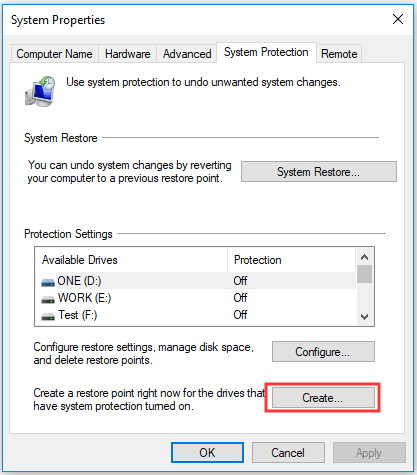
Step 1. To create a restore point, type "create a restore point" in the search box on the task bar. This will allow you to create a snapshot of your system at a specific point in time, which can be used to restore your system to that point if something goes wrong.
Step 2. Click "Create a restore point" from the search result.
Step 3. To make a system restore point, click on the "Create" button under the "System Protection" tab.
Step 4. Type a description for the restore point, and then select Create > OK.
Create a System Image
The Backup and Restore feature in Windows allows you to create a system image, which is a copy of the Windows system drive(s), and also enables you to add other partitions to back up together with the system drives. This system image can be used to restore a computer that is no longer functioning.
Step 1. Connect a large external hard drive to the computer.
Step 2. To access the Control Panel in Windows, simply type "Control Panel" in the search bar and select the "Control Panel" option that appears in the results.
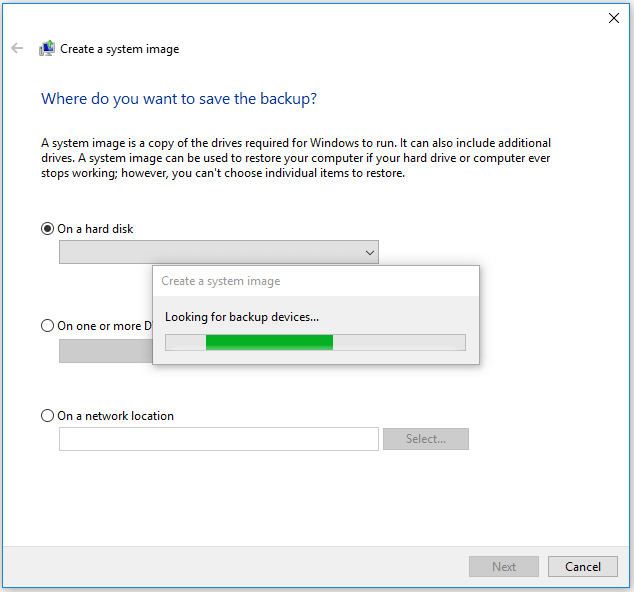
Step 3. Choose "Backup and Restore" and click "Create a system image".
Step 4. Check "On a hard disk" (you can change the backup location according to your needs) and click "Next".
Step 5. Select the partitions you can to include in the system image and click "Next".
Step 6. Follow the on-screen instructions to start creating a system image.
If your computer won't boot, you can try a system restore or system image recovery if other fixes don't work to quickly solve the problem.
Solve Windows Boot Issues with Windows 10 Repair Services
If you're experiencing Windows boot failures, you can use Windows manual fixing services from Qiling. Their professional technical team can help resolve various system startup errors, such as system failure, blue screen, black screen, and more.
Consult with Qiling data recovery experts for a one-on-one manual recovery service, which includes the following services after a FREE diagnosis:
- Fix Windows boot issues, including BSOD
- Fix Windows error and configure Windows environment
- Restore the system when it fails to boot
- Optimize Windows computer to make it run quickly
The Bottom Line
When a PC or laptop won't boot, bootable data recovery software can help recover data from the hard drives. Additionally, creating a bootable media with disk cloning software can also aid in extracting data from the unbootable computer.
Related Articles
- Microsoft Partition Recovery Tool Free Download
- Red Dead Redemption 2 Lost Save Game, How to Recover?
- RAW USB Recovery | How to Recover Data from RAW USB Drive
- How to Access HP Boot Menu with HP Boot Menu Key [Full Guide]
- Recover Data from Formatted Transcend External Hard Disk/SD Card
You can recover deleted or formatted data from your Transcend storage device, such as an external hard drive or memory card, using the reliable Deep Data Recovery software. - Fix Unreadable SD Card and Recover Data
If you're experiencing a Micro SD card unreadable problem, this page provides easy solutions using Qiling file recovery software to help fix the issue and recover your data.
Products
Articles & Tutorials
- Data Recovery
- Data Backup
- File Recovery
- File Backup
- System Backup and Restore
- Disk and Partition Clone
- Technical articles
- Mobile articles
- Disk Master Help
- Windows Data Recovery Tutorials
- Windows Secure Delete Tutorials
- Windows Partition Management Tutorials
- Windows File Backup and Restore Tutorials
- Windows System Backup and Restore Tutorials
- Windows Disk Backup and Restore Tutorials
- Windows Clone Tutorials