RAW USB Recovery | How to Recover Data from RAW USB Drive
USB Becomes the RAW Format, Help!
A USB flash drive showing up as RAW format and prompting to format it usually indicates a corrupted file system. To recover files from a RAW USB, you can try using data recovery software such as Recuva, Deep Data Recovery, or Disk Drill. These tools can scan the drive and recover your important files. Make sure to stop using the drive and avoid writing any new data to it to prevent overwriting the existing data. You can also try to run a chkdsk command on the drive to see if it can repair the file system. If the above methods don't work, you may need to seek professional help from a data recovery service.
The USB becoming the RAW format is a common issue that annoys users. When a USB becomes RAW, it means the data on the device has become inaccessible, preventing access to files like documents, photos, and emails. To resolve this, one must first perform RAW USB recovery and then fix the USB drive in the RAW format, making the data accessible again.
Common Reasons for RAW USB Drive
Your USB drive doesn't become RAW (Real-Time Operating System) without a reason. Typically, a RAW drive is caused by a specific issue, and some common culprits include file system corruption, a faulty USB controller, or a problem with the drive's internal memory. To resolve the issue, you can try checking the drive for errors, running a disk check or scan, or using a tool to repair the file system.
- Your access to the USB is denied
- Your USB is not formatted or is not formatted correctly
- The current file system of your USB drive is not being recognized by the operating system of your computer due to a compatibility issue. This can be caused by a variety of factors, such as a corrupted file system, an outdated driver, or a hardware malfunction.
- Your USB drive is infected by a virus
Common Situations Indicating USB Has Become RAW
When a USB drive becomes RAW, it may not display as such directly. Instead, you might receive error messages or notifications. This can occur due to various situations, such as a corrupted file system, improper removal, or system crashes. Checking the drive's properties may reveal that the file system is indeed RAW, indicating a need for data recovery or formatting to restore functionality.
- Invalid media type reading drive. Abort, Retry, Fail?
- The file system is displayed as "RAW"
- Windows may display the message "Disk is not formatted. Do you want to format now?" when it's unable to read the disk's file system, indicating that the disk needs to be initialized or formatted before it can be used. This error can occur due to various reasons such as a corrupted file system, incorrect disk configuration, or a disk that's been removed without safely ejecting it.
- File names contain weird characters
- "Sector not found" messages
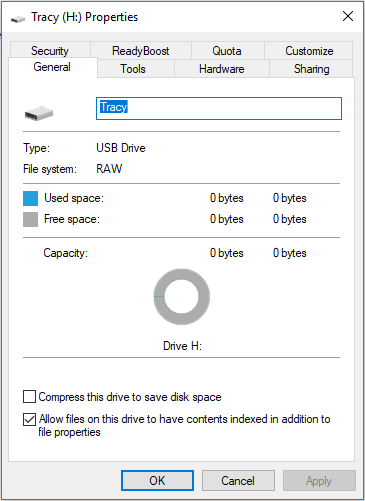
You may encounter frustrating notifications when using certain USB drives, such as external hard disks, memory cards, smart media, or other storage media. However, you can repair a RAW USB drive without losing any data by first recovering your files and then fixing the RAW format, making it work properly again.
3-Step USB RAW Recovery Solution
Before fixing the USB in RAW format, perform RAW USB drive recovery to keep your data safe. Professional disk recovery software like Deep Data Recovery fully supports RAW USB recovery, allowing you to easily recover all files from your inaccessible USB drive.
- The software supports recovery from various difficult data recovery situations, including RAW data recovery, deleted files recovery, formatted file recovery, Recycle Bin emptied data recovery, lost partition recovery, and virus attack recovery.
- A data recovery software that retrieves files from various storage devices, including USB flash drives, SD cards, memory cards, external hard drives, digital cameras, music players, and computers, allowing users to recover lost or deleted files.
- Retrieves almost all file types
Guide: Recover Files from a Flash Drive that has Turned RAW
Step 1. Select file types
Launch Deep Data Recovery. Select file types and click "USB/SD Scan" to start.

Note: You can choose different search modes based on where and why the data was lost.
Step 2. Choose the USB drive to scan
Please select the USB drive where you lost your important files, then click "Scan" to begin the process.

Step 3. Check and preview USB drive data
When the scanning is finished, you can quickly locate a specific type of file by using the Filter feature and the Search option.

Step 4. Restore flash drive data
After finding lost files on a USB drive, click "Recover" to restore them. Save the recovered files to a safe location on your PC, rather than back to the original USB drive.
To recover files from a RAW USB drive, you can use a third-party tool like Disk Drill. This tool can scan the RAW USB drive, identify the existing files, and recover them to a safe location. Once you have recovered your files, you can then format the RAW USB drive as you normally would. It's essential to use a reliable tool to avoid losing any more data.
RAW USB Data Recovery Services
Deep Data Recovery is a top-notch data recovery software for Windows, offering excellent manual recovery services, particularly for RAW USB drive recovery, making it a good recommendation for those in need.
After a free diagnosis, Qiling data recovery experts offer one-on-one manual RAW recovery service, which includes the following:
- Repair damaged RAW drive without formatting
- Recover data from the RAW drive, including BitLocker encrypted drives
- Recover data from RAW partitions, including RAW USB drives, RAW flash drives, and RAW external hard drives, by using specialized software such as Deep Data Recovery or Disk Drill. These tools can scan the RAW partition and recover lost files, even if the partition is no longer recognized by the operating system.
3 Ways to Fix a RAW USB Drive
Formatting a USB drive in RAW format should be a last resort, as it erases all existing data. Instead, try to recover the device using a data recovery software or a specialized tool, which can help retrieve your files without losing them. If the issue persists, formatting the device might be the only option, but make sure to back up any important data first.
Method 1. Fix RAW USB Drive by Checking the Device
A built-In Windows, the "Check for file system errors" feature can help you scan and repair file system errors on your drive. This feature, also known as "chkdsk," can detect and fix errors such as disk corruption, file system inconsistencies, and other issues that may be preventing your drive from functioning properly.
Step 1. Connect your USB drive to your computer.
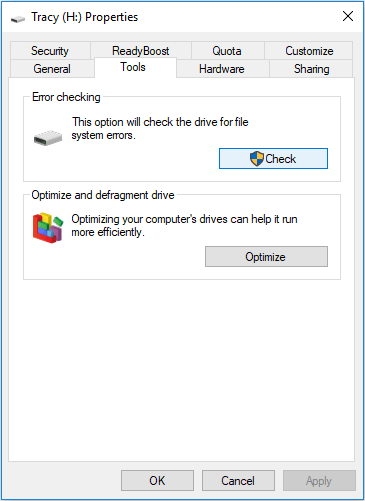
Step 2. To access the properties of your USB drive, go to "This PC" in Windows 10, click on "Devices and drives", right-click on your USB drive, and select "Properties" from the context menu.
Step 3. Click the "Tools" tab and then click "Check".
Step 4. To fix the issue, open the "Error Checking" window, select "Scan and repair drive," and allow the process to complete.
Method 2. Repair a RAW USB Drive Using CMD
The chkdsk command can be used to check and repair a RAW USB drive as long as it still has a drive letter assigned to it. #chkdsk #RAWdrive #USBdrive #storage #recovery
- Warning
- If your USB drive is in RAW format and you want to fix it, running chkdsk can potentially resolve the issue, but it may also result in total data loss. Therefore, it's recommended to perform data recovery before proceeding with the CMD method. This approach can help minimize the risk of losing any important files.
Step 1. Connect your USB to your computer.
Step 2. To run Command Prompt as an administrator, click the "search" icon in the taskbar, type "cmd", and right-click "Command Prompt" to select "Run as administrator".
Step 3. To fix a RAW USB drive, enter the command "chkdsk /f G:" in the Command Prompt, where "G:" is the drive letter of the RAW drive, and press Enter. This will initiate the check and fix process.
After the repair process, launch Disk Management and check if your hard drive is repaired. If CHKDSK is not working, consider formatting your USB, but since you've already recovered files, you can format the USB without concerns.
Method 3. Fix and Repair a RAW USB Drive by Formatting It
Step 1. Connect the RAW USB/SD card/pen drive to your PC.
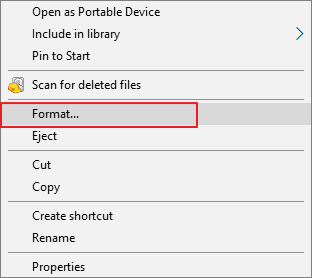
Step 2. To format a RAW USB drive, SD card, or other RAW device, open "This PC/My Computer", right-click the device, and select "Format".
Step 3. To repair a RAW USB drive and make it reusable, reset the file system, rename the USB drive, and then click "OK" to convert it to NTFS/FAT32. This should resolve the issue and allow you to use the drive again.
There are multiple ways to format a USB drive, including using built-in Windows features and professional USB formatting tools. After formatting, files can be moved back to the USB drive if needed.
Conclusion
If you encounter a RAW issue with your USB flash drive, fixing it is relatively easy. However, to ensure your data remains safe, you may need to utilize a third-party data recovery tool like Deep Data Recovery. This tool can effectively perform RAW USB recovery and is also beneficial in other data recovery scenarios, allowing you to resolve RAW issues with confidence.
When Windows calls the USB volume RAW, use the no-format RAW USB checklist before attempting file-system repair.
Related Articles
- How to Recover Uninstalled Programs on Windows 10 and Windows 11
- How to Recover Files After Format
- Download Windows 7 Disc Images (ISO Files) [Ultimate and Professional Edition]
- How to Work on Large Excel Files Without Crashing (5-Step Guide)
- Recover Deleted or Missing Outlook Folder
If your Outlook folders are missing or deleted, you can try to recover them by using the "Recover Deleted Items" feature, checking the "Lost and Found" folder, or by restoring a previous Outlook backup, depending on the version of Outlook you are using. - Recover Deleted or Unsaved PowerPoint Files
This page includes two ways - using powerful PowerPoint recovery software or the manual method to help you recover deleted or unsaved PowerPoint files without quality loss. With Qiling Data Recovery, it is a piece of cake to recover deleted PowerPoint files in Windows 11/10/8.1/8/7.
Products
Articles & Tutorials
- Data Recovery
- Data Backup
- File Recovery
- File Backup
- System Backup and Restore
- Disk and Partition Clone
- Technical articles
- Mobile articles
- Disk Master Help
- Windows Data Recovery Tutorials
- Windows Secure Delete Tutorials
- Windows Partition Management Tutorials
- Windows File Backup and Restore Tutorials
- Windows System Backup and Restore Tutorials
- Windows Disk Backup and Restore Tutorials
- Windows Clone Tutorials