Copy Folders and Subfolders Using Xcopy Command | 3 Ways🔥
If you want to copy folders from one drive to another, you can use the Xcopy command line to avoid manually copying each file. Alternatively, you can follow a post from Qiling to learn how to copy folders and subfolders using Xcopy command, or simply use a much easier alternative.
📃Also read: Robocopy Copy Folders and Subfolders on Windows
Can You Copy Folders and Subfolders Using Xcopy Command
Xcopy, or extended copy, is a command line that allows users to copy multiple files or entire directory trees from one location to another. It's an advanced version of the copy command with additional switches to specify source and destination details. Xcopy also removes the read-only attribute, making it ideal for copying files from a CDROM to a hard drive.
Xcopy is still widely used today, even with the availability of more advanced commands like Robocopy, thanks to its simplicity and reliability. To use Xcopy, you simply specify the source and destination paths, and the command will copy the files and subfolders accordingly.
Yes, the Xcopy command lets you copy folders and subfolders. The Xcopy command can help recreate directory trees with just a command line, using the source and destination. This is a more efficient alternative to the conventional copy-paste method, which can be tedious when working with large directory structures.
Powershell Move Files from One Folder to Another
Using PowerShell commands, you can easily move files from one folder to another by leveraging its robust file management capabilities. To start, you can use the Move-Item cmdlet to relocate files from a source folder to a destination folder, specifying the source and destination paths as parameters. You can also use the Move-Item cmdlet with the -Force parameter to overwrite existing files in the destination folder if they have the same name as the files being moved.
How to Use Xcopy Command to Copy Folders and Subfolders
Key Takeaways:
- xcopy [source] [destination] [options]
- Xcopy C:\example D:\example /E /H /C /I
- Xcopy Source Destination /T /E
- Xcopy Source Destination /O /X /E /H /K
The common syntax to copy folders and subfolders with CMD is "xcopy [source] [destination] [options]". This syntax allows for various options to be used depending on the specific demands, such as copying specific files or folders, preserving or overwriting existing files, and more.
- Case 1. Copy All Folders and Subfolders with Files
- Case 2. Copy Folders and Subfolders Without Files
- Case 3. Copy Folders and Subfolders with NTFS and Share Permission
Case 1. Copy All Folders and Subfolders with Files
To open the Command Prompt in administrator mode, click on "Start", type "CMD", and select "Run as administrator".
To copy all folders and subfolders with files, open the Command Prompt and type the Xcopy command as shown: `xcopy C:\source\*.* D:\destination\*.*`
You can use the command "xcopy C:\example D:\example /s /i" to copy the "example" folder and its subfolders from the C drive to the D drive. The "/s" option tells the command to copy subfolders, and the "/i" option tells it to ignore any files that already exist in the destination folder.
Xcopy C:\example D:\example /E /H /C /I
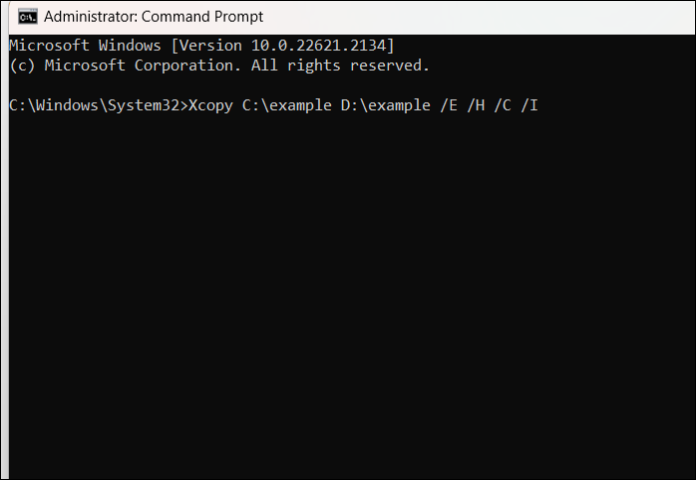
The respective commands mean:
/E - Copies all subdirectories, including the empty ones.
/H - Copies files with hidden and system file attributes.
/C - Continues to copy files even in case of errors.
/I - If you're unsure whether a command is copying to a file or a folder, it will always default to copying to a folder, even if you don't specify the destination.
Point to remember:
- The Xcopy command won't copy open files.
- The command runs without displaying a progress bar or notification, requiring manual verification to confirm the files were copied successfully.
- If your folder name has spaces or is larger than eight characters, make sure to add quotation marks around the path while executing the command.
Case 2. Copy Folders and Subfolders Without Files
Follow the command below to copy folders and subfolders without files.
Xcopy Source Destination /T /E
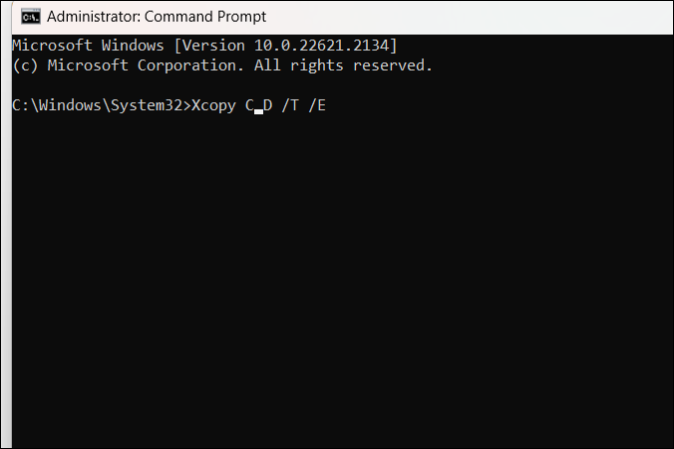
/T - Copies the subdirectory structure but not the files.
/E - Copies all subdirectories, including the empty ones.
Case 3. Copy Folders and Subfolders with NTFS and Share Permission
To transfer folders and subfolders with NTFS and share permission, you can use the following Xcopy command:
Xcopy Source Destination /O /X /E /H /K
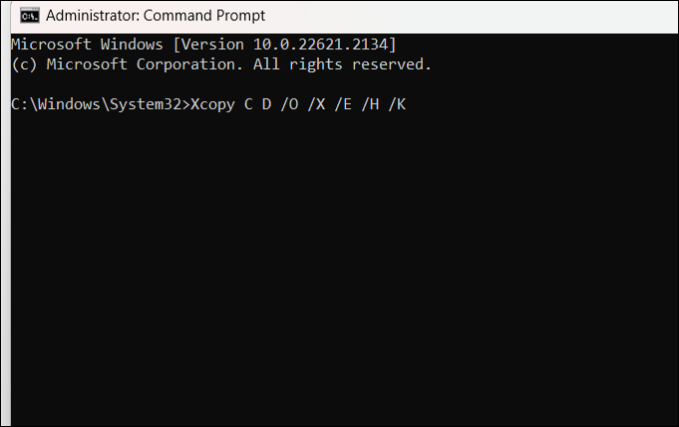
/E - Copies all the folders and subfolders, including empty ones.
/H - Copies hidden and system files in addition to normal files.
/K - Copies attributes. When used with Xcopy, it resets the read-only attributes.
/O - Copies the file ownership and ACL info.
/X - Copies file audit settings and ownership information (implies /O).
When using Xcopy, be aware that along with its various commands, there are also many parameters that can be used to meet specific needs. However, a simple mistake can lead to execution failure and potentially even data loss, so it's essential to be cautious when using the command and its parameters.
Easier Way: Automatically Backup Files or Folders on Windows
When backing up data, Xcopy can only duplicate folders, not files or subfolders. For a comprehensive backup, including files, folders, and even entire hard drives, you'll need reliable backup software. This type of tool can also create a system backup to safeguard against system crashes.
Qiling Disk Master is a complete backup and restore solution that replicates folders, disks, and systems for backup, allowing automatic backup of files on Windows computers, cloning, upgrading, and transferring files, and making clones for partitions, files, and systems at any time.
The tool allows you to create a bootable backup, mount images for fast recovery, and install your OS anywhere and anytime.
To back up files easily, start by identifying the files and folders you want to save. Then, connect an external hard drive or a cloud storage service like Google Drive or Dropbox to your device.
Step 1. Click the "Backup" tab page.

Step 2. There are four data backup categories: File, Disk, OS, and Mail. Clicking on "File backup" is the next step.

Step 3. Both local and network files will be listed on the left, where you can expand the directory to select the files to be backed up.

Step 4. Select the destination where you want to save the backup, following the on-screen guide.

To encrypt the backup with a password, set the backup schedule, and choose to start the backup at a specific event, click on "Options" in the "Backup Options" section, then select "Backup Scheme". This will allow you to customize the backup task according to your needs and preferences.

Step 5. You can store the backup to local drive, Qiling's cloud service, and NAS.

Step 6. Qiling Disk Master allows users to back up data to both third-party cloud drives and its own cloud drive.
To back up data to a third-party cloud drive, select "Local Drive" and then scroll down to add a "Cloud Device". From there, you can add and log in to your account.
Step 7. Click "Proceed" to start the backup task. Once completed, the task will be displayed as a card on the left side of the panel. Right-clicking the backup task allows further management.
You may also be interested in:
To Wrap Things Up
Xcopy is a useful command to copy files between locations, but it often fails or doesn't work as expected, leaving users frustrated.
Using a reliable tool like Qiling Disk Master can automatically copy files from one folder to another, and even copy folders, subfolders, hard drives, and systems, providing a complete solution for backup and recovery needs.
FAQs on Copy Folders and Subfolders Using Xcopy Command
Here are some of the most frequent FAQs asked on how to copy folders and subfolders using the Xcopy command in one paragraph shortly:
1. How to copy shared folders without losing share permissions?
- To access the shared folder, open File Explorer, navigate to the shared folder, and right-click on it.
- To change permissions on the Security tab, navigate to Properties > Security Tab > Advanced > Change Permissions. Uncheck "Include inheritable permissions from this object's parent" and click "Add". Then, click OK three times to save the changes.
- Change the parent directory of the shared folder.
- Run the Xcopy command with /E/H/K/O/X to copy shared folders without losing share permissions, ensuring the copied shared folders retain their original share settings.
2. What command can copy all files directories and subdirectories to another disk all at once?
The Xcopy command is a powerful tool that enables the copying of all file directories and subdirectories to another disk in a single operation. It comes with various attributes that can be used to customize the copying process and complete specific tasks.
3. Should I use Xcopy or Robocopy?
Robocopy can be considered a more advanced version of Xcopy, with the key difference being that Robocopy has a retry option, whereas Xcopy does not.
Related Articles
- Windows 7 Backup Hangs at 97% or 57% | 2024 Solutions
- Quick Ways to Fix OneDrive Connect Problems
- Windows 10 Backup Error Code (0x807800C5) – Why & How to Fix
- Does Hitachi Hard Drive Have Cloning Software?
Does Hitachi hard drive have cloning software? Do you want to get the answer? This article will tell you whether Hitachi hard drive comes with a cloning tool and offer a cloning tool called Qiling Disk Copy to you. - QuickBooks Unable to Backup Company File - What to Do?
If you're experiencing the QuickBooks unable to backup company file error, you're in the right place. This post will guide you on how to resolve the issue and provide a better way to back up your QuickBooks company file. - How to Restore System Image Without Repair Disc [Ultimate Guide]
If you're concerned about restoring your system image without a repair disc, it's possible. A professional backup tool like Qiling Disk Master can help create a system image on an external device, which can then be used to restore it on your device.
Products
Articles & Tutorials
- Data Recovery
- Data Backup
- File Recovery
- File Backup
- System Backup and Restore
- Disk and Partition Clone
- Technical articles
- Mobile articles
- Disk Master Help
- Windows Data Recovery Tutorials
- Windows Secure Delete Tutorials
- Windows Partition Management Tutorials
- Windows File Backup and Restore Tutorials
- Windows System Backup and Restore Tutorials
- Windows Disk Backup and Restore Tutorials
- Windows Clone Tutorials