Windows 7 Backup Hangs at 97% or 57% | 2022 Solutions
Windows 7 has a built-Windows 7 backup hangs at 97% or 57%, or occasionally 8% error during the backup process, which can be really frustrating. This issue can occur due to various reasons such as disk space issues, corrupted system files, or problems with the backup software itself. To resolve this issue, you can try troubleshooting steps like checking disk space, running a disk cleanup, and verifying the backup software.
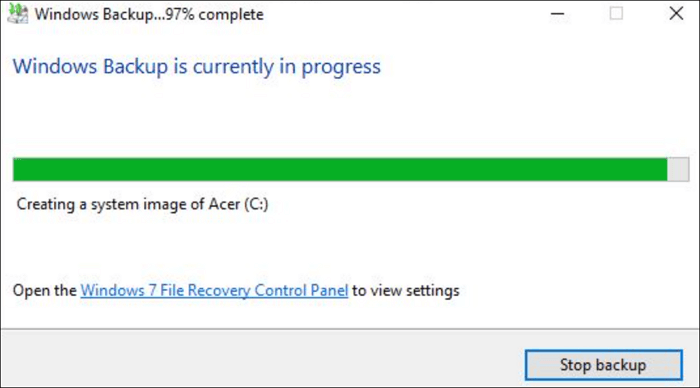
This post aims to provide reasons and solutions for a specific issue. It will explore possible causes and offer effective methods to resolve the problem, providing answers and assistance to those seeking a solution.
Possible Reasons Why Windows 7 Backup Hangs at 97%
Windows 7 backup hangs at 97% due to several reasons. The most common causes include issues with the backup process itself, problems with the destination drive, or conflicts with other system processes. Additionally, corrupted system files, outdated drivers, or malware infections can also cause the backup to freeze at this specific percentage.
- The backup destination is full
- The system image is too large
- The hard drive is corrupted
- The backup process is interrupted
- Bad sectors on the destination drive
- Other programs lock backup
Windows 7 Backup may freeze at various percentages, including 97%, 57%, or 8%, due to several factors such as corrupted system files, disk errors, or issues with the backup destination. Additionally, running multiple backup jobs simultaneously, using a faulty backup drive, or encountering problems with the Windows Backup service can also cause the backup process to freeze.
How to Fix Windows 7 Backup Hangs at 97% Problem - 5 Fixes
If you're unsure which of these is causing your problem, you can try each solution below and see if it fixes the issue. If you're unsure which of these is causing your problem, you can try each solution below and see if it fixes the issue.
Fix 1. Disable Firewall Temporarily
Step 1. In the Windows Defender Firewall window, click on "Turn Windows Defender Firewall on or off" on the left window pane.
Step 2. In the Private network settings and public network settings options, choose "Turn off Windows Defender Firewall (not recommended)".
Step 3. Click on "OK" to confirm your changes.
Fix 2. Check If the Disk Space for Backup is Full
Checking Disk Space:
Step 1. To access the system partition's properties, go to "This PC" and right-click on the system partition, usually the C drive, and select "Properties".
Step 2. The Properties window under the General tab shows the free and used space for a partition. If there's insufficient free space, deleting unnecessary files can help free up disk space.
Fix 3. Run SFC Scan to Fix Hard Drive Corruption
If corrupted system files are on your hard drive, it may also cause the Windows 7 backup to hang at 97%. To fix this issue, you can run an SFC scan. This scan will help to fix the corrupted system files and resolve the backup issue.
Step 1. To run the Command Prompt as an administrator, you can type "cmd" in the search box, then right-click on Command Prompt and choose "Run as administrator".
Step 2. To run the System File Checker (SFC) tool in Windows, open the Command Prompt window, type the command "sfc /scannow", and press the Enter key. This will initiate a scan of all protected system files and replace any corrupted ones with a cached copy.
The System File Checker (SFC) scan replaces corrupted system files with a cached copy, restarting the computer after scanning to verify if the Windows 7 backup issue at 97% is resolved.
SFC is a Windows utility that scans and replaces corrupted system files. If SFC is not working to repair corrupted files on Windows 10, you can try running it in administrator mode, checking for any pending updates, or using the DISM tool to scan and repair corrupted system files.
Fix 4. Perform a Clean Boot
If any third-If party programs or services interrupt the backup process, you may also encounter a Windows 7 backup stuck problem. To fix this, you can try performing a clean boot.
Step 1. Go to Start, type "msconfig" in the search box, and press Enter.
Step 2. In the System Configuration windows, under the General tab, select "Selective startup".
Step 3. Uncheck the Load startup items checkbox.
Step 4. Under the Service tab, check the Hide all Microsoft services checkbox, and then click on the "Disable all" button.
Fix 5. Restart Backup Process
If the backup process is interrupted, it may cause Windows 7 backup to get stuck at 97%. To resolve this, try restarting the backup process.
Step 1. To back up your Windows 10 system, go to Start, type "Backup and Restore" in the search box, and press Enter.
Step 2. To start the backup process, open the Backup and Restore window and click on 'Set up backup' to launch the Backup Wizard.
Step 3. To save the backup file, select a storage place where you want to save it and then click on "Next".
Step 4. Choose what you want to back up and then click on "Next".
Step 5. To set up a schedule for the backup, click on "Change schedule".
Step 6. To initiate the backup process, click on the "Save settings and run backup" option.
Windows 7 Backup and Restore blank screen issue occurs when the backup process fails to complete. This can be due to various reasons such as corrupted system files, disk errors, or insufficient disk space.
Windows Backup and Restore Alternative – Backup Windows with Ease
If you're unsure what's causing the backup issue, trying the methods one by one can be time-consuming and energy-draining. In this case, you can consider using Qiling Backup, a free backup software that allows you to easily and quickly back up data, system, and partition with simple clicks, eliminating the problem of backup freezing or being stuck at 97%.
Besides full backup, the system supports differential and incremental backup. It allows users to back up files and systems to various locations, including local drives, external drives, NAS, Qiling Cloud, and local drives.
Here is a step-by-step guide to using Qiling Backup to back up files:
Step 1. Click the "File backup" button to start backup.

Step 2. Files from both local and network locations will be displayed on the left side, allowing you to expand directories and select the files to be backed up.

Step 3. Select the destination where you want to save the backup, following the on-screen guide.

Step 4. Click "Options" to encrypt the backup with a password in "Backup Options". This allows for customization of the backup task to suit individual needs, offering various other options to explore.

To set the backup schedule, go to the "Backup Scheme" section and select the frequency and time of day you want backups to occur. You can also choose to start the backup process at a specific event, such as when the system is idle or when a certain program is running.

Step 5. You can store your backups to three different locations: your local drive, Qiling's cloud service, and a Network-Attached Storage (NAS) device.

Step 6. Qiling Backup allows users to back up data to both third-party cloud drives and its own cloud drive.
To back up data to a third-party cloud drive, select Local Drive, scroll down to add Cloud Device, add your cloud account, and log in.
Step 7. Click "Proceed" to start the backup task. Once completed, the backup will be displayed as a card on the left panel, and clicking the "Advanced" button will allow further management of the task.

Sum Up
The Windows 7 backup issue of hanging at 97% or 57% can be caused by various factors such as insufficient disk space, corrupted system files, or third-party programs interrupting the backup process. To resolve this, you can try the suggested solutions one by one. Alternatively, you can consider using a Windows backup and restore alternative like Qiling Backup, which allows you to back up your files with ease and simplicity, eliminating the need to troubleshoot the issue.
FAQ about Windows 7 Backup Hangs at 97% or 57%
1. Why is my backup hangs at 97%?
Backup getting stuck at a certain percentage, such as 97%, 57%, or 8%, can be caused by various factors. These may include: backup files being locked by other programs, insufficient storage space, or presence of bad sectors on the system disk.
2. How long should a Windows 7 backup take?
The time it takes to create a system image for Windows 7 can vary greatly depending on the size of your system, but it typically ranges from 1 to 2 hours, and in some cases, even longer.
3. Why does my Windows 7 backup keep failing?
The issue with the Backup and Restore feature may be caused by corrupted backup files, malware or virus affecting the feature, or an incompatible drive.
4. Does Windows 7 backup still work with Windows 10?
The Windows 7 Backup and Restore feature is available on Windows 10 and Windows 11. To access it on your Windows 10/11, go to Control Panel, then System and Security, and finally Backup and Restore (Windows 7).
Related Articles
- 10 Best Windows Backup Software of 2022 (Features, Pros & Cons)
- [Error 0x8007016a] Fix OneDrive Cloud Error Code
- How to Clone Windows 11/10 to USB Drive on Your Own
- Windows 7 Backup and Restore Blank Screen? Here Are Fixes!
- Simple & Quick | Share Files Between Computers on Different Networks
Sharing files between two computers on different networks is easier than you think. If the computers are in the same location, you can use a direct connection or a network bridge to share files. - How to Share Photos on Google Drive [Step-by-Step Guide]
If you want to share photos on Google Drive, you can do so securely and control who accesses them. To share photos, follow a step-by-step guide that allows you to keep the images under your control and only accessible to the intended person.
Products
Articles & Tutorials
- Data Recovery
- Data Backup
- File Recovery
- File Backup
- System Backup and Restore
- Disk and Partition Clone
- Technical articles
- Mobile articles
- Disk Master Help
- Windows Data Recovery Tutorials
- Windows Secure Delete Tutorials
- Windows Partition Management Tutorials
- Windows File Backup and Restore Tutorials
- Windows System Backup and Restore Tutorials
- Windows Disk Backup and Restore Tutorials
- Windows Clone Tutorials