How to Backup and Restore Information in Firefox Profile (Manual & Automatic Ways)
Firefox is a widely-Firefox is a free and open-source web browser developed by Mozilla, available on multiple operating systems such as Windows, macOS, Linux, and more. It is known for its speed, strong privacy and security features, and extensive library of add-ons.
When you first launch Firefox, it creates a profile folder that stores all your data, including bookmarks, browsing history, extensions, passwords, and more. This is why you can still see your bookmarks and other data even after reinstalling Firefox or switching to a new computer.
Backing up and restoring Firefox profiles is essential for transferring data to another computer or keeping them safe. This can be done manually by creating a backup of the Firefox profile folder, which contains all browsing data, bookmarks, and settings, and then restoring it on another computer or device. Alternatively, Firefox also offers an automatic backup feature, which can be enabled to save profile data at regular intervals, providing an added layer of security and convenience.
[3 Effective Tips] How to Backup Firefox Bookmarks
There are three ways to backup Firefox bookmarks, each with its pros and cons. One method is to export bookmarks to HTML files, which is a simple and straightforward approach. Another option is to sync the Firefox browser across different devices, allowing you to access your bookmarks from anywhere.
Where Are Firefox User Profiles Stored
To back up your Firefox profiles, you will need to locate your profile folder first. The location of the profile folder varies based on your operating system.
Follow the steps below to find the Profile folder:
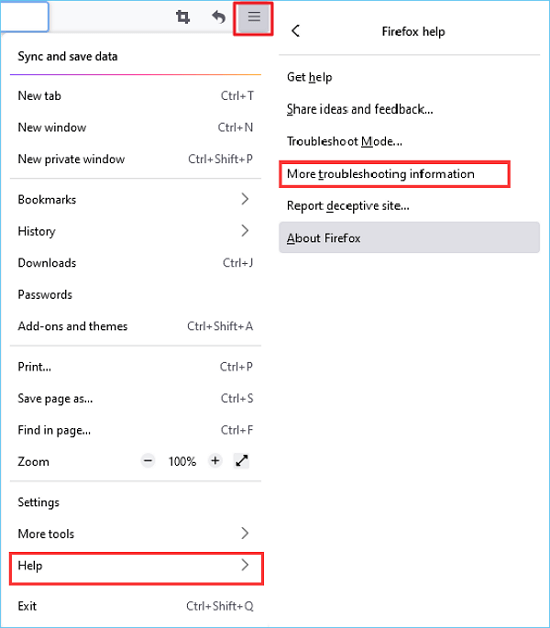
Step 1. To access more troubleshooting information in Firefox, open the browser on your computer, click the three horizontal bars icon on the top-right corner, and select Help > More troubleshooting information.
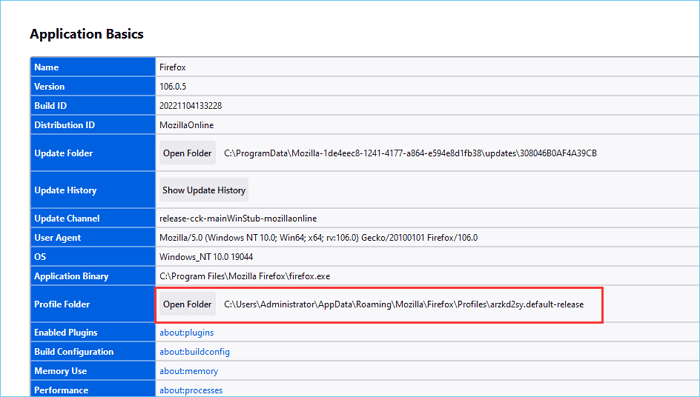
Step 2. A new window will appear, showing Application Basics, and under it, Profile Folder. Clicking Open Folder will display the specific Profile location. The Profile Folder location will be shown on the right side.
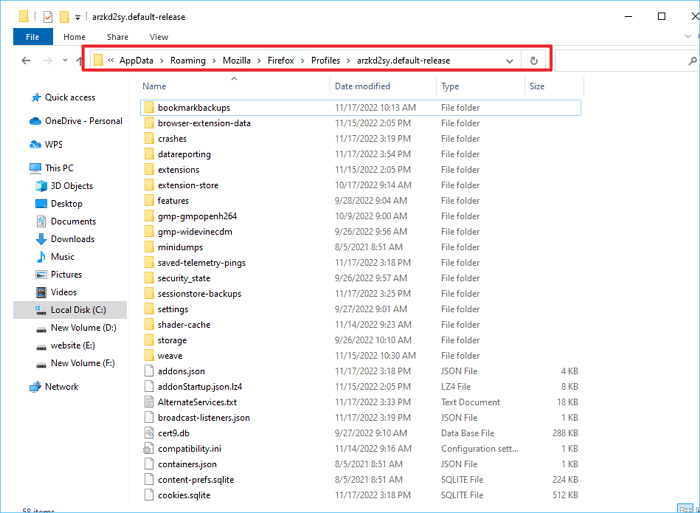
Step 3. You can view detailed information under the Profile folder, including bookmark backups, browser extension data, crashes, and more.
Backup & Restore Firefox Information in Profile [Manual & Automatic Ways]
Backup and Restore Firefox Profile Manually
You can back up and restore the Firefox Profile folder using the "Copy and Paste" feature, which is the most straightforward method.
- Kind Tip
- With this method, you need to manually perform a backup and restore of the Profile folder each time, which can be time-consuming and energy-draining. If you want a more convenient and efficient solution, consider using automatic backup, which will create a copy of the Profile folder at scheduled backup times, making it more suitable for frequent changes in browser data.
To manually back up and restore the Firefox Profile folder, follow these steps: First, close all Firefox windows, then navigate to the profile folder using the file explorer. For Windows, this is typically located at "C:\Users\YourUsername\AppData\Roaming\Mozilla\Firefox\Profiles\profile_name.
Backup Profile:
Step 1. Follow the steps above to find the specific location of the Firefox Profile folder.
Step 2. To return the folder one level up, click on the folder icon in the top left corner of the window, and then click on the up arrow next to it. Alternatively, you can press the 'Alt + Left Arrow' keys on your keyboard.
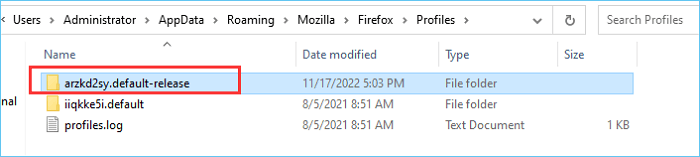
Step 3. To create a backup, choose a location where you want to put the backup, right-click the mouse, and select Paste.
Connect your device to the computer.
Restore profile:
To restore a backup to another computer, you'll need to back up the folder to an external device like a USB or external hard drive, then follow the steps to transfer the data.
Step 1. Connect your external hard drive to the new computer.
Step 2. To find the specific location of the Firefox profile folder on the new computer, follow the steps: 1. Open Firefox on the new computer.
Step 3. To delete everything in the current folder, you can use the command `rm -rf *` in the terminal. This will remove all files and subfolders in the current directory.
Step 4. Find your backup file, right-click it, and select Copy.
Step 5. Paste the backup file into the profile folder.
Backup and Restore Firefox Profile Automatically
An automatic backup plan saves time and energy by automatically backing up the Profile folder after changes are made, eliminating the need for manual backups.
Qiling Backup Home is a professional and reliable backup and restore utility that can backup files and folders, partitions, and systems. It allows users to save a copy of their Firefox Profile folder and set a scheduled backup plan according to their needs, such as hourly, daily, or weekly.
The software offers various types of backups, including full, incremental, and differential backups, as well as compressed and encrypted backups, to cater to different backup needs and ensure the safety of backed-up data.
To backup and restore your Firefox profile automatically, follow these steps: locate the specific Profile folder, then proceed with the backup and restore process. Make sure to backup your profile before making any changes to ensure a smooth restore process. This will allow you to quickly recover your Firefox settings and data in case of any issues.
Backup profile:
Step 1. To begin the backup process, click the File backup button.

Step 2. The tree view displays both local and network files, allowing users to expand directories and select specific files to back up.

Step 3. Follow the on-screen instructions to select a location to store the backup.

Step 4. To ensure your backup is secure, encrypt it and set a schedule by clicking on "Options" in "Backup Options".

You can also choose to start the backup at a certain time in Backup Scheme by clicking Options, and explore other customizable options.

Step 5. You can save the backup file on your computer, in Qiling's cloud service, or on a network-attached storage device (NAS) for storage.

Step 6. Qiling Backup allows users to store backup copies of their files on a third-party cloud drive or on the company's own cloud storage.
To back up your data on a third-party cloud drive, select Local Drive and scroll down to add Cloud Device, then fill in your account information.
Step 7. Click on "Proceed" to start a backup, and once the process is complete, the backup job will be displayed as a card on the left-hand side of the screen. You can then click on the "Advance" button to view more detailed information about how to handle the backup job.

Restore profile:
Step 1. Launch Qiling Backup, click "Browse to Recover".
Step 2. To recover your backup, go to your backup destination and select the backup file you want to restore, which is a .fvd file created by Qiling Backup.
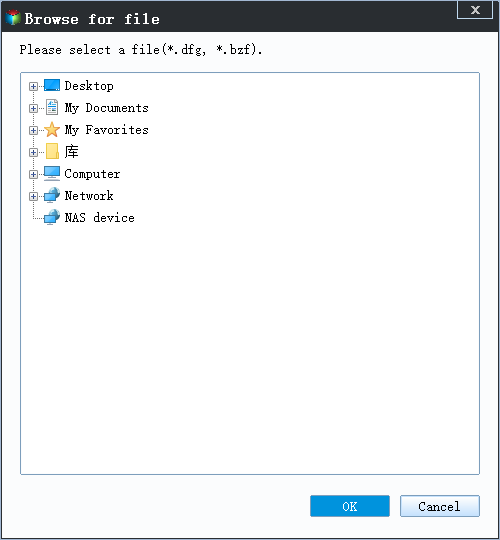
Step 3. You can recover data to a specific location or back to its original location.
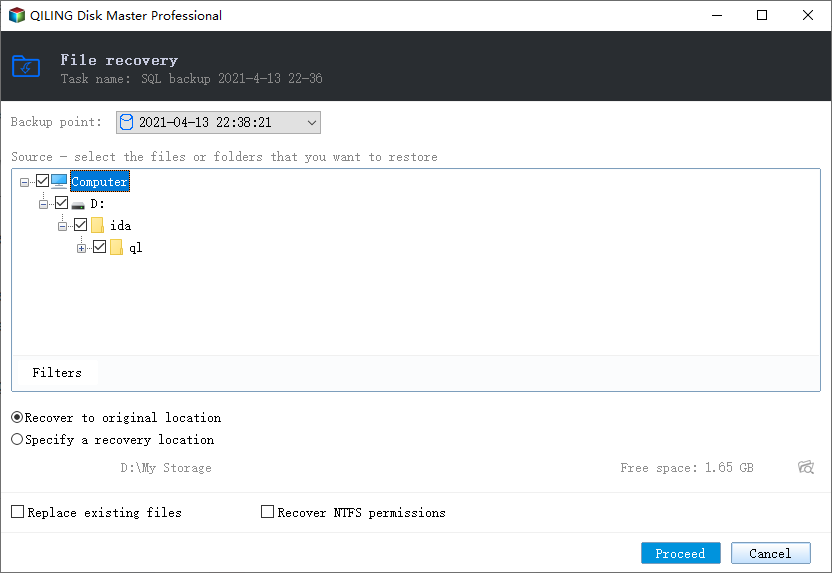
Step 4. Click "Proceed" and the recovery would start.
Wrapping Up
You can backup and restore information in Firefox Profile folder using two methods: manual backup and automatic backup. If you want to save time, we suggest trying the automatic backup with reliable backup software like Qiling Backup Pro, which can help you with the process. This way, you can easily restore your information whenever needed.
FAQ on Backup and Restore Firefox Profile
1. How do I restore my Firefox profile to another computer?
If you want to restore a backup to another computer, you'll need to back up the folder to an external device like a USB or external hard drive. To do this, follow these steps:
Step 1. Connect your external hard drive to the new computer.
Step 2. Follow the steps above to find the specific location of the Firefox profile folder on the new computer.
Step 3. To delete everything in the current folder, you can use the command `rm -rf *` in the terminal. This will remove all files and subdirectories in the current directory.
Step 4. Find your backup file, right-click it, and select Copy.
Step 5. Paste the backup file into the profile folder.
2. Where are Firefox user profiles stored?
To find the Profile folder in Firefox, follow these steps: Open Firefox, click on the three horizontal lines at the top-right corner of the main window, select "Help" from the drop-down menu, then choose "More Troubleshooting Information", followed by "Application Basics", and finally "Profile Folder".
Related Articles
- How to Backup Zoom Recordings? A Detailed Guide with Steps
- Free Download USB Image Tool on Windows 10/11
- All Three Windows 10 Backup Options You Want to Know
- How Can I Backup Files in Safe Mode
- How to Backup Don't Starve World?
If you're looking for the most efficient way to backup your Don't Starve world, this guide can help. This post will provide you with all the useful tips and guidance you need to solve this problem. - How to Backup Windows 10 to DVD [Windows 10 Backup]
Learn how to back up Windows 10 to DVD or other media. Create system and file backups to protect your PC from data loss.
Products
Articles & Tutorials
- Data Recovery
- Data Backup
- File Recovery
- File Backup
- System Backup and Restore
- Disk and Partition Clone
- Technical articles
- Mobile articles
- Disk Master Help
- Windows Data Recovery Tutorials
- Windows Secure Delete Tutorials
- Windows Partition Management Tutorials
- Windows File Backup and Restore Tutorials
- Windows System Backup and Restore Tutorials
- Windows Disk Backup and Restore Tutorials
- Windows Clone Tutorials