How to Backup Windows to Box - Safe & Quick Solutions
Creating a backup is important for Windows users because it helps prevent data loss caused by system failure, file corruption, accidental deletion, or malware. Storing important files in a secure cloud location makes recovery easier when local data is unavailable.
Box is a cloud storage service that can store and sync Windows files. However, using Box as a backup destination requires enough cloud storage, a stable Internet connection, and a clear plan for what files or folders should be protected.
To back up Windows files to Box, create a Box account, install Box Drive on your Windows computer, and move or copy selected files into the Box folder. For more automated protection, you can use backup software that supports cloud or synced folders.
How to Set Up a New Box Account on Windows PC
- Notice:
- Windows PC backup can be easily created, and users often find it simple to set up backup cloud storage. The Box app is available for Windows users, but first, they need to sign up for a Box account before getting started.
To download and install Box Drive, go to the official download page, download the installer, run it, and follow the setup prompts on your computer.
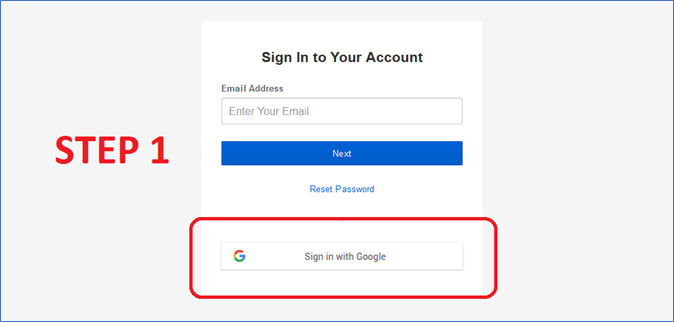
Step 1: Sign up for Box using Google.
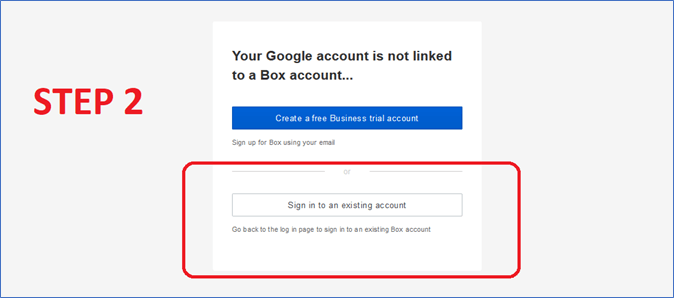
Step 2: Tap on Create a Free Business Trial account.
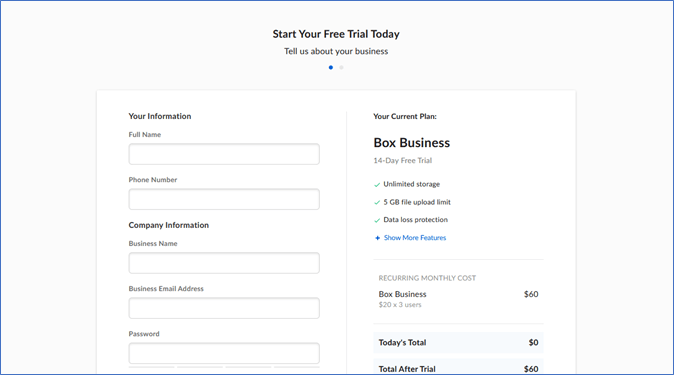
Step 3: Enter credentials and continue signing up.
Step 4: Now download and install Box Drive for the Windows app.
Step 5: Enter credentials and continue the on-screen prompt.

To set up the Box account and drive, follow these steps: create a Box account, download and install the Box desktop app, and follow the in-app instructions to set up the account and drive. Once set up, users can access the Box account and drive through the desktop app, which will allow them to create Windows backups and access other features.
Don't forget to share this post with your fans if you find it helpful.
How to Back Up Data to Box Drive - 2 Methods with Images
Backing up data to Box Drive is a convenient and easy process, especially once the Box application is installed on a PC. However, there are alternative methods that may be even simpler than the conventional approach.
We're comparing two methods for backing up data into Box Drive storage, examining their effectiveness, backup quality, and difficulty. Both methods are designed to ensure seamless data protection, but their approaches differ in terms of how they work.
| Method | Effectiveness | Backup Quality | Difficulty |
|---|---|---|---|
| Manual Method | What can be effective but takes a lot of time? | High | Quite Complicated |
| Automatic Method |
It can take a little time to set up, but it pays off in the long run by saving a lot of time and effort later on. |
Highest | Easy |
Method 1. Manually Back Up Windows PC to Box
To manually back up data from a Windows PC to Box, you need to tweak a few settings and configure specific options. This involves ensuring that the user sign-in info on the Box drive is correct, allowing for convenient backup of the Windows PC to Box.
Once the Box Drive app is signed into on a Desktop PC, the user can access their Box account files as if they were local files. They can open, edit, and save files using their preferred applications.
Step 1: Tap files and look for the Sources option.
Step 2: Head into the computer and select the folders to backup.
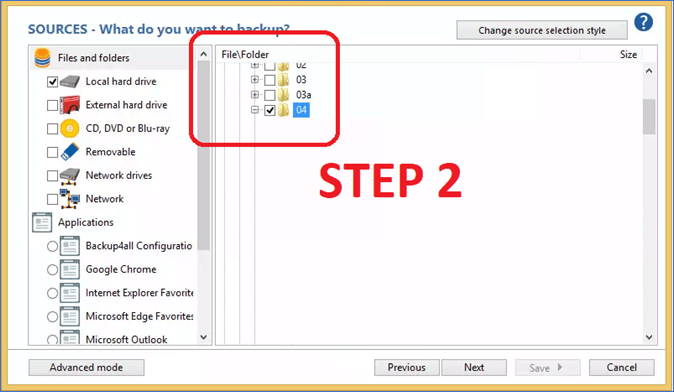
Step 3: Or head into the Box folder and copy data there.

Step 4: Copy and paste data to begin creating a backup.
The user will have to spend a few minutes copying the file, either through the Box app or manually. The Box app has the added benefit of displaying the file's version, which can help create incremental backups.
Method 2. Automatically Save Windows PC to Box
To automatically save a Windows PC to Box, you can use a program that creates a backup. A good-quality third-party tool, such as Qiling Disk Master, is required for this automation. This tool can help you create a backup of your Windows PC and save it to Box, making it a convenient option for those who want to ensure their data is safely stored.
This program has all the essentials that users need to create a viable Windows data backup to Box Cloud easily, with many other great features as well, such as.
- Ability to back up all the data in a PC
- Create a system backup, including Windows files
- Upload said backup to any cloud drive, including Box
- Creating a file backup involves copying and storing data from a computer or device to a separate storage location, such as an external hard drive, cloud storage, or another internal drive, for safekeeping and easy recovery in case of data loss or system failure.
To back up your PC to the cloud, you can follow these steps: First, sign in to your Microsoft account or create a new one if you haven't already. Next, open the Settings app on your Windows PC and navigate to the "Update & Security" section.
Step 1. Launch Qiling Disk Master and choose "Backup" tab page.

Step 2. Click on the "System backup" option to initiate the backup process.

Step 3. The system partition will be automatically selected, so you only need to choose the location.

Step 4. You can save the backup file on your local drive, in the cloud, or on a network-attached storage (NAS), and even connect an external hard drive to store system backup files.

Step 5. You can customize the settings in "Options" at the left bottom. After that, click "Proceed" and the process will begin.

After completing the backup process, you can monitor the backup status, restore, access, or remove the backup by right-clicking on the backup task on the left.
What Data Should be Backed Up
Users should prioritize backing up essential files that are difficult to replace, rather than duplicating large files that can be easily downloaded again or recreated. This approach helps optimize storage space and avoid unnecessary duplication of content.
That's why it's better to create a backup of only the important data or data that cannot be replicated, such as financial records, tax returns, and irreplaceable family photos. This approach helps to minimize storage space and reduce the complexity of managing backups, making it a more efficient and effective way to protect valuable information.
- Images or videos
- Exts and documents
- Personal data or information, such as scanned documents
- Files or settings/configurations
- And system files for Windows or software
The backup process should exclude easily accessible information, such as content that can be easily found online or acquired again, to prevent slowing down the backup speed.
See also:
Sum Up
While the Box is a reliable storage option for businesses, it may not be the best choice for personal or home users. To backup Windows to Box storage, you'll need to know a few key things, including available storage space, file size limits, network stability, and whether you need file backup or full system backup.
If you're looking to try cloud backup, Qiling Disk Master is a great option as it comes with cloud storage, offering a variety of cloud storage options to choose from, making it a convenient way to create Windows PC backups.
FAQs on How to Back Up Windows to Box
Here are some frequently asked queries that might assist users further in backing up data to Box Drive.
1. What does Box Cloud do?
Box Cloud is designed for professional use, offering enterprise-grade storage and file sharing capabilities. It allows users to securely store and share various file types, but does not offer a free or trial version, unlike other cloud storage options.
2. Is Box cloud safe?
Box Cloud is a safe option, being an enterprise-grade cloud storage used by many companies worldwide. It offers robust security measures that ensure authentication in various ways before allowing users to access their data.
3. Is Box safer than Dropbox?
Both Box and Dropbox offer the same level of security, with 256-bit AES encryption, making them equally safe to use. However, Dropbox provides additional support for consumer users.
4. What are the limitations of Box?
Box is a cloud storage service designed for businesses, not consumers. As a result, it's not available for personal use on PCs or other devices, and users must sign up as a business to access its features.
Related Articles
- How to Clone Windows 10 to SSD without Reinstallation and Keep All Files
- Top 7 Best Auto Backup Software for PC Updated in 2024 [Free Download]
- How to Backup Entire Computer to OneDrive [Quick & Easy]
- Incremental Backup Archive Bit and Backup Methods
Incremental and differential backup methods, often used in conjunction with archive bit, are compared and contrasted in this article. The archive bit, a flag used to track file changes, is also discussed in relation to these backup methods. - Five Excellent NAS for Small Business Backup 2022
The NAS (Network-Attached Storage) device is a great option for small businesses, offering not only a large storage capacity for files but also the ability to share files among team members. - No System Restore Points in Windows 7? How to Recover Them
If you're experiencing a Windows 7 system without restore points. This issue can be caused by various factors, and we're here to guide you through the solution.
Products
Articles & Tutorials
- Data Recovery
- Data Backup
- File Recovery
- File Backup
- System Backup and Restore
- Disk and Partition Clone
- Technical articles
- Mobile articles
- Disk Master Help
- Windows Data Recovery Tutorials
- Windows Secure Delete Tutorials
- Windows Partition Management Tutorials
- Windows File Backup and Restore Tutorials
- Windows System Backup and Restore Tutorials
- Windows Disk Backup and Restore Tutorials
- Windows Clone Tutorials