Forgot Microsoft Account Password? Here's What to Do
| Workable Solutions | Step-by-step Troubleshooting |
|---|---|
| #1. Qiling Key Finder | Step 1. Click "Application" tab under "Registry Key"; Step 2. View Applications Registry Keys on the right...Full steps |
| #2. Verification Email | Step 1. Go to the Microsoft Sign-in page, type your email and click "Next"; Step 2. Click on...Full steps |
| #3. Recovery Form | Step 1. Go to the Microsoft account sign-in page, input your email, and click "Next"; Step 2. Click on...Full steps |
Introduction
Recovering a lost or forgotten Microsoft Account password has become a more manageable process. With the right tools and methods, you can quickly regain access to your account without spending hours trying to remember or retrieve your password. This includes using specialized tools that don't require any personal information, making it easier to recover your password and get back to using your account.
Below are the best and easiest password recovery methods to help you resolve the issue.
#1. Recover Microsoft Account Password with Qiling Key Finder
Qiling Key Finder is a simple tool that allows you to quickly restore and recover a forgotten password, retrieve product keys and passwords from a dead computer with a healthy hard disk, and find keys for installed programs.
Step 1. Click "Application" tab under "Registry Key".
Step 2. To view the registry keys of installed software, open Qiling Key Finder and look at the right panel, where you'll see all the keys. You can then copy the serial numbers you're interested in, or click "Print" or "Save" to save the information.
The Qiling Key Finder is a user-friendly tool that makes it easy for anyone to use. Its clear interface works faster than other tools, saving you time and helping you achieve your goals quickly.
#2. Reset Microsoft Account Password with a Verification Email
To reset your Microsoft account password, go to the sign-in page, click on "Forgot password" and enter your email address. You will receive a verification email, open it and follow the instructions to reset your password.
Step 1. To sign in to Microsoft, go to the Microsoft Sign-in page, enter your email address, and then click the "Next" button.
Step 2. Click on "forgot password".
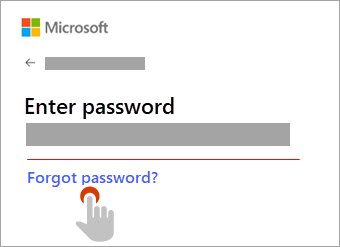
Step 3. Microsoft shows you your recovery email address. Click on "Get code" to proceed.
Step 4. Check your recovery email address, where you'll receive a verification code.
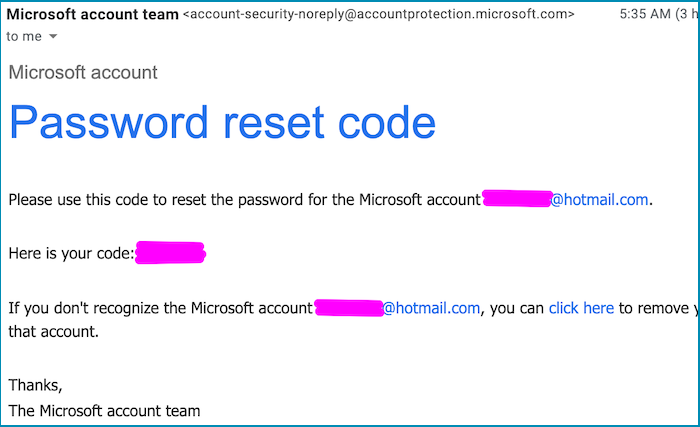
Step 5. You need to copy and paste the verification code you received and click on the "Next" button to proceed.
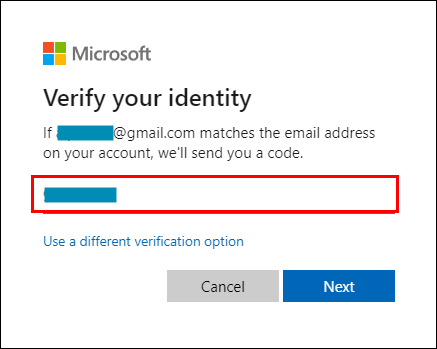
Step 6. Then you can create a strong password.
#3. Reset Microsoft Account Password with a Recovery Form
If you've forgotten your Microsoft account credentials or password and didn't set up a recovery email or phone number during account creation, you can still recover your account through the Microsoft account recovery form. You can regain access to your account by following a few simple steps through the recovery form.
Have a look at some detailed steps below:
Step 1. To access your Microsoft account, go to the sign-in page, enter your email address in the required field, and click the "Next" button.
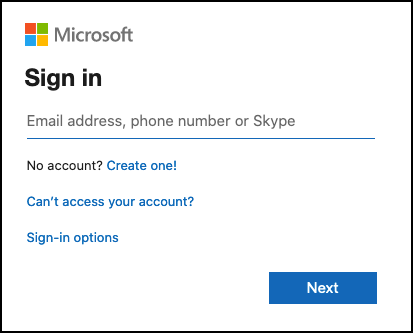
Step 2. Click on "Forgot password".
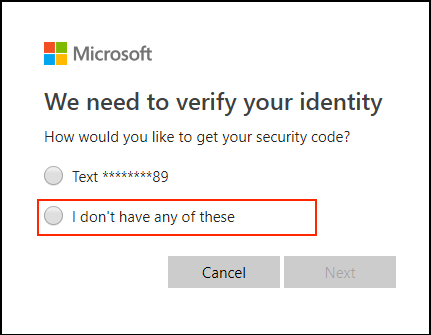
Step 3. You can click "I don't have any of these" to skip the verification step, but be aware that you might not be able to access certain features or services without verifying your identity. If you're unable to verify your identity, you can try contacting Microsoft support for further assistance.
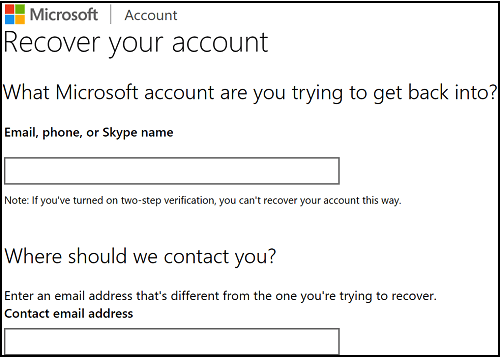
Step 4. Please enter a different and active email address that you can access, and Microsoft will reach out to you for verification.
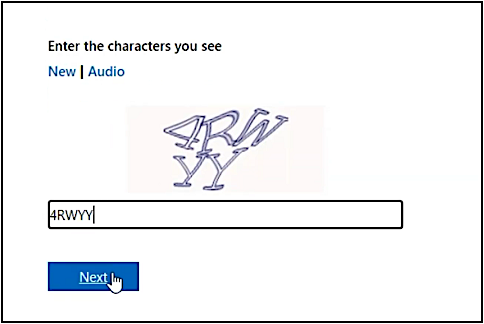
Step 5. Fill out the ReCaptcha and click "Next".
Step 6. You'll need to enter the security code you received in the email to verify your account. This is a security measure to ensure that you're the actual user trying to access your account.
Step 7. Enter the received security code and click "Verify".
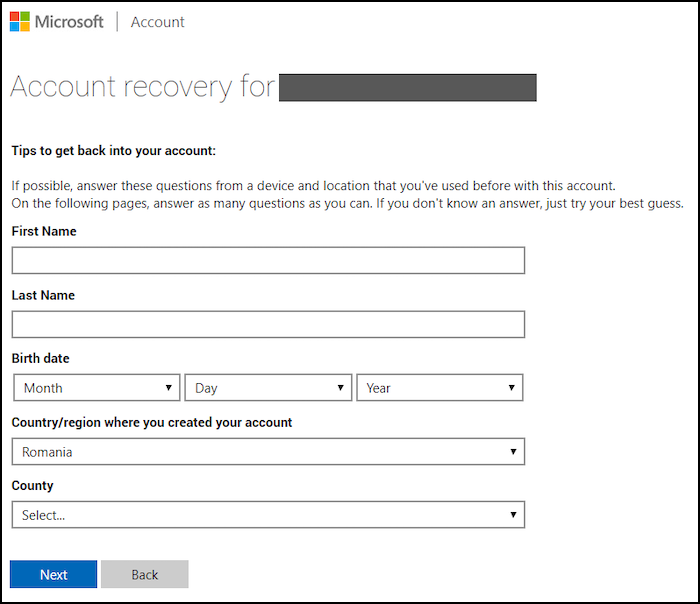
Step 8. To proceed, fill out the form with accurate information, including your first name, last name, date of birth, country, state, city, and zip or postal code. Once you've completed the form, click "Next" to continue.
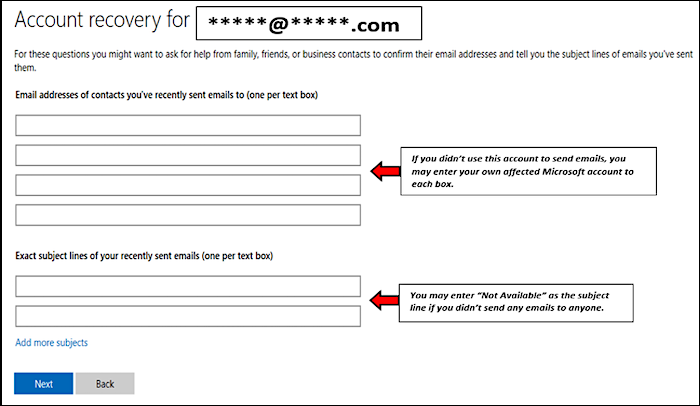
Step 9. Microsoft will ask for four email addresses of contacts you've recently sent emails to, along with the exact subject lines of those emails. Write the email addresses and subject lines in the corresponding text boxes, one per box, and then click "Next".
Microsoft team will review your provided information, which will allow you to receive a response within 24 hours. This will enable you to better understand the case, whether it is verified or not.
Conclusion
Recovering a password can be made easier with the right tools and methods. Familiarity with Qiling Key Finder can make it unnecessary to look for any other tool, as it is designed to simplify the process. Its benefits may be more significant than you think, making it a valuable resource for password recovery.
- This tool offers the most efficient, effortless, and quick methods to recover a password, providing you with the best solutions to regain access to your account.
- Also, you can find a Microsoft Office product key with this fantastic utility.
- Recover your saved web passwords such as Mozilla Firefox, Chrome, IE, etc.
Related Articles
- How to Find Autodesk Civil 3D Serial Number and Product Key
- How to Find Windows 7 Product Key on Your Own? Here Are 7 Ways to Help
- How to See Wifi Password Windows 11
- WiFi Password Finder: How to See WiFi Password for PC/Mac/Android/iPhone
- What Is VCRUNTIME140_1.DLL and How to Fix Issues with VCRUNTIME140_1.DLL
Learn what VCRUNTIME140_1.dll is and how to fix missing or not found errors. Repair Microsoft Visual C++ Runtime and affected apps. - Windows KB Update: KB3194798 | KB 3192441 | KB 3192440
You may have already known the Windows Operating System update. However, do you know what Windows KB update means? If you are looking for information on it, this article will introduce all the information you need to know, including the definition, how to update it, the significance of it, etc.
Products
Articles & Tutorials
- Data Recovery
- Data Backup
- File Recovery
- File Backup
- System Backup and Restore
- Disk and Partition Clone
- Technical articles
- Mobile articles
- Disk Master Help
- Windows Data Recovery Tutorials
- Windows Secure Delete Tutorials
- Windows Partition Management Tutorials
- Windows File Backup and Restore Tutorials
- Windows System Backup and Restore Tutorials
- Windows Disk Backup and Restore Tutorials
- Windows Clone Tutorials