4 Ways! How to Find Microsoft Office Product Key (Office 2007~2019)
Quick Fix - How to Find Microsoft Office Product Key:
- Free download a key finder software.
- To view your Microsoft Office product key, go to the "Application" section and find the product key associated with your Microsoft Office installation. It will be displayed there.
- Click to copy.
- Or look for the product key on the packaging.
- For more details>>
Need to Find Office Product Key?
You can't easily find the Microsoft Office product key, unlike the Windows product key, which can be extracted from the Windows Registry. This makes it more challenging to locate the Office product key, especially if you've lost it.
Unfortunately, starting with Office 2013, Microsoft changed the way they store Microsoft Office product keys, only keeping part of the key on the local PC. As a result, finding the full product key can be challenging. However, there are four effective ways to locate your Microsoft Office product key, which can be helpful in such situations.
1. Use Qiling Key Finder
2. Open ProduKey to Get Office Product Key
3. Run CMD to Find Microsoft Office Product Key
4. Use Your Microsoft Account
Tip 1. How to Find Office Product Key via Qiling Key Finder
Applies to: Office 2003, Office 2007, Office 2010, Office 2013(MSI), Office 2016(MSI), Office 365 product key are all versions of Microsoft Office software suite, which includes a range of productivity applications such as Word, Excel, PowerPoint, and Outlook. Each version has its own set of features and improvements over the previous one, with Office 365 being a subscription-based service that provides access to the latest versions of the software, as well as online storage and other benefits.
The Qiling Key Finder can help you view the full Office product key, making it easier than finding it on the Microsoft store or mail.
This software has many features, including app migration, file and account transfer, and a product key extractor to save Office, Windows, and Adobe keys, preventing loss.
Why You Choose Qiling Key Finder
- Find Microsoft Office 2003/2007/2010/2013/2016/2019/365 product keys.
- Scan and find Microsoft Office product keys from a dead or unbootable PC.
- Find serials for other installed applications in one click.
To find the Microsoft Office product keys, start by checking the product key sticker on the CD or DVD packaging, or on the computer itself if it came pre-installed. If you can't find it there, look for a copy of the product key in the email confirmation you received when you purchased the software.
Step 1. Click "Application" tab under "Registry Key".
Step 2. Qiling Key Finder displays the registry keys of installed software, allowing users to copy, print, or save the targeted serial numbers.
Tip 2. Find Product Key for Microsoft Office via ProduKey
Applies to: Office 2003, Office 2007, Office 2010, Office 2013
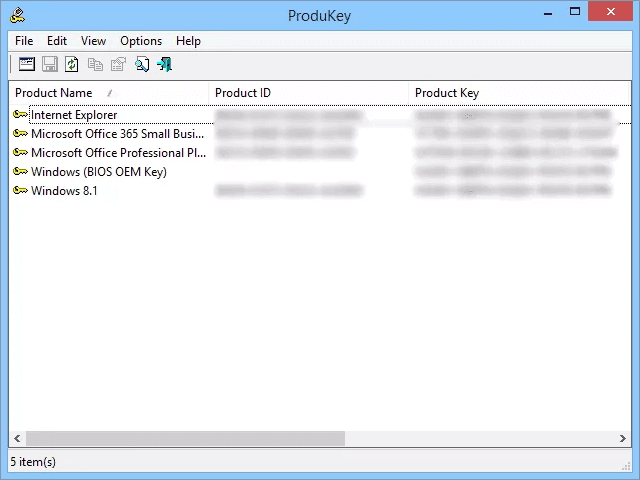
ProduKey is another easy-to-use key finder tool that only applies to versions before Office 2013. It displays product keys for Windows 10, Microsoft Office, and other Microsoft programs, but not for non-Microsoft programs.
How to use ProduKey to get Microsoft Office product key:
Step 1. Download ProduKey.zip and unzip it.
Step 2. Click and open produkey.exe.
Step 3. You will see the product key for the current Microsoft Office and operating system after you do that.
Qiling Key Finder is a better option than ProduKey in terms of supported versions and data security. Some malware can steal your product key through ProduKey, making it a riskier choice. On the other hand, Qiling Key Finder is a safer alternative that can help you view and back up your Office product key and serial numbers, protecting you from potential disasters.
Tip 3. Run CMD to Find Office Product Key
Applies to: Office 2013, Office 2016, or Office 2019
This method works well only if the last five characters of the 25-character Office 2019, Office 2016, or Office 2013 product key is stored on your computer. Then, you can try this method to find Microsoft product keys.
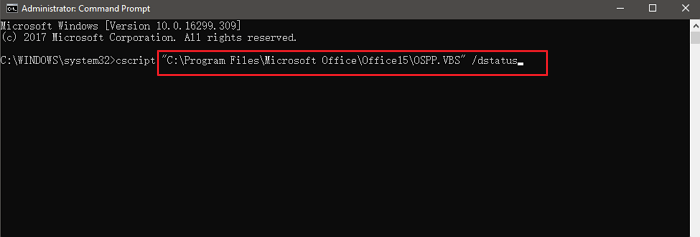
Step 1. Search CMD in the search box and run as administrator.
Step 2. Type the following command according to your needs.
- Office 2013 (32-bit)(Win32-bit): cscript "C:\Program Files\Microsoft Office\Office15\OSPP.VBS" /dstatus
- Office 2013 (32-bit)(Win64-bit): cscript "C:\Program Files (x86)\Microsoft Office\Office15\OSPP.VBS" /dstatus
- Office 2013 (64-bit)(Win64-bit): cscript "C:\Program Files\Microsoft Office\Office15\OSPP.VBS" /dstatus
Step 3. Your product key should appear here.
Tip 4. How to Get Product Key for Microsoft Office with Microsoft Account
Applies to: All Microsoft Office Versions
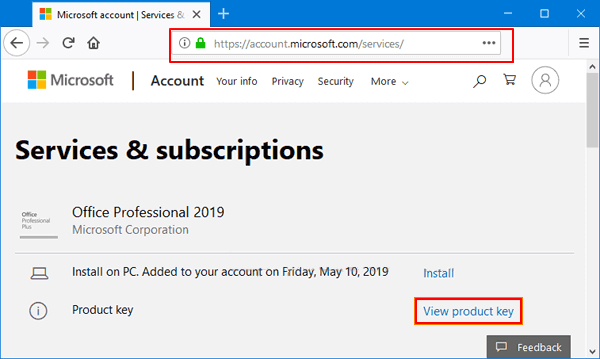
If you previously registered and activated your copy of Microsoft Office 2010, 2013, 2016, or 2019, your original product key will be stored and shown to you.
Step 1. Navigate to the Microsoft Account.
Step 2. Unfold the license information to view your product key.
Extra Tip: How Do I Contact Microsoft Support
If you're unable to find your product key using the methods described, you can contact Microsoft directly, but first, you'll need to have proof of purchase.
If you're experiencing an issue with a product key and need to contact a Microsoft representative, you can visit the "Contact Us" page on the Microsoft website to get help.
You can get help through the "Get Help" app or contact support in the browser.
When you open the "Get Help" app on your Windows 10 device, you will be directed straight to the app for quick and free Microsoft support, if it's installed on your device. The "Get Help" app is available for Windows 10.
Microsoft's browser-based support system is a convenient and cost-free way to get help with your issue. A virtual agent will assist you in resolving your problem, and you can follow the on-screen instructions to get the help you need from Microsoft.

How to Find Product Key for Microsoft Office Already Installed
If you're wondering how to find your Microsoft Office product key, the solutions above can help you easily locate it. For Office 2003-2016 users, I recommend using Qiling Key Finder, while Office 365 and 2019 users can find their keys by accessing their Microsoft account.
"How to Find Microsoft Office Product Key" FAQs
1. Is My Microsoft Office Product Key Stored on My Computer?
If you purchased Office from the Microsoft store, your product key can be found in your confirmation email.
2. To find your Microsoft Office product key using the Command Prompt, navigate to the Command Prompt as an administrator, type "cd C:\Program Files\Microsoft Office" and press Enter, then type "dir /ah" and press Enter. This will list all files and folders in the directory, including the "OSPP.
Type and open command prompt on the search box. And type cscript ospp.vbs /dstatus. Press Enter.
Related Articles
- How to Change WIFI Password on Android [Beginner's Guide]
- How to See Saved Passwords in Opera GX
- 3 Quick Solutions to Find Product Key of Zoom Meeting App
- How to Find Windows 8 Product Key | Quick Methods to Get Windows 8 Product Key
- 7 Days to Die File Disappeared? Find Causes & Solutions Here
Have you recently lost files on your 7 Days to Die game? In this article, we'll show you how to solve the 7 Days to Die save file disappeared issue. Read on to know the 5 fixes you can apply and have your game resume normally. - Fix A Device Which Does Not Exist Was Specified [100% Working Solutions]
This blog post will help you identify the reasons behind the 'a device which does not exist was specified' error and provide you with effective solutions to fix it.
Products
Articles & Tutorials
- Data Recovery
- Data Backup
- File Recovery
- File Backup
- System Backup and Restore
- Disk and Partition Clone
- Technical articles
- Mobile articles
- Disk Master Help
- Windows Data Recovery Tutorials
- Windows Secure Delete Tutorials
- Windows Partition Management Tutorials
- Windows File Backup and Restore Tutorials
- Windows System Backup and Restore Tutorials
- Windows Disk Backup and Restore Tutorials
- Windows Clone Tutorials