Fix A Device Which Does Not Exist Was Specified
The error "a device which does not exist was specified" occurs when a device is not recognized by the system, preventing access to it. This can happen for various reasons, such as a faulty device, incorrect device driver, or system file corruption. It can also occur when trying to access devices like SSDs, hard drives, external hard drives, USB flash drives, or memory cards. The error message indicates that the system is unable to find or recognize the specified device, making it impossible to open or access the device.
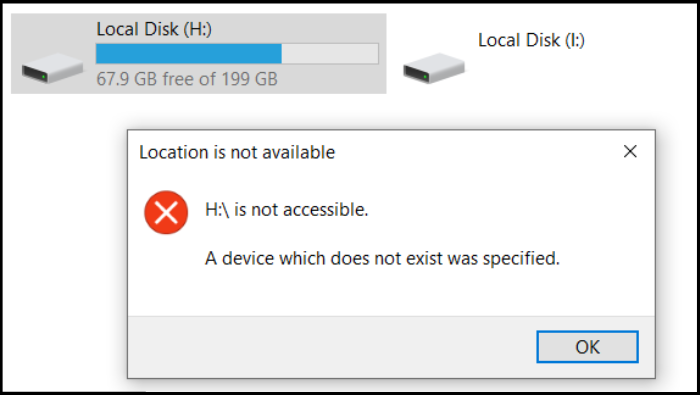
Don't worry if you're facing the error "a device which does not exist was specified". This guide will help you solve the problem with a step-by-step approach. We'll cover the various reasons behind this error and provide you with easy-to-follow solutions to resolve it quickly.
What Caused the "A Device Which Does Not Exist Was Specified" Error
A "device which does not exist was specified" error can occur due to various reasons such as connectivity issues, permission problems, or corrupted drivers. This error message may appear when trying to open connected devices, and it can be caused by a few common reasons including a faulty or outdated driver, incorrect device permissions, or a problem with the device's connection to the computer. To resolve this issue, you can try restarting your computer, checking the device's connection, or updating the drivers to the latest version. Additionally, ensuring that the device has the necessary permissions to function properly can also resolve the problem.
- Improper connection
- Lack of permissions to access the drive
- Mismatching drive letter
- Outdated motherboard drivers
- Bad sectors of hard disks
- Issues with the hard disk
- Inaccessible drive
- Faulty motherboard header
- Defective USB ports
The error you're experiencing is likely due to several reasons, including a faulty hard drive. To resolve the issue smoothly, you can start by checking your hard drive's health. We have a dedicated article that provides a quick solution to check and repair hard drive health, which can help you identify and potentially fix the problem.

To check the health of your hard drive in Windows, you can try six different methods. Firstly, you can use the built-in Check Disk utility, which can scan your drive for errors and fix them automatically.
It's essential to monitor hard drive health in Windows 11 and Windows 10 to prevent unexpected crashes and data loss.
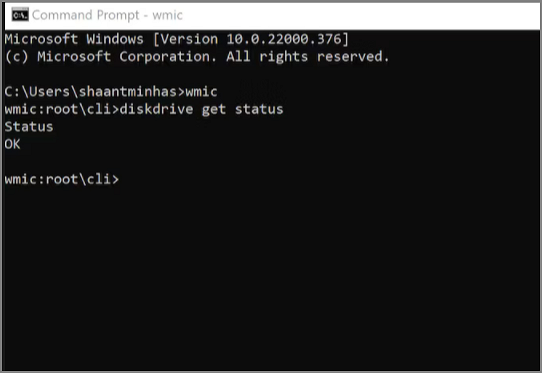
If the "a device which does not exist was specified" error is not caused by user input, you can try one of the seven solutions listed to fix it quickly on your own. Each solution is tailored to address a specific reason behind the error, so apply the appropriate one to resolve the issue and get rid of the error.
How to Fix a Device Which Does Not Exist Was Specified
There are multiple methods to fix the"a device which does not exist was specified" error.
- Fix 1. Uninstall and Reconnect the Drive
- Fix 2. Gain Permissions to Access the Drive
- Fix 3. Change the Drive Letter
- Fix 4. Update the Motherboard Drivers
- Fix 5. Check and Fix Bad Sectors
- Fix 6. Recreate the Partition
- Fix 7. Change the Motherboard Headers
We'll go through seven different ways and techniques, and you have to choose any method accordingly.
Fix 1. Uninstall and Reconnect the Drive
Uninstall and reconnect the drive by following a few simple steps:
Step 1. To open Device Manager, simply type "Device Manager" in the search box of the taskbar and click on the result when it appears, or navigate to it via the Control Panel.
Step 2. To uninstall a disk driver, click on "Disk drives" and click the equal to sign (>) to expand it, then right-click on "Disk driver" and select "Uninstall" from the drop-down menu, confirming the uninstallation in the pop-up window.
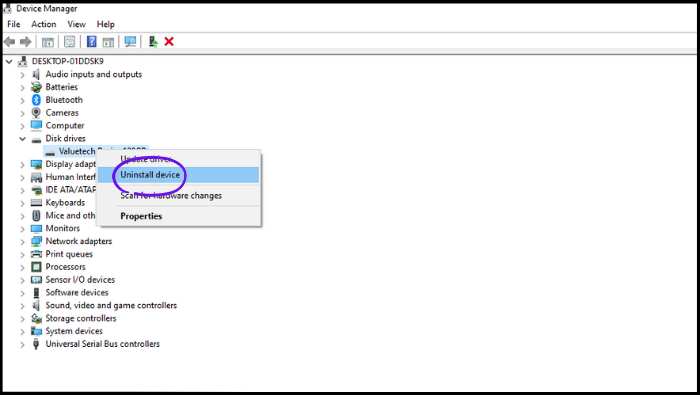
Step 3. Turn off your PC, remove or open the CPU case, disconnect the hard drive and reconnect.
If you've completed the operation, restart your PC and see if it's working properly and the issue is resolved.
Fix 2. Gain Permissions to Access the Drive
Declined or insufficient permissions on the hard drive can cause this error. To fix it, use the Windows built-in tool, File Explorer, to resolve the issue.
Step 1. To fix the error, go to File Explorer, right-click on the hard drive showing the error, click on Properties, navigate to the Security tab, and click Edit.
Step 2. Check the box next to "Full Control" under the "Allow" section, click "Apply", then click "OK" in the "Permissions For Authenticated Users" section.
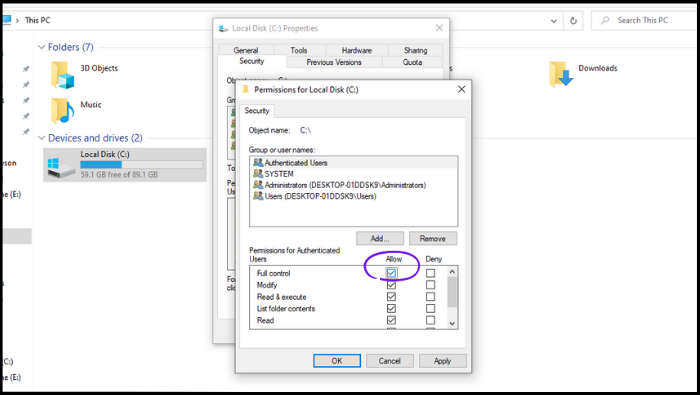
If the error persists, you can try booting your computer from a USB drive or CD/DVD with a different operating system, or try booting from the same operating system but with a different boot order. If the error still persists, you may need to replace the hard drive.
Fix 3. Change the Drive Letter
Changing the drive letter can quickly fix the issue of "a device which does not exist was specified." An alternative to a lengthy process, Qiling Disk Master can accomplish this task efficiently.
Follow the process to resolve the issue.
Step 1. Run Qiling Disk Master, right-click the target partition, and choose "Change Drive Letter".
Step 2. Select a drive letter for the partition from the drop-down menu.
Step 3. Then Qiling Disk Master will change the old drive letter to the new drive letter.
Fix 4. Update the Motherboard Drivers
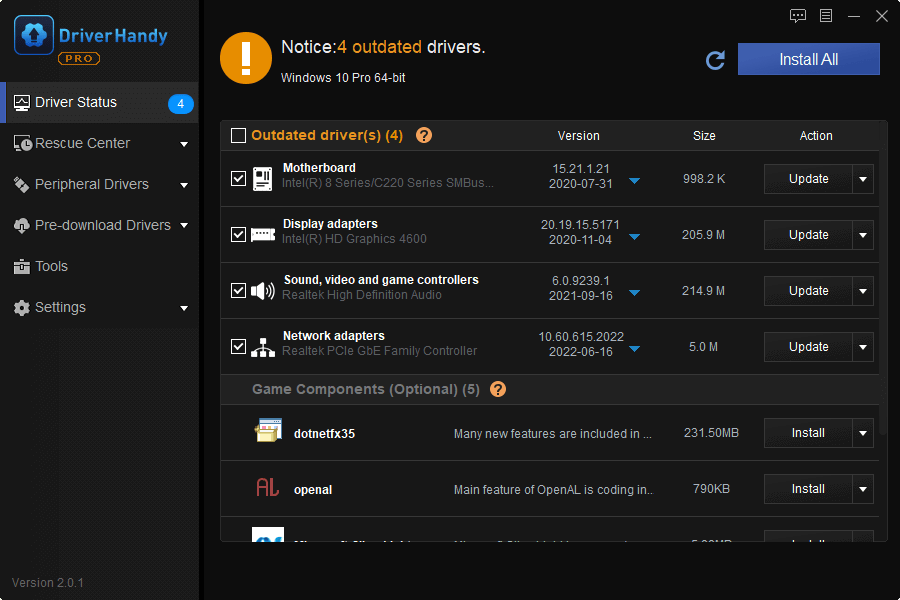
To resolve the "a device which does not exist was specified" error, update the motherboard drivers using Qiling DriverHandy, which can scan and automatically fix outdated and incompatible drivers.
Follow the detailed steps:
Step 1. Download Qiling DriverHandy and open it.
Step 2. Click "Scan" to find all outdated drivers.
Step 3. Choose the outdated Motherboard drivers and click "Update."
Fix 5. Check and Fix Bad Sectors
Hard disk bad sectors can cause a "device which does not exist was specified" error, making it difficult to determine the root cause. The Qiling Disk Master is recommended for a surface test to identify the issue.
Qiling Disk Master can identify and display bad sectors on your hard drive, marking them in red for easy recognition. This allows you to visually understand which areas of your drive are affected, making it easier to take corrective action.
Step 1. Open Qiling Disk Master, right-click the disk you want to check, and click "Surface Test" to run a surface test on the disk.
Step 2. Click Proceed button to performed and all bad sectors will be marked as red.
Fix 6. Recreate the Partition
The recreation results can be fixed by the partition, and we need the help of Qiling Disk Master, an all-in-one disk partition manager, to create or recreate partitions within a few steps.
Step 1. Launch Qiling Disk Master. Right-click on the unallocated space on your hard drive or external storage device and select "Create" on the main window.
Step 2. Adjust the partition size, select file system, and type label, and other settings as needed.
Step 3. Click the "Proceed" button to create the new partition.
Watch the video tutorial to learn how to create a partition in various file systems, including NTFS, FAT, and EXT.
Besides, it is a great tool that can also be used to resize partitions or delete partitions.
Fix 7. Change the Motherboard Headers
A damaged motherboard header can cause the "a device which does not exist was specified" error, but it's a complex task for non-technical individuals. It's recommended to have a well-trained technician or repairer replace the motherboard header to avoid further damage.
Conclusion
We've covered seven different methods to resolve the issue "a device which does not exist was specified." These solutions offer multiple options, but it's essential to exercise caution when considering the motherboard header replacement, as it's a technical task best left to a well-trained computer technician. Instead, you can try six other non-technical methods outlined in this article to fix the issue.
If the issue is caused by a mismatched drive letter, outdated motherboard drivers, or bad sectors on the hard disk, you can try troubleshooting methods 3, 4, 5, and 6. Alternatively, Qiling Disk Master can identify and automatically fix the root cause of the problem, making it a convenient and powerful tool to resolve the "a device which does not exist was specified" error.
FAQs of A Device Which Does Not Exist Was Specified
You may have any further queries regarding the issue "a device which does not exist was specified." Please find out your answers.
1. How do I resolve an error saying a device which does not exist was specified for my D drive?
You can fix the error by trying to uninstall and reconnect the drive, gaining permission to access the drive, changing the drive letter, updating the motherboard drivers, checking and fixing bad sectors on the hard drive, or recreating the partition.
2. Can a corrupted USB be fixed?
You can fix the issue with your USB and recover your saved files, but it's not a guarantee. Fortunately, 90% of USB drives can be repaired, and you can try using the Windows utility to correct the corrupted USB. However, a lack of technical knowledge can make the process tricky, and a single mistake could result in losing your saved data.
3. How do I fix Windows unable to install the unknown device?
You fix this in the "Device manager."
Step 1. To resolve the issue, open the Device Manager, expand the "Other devices" section, and locate the unknown device. Right-click on it and select "Update driver." Then, select "Search automatically for updated driver software.
Step 2. Right-click on the unknown device and go to Properties > Details tab, and under the "Property" section, choose "Hardware Ids" to identify the device.
Step 3. To resolve the device error, the first step is to copy the value. This is followed by downloading and installing the correct driver, which is necessary to ensure the device functions properly.
Related Articles
- [Fixed] The File Is Corrupted and Cannot Be Opened in Excel/Word
- SanDisk Extreme Pro Portable SSDs Become Unreadable: Causes and Solutions
Fix SanDisk Extreme Portable SSD failing, not detected, or showing errors. Learn troubleshooting steps and data recovery options. - Windows 10 Cumulative Update Failed to Install & Download - How to Fix?
If you're experiencing issues with Windows 10 cumulative updates failing to install, this guide is for you. It will walk you through various methods to troubleshoot and resolve this problem, ensuring your computer runs smoothly and efficiently. - Windows Update Something Went Wrong - How to Fix?
The 'Windows update something went wrong' error message can occur due to several reasons. This issue may arise from various factors, and the article will explore some of the common causes of this problem. - HP Laptop Stuck on Loading Screen - Why & Fixes
If you're experiencing an HP laptop stuck on the screen error, you can resolve the issue using the troubleshooting methods mentioned in this guide. By following the best fixing tips outlined in this blog, you should be able to get your laptop up and running smoothly again. - HP Laptop Won't Turn On But Power Light Is On [Detailed Guide]
If your HP laptop won't turn on but power light is on, it could halt your daily work. The exact reason is hard to figure out, but it is better to fix the issues and get back to work. This guide offers simple solutions to fix an HP laptop won't turn on but the power light is on.
Products
Articles & Tutorials
- Data Recovery
- Data Backup
- File Recovery
- File Backup
- System Backup and Restore
- Disk and Partition Clone
- Technical articles
- Mobile articles
- Disk Master Help
- Windows Data Recovery Tutorials
- Windows Secure Delete Tutorials
- Windows Partition Management Tutorials
- Windows File Backup and Restore Tutorials
- Windows System Backup and Restore Tutorials
- Windows Disk Backup and Restore Tutorials
- Windows Clone Tutorials