What Is VCRUNTIME140_1.DLL and How to Fix Issues with VCRUNTIME140_1.DLL
The "VCRUNTIME140_1.DLL" error is a common issue that occurs when the Microsoft Visual C++ Redistributable package is missing or corrupted on your device.
This can happen due to various reasons such as outdated software, corrupted system files, or even malware infections.
To resolve this issue, you can try reinstalling the Microsoft Visual C++ Redistributable package, updating your operating system, or running a system file checker to repair any corrupted files.
VCRUNTIME140_1.DLL is a component of Microsoft Visual C++ Redistributable Package that many programs and games require to run properly, often causing errors when it's missing or corrupted.
The main issues behind the same are the missing drivers or missing DLL files. The error issue is quite common among Windows users and prevents your access to programs that are dependent on the DLL. Make sure to stay connected with us to know the different problems and fixes for VCRUNTIME140_1.DLL.
What Is VCRUNTIME140_1.DLL
VCRUNTIME140_1.DLL is a critical system file in the Windows operating system, located in the System32 folder, which ensures proper app and game functionality.
VCRUNTIME140_1.DLL is a crucial file in the Microsoft C Runtime Library, and its failure to load can cause apps and games to malfunction, resulting in an error message on the user's screen.
Common Issues with The VCRUNTIME140_1.DLL
To find the related VCRUNTIME140_1.DLL issues, look out for these common error messages:
- "The program can't start because VCRUNTIME140_1.DLL is missing from your computer."
- DLL was not found.
- DLL crash.
- Cannot register vcruntime140_1.dll.
- DLL error loading.
- DLL is missing.
If you're experiencing error messages related to VCRUNTIME140_1.DLL when trying to open apps or games, it's likely due to functionality issues with this DLL file.
Different reasons serve behind this annoying error issue, such as:
- Missing or corrupted VCRUNTIME140_1.DLL files from its location
- Problems with the Microsoft Visual C++ Redistributable Package
- Conflict with another program or game
- Running faulty applications
- Malicious software application on a computer system
- Issues with the Windows Registry
How to Fix Issues with The VCRUNTIME140_1.DLL File
If you're tired of dealing with the VCRUNTIME140_1.DLL error on your device, don't worry -- we've got quick solutions to get rid of it instantly.
Solution 1. Install all available Windows Updates
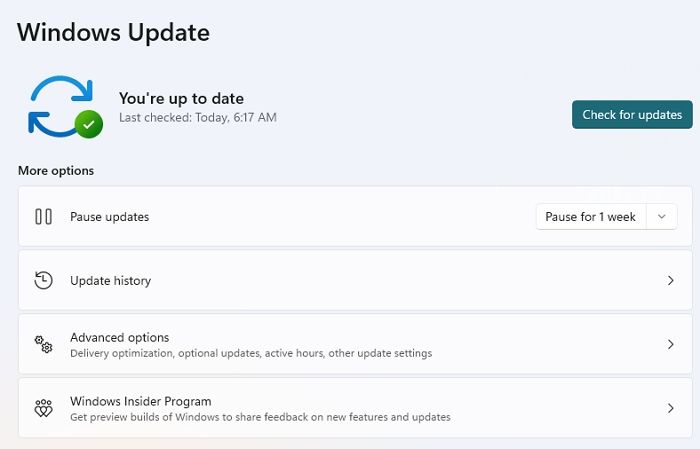
Failure to update Windows can lead to the VCRUNTIME140_1.DLL error.
This can be quickly resolved by updating Windows through the Settings menu: go to Start, click Settings, then Update & Security, and finally check for updates.
- Open Windows Settings, and navigate to Windows Update.
- Now, tap on the "Check for updates" section on your screen's right side and wait patiently until the Windows installation completes.
- Make sure to install all of the optional updates here.
- Once the above process is completed successfully, reboot your system to enable the changes you made earlier.
Solution 2. Install Microsoft Visual C++ Redistributable Package on Windows
The most common cause of the VCRUNTIME140_1.DLL error is a missing or damaged Microsoft Visual C++ Redistributable package. Installing or reinstalling it can resolve the issue.
Step 1. Go to the official Microsoft Visual C++ Redistributable download page in your web browser.
Step 2. Search for the latest installers of Microsoft Visual C++.
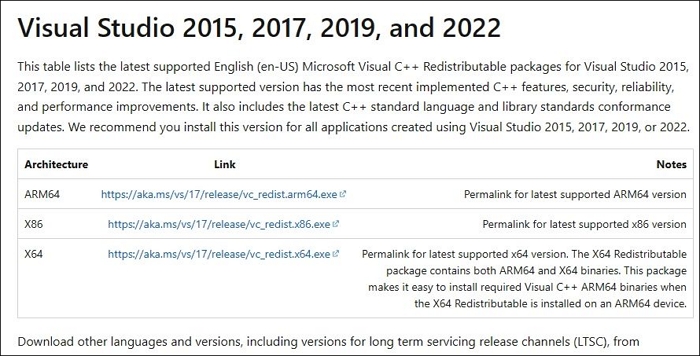
Download and install the vc_redist.x86.exe and vc_redist.x64.exe versions on your device, then reboot your system.
Step 3. If you're experiencing issues with the Microsoft Visual C++ Redistributable packages, try uninstalling any existing versions and then reinstalling the updated packages to resolve the problem.
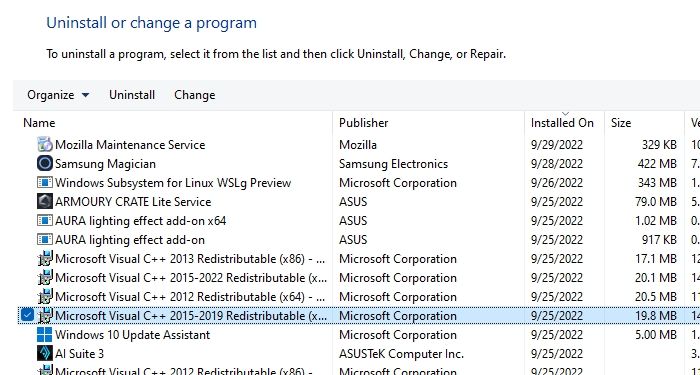
- Press the Windows key + X and select "Programs and Features" from the menu. Alternatively, type "Control Panel" in the Windows search bar, open it, and click on "Programs and Features."
- You will get a list of different options here. Just locate the Visual C++ Redistributable package from the given options.
- Now, right-click on the Microsoft Visual C++ Redistributable package and select "Uninstall." Follow the on-screen instructions to complete the removal.
To resolve the issue, complete the process of removing and reinstalling packages, as described above, which should eliminate the error message.
Solution 3. Re-register the missing VCRUNTIME140_1.DLL file manually
Step 1. To access the Command Prompt, open the Windows menu on your device and type CMD in the Windows search. This will allow you to open the Command Prompt application.
Step 2. To proceed with the process, right-click on the Command Prompt and select Run as administrator.
Step 3. To resolve the issue, you need to unregister and then register the VCRUNTIME140_1.dll file using the regsvr32 command. Copy and paste the commands "regsvr32 /u VCRUNTIME140_1.dll" followed by "regsvr32 VCRUNTIME140_1.dll" into the Command Prompt.
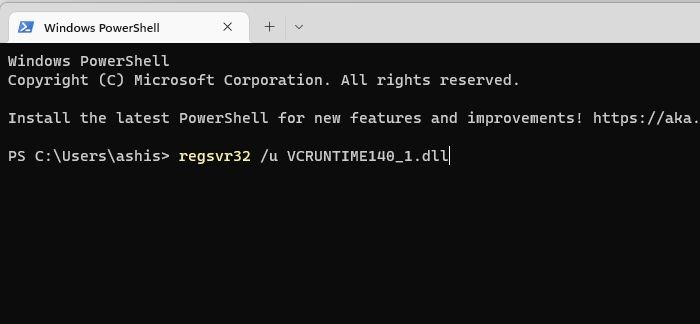
Step 4. After applying the above steps, restart your computer to see if the issue is resolved.
Solution 4. Copy the missing DLL from another location
The VCRUNTIME140_1.dll file is part of various applications and is included in the Microsoft Visual C++ Redistributable package. If it's missing, it can be easily copied from another PC.
Step 1. To open File Explorer on your device, tap the Windows key and the E key simultaneously. This will open the File Explorer window, allowing you to view and interact with the files and folders on your device.
Step 2. To view hidden items, go to the View tab and check the box next to "Hidden items".
Step 3. Navigate to the location "C:\\Program Files\\WindowsApps" on your device, where you will have admin permission to access.
Step 4. Go to the folder containing the file with the version number 14.0.29231.0_x64__, scroll down the list to locate the VCRUNTIME140_1.dll file.
Step 5. Once done, tap on the Ctrl + C button to copy the same.
Move to the issuable folder to check the status of the issue.
Conclusion
The VCRUNTIME140_1.dll error can be fixed on Windows by trying the leading solutions described above.
These include installing the VC++ Redistributable package, updating Windows, checking for corrupted system files, and running a System File Checker scan.
If none of these methods work, reinstalling Windows may be the best option. It's essential to follow the steps carefully to avoid any issues or failures.
Related Articles
- What Is A NAS Storage? How Does NAS Work?
- What Is Mac Recovery Key? [Everything You Get]
- What Is Data Loss | Definition, Causes, Prevention Methods, and Data Recovery
- [3 Easy Ways] How to Backup Google Photos to Hard Drive
Do you wonder how to backup Google Photos to hard drive? If yes, you are coming to the right page. This article will share 3 ways to help you back up photos from Google Photos to an external hard drive. - Is Your SSD Slow to Load Games? Here Are New Fixes!
Fix an SSD that is slow to load games. Check drive health, free space, game files, drivers, and system performance settings. - Top 8 SSD Temperature Monitor Software Recommended in 2023
Want to manage the temperature of your SSD? Then follow this guide, where we've shared some SSD temperature monitor software for Windows. These tools allow you to monitor your SSD's temperature in real-time and receive alerts when it gets too high.
Products
Articles & Tutorials
- Data Recovery
- Data Backup
- File Recovery
- File Backup
- System Backup and Restore
- Disk and Partition Clone
- Technical articles
- Mobile articles
- Disk Master Help
- Windows Data Recovery Tutorials
- Windows Secure Delete Tutorials
- Windows Partition Management Tutorials
- Windows File Backup and Restore Tutorials
- Windows System Backup and Restore Tutorials
- Windows Disk Backup and Restore Tutorials
- Windows Clone Tutorials