How to Check RAM on MacBook Pro/Air | 3 Tested Ways to Free Up It
What Is RAM Usage on Mac
RAM (Random Access Memory) utilization on a Mac shows how much memory is currently being used by macOS and programs, impacting the overall performance. Knowing how to check RAM on Mac can be essential, as it helps you understand how much memory is being utilized and make informed decisions to optimize your Mac's performance.
Data and instructions being actively used by the CPU are stored in RAM, which serves as temporary storage during task execution.
On a Mac, applications and processes require a certain amount of RAM to run smoothly, and insufficient RAM can lead to low performance, delays, and system failures. To determine if your system needs more RAM, monitor RAM utilization to estimate your system's memory demands.
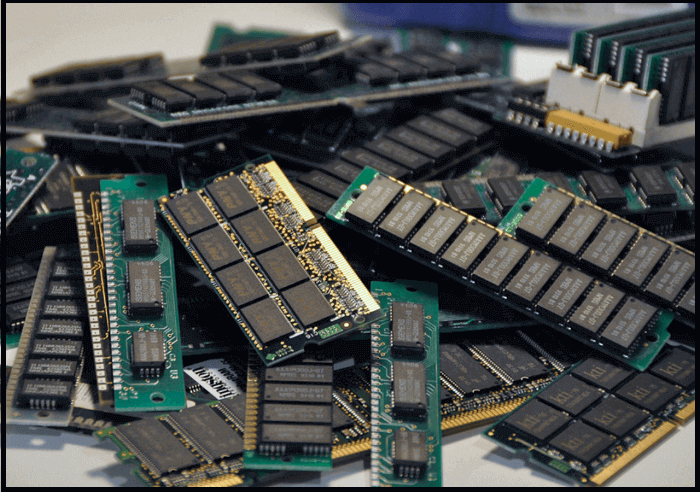
To optimize the performance of your MacBook Pro or Air, it's essential to understand the utilization of RAM, which is critical for enhancing multitasking capabilities and ensuring a smooth user experience.
Effectively managing RAM on your Mac can significantly boost its speed and responsiveness, allowing you to smoothly execute even the most demanding tasks with ease.
How to Check RAM on MacBook Pro/Air
To check your MacBook's RAM usage, navigate to the Apple menu, select About This Mac, and click on System Report. In the resulting window, click on Software on the left side and select Memory from the drop-down menu. This will display the total amount of RAM installed, as well as the amount of used and free memory.
We've included a video instruction for those who prefer to learn through visual means, in addition to the written instructions. This allows you to choose your preferred method of learning and helps you to better understand the process.
To check your Mac's RAM, go to the Apple menu, select "About This Mac," click on "System Report," and look for "Memory" under the "Hardware" section. This shows you the total amount of RAM installed on your Mac. Alternatively, you can also check the RAM by clicking on the Apple menu, selecting "About This Mac," and looking for the "Memory" section in the window that appears.
Step 1. On your Mac device, go to the "Applications" folder, then click on "Utilities", and finally launch "Activity Monitor" from the window that appears.

Step 2. To view memory usage statistics, click on the "Memory" tab in the Mac Task Manager window.
Step 3. The memory consumption details, such as memory used and memory pressure, will be displayed.
To check the RAM on your MacBook Pro or Air, start by clicking the Apple logo in the top left corner and selecting "About This Mac." From the Overview tab, click on "System Report" and select "Hardware" from the left menu.
How to Free Up RAM on Mac
If your Mac's performance has slowed down, excessive RAM utilization may be the culprit. To free up RAM and boost your system's performance, consider using strategies such as closing unnecessary apps, disabling startup programs, and clearing browser cache, among others.
Method 1. Restart Mac to Free Up RAM
To free up RAM on your Mac, start by restarting your device, as this is the most effective and easiest method. If restarting doesn't solve the issue, you can try closing unnecessary apps and background processes, using the Activity Monitor to identify and quit resource-intensive programs, and disabling any startup programs that may be consuming RAM. Additionally, you can try clearing the cache and cookies in your web browser, and consider upgrading your RAM if your Mac is old or has limited storage.
Step 1. From the Apple menu, select "System Preferences."
Step 2. Click on "Restart" from the drop-down menu.
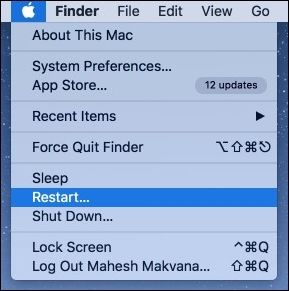
Step 3. To restart the device, click the "Restart" button on the confirmation window that appears after the operation is confirmed.
Step 4. To restart your Mac, let it shut down first.
Step 5. Once the Mac has restarted, check if the RAM usage has decreased.
If your MacBook Pro is frozen, don't panic! You can restart it in 6 different ways to troubleshoot the issue.
If your MacBook Pro is frozen, don't panic! There are several proven ways to restart it. Firstly, you can try forcing the MacBook Pro to shut down by pressing and holding the Power button for 10 seconds.
Method 2. Update macOS to Free Up RAM
Updating macOS can help reduce memory usage by providing the latest optimizations and bug fixes. To update your macOS, you can follow these steps below. By keeping your operating system up-to-date, you can ensure a smooth and efficient computing experience, free from issues related to memory usage.
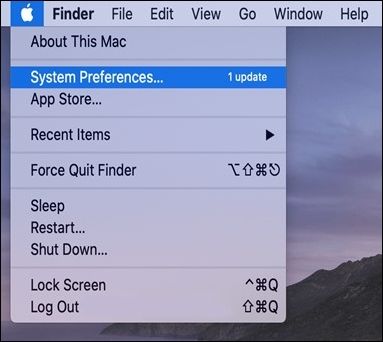
Step 1. Go to "System Preferences" from the Apple menu on the top-left side of the screen.
Step 2. Choose "Software Update" in the next window.
Step 3. To upgrade to the most recent macOS version, choose "Upgrade Now" if one is offered.
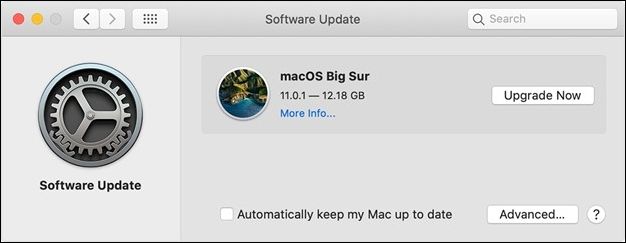
Step 4. The software update will begin, and once finished, check if it has decreased memory usage.
Method 3. Use Activity Monitor to Free Up RAM
To free up more space in RAM, you can use Mac's Activity Monitor to identify and close resource-intensive applications, and also use the "Force Quit" feature to terminate unresponsive apps. Additionally, you can use the "System Report" feature to check for any system updates that may be consuming RAM, and also use the "Memory" tab to see which processes are using the most RAM and close them if necessary. This will help to free up more space in RAM and improve overall system performance.
Step 1. Go to "Applications>Utilities".
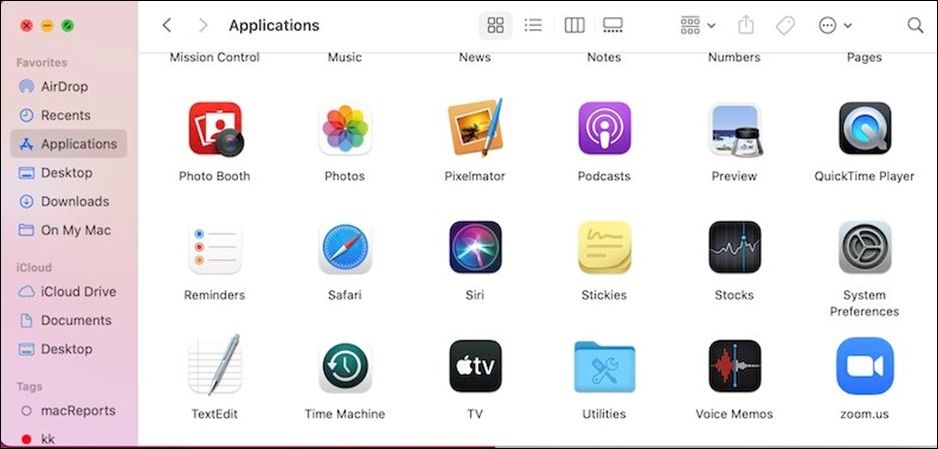
Step 2. Launch "Activity Monitor".
Step 3. Select the "Memory" tab within the Activity Monitor window.
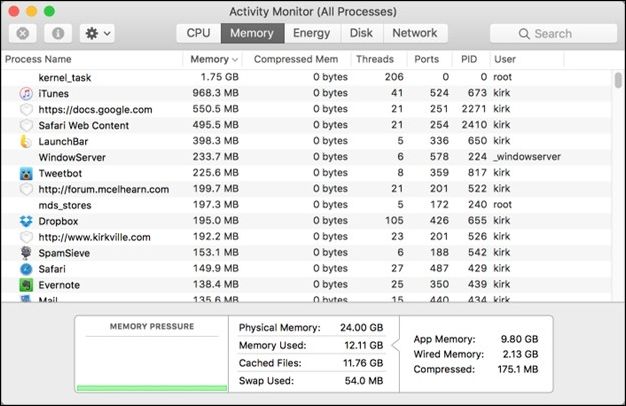
Step 4. Check the system's memory usage to identify programs or operations that are consuming a lot of RAM.
Step 5. 1. Close the program or process you want to end by selecting it from the list of running programs and clicking "End Process" or "Close".
Step 6. The "X" button on the toolbar may terminate the active program or process, or the "Quit" option can be found in the context menu. Pressing "Confirm" on the prompt that appears will complete the termination.
Step 7. To free up space on your computer, identify programs that use a lot of RAM and close them. Check the Task Manager to see which programs are using the most memory.
Step 8. To check if any RAM has become available, check the Activity Monitor's Memory section.
How to Open Task Manager on Mac [Activity Monitor]
This article will introduce 4 proven methods to open Task Manager on Mac, which is also known as Activity Monitor Mac.
Do I Need to Add More RAM
If your Mac frequently crashes or runs slowly due to memory usage, consider upgrading its RAM to improve performance.
Increasing your RAM's capacity provides more memory for your apps to access, enhancing their speed, particularly beneficial when working with large data sets or running memory-intensive programs like Photoshop or virtual machines.
You can use the Activity Monitor tool to check how much RAM your computer is using, and then decide if upgrading is necessary based on that information.
High memory pressure, or the need for your Mac to resort to virtual memory (page outs) regularly, indicates that your machine's RAM capacity is inadequate, leading to slower performance and potential crashes.
Increasing the amount of RAM in your Mac can help improve its performance by allowing it to run more applications simultaneously without slowing down.
Recover Accidentally Deleted Files When Free Up RAM
Freeing up RAM on a Mac can be a delicate process, as it may result in losing valuable data. However, if you've accidentally lost files, software like Deep Data Recovery for Mac can help you recover them. Additionally, you can use the Qiling data recovery software, which features a user-friendly interface that guides you through the recovery process with ease.
Deep Data Recovery for Mac can help you regain lost data, whether it's due to accidental deletion during a RAM partition cleanup or another reason, thanks to its intuitive UI, quick scanning algorithms, and powerful data recovery technology.
The program is designed to work with a variety of Mac configurations, supporting multiple file systems and storage devices. It aims to recover files that have been wiped from a Mac's hard drive, as well as external devices like USB drives and SD cards.
🏆Key Features of Deep Data Recovery:
- Recovering permanently deleted files on Mac can be a daunting task, but it's not impossible. With the right tools and techniques, you can easily recover deleted documents, images, movies, music, emails, and more.
- Support is available for recovering data from various media storage devices, such as SD cards, USB drives, and more, including SD card recovery on Mac devices.
- Quickly scan for missing data and save time and space by previewing recovered files before restoring them.
Conclusion
Boosting speed and preventing crashes on your Mac requires understanding RAM utilization and how to inspect and control it. RAM, or random access memory, is a crucial component that allows your MacBook Pro or Air to run applications efficiently. To check RAM on your MacBook, you can use the Activity Monitor app, which provides a detailed view of RAM usage, helping you identify and manage memory-intensive processes to ensure smooth performance.
To free up RAM and decrease memory use on your Mac, consider restarting your device, installing the latest version of macOS, and using the Activity Monitor to identify and close resource-intensive apps.
When your Mac's performance is slow due to low memory, it's recommended to update your system. Additionally, Deep Data Recovery for Mac can help recover lost data by optimizing RAM.
How to Check RAM on Mac FAQs
To check the RAM on a Mac, go to the Apple menu and select "About This Mac." From there, click on the "System Report" button, then select "Hardware" and click on "Memory" to view the amount of RAM installed.
1. How do I check RAM and CPU usage on Mac?
To check how much memory and CPU you're using on a Mac, open the "Activity Monitor" application from the Applications > Utilities menu. This shows you the current system resources usage.
2. How do I check my RAM specs?
To see your Mac's RAM capacity, go to the Apple menu and select "About This Mac", then click on "Overview" to view the amount and type of RAM installed, such as 8 GB DDR4.
3. What is RAM on a Mac?
RAM (Random Access Memory) is a temporary storage location for data that the operating system and applications frequently access, allowing for quicker data retrieval and multitasking.
4. How much RAM should a Mac have?
The amount of RAM a Mac should have depends on its workload, installed apps, and open windows.
8 GB of RAM is usually required for optimal performance, but 16 GB or more may be needed for resource-intensive tasks like video editing and virtual machine hosting.
Related Articles
- How to Load Old Cyberpunk 2077 Saves on Xbox
- macOS Monterey Update Not Found | How to Solve Monterey Update Issue
- [Solved!] Your Device Is Missing Important Security and Quality Fixes
- How to Format SD Card on Chromebook [With Specific Steps]
- SSD Not Detected in BIOS | Top 8 Ways to Fix🔥
Troubleshoot SSD not detected in BIOS with effective solutions. Follow the step-by-step instructions to learn how to fix SSD recognition and ensure smooth system operation. - Is Your SSD Slow to Load Games? Here Are New Fixes!
Fix an SSD that is slow to load games. Check drive health, free space, game files, drivers, and system performance settings.
Products
Articles & Tutorials
- Data Recovery
- Data Backup
- File Recovery
- File Backup
- System Backup and Restore
- Disk and Partition Clone
- Technical articles
- Mobile articles
- Disk Master Help
- Windows Data Recovery Tutorials
- Windows Secure Delete Tutorials
- Windows Partition Management Tutorials
- Windows File Backup and Restore Tutorials
- Windows System Backup and Restore Tutorials
- Windows Disk Backup and Restore Tutorials
- Windows Clone Tutorials