[Solved!] Your Device Is Missing Important Security and Quality Fixes
What Does "Your Device Is Missing Important Security and Quality Fixes" Mean
The latest Windows update is crucial for the system's overall health, but installing it can be challenging. If you encounter the error "Your device is missing important security and quality fixes," it indicates that the update process has encountered an issue, preventing the installation of the latest security and quality fixes.
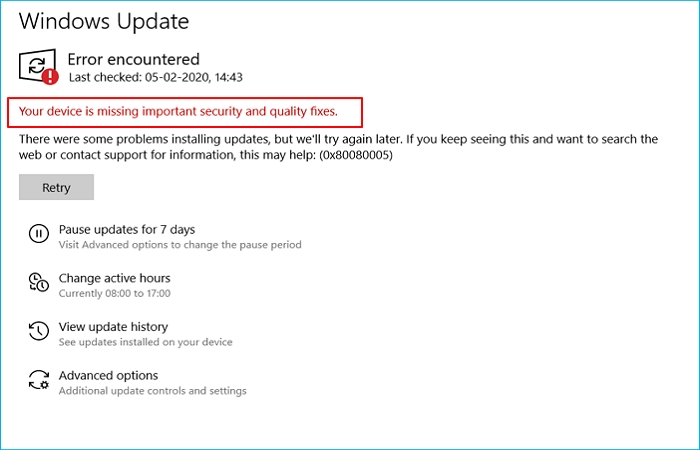
The error occurs when your computer is outdated or running an old operating system, and Windows is unable to download or install an update, leading to a performance issue due to missing critical upgrades. This can happen when a recent Windows update is flawed or corrupt.
What Causes "Your Device Is Missing Important Security and Quality Fixes"
Windows security and quality fixes may be missing due to corrupt system files, particularly those critical for updating Windows, but other factors such as outdated drivers, incorrect registry entries, or malware infections could also be contributing to this issue.
- Bugs in recent updates.
- Broken or incomplete update installation.
- Third-party programs that prevent upgrades.
- Out-of-date or problematic Servicing Stack Updates.
- Malware infection.
- The Telemetry level set to Security only.
Based on the potential cause of the error, which is likely due to a corrupted system file or a software conflict, we can try a few methods to troubleshoot and resolve the issue. Firstly, we can try running a System File Checker (SFC) scan to scan and replace any corrupted system files.
How to Fix "Your Device Is Missing Important Security and Quality Fixes"
Don't worry if you're encountering this error - there are several workable solutions to fix it. You can refer to the solutions mentioned below to help resolve the issue, which I'll outline in detail.
| Workable Solutions | Step-by-step Troubleshooting |
|---|---|
| Fix 1. Run Windows Update Troubleshooter | Windows provides a troubleshooting feature that can...Full steps |
| Fix 2. Rename Software Distribution Folders | The error usually occurs because of the corrupted...Full steps |
| Fix 3. Repair Corrupted System Files | Corrupt system files are another reason that might...Full steps |
| Fix 4. Change Telemetry Level | Microsoft Compatibility Telemetry gathers...Full steps |
| Fix 5. Reinstall Windows Updates | Although Windows updates are designed to address...Full steps |
| Fix 6. Use Windows Update Assistant | Windows Update Assistant downloads and installs...Full steps |
Fix 1. Run Windows Update Troubleshooter
To fix the Windows Update error, you can use the Windows Update Troubleshooter, a built-in feature that can resolve common problems in the Windows Update service. To do this, go to the Start menu, type "Troubleshooter" in the search bar, and select the Windows Update Troubleshooter from the results. Follow the prompts to run the troubleshooter and see if it resolves the issue. If not, you can try other troubleshooting steps or seek further assistance.
Step 1. Press the Win + I keys to open Windows Settings.
Step 2. Go to Update & Security > Troubleshoot.
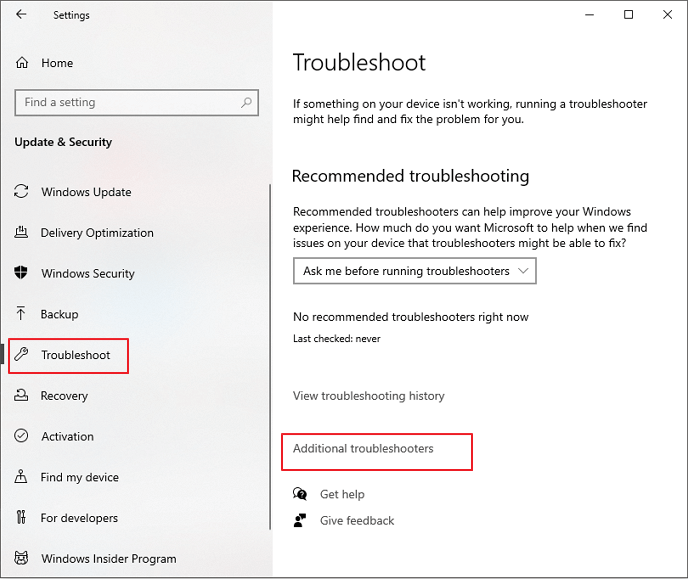
Step 3. Locate and click Additional troubleshooters.
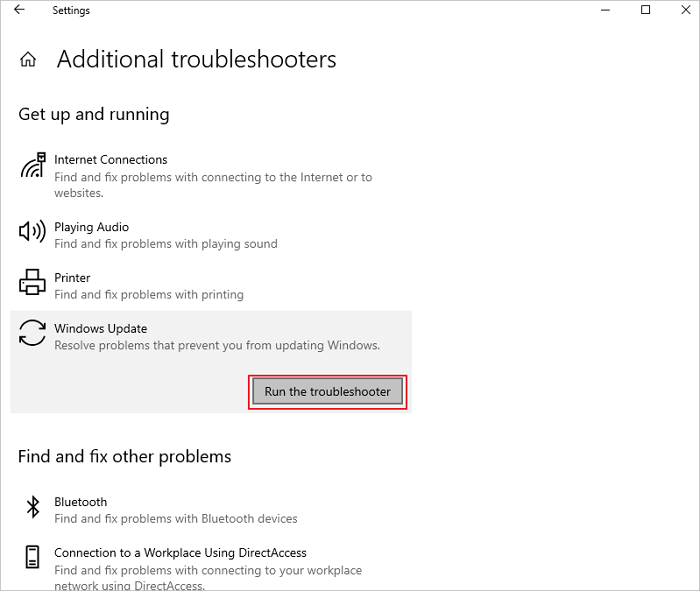
Step 4. To resolve Windows Update issues, select Windows Update under Get up and running, click Run the troubleshooter, and let it complete its operation.
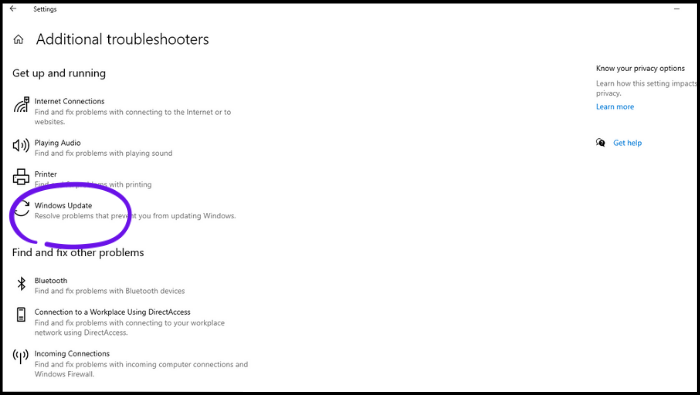
Step 5. Once you've completed the steps in the troubleshooter, exit the tool and attempt to install the updates to see if the problem has been resolved.
Fix 2. Rename Software Distribution Folders
The error usually occurs due to corrupted Windows Update files in the Software Distribution folder, which are essential for installing updates. If these files are corrupted, you cannot update Windows. To fix this error, you can either rename or delete the folder containing these files, which should resolve the issue.
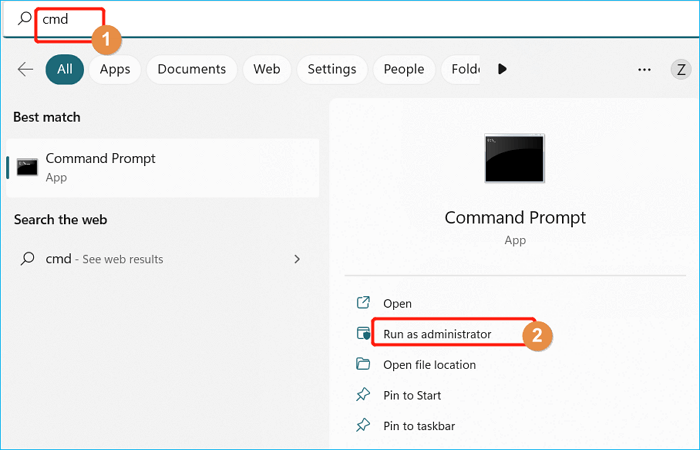
Step 1. To open the Command Prompt as an administrator, type "cmd" in the search bar and click "Run as administrator".
Step 2. In the Command Prompt, type each of the commands below one by one, and then press Enter after each to execute.
Note: Wait for each command to complete before typing the following command.
- net stop wuauserv
- net stop cryptsvc
- net stop bits
- net stop msiserver
- ren %systemroot%\softwaredistribution softwaredistribution.bak
- ren %systemroot%\system32\catroot2 catroot2.bak
- net start wuauserv
- net start cryptSvc
- net start bits
- net start msiserver
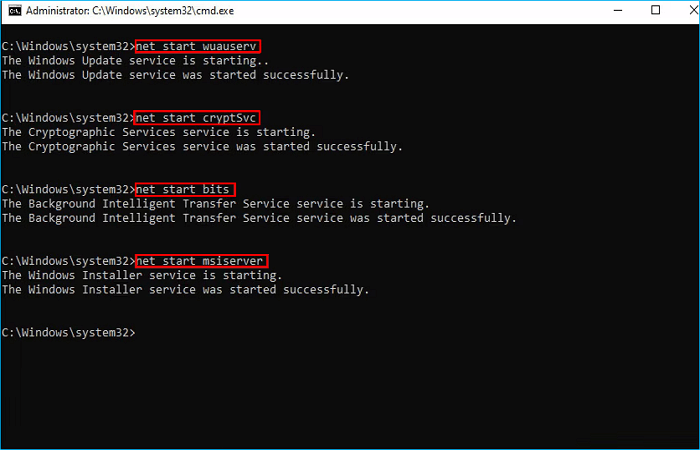 Step 3. Restart your computer after all commands are executed. You can try installing the updates now.
Fix 3. Repair Corrupted System Files
Corrupt system files can cause this issue, often resulting from malware and viruses. To fix this, you can run the DISM or SFC commands to repair damaged system files.
Step 1. To open the Command Prompt as an administrator, type "cmd" in the search bar and click "Run as administrator".
Step 2. Copy and paste the commands below and press Enter after each command.
- DISM /Online /Cleanup-Image /RestoreHealth
- Sfc /scannow
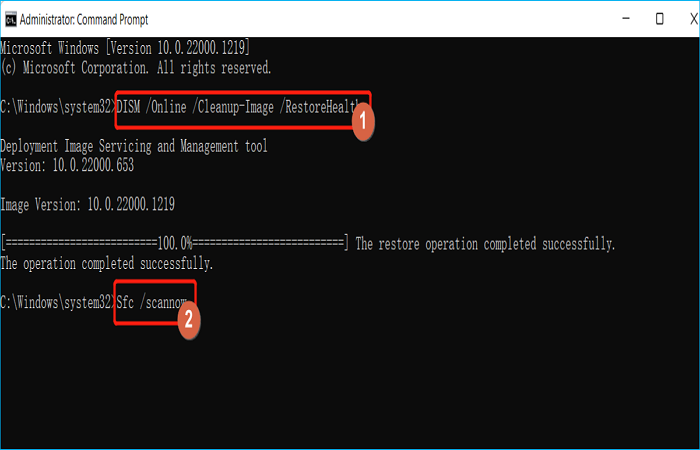
Step 3. Once the troubleshooting steps are completed, close the Command Prompt and verify if Windows Update is functioning properly again.
Fix 4. Change Telemetry Level
To resolve the issue with Windows updates not working due to Microsoft Compatibility Telemetry being disabled or set to "security-only", follow these steps: Change the Telemetry level to a higher setting, such as "basic" or "full", to allow the updates to work properly. This can be done by adjusting the Telemetry setting in the Windows Settings app. By making this change, you can help resolve the issue and ensure that your Windows updates are functioning correctly.
Step 1. To access the Local Group Policy Editor, type "Local Group Policy Editor" in the search box and click "Open" to launch it.
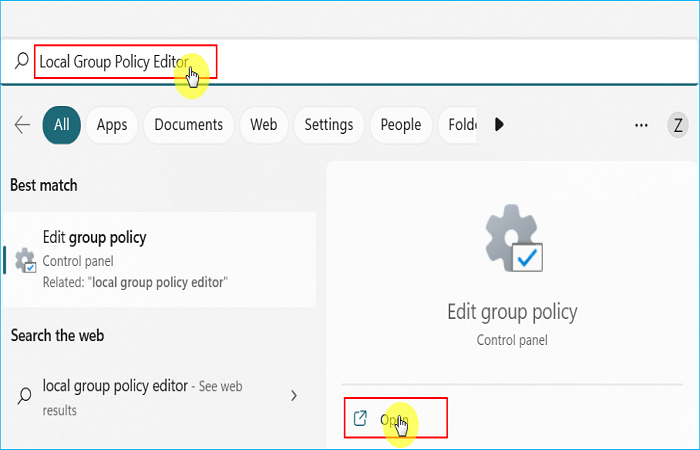
Step 2. To access the Group Policy settings, navigate to Computer Configuration > Administrative Template > Windows Components > Data Collection and Preview Builds.
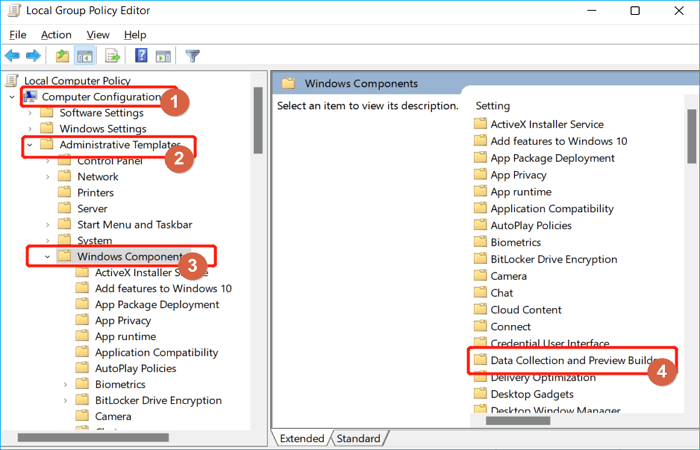
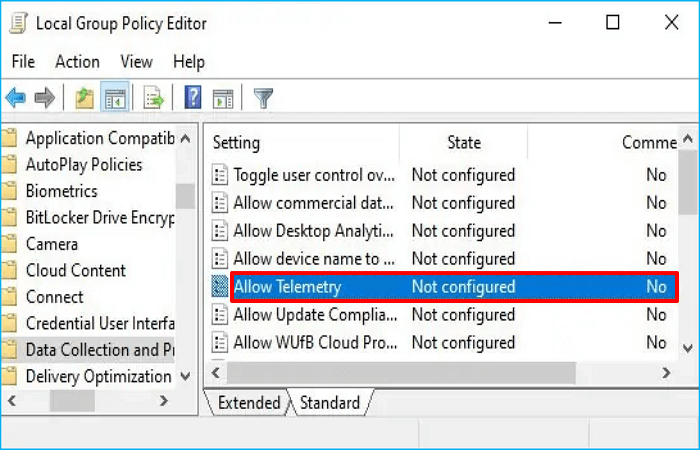
Step 3. Double-click on Allow Telemetry.
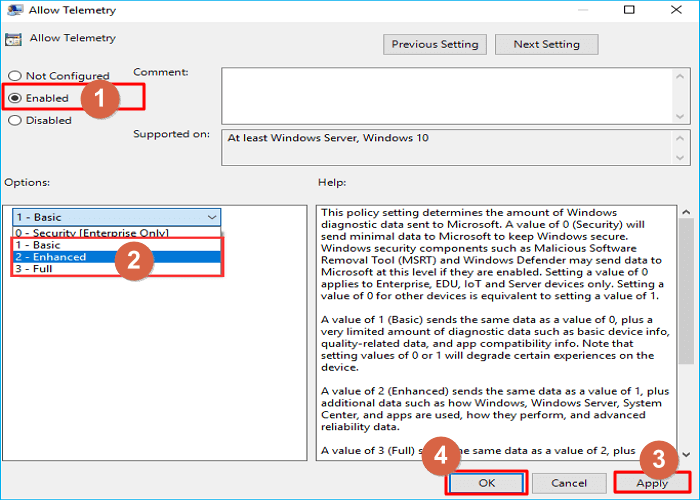
Step 4. Choose Enabled and change the Telemetry level to any option except 0 - Security [Enterprise Only]. Once finished, click Apply, then click OK to save the changes.
Fix 5. Reinstall Windows Updates
Windows updates are designed to address system problems, but sometimes they can cause issues instead. A broken update can result in problems like "Your device is missing important security and quality fixes." To fix this, you can follow a specific process to resolve the issue.
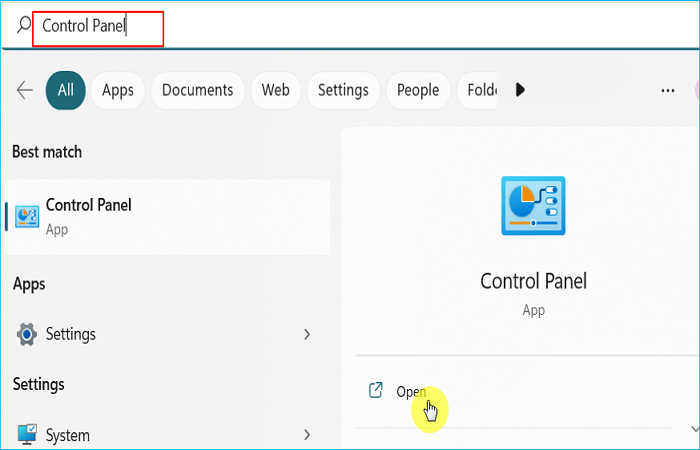
Step 1. Input Control Panel in the search box and click Open.
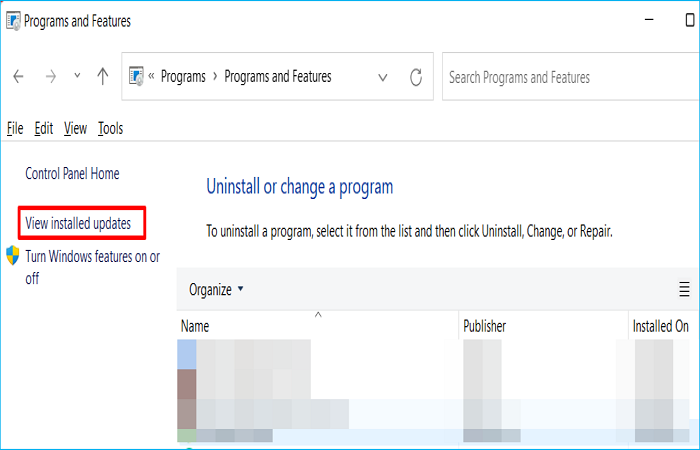
Step 2. Click Uninstall a program.

Step 3. Select View installed updates.
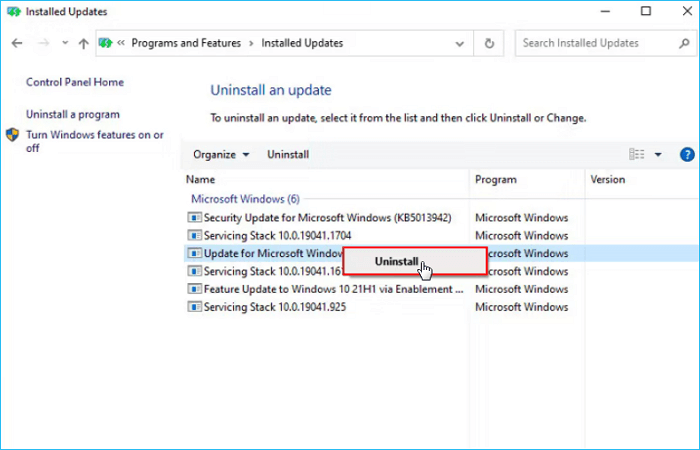
Step 4. To uninstall the most recently installed update, right-click on it, then click Uninstall.
Step 5. After installing the Windows updates, simply reboot your computer to apply the changes, and then reinstall the updates to ensure they are properly installed.
Fix 6. Use Windows Update Assistant
Windows Update Assistant is a tool that downloads and installs the latest Windows updates without relying on the built-in Windows services needed to install the update. This can be a useful alternative to the standard Windows update process.
Step 1. Download Windows Update Assistant from Microsoft's official site.
Step 2. Launch it and click on Yes in the confirmation prompt.
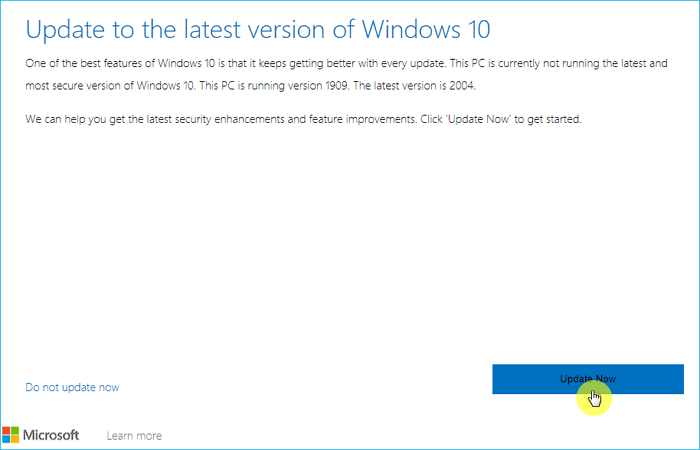
Step 3. Click on the Update Now button. Wait for the updates to be downloaded.
Additional Guide: How to Backup your Computer
If you encounter the "Your device is missing important security and quality fixes" error, it's essential to address it promptly to keep your Windows up-to-date. However, simply keeping Windows updated is not enough to ensure your computer's safety; there are additional measures that need to be taken to keep it secure.
Backing up your computer is essential to prevent data loss after a virus or malware attack, and it's also a good idea to back up before updating Windows to ensure you can revert to a previous version if something goes wrong. Professional backup software like Qiling Backup can help you achieve this.
Qiling Backup Home is an all-in-one backup tool for Windows that automatically backs up the operating system, files, disks, and partitions. It allows scheduled, full, incremental, and differential backups to be stored in various locations, including local drives, NAS, Security Zones, and cloud storage. The software also enables creating an iso image of the operating system and installing Windows on a new SSD without a USB drive, and comes with 250GB of free cloud storage.
You can perform the steps below to create a system backup of your computer.
Step 1. To start the backup process, click the "System backup" button on the main page.

Step 2. Qiling Backup will automatically select your system partition, and you only need to choose a backup destination.

Step 3. You can save the backup file to either a local drive on your computer or a Network-Attached Storage (NAS) device.

Step 4. After completing the backup process, you can view the backup status, restore, open, or erase the backup by clicking on the backup task on the left.

The Bottom Line
If you're experiencing the error "Your device is missing important security and quality fixes," try updating your device to the latest software, checking for pending updates, and ensuring you're running the most current version of Windows. You can also try resetting your device to its default settings, booting in safe mode, and checking for corrupted system files. If none of these methods work, consider seeking further assistance from a professional or the device's manufacturer.
Backing up your computer is a troubleshooting way for many problems you encounter with your computer. Qiling Backup is a nice tool for backing up your computer, making it easy to try.
FAQs
1. How do I manually install a security update?
To check for Windows updates, go to the Start menu, click on Control Panel, then Security, then Security Center, and finally Windows Update. From there, click on "View Available Updates" to see which updates are available for your computer. The system will automatically check for and list the necessary updates for you.
2. How do I fix error code 0x80248007?
To fix the 0x80248007 Windows update download error, right-click on the Windows Installer service, select Restart, and wait for the service to resume. Then, run Check for Updates. This should resolve the issue.
Related Articles
- How to Fix PC Randomly Turns Off
- (Solved!) How to Backup Gmail Emails with Attachments for Windows 11/10/8/7
- How to Fix Windows 10 Stuck at Getting Files Ready for Installation
- How to Find Recently Deleted Folder/Photos on Mac
- How to Factory Reset Nintendo Switch | Detailed Steps with Video
If you want to factory reset your Nintendo Switch, it's a relatively simple process that requires following a few steps. - 3 Ways to Factory Reset Samsung Laptop on Windows 10/8/7
Learn how to factory reset a Samsung laptop in Windows or recovery mode. Follow safe steps to reset the laptop and protect important files first.
Products
Articles & Tutorials
- Data Recovery
- Data Backup
- File Recovery
- File Backup
- System Backup and Restore
- Disk and Partition Clone
- Technical articles
- Mobile articles
- Disk Master Help
- Windows Data Recovery Tutorials
- Windows Secure Delete Tutorials
- Windows Partition Management Tutorials
- Windows File Backup and Restore Tutorials
- Windows System Backup and Restore Tutorials
- Windows Disk Backup and Restore Tutorials
- Windows Clone Tutorials