How to Open Task Manager on Mac [Activity Monitor]
To open Task Manager on Mac, you can press Command + Option + Esc, click on the Apple menu and select "Force Quit," or use Spotlight to search for "Activity Monitor" and click on the result. Alternatively, you can use the Dock by right-clicking on the Activity Monitor icon and selecting "Force Quit Applications."
| Workable Solutions | Step-by-step Troubleshooting |
|---|---|
| Method 1. The Shortcut to Open Task Manager on Mac | Press the Alt + Ctrl + delete key on Windows to open the task manager quickly...Full steps |
| Method 2. Open Activity Monitor on Mac from Spotlight | Press Command + Space to open Spotlight; type "Activity Monitor" in Spotlight...Full steps |
| Method 3. Open Task Manager from the Dock | You may navigate the dock, and the activity monitor icon needs to be right-clicked...Full steps |
| Method 4. Open Activity Monitor from Finder on Mac | Hit the Apple icon from the main section. After that, you need to visit System Preferences...Full steps |
What Is Mac Task Manager Equivalent
Users who switch from Windows to macOS often face challenges due to differences in keyboard shortcuts, menu items, options, and modes, requiring time to adjust to the new system.
As a new macOS user, you might find it challenging to locate a similar utility to Windows Task Manager, which is a familiar tool for many Windows users. However, the Task Manager equivalent on Mac is actually quite accessible, and you can easily find it.
On a Mac, the Task Manager equivalent is called Activity Monitor, which shows the processes running on the computer and can help identify what's affecting performance. It also allows you to force quit unresponsive apps.
How to Open Task Manager on Mac
The Task Manager can be found in the Applications/Utilities folder and can be quickly launched in various ways.
Method 1. The Shortcut to Open Task Manager on Mac
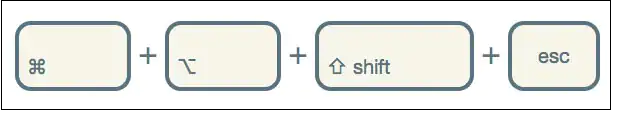
To open Task Manager on a Mac, press Command + Option + Esc. This keyboard shortcut will launch the Activity Monitor, which serves as the Task Manager on Mac.
Step 1. To quickly open the task manager on Windows, press Alt + Ctrl + Delete, while on Mac, press Command + Option + Shift + Esc.
Method 2. Open Activity Monitor on Mac from Spotlight
To get started, the Task Manager on macOS is known as an Activity Monitor, allowing you to view and control all activities performed on your Mac. You can quickly view details about CPU usage, disk usage, system memory, and other key parameters. Additionally, the Activity Monitor enables you to close an unresponsive application forcefully.
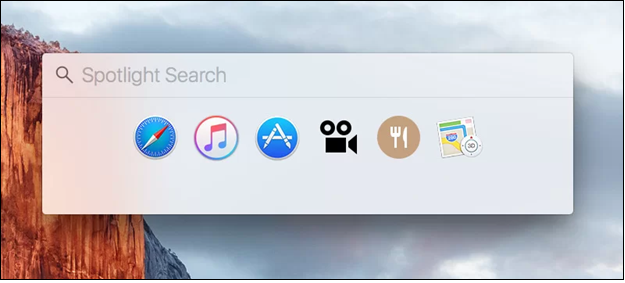
To open Activity Monitor using Spotlight shortcuts, you can quickly search for it by pressing Command + Space, typing "Activity Monitor", and pressing Return. Alternatively, you can also use Spotlight to search for it by pressing Command + Space and typing "Activity Monitor". This will quickly take you to the Activity Monitor application.
Step 1. To open Spotlight, press "Command + Space".
Step 2. Type Activity Monitor in Spotlight.
Step 3. Hit the "Enter" button as Activity Monitor shows.
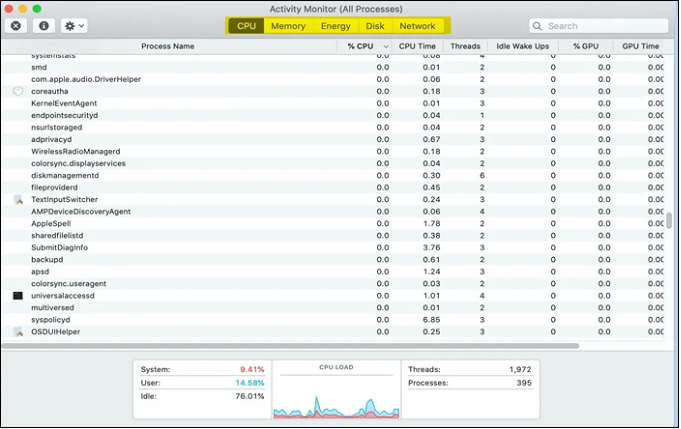
Once the "Activity Monitor" opens successfully, you will see a window with 5 visible tabs.
Method 3. Open Task Manager from the Dock
If you plan to frequently use Activity Monitor, you can pin it to the Dock, then open it by clicking the icon.
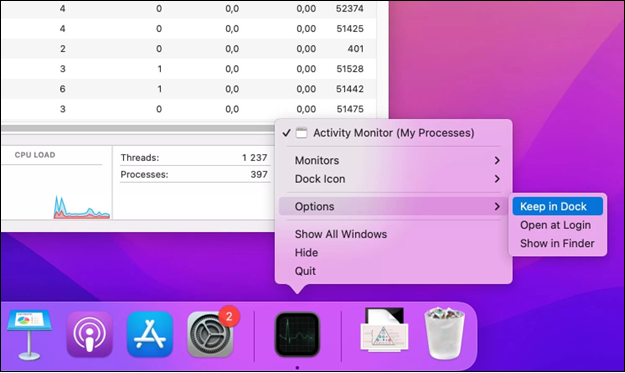
Step 1. To navigate the dock, you simply need to right-click on the activity monitor icon.
Step 2. To keep the Terminal app in the dock, go to the menu and select "Terminal" > "Preferences" > "Settings" and then choose "Options" and select "Keep in the dock".
Step 3. The activity monitor can now be launched from the Dock with a single click.
Share this article on social media to read it anytime.
Method 4. Open Activity Monitor from Finder on Mac
To open Task Manager on Mac, use Finder. Open Finder, click "Go" in the top menu bar, select "Utilities" from the drop-down menu, and then click "Activity Monitor" to open the Task Manager equivalent on Mac.
Step 1. To access the Terminal application, go to the main section, click on the "Apple" icon, and then visit "System Preferences > Applications". From there, navigate to the "Utility" folder on Finder to find Terminal.
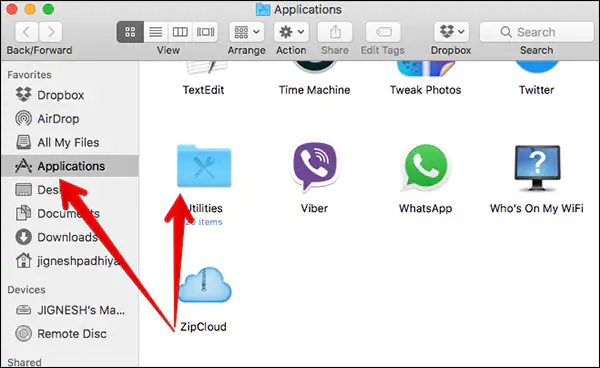
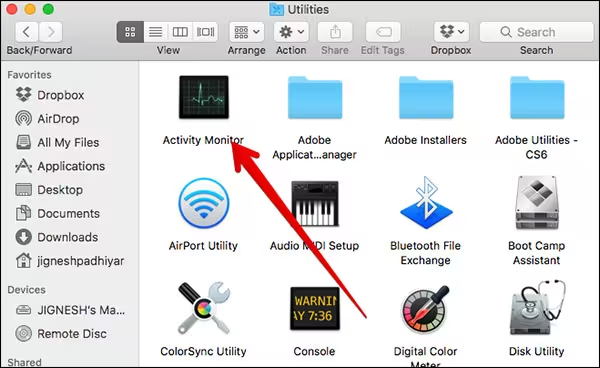
Step 2. Now, all of your Mac's utility programs and parts will be accessible. To access the Activity Monitor, search for the tool, double-click its icon, and the program will launch.
How to Use Mac Task Manager Force Quit
To utilize the Mac Task Manager's Force Quit feature, you can follow these steps: Open the Task Manager, which can be found by pressing Command + Option + Esc keys simultaneously. Alternatively, you can search for "Activity Monitor" in Spotlight or the Launchpad. In the Task Manager, click on the "Force Quit" button, which is located in the top right corner of the window. This will bring up a list of currently running applications. Select the problematic app from the list and click "Force Quit" to quit the app. The Task Manager will then close the app and free up system resources.
To close a program on a Mac, you can use the Force Quit function, which is located in the Apple menu. Alternatively, you can use the Command + Option + Esc keys to open the Force Quit window, where you can select the program you want to close and click "Force Quit." You can also use the Activity Monitor to close a program, by selecting the program in the list and clicking "Quit" or "Force Quit.
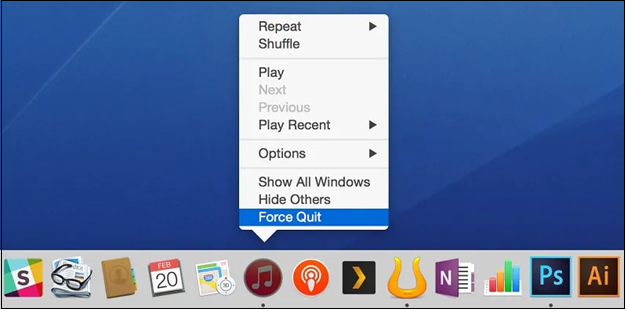
Use the Mac Dock
To quickly close an application on a Mac, you can use the dock. The app must be on the dock, and your mouse must be working. Click on the app icon, then right-click (or control-click) on it. From the context menu that appears, select "Force Quit" to shut down the application. This will immediately stop the program's processes and free up system resources.
Use the Apple menu
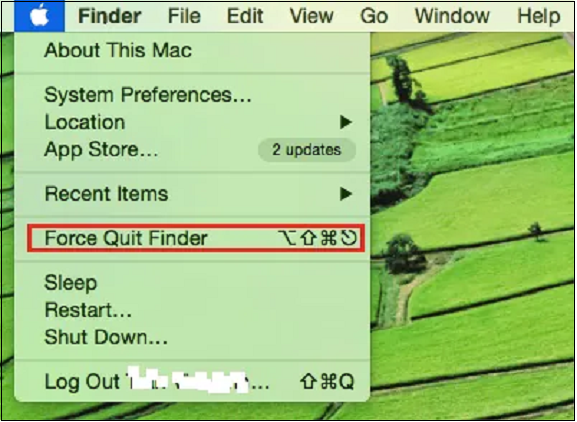
You can safely shut down a crashed app on your Mac by holding down the "Shift" key and clicking on the Apple logo, then selecting the app's title and choosing "Force Quit" to close it, or by clicking on the app in the background to shut it down.
To utilize Activity Monitor as a Task Manager, you can navigate to the Applications tab, where you'll see a list of currently running applications, along with their memory usage and CPU activity. You can also switch to the System Memory tab to view a detailed breakdown of your system's memory usage, including the amount of free and used memory, as well as the memory used by each process. Additionally, you can switch to the CPU tab to view a detailed breakdown of your system's CPU usage, including the amount of CPU used by each process.
1. CPU
Activity Monitor's first pane shows a list of all the processes currently using the CPU on your Mac, along with information about their power usage and duration.
To arrange all tasks in Activity Monitor in order of the highest to the lowest CPU utilization, select "View > All Processes" and tap on the "%CPU" section.

If you've accidentally deleted files on your Mac, there's still hope to recover them even after the trash has been emptied. You can use built-in tools like Time Machine or the "Recently Deleted" folder to retrieve deleted files.
The WindowServer on a Mac can consume a significant portion of the CPU resources, leading to a slowdown of the computer. To resolve this issue, you can try restarting your Mac, checking for any software updates, and disabling animations or visual effects. Additionally, you can try resetting the System Management Controller (SMC) and the Power Management Unit (PMU), or even performing a clean install of macOS if the problem persists. These steps can help alleviate the CPU usage and improve the overall performance of your Mac.
2. Memory
The Mac activity monitor's memory pane displays how memory is used, showing statistics such as the amount of used, active, inactive, wired, and free memory, as well as the number of pages in and out, and the number of faults and major faults.
- Memory pressure: It's a graph illustrating the memory resources' availability.
- Memory used: The total RAM (Random Access Memory) amount which has been in use recently.
- Physical memory: The total amount of installed RAM.
- Wired memory: Memory stays in RAM because it can't be compacted or written to a hard disk.
- Swap used: The macOS memory management system uses one type of space on the startup drive.
- Compressed: The total amount of RAM is compressed to make enough space for other procedures. This is done to prioritize other tasks over memory usage.
3. Energy
You can use the Activity Monitor on your MacBook to identify battery-sucking programs and operations, and disable them to increase your time using the monitor when not connected.
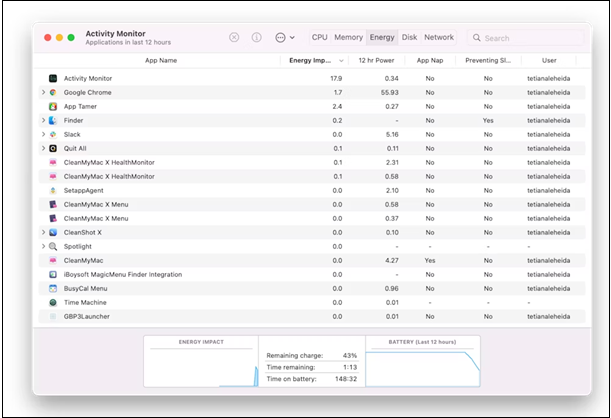
To save battery life, check the average energy impact of your apps and disable or delete those that consume the most energy on average, especially if you don't use them frequently.
4. Disk
This tab shows how various activities interact with your hard drive, modifying data. It can help identify potential security threats by highlighting unusual processes, allowing you to terminate them quickly.
5. Network
The final tab in Activity Monitor shows how much data installed apps have acquired and delivered, helping to identify anomalies that might upload excessive amounts of data.
How to Recover Deleted Data on Mac
Some Mac users experience freezing issues, requiring them to close open programs, which can be concerning for data loss. To address this, a specialized data recovery program can be introduced to protect user data. For Mac users, a technical data recovery software like Deep Data Recovery for Mac can be helpful in recovering important information.
The software was designed to assist with recovering deleted files due to file system errors, system failures, or accidental deletions. Its user-friendly interface enables even novice users to quickly retrieve lost files.
Deep Data Recovery for Mac
- To recover deleted files from Mac Trash, first, stop using your Mac to prevent overwriting of the deleted files. Then, check if the files are still in the Trash by opening the Trash folder.
- Recover deleted files on macOS Ventura, Monterey, Big Sur, and other macOS versions by using the Time Machine backup or a third-party recovery software. If you have Time Machine backups, you can restore deleted files from the backup.
- Support for various file system types recovery on Mac, including APFS partition recovery and NTFS partition recovery, is available.
To recover deleted data on your Mac, follow these steps: Start by stopping any activity on the affected drive to prevent further data loss. Next, check if the deleted files are still in the Trash.
Step 1. Select the drive to be scanned
Select the drive you need to recover lost/deleted files from, and click the "Search for lost files" button in the main Deep Data Recovery window.
Note: Before attempting data recovery, it's recommended to create a backup of your Mac using the "Disk Backup" feature to prevent further data loss. Once the backup is complete, the software can then recover data from the backup, allowing your computer to be used for new data entry.

Step 2. Select your lost data/files
Deep Data Recovery for Mac scans the selected disk volume, displaying the results on the left pane, allowing users to sort and find specific files.

Step 3. Recover lost/deleted data
Once you have found the desired files, preview them and then click "Recover" to start the recovery process for your deleted/lost Mac files.

Final Words
This concludes our tutorial on using the Mac task manager. We've covered how to access it, as well as the essential things you can accomplish with it, such as viewing and quitting tasks, checking CPU usage, and more. With this knowledge, you'll be able to effectively manage your Mac's tasks and optimize its performance.
Every user should be familiar with Activity Monitor, which is the Mac version of Task Manager (Windows). You can try logging into Activity Monitor on your Mac by following the procedures mentioned earlier.
How to Open Task Manager on Mac FAQs
Go through the below-mentioned FAQs to comprehend the topic better:
1. How to force quit on Mac?
To force quit on a Mac, you can press Command + Option + Esc, or you can go to the Apple menu and select "Force Quit".
2. How do you control Alt Delete on a Mac?
To open the "Force Quit" box on a Mac, press the "Command + Option + Esc" shortcut. This is similar to the "Ctrl + Alt + Delete" combination on Windows.
3. Why can't I open Task Manager on Mac?
In Mac, the Task Manager equivalent is called Activity Monitor. To access it, click on the Apple logo at the top left of the screen, then select "Force Quit" from the dropdown menu, which will display a similar interface to a Task Manager.
4. How do I open Task Manager in Chrome Mac?
You can launch the Task Manager in Chrome Mac using two methods: by opening Chrome's menu and clicking the "More" symbol on the top-right side of the screen, or by going to "More Tools" and selecting "Task Manager".
Related Articles
- [Solved!] How to Fix Windows 10 Activation Key Not Working
- When Is the Next Apple Event 2023: September Event [macOS Sonoma included]
- Reset Mac Password if You Forgot the Password [with Four Simple Methods]
- Mac Software Update: How to Update Software on Mac [Automatically & Manually]
- Accidentally Saved Over a Word Document, Recover Easily
Recover a Word document accidentally saved over. Try previous versions, AutoRecover, backups, and recovery tools to restore lost content. - Acronis Clone Disk Wizard Stuck During Cloning Process - How to Fix
Acronis True Image may hang when cloning due to various reasons, but quick fixes are available to resolve the issue. Additionally, some tips can be provided to prevent the Acronis clone disk Wizard from getting stuck in the future.
Products
Articles & Tutorials
- Data Recovery
- Data Backup
- File Recovery
- File Backup
- System Backup and Restore
- Disk and Partition Clone
- Technical articles
- Mobile articles
- Disk Master Help
- Windows Data Recovery Tutorials
- Windows Secure Delete Tutorials
- Windows Partition Management Tutorials
- Windows File Backup and Restore Tutorials
- Windows System Backup and Restore Tutorials
- Windows Disk Backup and Restore Tutorials
- Windows Clone Tutorials