Where Is Task Manager Mac | Tips for Optimizing Mac Usage
What Is Task Manager on Mac
Windows Task Manager is a program that monitors all running programs and applications on a computer, allowing users to identify and stop processes that consume excessive resources, thereby improving the overall performance of their Windows PC.
Task Manager on Windows is similar to Activity Monitor on Mac, which allows you to view and manage processes running on your system, including CPU usage, memory usage, and other system resources. It also allows you to quit or force quit applications that are not responding.
The Task Manager on a Mac is called Activity Monitor, which has been pre-installed on every version of Mac OS X and macOS since 2000. It shows all process functions on your Mac, allowing you to force quit abnormal applications.
The main functions of Task Manager Mac are:
- To stop unresponsive applications and processes, use Task Manager to locate the process causing your system to act sluggish or not respond, and then force quit it.
- View the energy usage of each process to optimize your computer's energy consumption. Use the Task Manager to identify which processes are using the most energy, then consider terminating the most energy-intensive process to conserve power.
- Monitor real-time system performance to view your CPU, network, and disk usage as a live graph in the Mac Dock. You can use the Task Manager to monitor your system's status in real-time, providing a quick glance at how your computer is performing.
The Activity Monitor User Guide provides detailed information on how to use Activity Monitor, including how to monitor system activity, view and manage processes, and identify and troubleshoot system issues.
Where Is Task Manager on MacBook Air/Pro
To learn more about your system resource issue on your MacBook Air, you can use the Activity Monitor, which can be found in the "Application > Utilities" folder by default. This tool provides detailed information on memory consumption and specific applications, helping you identify the cause of the issue.
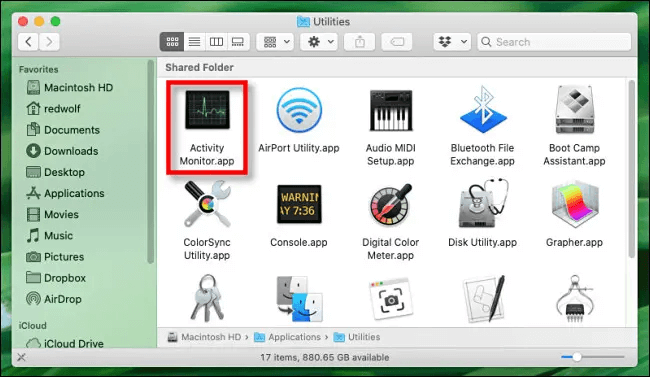
Or you can find Task Manager on your MacBook Air using Spotlight shortcut:
Step 1. Open "Spotlight" on your MacBook Air.
Step 2. Select the magnifying glass icon on the Apple menu bar.
Step 3. Type activity monitor into the search box and hit "Return".
Step 4. Click the application "Activity Monitor" in the Spotlight result.
To view a list of processes running on your MacBook Air, open the Activity Monitor app, which can be found in the Applications/Utilities folder. From there, you can browse through the various tabs to see CPU, memory, energy, disk, and network usage for all running processes.
If you're looking for Task Manager on your MacBook Air, you might be surprised to learn that it's not available as a standalone app. Instead, you can access the equivalent functionality by using the Activity Monitor, which can be found in the Applications/Utilities folder or by searching for it in Spotlight.
How to Open Task Manager on M1 MacBook Air/Pro
To find out which application or process is taking up the most usage on your Mac, open the Task Manager by going to "Applications > Utilities > Activity Monitor".
Here are four functional methods to open Task Manager:
- Method 1. Open Task Manager on Mac from the Spotlight search box.
- Method 2. To open Task Manager using the "Command + Option + Shift + ESC" shortcut, press and hold the Command key, the Option key, the Shift key, and the ESC key at the same time on your Mac. This will immediately open the Task Manager, allowing you to view and manage running processes, applications, and system resources.
- Method 3. Open Task Manager from Mac Dock.
- Method 4. Open Task Manager from Mac Finder.
Tips for Optimizing Mac Usage in Task Manager
If your Mac is slow, using Task Manager Mac can help optimize its performance by monitoring and managing the usage of system resources, such as CPU, memory, and disk space. It can also help by closing unnecessary processes and applications to free up system resources and improve overall system speed.
Quit Unresponsive or Unused Application or Process
Follow the steps below to quit the unresponsive or unused application/process:
Step 1. Go to "Activity Monitor" on your Mac.
Step 2. To quit a process, select the process you want to quit in the list, then click on the "End Process" button. This will terminate the selected process.
Step 3. Click the "Stop" button in the corner of the window.
Step 4. To quit an app or process in Activity Monitor, choose the "Quit" or "Force Quit" option.
An unresponsive process in the list is marked as "Not Responding".
If you choose to force quit a process, it will quit immediately, which may result in data loss if it has files open, and these files can't be recovered from the Trash. However, you can recover the lost files using data recovery software like Deep Data Recovery for Mac.
Deep Data Recovery for Mac
- Data recovery can be supported under various situations, including sudden process termination from Task Manager on a Mac. This allows for the retrieval of lost data even when a process is abruptly stopped or terminated, helping to minimize data loss and ensure business continuity.
- Recover formatted partitions on Mac, including NTFS, APFS, and other file systems, regardless of the formatting process.
- Recovering lost or deleted file types, including recovering deleted iMessages on Mac, recovering lost documents and photos, and more, is a common issue many users face.
Schedule Regular Maintenance
You can view general information about all processes, including CPU, memory, energy, disk, and network usage.
To optimize your Mac usage, schedule regular maintenance, such as monitoring the CPU usage index to ensure smooth operation and closing unnecessary applications that consume high memory but are infrequently used.
Disable Unnecessary Login Items
If your Mac is running slow after a macOS 13 update, consider killing processes that slow it down or disabling unnecessary login items. You can also optimize boot speed by reducing startup applications in System Preferences under Users and Groups. This can help improve your Mac's performance.
Conclusion
Task Manager on Mac allows you to monitor CPU, memory, and disk usage. If your Mac runs slowly after updating to a new macOS version, such as Ventura, you can access Task Manager from the "Application > Utilities" folder.
From there, you can quit excessive applications and processes, but be sure to save and close files before using the "Force Quit" option to avoid losing data.
Task Manager Mac FAQs
Here are questions people usually ask about Task Manager Mac:
1. What is the Task Manager Mac shortcut?
On some macOS, you can press "Command + Option + Shift + Esc" to open Task Manager, or simultaneously press down the "Command", Mac Alt, and "Esc" on your keyboard.
2. How do I see what tasks are running on my Mac?
You can view all processes and applications running on your Mac by opening Task Manager. To do so, you can use one of the following methods:
- Open Task Manager on Mac from the Spotlight search box.
- To open Task Manager using the "Command + Option + Shift + ESC" shortcut, press and hold the Command key, the Option key, the Shift key, and the ESC key all at the same time on your Mac. This will immediately open the Task Manager, allowing you to view and manage running processes, applications, and system resources.
- Open Task Manager from Mac Dock.
- Open Task Manager from Mac Finder.
3. What is Task Manager called in Mac?
The Mac equivalent of Task Manager is Activity Monitor, which is pre-installed on Mac OS X and can be found in "Applications > Utilities".
4. Why can't I find Task Manager on Mac?
If you can't find Task Manager in the "Applications > Utilities" folder, you can open it using the keyboard shortcut "Command + Option + Shift + Esc" on your Mac.
Related Articles
- What Is WSUS? Windows Server Update Services Explained
- What is Windows Image Boot (WIMBoot)?
- Macintosh HD vs. Macintosh HD Data: What Are the Differences
- What Is the SysWOW64 Folder? SysWOW64 vs System32
- Recover Saved Game Data on Xbox Series X [ 5 Proven Ways]
If you've lost your game data on Xbox Series X, there are three effective methods to recover it. You can recover saved game data from an external hard drive, use cloud gaming to access your saved games, or restore from a backup. - Guide on Recovery Partition Not Showing in My Computer | Find Missing Recovery Partition Easily
Fix recovery partition not showing in Windows. Learn why the partition is hidden or missing and how to view, repair, or recreate it safely.
Products
Articles & Tutorials
- Data Recovery
- Data Backup
- File Recovery
- File Backup
- System Backup and Restore
- Disk and Partition Clone
- Technical articles
- Mobile articles
- Disk Master Help
- Windows Data Recovery Tutorials
- Windows Secure Delete Tutorials
- Windows Partition Management Tutorials
- Windows File Backup and Restore Tutorials
- Windows System Backup and Restore Tutorials
- Windows Disk Backup and Restore Tutorials
- Windows Clone Tutorials