Fix No Writable WD Smartware Partition Found and Recover Data
How to Fix 'No Writable WD SmartWare Partition Found' Error
You're experiencing issues with your My Passport 1TB drive after installing it, specifically the "No writable WD SmartWare partition found" error, which has made the drive inaccessible. You're worried about losing your valuable data, including thousands of photos and files used at work. To resolve this, you can try using third-party software such as Deep Data Recovery, DiskGenius, or Recuva, which can help recover lost data and possibly restore the partition. Additionally, running a disk check or scanning the drive with a tool like CheckDisk can also help identify and potentially fix any issues. It's recommended to act quickly to minimize data loss. Try the options below.
Overview of 'No writable WD SmartWare partition found' error
If you're experiencing the error 'No writable WD SmartWare partition found' on your Western Digital external hard drive, you're not alone. This issue can make the drive inaccessible, especially on My Passport in Windows or Mac. Don't worry, data loss and disk replacement are not the only options. With the help of some useful instructions and tutorials, you can fix this problem and recover any lost partition data.
How to fix 'No writable WD SmartWare partition found' error without losing data
Just follow the two steps below and then you can fix the error without data loss.
Step 1. Recover data from the inaccessible Western digital hard drive
You can try Qiling hard drive recovery software to recover data from the Western Digital hard drive when it cannot open due to the 'No writable WD SmartWare partition found' error, as it works well to retrieve data from lost partitions, and is available for Mac users to download.
Connect your WD external hard drive to your PC, download and launch Qiling free data recovery software, select the disk, and click the "Scan" button to initiate the recovery process.
2. The software will soon start a quick scan to find the lost & existing data on the WD hard drive partition. After the scan is completed, a deep scan will automatically launch to find more files.
After scanning the WD hard drive, preview and select the files you want to recover, then click the "Recover" button to retrieve them back.

Step 2. Reformat Western digital hard drive using disk management tool
After restoring all your data, you can try to resolve the 'No writable WD SmartWare partition found' issue by using the disk management tool to reformat the WD external hard drive. This may help fix the problem.
1. Open disk management tool.
- In Windows 7, right-click Computer, choose Manage > Disk Management.
- In Windows 8 and 10, press the Win+R key to open the Run dialog box, type `diskmgmt.msc`, and press the Enter key to open the Disk Management tool.
2. Find the drive listing that corresponds to the one you want to partition and format, which is usually indicated by an unallocated black bar.
3. Right-click on the black bar to see a menu of available options, then left-click on New Simple Volume.
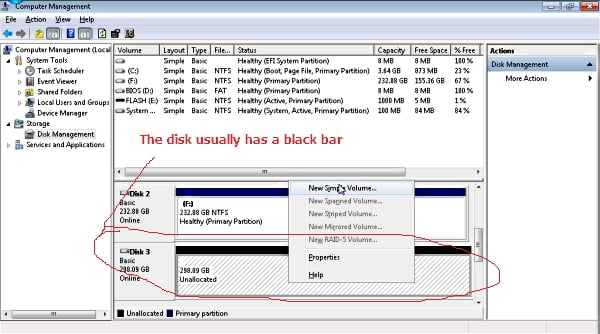
4. To reformat a Western Digital hard drive using the Simple Volume Wizard, follow the on-screen instructions to complete the wizard, which will guide you through the process of reformatting the drive. This will erase all data on the drive.
After completing the steps, the Western Digital hard drive's bar will turn blue, indicating it's Healthy, and you'll no longer encounter the 'No writable WD SmartWare partition found' error.
Related Articles
- How to Repair PDF File Using Acrobat? 2022 Adobe PDF Repair Tool
- R-Studio Review (A Comprehensive Data Recovery Solution)
- How to Import/Export Chrome Bookmark
- 2022 Quick Format Recovery: Recover Data/Files from Hard Drive after Quick Format
- Reliable Ways to Fix i saved a word document and can't find it Issue
Have you encountered the frustrating issue of being unable to find a Word document you saved? This situation often occurs when you forget where the files are stored, documents aren't saved correctly, or Word files get lost or deleted. - [Solved] IDM File Has Been Moved
Internet Download Manager says The file has been moved when you download a large file. How to solve this? Read this article to know the solutions, and restore the moved files from IDM with ease.
Products
Articles & Tutorials
- Data Recovery
- Data Backup
- File Recovery
- File Backup
- System Backup and Restore
- Disk and Partition Clone
- Technical articles
- Mobile articles
- Disk Master Help
- Windows Data Recovery Tutorials
- Windows Secure Delete Tutorials
- Windows Partition Management Tutorials
- Windows File Backup and Restore Tutorials
- Windows System Backup and Restore Tutorials
- Windows Disk Backup and Restore Tutorials
- Windows Clone Tutorials