How to Fix SQL Database Page Level Corruption Automatically
In SQL Server databases, a page is the basic unit of storage, with database files (MDF and NDF) containing all saved information in page form. However, page-level corruption is a significant problem that can cause both MDF and NDF file corruption, ultimately making the saved data inaccessible.
If you're dealing with SQL page level corruption, consider two potential solutions. Firstly, you can use a professional tool like Qiling MS SQL Recovery to automatically repair corrupted MDF/NDF files. Alternatively, if you're experienced and familiar with SQL Server, you can try fixing each page manually, one by one, although this method requires expertise and in-depth knowledge.
Causes of SQL Server Page Level Corruption
Corruption in the SQL database can occur due to various reasons, including page level corruption, which can be caused by hardware failures, software bugs, or even user errors. Understanding the root causes of the problem can help prevent and resolve the issue more effectively.
- Hardware malfunction
- Sudden power outage
- Virus/malware attack
- SQL Server upgrades failure
- A problem in the server itself
If your SQL database is experiencing issues and running abnormally, it's essential to take immediate action by backing up all data and initiating fixes and recovery procedures to prevent further damage and ensure a smooth resolution process.
Automated Way to Fix SQL Database Page Level Corruption and Repair MDF
Fixing page level corruption in SQL server database can be a challenging task for many new database administrators. To address this issue quickly and prevent further data loss, it's recommended to try a safer and more useful solution first, which is applying a SQL repair tool. A popular option is Qiling MS SQL Recovery, offering excellent features such as:
- Repairs corrupted SQL database files (MDF/NDF files)
- Recovers deleted records from SQL Database
- The tool repairs corrupted SQL server database components, including tables, triggers, indexes, keys, rules, and stored procedures.
- This tool enables you to export a repaired database to various formats, including CSV, XLS, HTML, and MDF, making it easier to work with the data in different applications or environments.
- The plugin supports various versions of MS SQL Server, including 2017, 2016, 2014, 2012, and 2008, as well as older versions.
Step 1. Stop MS SQL Server service
Press "Windows + R" and enter services.msc.
Find and double-click "SQL Server (instant name)".
To stop SQL Server, click on the "Stop" button in the Properties window, then click "Apply" to confirm the changes.
Step 2. Run Qiling SQL repair tool, choose the corrupted MDF/NDF file, and click "Repair" to start analyzing it.
If you know the exact location of the file, click "Browse" to locate the database. This will allow you to select the file from your computer.
If you're unsure about the file location, you can click "Search" to search for the .mdf or .ndf file in your system, which will help you find its exact location.
Step 3. When the process is complete, you'll see all the database objects listed in the left pane of the window. Select the objects you want to repair and click "Export".
Step 4. The next step is to choose how to export the database data, either by exporting to a database or as SQL scripts. If exporting to a database, you'll need to select server information, log in to your account, and choose a destination database, either creating a new one or using an existing one.
Step 5. You need to restart the SQL Server before clicking "OK" on the prompt to ensure the changes take effect.
Press "Windows + R" and enter services.msc.
Find and double-click "SQL Server (instant name)".
To restart the SQL Server service, click the "Start" button in the Properties window, and then confirm the action by clicking "Apply".
Step 6. To save the repaired files to your desired SQL database, click the "OK" button.
Fix SQL Database Page Level Corruption with DBCC CHECKDB Command
To address page level corruption in SQL Server without using third-party software, you can utilize the DBCC CHECKDB command to scan the database for corruption. It's highly recommended to back up your SQL database as soon as corruption is detected to prevent further data loss. This proactive approach ensures that your data remains safe in case of any future issues.
To compare corrupted data with the original, download a text comparison tool and a data comparison tool from the Internet. These tools will display a side-by-side comparison of the corrupted data and the original data, helping you identify any differences.
1. To identify the differences between the original and corrupted files, you can use a text comparison tool. This tool will highlight the changes made to the original file, allowing you to pinpoint the specific lines or sections that have been altered.
2. Run the DBCC CHECKDB command on the corrupted database file to identify and report any physical database problems, and to provide a repair estimate. This command will check the database file, identify any defects, and advise on the minimum data repair requirement. It will also provide a detailed report of the database corruption.
3. To investigate the contents of an infected page, run the DBCC PAGE command after enabling the trace flag 3604. This allows for a detailed examination of the page's contents.
DBCC TRACEON (3604)
DBCC PAGE ({ 'dbname' | dbid}, filenum, pagenum [, printopt={0|1|2|3}])
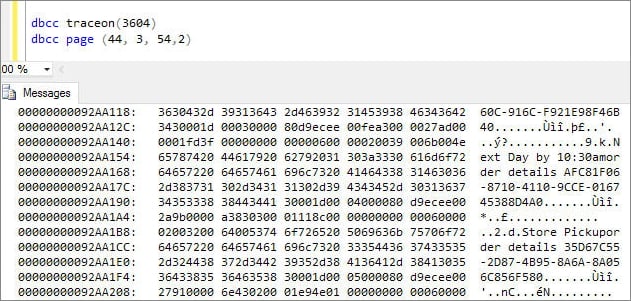
The command is used to create a new file or page in the database, and the parameters are used to specify the type of operation to be performed. The parameters 0, 1, 2, and 3 are used to specify the type of file or page to be created. The command is used to create a new file or page in the system tables, and the parameters are used to specify the type of operation to be performed.
- The code will print the header part of the page, indicated by the comment "This will print the header part of the page".
- The page header displays a per-row hex dump.
- 2 – It is the page header with detailed page hex dump
- This page header is a detailed interpretation of the third item. It provides an elaborated explanation of the subject matter, breaking down each row to give a comprehensive understanding of the topic.
4. To confirm the page number and physical offset, use the command to force a logical consistency error and attempt to read the table.
SELECT * from dbo.tablename
5. Copy the corrupted pages from the corrupted file and paste them in the text comparison tool.
6. Use a data comparison tool to compare the corrupted page with the latest version of the original page, which will clearly identify the glitches.
7. Run the DBCC CHECKDB command on the restored database file to fix page-level corruption in SQL Server. This command scans the database for any errors or inconsistencies and automatically repairs any page-level corruption it finds.
Why Is This Manual Method Not Recommended
- Minor corruption can be fixed by running DBCC CHECKDB with the PHYSICAL ONLY option, which will identify and repair any physical corruption. If the corruption is more severe, DBCC CHECKDB can be run with the REPAIR_ALLOW_DATA_LOSS option, which will attempt to repair the corruption, but may result in data loss. If the corruption is severe and cannot be repaired, it may be necessary to restore the database from a backup.
- Direct editing of the file is error-prone, as checksums are calculated on a page-by-page basis. If you fail to copy/paste correctly, input/output errors will occur, or you may be unable to open the database.
- This solution will likely be time-consuming and requires technical expertise and extensive experience.
Conclude
Many users struggle with manually fixing page-level corruption in SQL Server due to its complexity. A more efficient approach is to use an automated tool like Qiling MS SQL Recovery to resolve the issue.
Related Articles
- [Fixed] SQL Error 945 | Database Cannot Be Opened due to Inaccessible Files
- MS SQL Database Restore with Recovery and Norecovery Options
- Restore Database from MDF and LDF Files in SQL Server 2017/2014/2012
- SQL Recovery Program Download: Repair SQL Server Database
- How to Unformat Hard Drive on Windows 7 PC to Rescue Lost Data
If you're having trouble unformatting a hard drive on your Windows 7 PC, this article is here to help. To unformat your hard drive and potentially rescue lost data, follow these steps. - Windows 7 End of Life: What Should You Do and How to Backup Your Files
Once Windows 7 support ends, consider upgrading to a newer version of Windows, such as Windows 10 or 11, to ensure continued security and feature updates. Alternatively, explore other operating systems like Linux or macOS, or consider a different device altogether.
Products
Articles & Tutorials
- Data Recovery
- Data Backup
- File Recovery
- File Backup
- System Backup and Restore
- Disk and Partition Clone
- Technical articles
- Mobile articles
- Disk Master Help
- Windows Data Recovery Tutorials
- Windows Secure Delete Tutorials
- Windows Partition Management Tutorials
- Windows File Backup and Restore Tutorials
- Windows System Backup and Restore Tutorials
- Windows Disk Backup and Restore Tutorials
- Windows Clone Tutorials