How Does An Excel File Get Corrupted? We Discussed Reasons and Fixes Here

Microsoft Excel is a highly popular and essential application, often rivaling the importance of Microsoft Word. It's a crucial skill for college students and professionals, as it efficiently handles massive data through powerful features like formulas and charts. This allows users to arrange, filter, and calculate data with ease, making it an indispensable tool for data analysis.
Creating an Excel workbook requires significant time and effort, so it's essential to take good care of your files on your computer. This includes enabling the autosave setting, making regular backups, and monitoring your computer's health daily to prevent data loss. No one wants to recreate a workbook with processed data due to corruption, so it's crucial to understand how Excel files get corrupted and what steps can be taken to repair them.
| Workable Solutions | Step-by-step Troubleshooting |
|---|---|
| Fix 1. Use a Repair Tool | Download, install and launch Stellar Toolkit for File Repair. Go to the software's home screen...Full steps |
| Fix 2. Use Open and Repair | On the File tab, click Open > In Excel 2013 or Excel...Full steps |
| Fix 3. Change File Extension | Open Microsoft Excel and click File > Click Export...Full steps |
| Fix 4. Restore Previous Version | Right-click on the Excel file and select Properties...Full steps |
| Fix 5. Use External References | Click File and go to Open > Right-click on the folder...Full steps |
How Do You Tell If An Excel File Is Corrupted?
Determining if an Excel file is truly corrupted can be challenging, but symptoms such as issues opening the file or specific error messages can indicate corruption. Hundreds to thousands of users face corruption issues daily in Microsoft Office Suite, including Excel, Word, and PowerPoint, making it essential to identify the root cause of the problem. By analyzing the symptoms and error messages, you can determine if an Excel file is indeed corrupted.
Symptoms representing a corrupted file in Excel:
- The file format has been changed from the standard .xls or .xlsx to an unknown format that cannot be opened with standard software.
- Excel data can sometimes display as a different character or weird character if there's an issue with the formatting or encoding of the data. This can happen if the data was copied from a source that used a different character set, or if the Excel file itself has become corrupted.
- The file content suddenly turns blank
- The file size shows 0 byte
Error messages reporting a corrupted file in Excel:
- Excel was able to open the file by repairing or removing the unreadable content, allowing the user to access the remaining data.
- Excel file cannot complete this task with available resources
- Excel cannot open the file ('file name').xlsx because...
- We found a problem with some content in Excel
- The file is corrupted and cannot be opened
- Unable to read file error
Common Reasons for Excel File Corruption
Excel files can become corrupted due to various reasons, and understanding these common causes can help identify the problem and find suitable solutions to repair the file. There are several reasons behind Excel file corruption, and knowing them can aid in tracing the issue and finding corresponding fixes to restore a corrupted Excel file.
- The Excel application gets stuck, freezing, crashing from time to time upon launch
- An unexpected system shutdown while working on Excel
- Virus or malware infection on OS and hard drive
- Bad sectors were found on a hard drive
- A sudden power off
How to Hopefully Repair A Corrupted Excel File 100%
A corrupted Excel file can be a disaster, causing wasted time and severe data loss, but try to remain calm and follow these steps to repair it. To minimize the damage, take a deep breath and follow the guide one by one on your Windows computer.
The workarounds are applicable to all Excel versions, from Excel 2003 to Excel 2019.
QUICK TIP:It's likely that your Excel workbook is malfunctioning due to a virus attack, so running a deep system scan using antivirus software is essential to remove viruses or malware and prevent future corruption of other files. Unfortunately, this won't restore the corrupted file to normal, but it's a necessary step. Additionally, you may want to try checking and repairing any bad sectors on your hard drive after attempting the following methods.
Method 1. Repair Corrupted Excel Files with a Repair Tool
The most effective way to repair a corrupt Excel file is by using a professional file repair tool, such as Stellar Repair for Excel, which can repair severely corrupted XLS and XLSX files and retrieve everything from the Excel workbook without modifying its original format.
Step 1. Select the Excel Files
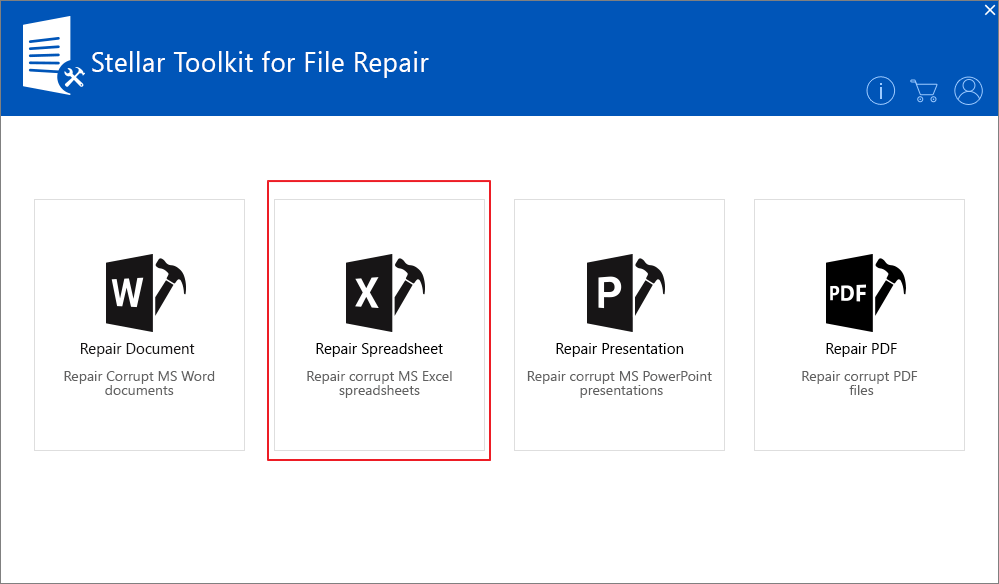
Download, install and launch Stellar Toolkit for File Repair, then go to the software's home screen and click "Repair Spreadsheet".
Step 2. Repair the Excel Files
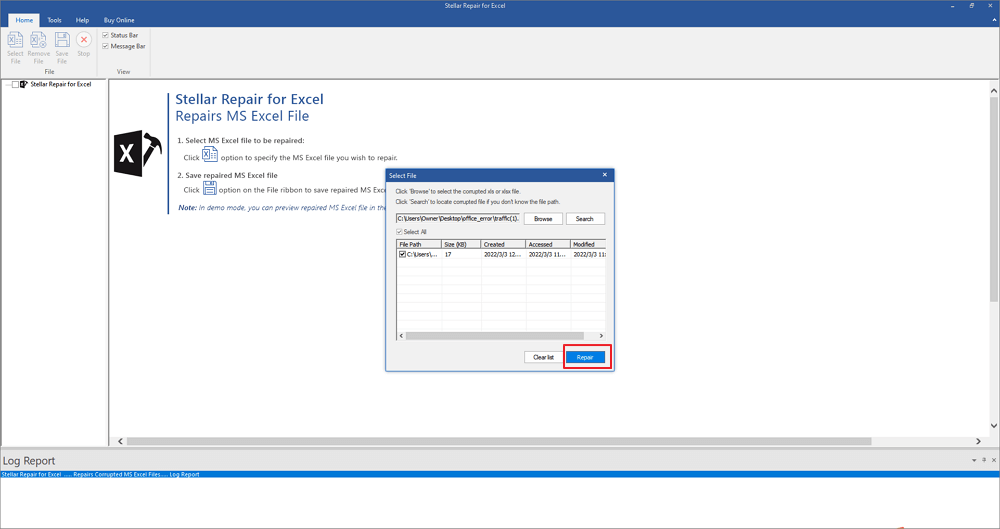
Select the corrupt Excel files (XLS/XLSX) by browsing or using the Search option. Once selected, click "Repair" to initiate the scanning and repairing process.
Step 3. Preview and Save
After the scan and repair process is complete, the software displays the items in a tree-view on the left-hand panel. You can preview each item by double-clicking on it.
If the file preview is satisfactory, click the "Save File" button on the main menu, then choose the destination to save the salvaged file and click "OK".

Method 2. Use the Microsoft Open and Repair Tool
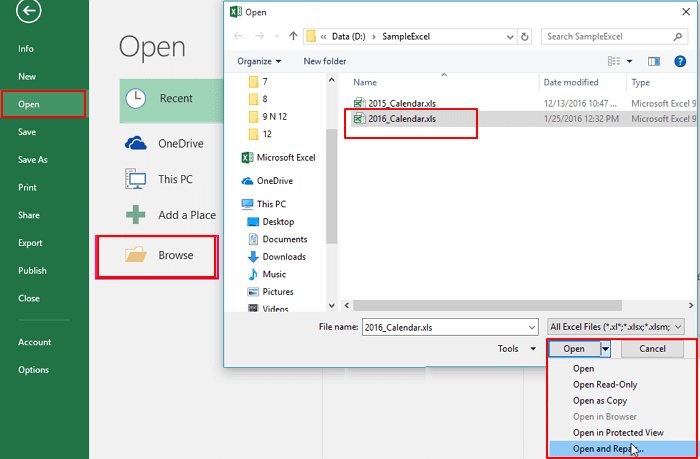
- On the Filetab, click Open.
- In Excel 2013 or Excel 2016, click on the location where the spreadsheet is located, and click Browse.
- In the Open dialog box, select the corrupted workbook that you want to open.
- Click the arrow next to the "Open" button, and then click "Open and Repair".
Next, do one of the following:
- To recover as much of the workbook data as possible, click Repair.
- When an attempt to repair the workbook fails, click Extract Data to extract values and formulas from the workbook.
Method 3. Change File Extension to Open the Corrupted File
The issue with the Excel file may be due to incompatibility between the file extension and the installed Excel version. The file may not show content normally if it's in the wrong format. Try changing the file format from .xls to .xlsx or vice versa to see if the problem persists.
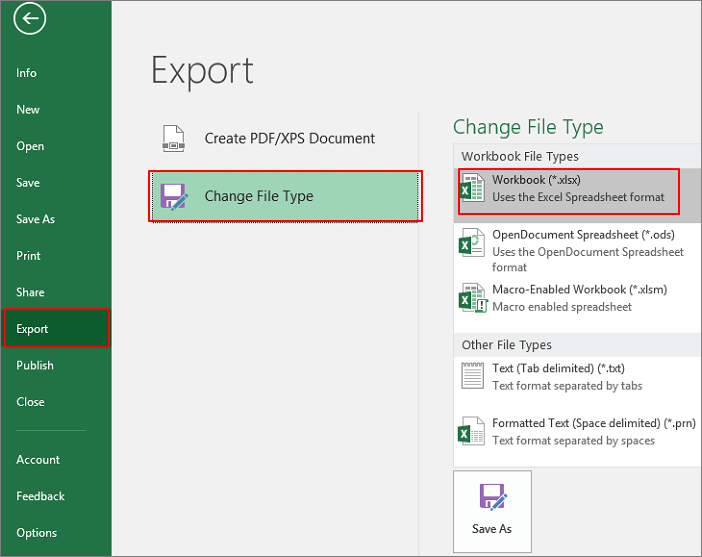
- Open Microsoft Excel and click File.
- Click Exportand choose Change File Type.
- Change the file extension to any other file format that MS Excel supports such as .csv.
- Open the Excel file again
Method 4. Restore Corrupted Excel File from The Previous Version
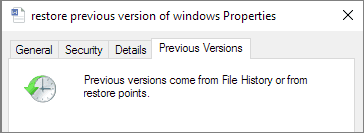
You may be able to recover some data from a corrupted file by checking the Windows Previous Versions feature, which can save copies of files before they were changed. This might not be identical to the original file, but it can preserve most of the same data.
- Right-click on the Excel file and select Properties.
- To recover a corrupted Word document, go to the "Previous Versions" tab, select the latest version or the one that was not corrupted, and click "Restore" to recover the document.
Method 5. Use External References to Link to The Corrupted Excel File
- Click Fileand go to Open.
- Right-click on the folder that contains the corrupted workbook.
- Click Copy, and then click Cancel.
- Click Fileand go to New, then open a Blank workbook.
- Copy the corrupted workbook to a new workbook, then in cell A1 of the new workbook, type =File Name!A1, where File Name is the name of the corrupted workbook (without the name extension), and press Enter.
- Select corrupted Excel if the Update Valuesbox appears and clickOK.
- Select the appropriate sheet from the list and click OK in the Select Sheet dialog box.
- Select cell A1and click Homeand then Copy.
- Select an area in cell A1 that is roughly the same size as the range of cells that contains data in the corrupted workbook.
- Click Homeand Paste.
- To copy all selected cells again, go to the Home tab and click on the "Copy" button.

Do I Need Excel Recovery Tool for Corrupted Excel File Recovery?
Corrupting a file can be more serious than deleting one, as it can be difficult to recover the original content. While there are workarounds to fix corruption, they may not always be effective, particularly for severely damaged files in Excel.
Specialized file repair programs are available online, but restoring broken or corrupted files can be a difficult and costly process. However, for files that are severely damaged and cannot be opened, several Excel repair programs have a good reputation on the market and can be considered as a viable option.
- Systools Excel Recovery Tool
- Stellar Repair for Excel
- Kernel Excel File Repair
Data recovery programs are generally cheaper than repair ones. Excel file recovery software can't really work on corrupted file recovery, as it's designed for retrieving lost files, not repairing damaged ones. The premise of using data recovery software is that the file is lost and intact, not corrupted, making it suitable for retrieving deleted, emptied recycle bin, or quick-formatted files.
While some people may use data recovery software to retrieve lost Excel files, the files often won't open after recovery, indicating that the Excel file has been corrupted. However, Deep Data Recovery stands out as a unique software that can repair a corrupted Excel file upon recovery, making it a useful tool in such situations.
If you've lost a workbook in Excel, you can recover it by downloading the Qiling file recovery software on your PC and running a deep scan on the drive to find the files. The software can automatically repair corruption while you check the scan results, allowing you to fully recover a corrupted Excel file.
Step 1. Launch Deep Data Recovery on your PC, and click "Fast Scan" to begin the process.
Launch Deep Data Recovery and quickly filter scanned files by category, such as Pictures, Videos, Documents, or Audio, to streamline the recovery process for large amounts of scanned data.

Note: You can choose different search modes based on where and why the data was lost.
Step 2. This software enables you to fix damaged Word, Excel, PPT, and PDF files in the same steps, and it can also scan your disk to locate corrupted documents.

Step 3. Qiling data recovery and repair tool scans for all lost and corrupted files, allowing you to find target files by type or search for them by name.

Step 4. Deep Data Recovery can automatically repair damaged documents, and after previewing the files, you can click "Recover" to save the repaired Word, Excel, and PDF documents to a safe location.
Related Articles
- All You Need to Know About a Rooted Device
- Recover Data After Formatting Hard Drives
- How to Disable BitLocker Encryption ( & BitLocker Service) in Windows 10 | Qiling Data Recovery Tips
- Fix Corrupted Database/Data Error on PS4
- How to Recover Hogwarts Legacy Lost Progress on PC/Steam/Xbox
If you've lost progress in Hogwarts Legacy on your PC, Steam, or Xbox, there are practical solutions to recover it. - 3 Ways to Recover Hogwarts Legacy Lost Save on Xbox
If you're experiencing issues with saving Hogwarts Legacy on Xbox, there are ways to recover lost saves.
Products
Articles & Tutorials
- Data Recovery
- Data Backup
- File Recovery
- File Backup
- System Backup and Restore
- Disk and Partition Clone
- Technical articles
- Mobile articles
- Disk Master Help
- Windows Data Recovery Tutorials
- Windows Secure Delete Tutorials
- Windows Partition Management Tutorials
- Windows File Backup and Restore Tutorials
- Windows System Backup and Restore Tutorials
- Windows Disk Backup and Restore Tutorials
- Windows Clone Tutorials