Fix Google Chrome Not Downloading Files
If your Google Chrome is not downloading files, you can try one of the simple or advanced solutions on this page to fix the issue. The solutions include methods to help you resolve the problem on your own.
| Workable Solutions | Step-by-step Troubleshooting |
|---|---|
| Quick Tips for Chrome Won't Download Files | Check if the internet connection is working; Restart Chrome; or try to download files again; ask for...Full steps |
| Further Fix 1. Do Basic Cleaning | You can clear history and cache in Google Chrome; run the Chrome cleanup tool; or reset Chrome...Full steps |
| Further Fix 2. Disable Hardware Acceleration | Go to Chrome Settings > Advanced Settings > Uncheck "Use hardware acceleration when available"...Full steps |
| Further Fix 3. Reinstall Google Chrome | Uninstall Google Chrome in "Apps & features" > Delete all Google folders in Registry > Reinstall Chrome...Full steps |
| Further Fix 4. Disable Unused Extensions | Open Chrome > Go to "More" > "More tools" > "Extensions" > Disable downloading related extensions...Full steps |
User Case: Google Chrome Won't Download Files Anymore
Google Chrome has likely updated its security settings, which is preventing the download of files. Try checking the "Downloads" section in Chrome's settings and see if the "Ask where to save each file before downloading" option is enabled. If so, try disabling it to see if that resolves the issue. You can also try checking the "File types" section and see if any specific file types are being blocked. If none of these solutions work, it's possible that there's an issue with your browser or a software conflict, and you may need to reset Chrome or seek further assistance.
Google Chrome is a simple and powerful browser that everyone loves, but a recent issue has been causing heated debate on tech forums: despite its many strengths, Chrome is reportedly struggling to download files.
Users are experiencing issues with downloads not responding or the download prompt box not appearing after clicking the download button/icon on a web page. Despite searching online, Chrome fans have not found a confirmed solution to resolve the problem.
Learn Chrome History & Bookmarks Recovery First
If you accidentally lost your browsing history or bookmarks after using some of the fixing methods, don't panic! We have a data recovery plan to help you recover Chrome history in Windows and restore Chrome bookmarks on Mac. These methods can even restore your browser to its original defaults or delete the Google folder. Just follow the plan and you'll be able to get back what you lost.
You can recover missing or lost Chrome data, such as browsing history and bookmarks, even if the temporary folder has been deleted, using Deep Data Recovery software, which is a powerful third-party hard drive recovery tool.
Qiling file recovery tool has the following salient features:
- Recover permanently deleted files on Windows 10 and Windows 11
- Recover over 1000+ file types from various storage devices, including hard disk drives (HDD), solid state drives (SSD), SD cards, pen drives, USB flash drives, and external hard drives.
- Recover deleted files on Mac after emptying Trash Bin
- Repair corrupted files on Windows and Mac with ease, including photos, videos, and documents that have become inaccessible due to damage or error.
You can easily recover lost files with the help of a free file recovery software.
Step 1. Select file types
Launch Deep Data Recovery, select the desired file types, and click "Fast Scan" to initiate the recovery process.

Note: You can choose different search modes based on where and why the data was lost.
Step 2. Select a drive and start scanning
Hover over the partition where you lost data and click "Scan".

Step 3. Check and preview scanned files
To find specific files, use the file format filter to narrow down the search results. Then, you can preview the content of a file by clicking the "Preview" button or double-clicking on it.

Step 4. Recover lost data to a secure location
To recover a lost file, select the file by checking the box next to it, then click the "Recover" button. It's recommended to save the recovered data to a secure location, ideally not on the same disk where the data was initially lost. This helps prevent any potential data corruption or loss.
Here are the ways to fix Google Chrome not downloading files: try simple fixes like clearing the browser cache, checking the download folder, and disabling extensions. If that doesn't work, reset Chrome settings, update Chrome, or reinstall it. If the issue persists, check the system download manager, try downloading files from a different browser, or scan for malware.
Quick Tips to Solve Fix Chrome Won't Download Files Issue
If you get an error message on Google Chrome when trying to download apps, themes, or other files, you can try to fix the most file download errors with the troubleshooting tips provided on the Google Chrome Help page.
- Make sure your internet connection is working normally and fix any stability issues if it's unstable.
- Try to download the file later
- Contact the website owner
On the linked page, you can find a list of error messages related to downloading files with Chrome, including network failures, downloads being blocked, files not being available, virus scans failing, disks being full, insufficient permissions, systems being busy, needing authorization, and being forbidden. These errors are responsible for Chrome's inability to download files.
If the easy tips above fail to solve the problem, don't get upset. There are other potential solutions provided below for you to fix the "Chrome not downloading files" issue, including checking the browser's download settings, disabling any browser extensions, clearing the browser cache, and reinstalling Chrome.
Further Fixes for "Chrome Not Downloading Files" Error
Some people experience issues with downloading files in Chrome, where downloads fail to complete without any warning or error message. To address this problem, four effective solutions can be tried, which may provide a permanent cure for this issue.
Method 1. Do Some Basic Cleaning Works
To resolve the issue, try clearing all history and cache, run the Chrome cleanup tool, and reset settings to Chrome's original defaults. Alternatively, if you want to keep your Chrome history and cookies, you can backup or export them in advance.
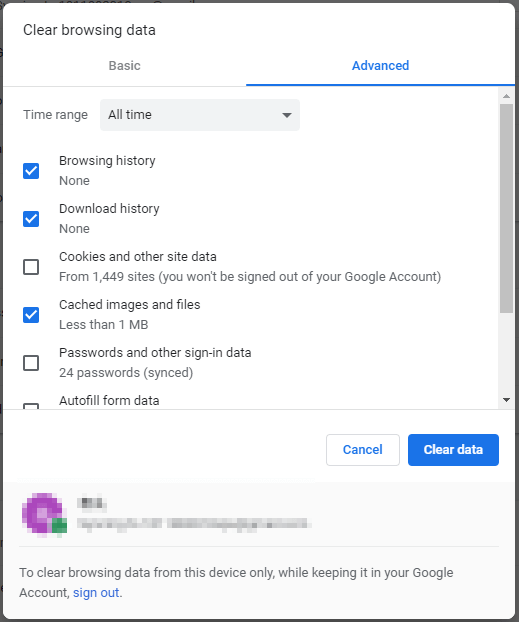
To Clear history and cache in Google Chrome:
Step 1. To clear browsing data in Chrome, open the browser, click on the three dots in the upper right corner, select "More tools", and then choose "Clear browsing data...".
Step 2. To remove unwanted content, go to the settings and click on "Clear Data".
To Run the Chrome cleanup tool:
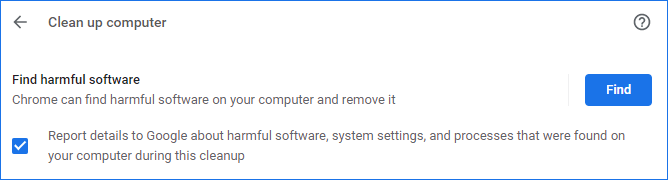
Running the Chrome cleanup tool may solve the issue of Chrome not being able to download files due to malware.
Step 1. Open Google Chrome on your computer.
Step 2. To access the settings, click the three dots in the top right corner and select "Settings".
Step 3. Scroll down to the bottom and click "Advanced".
Step 4. To reset and clean up your computer, click on "Clean up computer" and select "Find" from the options.
To reset Chrome:
Step 1. Open Google Chrome on your computer.
Step 2. In the top right corner, click the three dots and select "Settings".
Step 3. Scroll down to the bottom and click "Advanced".
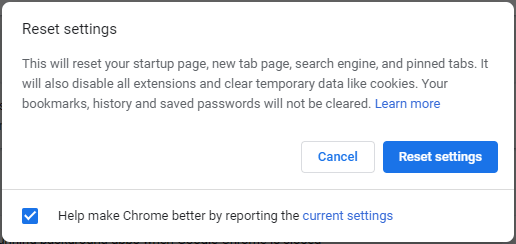
Step 4. To reset and clean up, click on "Restore settings to their original defaults" and then confirm by clicking "Reset Settings".
Resetting Chrome will reset the browser's startup page, new tab page, and pinned tabs, and also disable all extensions and clear temporary data like cookies. However, bookmarks, history, and saved passwords will remain intact. If you want to retrieve cookies, you can learn how to recover cache files in Google Chrome.
Method 2. Uncheck Use Hardware Acceleration Option
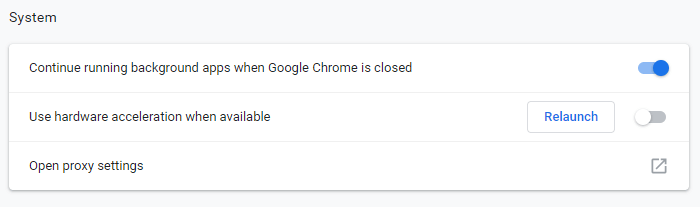
Step 1. Go to Chrome Menu > Settings > Show Advanced Settings.
Step 2. Under System, uncheck Use hardware acceleration when available.
Step 3. Restart Chrome.
Method 3. Reinstall Google Chrome
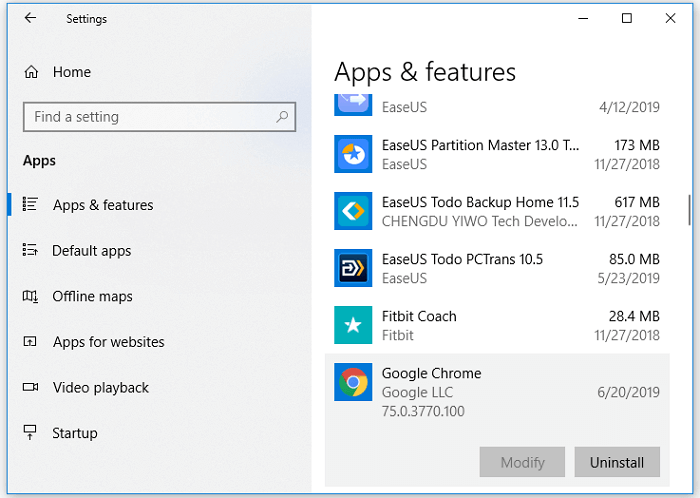
To completely uninstall Google Chrome, you need to uninstall it from the Settings and then delete all Google-related folders from the registry.
To uninstall Google Chrome:
Step 1. Click the Windows icon and choose "Settings (the gear icon)".
Step 2. Choose "Apps" > "Apps & features".
Step 3. Find and click "Google Chrome". Then click the "Uninstall" button.
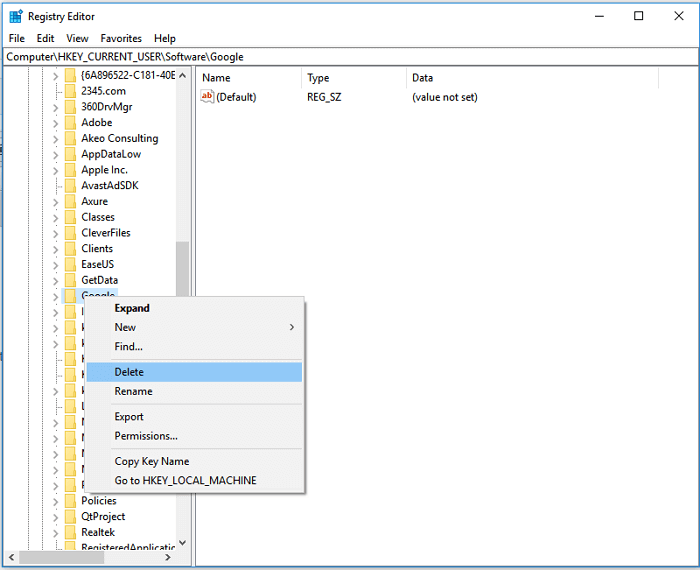
To delete All Google Folders in Registry:
Step 1. Press "Windows + R" and type regedit.
Step 2. Go to "Computer" > "HKEY_CURRENT_USER" > "Software".
Step 3. Find and right-click "Google" then choose "Delete".
Step 4. Go to the "HKEY_LOCAL_MACHINE" folder and click "SOFTWARE".
Step 5. Find and right-click "Google" then choose "Delete".
Now that you've completely uninstalled Google Chrome from your computer, go to the Microsoft Store to reinstall it and see if the "Chrome not downloading files" issue still persists.
Method 4. Disable Download Related Extensions
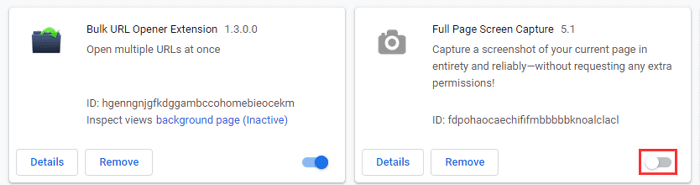
Disable all extensions that work as download managers since they may interfere with file downloading in Chrome.
Step 1. To access extensions in Chrome, open the browser and click on the three dots in the top-right corner, then select "More tools" from the dropdown menu, and finally choose "Extensions" from the options listed.
Step 2. To see all the enabled extensions in your Chrome, go to Chrome menu (three dots on top right corner) > More tools > Extensions. Then you will see all the enabled extensions in your Chrome.
Step 3. To disable downloading-related extensions, toggle the button to turn them off.
Related Articles
- How to Import/Export Chrome Bookmark
- Solutions to Fix EAC3 Audio Not Supported
- Fixes for The Type of the File System Is RAW, CHKDSK Is Not Available for RAW Drives
- How to Repair Damaged BMP Files in 3 Ways
- How to Recover Files from SDHC Memory Card
If you've lost files from your SDHC memory card due to unexpected errors, there's hope for recovery. You can use SanDisk SDHC card recovery software to restore deleted files from your SDHC card. This software can be downloaded for free, allowing you to recover files from your SDHC card with ease. - How to Show Hidden Files in USB on Windows/Mac
Want to know how to show hidden files on your USB flash drive? It's easier than you think! Whether you're on a Mac or Windows PC, the process is straightforward.
Products
Articles & Tutorials
- Data Recovery
- Data Backup
- File Recovery
- File Backup
- System Backup and Restore
- Disk and Partition Clone
- Technical articles
- Mobile articles
- Disk Master Help
- Windows Data Recovery Tutorials
- Windows Secure Delete Tutorials
- Windows Partition Management Tutorials
- Windows File Backup and Restore Tutorials
- Windows System Backup and Restore Tutorials
- Windows Disk Backup and Restore Tutorials
- Windows Clone Tutorials