How to Backup Files to pCloud on Windows 11/10/8/7🏆
Many users need more device storage and safer access to important files, so they turn to cloud storage services such as pCloud. The challenge is knowing which backup method is easiest and most reliable.
If you are not sure how to back up files to pCloud, this guide explains two simple methods for Windows users.
Benefits of Backing up Files to pCloud
The backup feature is useful because it can store selected files in the cloud and reduce the risk of losing local data.
pCloud backup can automatically protect selected folders without requiring you to upload each file manually.
To use pCloud, install it on your system, enable folder backup, and choose the folders you want to store in the cloud. The free plan offers limited storage, so check your available space before backing up large folders.
With this cloud storage, you can rest assured that your data will be recovered even if you accidentally delete a file. Additionally, the platform has been designed to be compatible with multiple operating systems, allowing you to access and share files seamlessly across devices with different operating systems at work and at home.
This program allows you to easily access your data from both devices after installation, and its user-friendly interface enables you to quickly back up files from your computer to your pCloud in a few steps.
In the following sections, we are going to share two effective ways through which you can perform this action. If you have a pCloud account, you can follow any of these methods to back up your files.
2 Ways to Backup Computer Files to pCloud
Backing up files to pCloud can be a good decision to save data without using hard drive space, making it a good idea to take action and protect your data there instead of using a local drive.
You can delete a file from your local device and never restore it, but with pCloud, you can get your file back even if you've removed it from your computer's hard disk. If you're not familiar with backing up files to pCloud, you can learn how to do so by reading about the two ways to do it.
| Methods | Effectiveness | Time Duration | Difficulty |
| Using Cloud Backup Software | 👍High: To ensure your PC's data is secure, back up almost everything, including files, the operating system, and the entire disk. Store these backups in multiple locations, such as cloud storage, a network-attached storage (NAS) device, and a local disk, to prevent data loss in case of a disaster. | Time-saving, with automatic backup options | Super Easy |
| Using pCloud Built-in Features | Medium: pCloud is a cloud storage service that allows users to backup files and folders, but sometimes users may encounter errors, such as the pCloud not working issue. | The file syncing or backing up process is not ideal as you might expect. It can be slow, consume a lot of bandwidth, and sometimes even cause conflicts or errors, especially if multiple devices are involved. | Normal |
Way 1: Backup Files to pCloud via Cloud Backup Software
To backup files to pCloud drive, use a Cloud backup software, such as Qiling Disk Master Pro, which provides an extra layer of security and uninterrupted backup.
Qiling Disk Master Pro allows for quick backup of folders or files with an added security layer, and also enables system, app, and disk backup. It offers free cloud storage to safeguard data, even in case of lost pCloud account, and facilitates backing up a computer to the cloud.
Here are some key features of Qiling Disk Master Pro:
- Provide 250GB of free cloud storage space
- With a Security Zone: protect important data from ransomware
- Create full, incremental, and differential backups
- Clone a hard drive and image a hard drive
- Back up your data to pCloud, Google Drive, OneDrive, etc
To save data quickly, it is recommended to download Qiling Disk Master on your device.
To back up your files to Cloud, start by selecting the files you want to save. You can choose specific files, folders, or even entire drives.
Step 1. To start backup, click the Select backup contents.

Step 2. There are four main categories of data backups: File, Disk, OS, and Mail. These categories refer to the types of data being backed up, including files, entire hard drives, operating systems, and email accounts.

Step 3. On the left-hand side, you'll see a list of local and network files which can be expanded to select the files to be backed up.

Step 4. Follow the instructions on the screen to select the location where you want to store the backup.

To encrypt the backup with a password, specify the backup schedule, and choose whether or not to start the backup at a certain event, click on "Options" in the "Backup Options" section. This allows for customizable features to be tailored to meet specific requirements.

Step 5. Backups can be stored on a local disk, in Qiling's cloud service, or on a network attached storage device (NAS).

Step 6. Qiling Disk Master allows customers to back up data to a third-party cloud drive or the company's own cloud storage.
To back up your data to a third-party cloud drive, select Local Drive, scroll down to add Cloud Device, and enter your account information.
Step 7. To initiate a backup, select the "Proceed" option. Once the backup process is complete, a card will appear in the left-hand panel, indicating a successful backup. To access more detailed information about the backup job, right-click on the card.
Way 2: Backup Files to pCloud with pCloud Built-in Features
Backing up data to pCloud drive can be done through its built-in features, which enable you to back up files from your system using two methods. These methods can be used step by step to ensure a smooth backup process.
If you're looking to quickly perform the backup files checking process, using the pCloud desktop application is a good option. Like other cloud-based storage programs, it allows you to have its application on your computer.
Once you have downloaded and installed this application, simply follow these steps to get started.
Step 1. Open pCloud drive.
Step 2. Look for the "Backup" option in the top menu bar.

Step 3. Click on that option.
Step 4. Select the folders visible on your computer screen, and if your concerned folder isn't listed, click on "check other folders" to see if it's available.
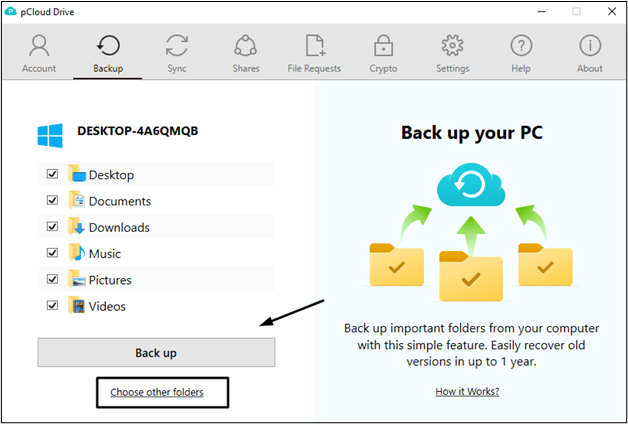
Step 5. Once you have selected all the folders you want to back up, click the "Back Up" option.
To back up folders to your pCloud account, simply select the folders you want to save, and they will be automatically synced to your pCloud drive, saving you from manually uploading each file.
You can also back up files to pCloud through their web platform, using features built right in. The process is similar to using the pCloud application, with steps that mirror those mentioned above.
The main difference between using a desktop application and a web-based program is that you'll be working with a web-based program instead of a desktop application. Additionally, you may need to select folders for backup when registering your account or signing in to an existing account.
If you're struggling with anxiety, depression, or other mental health issues, it's essential to seek help from a qualified professional. A mental health professional can provide you with the support and guidance you need to manage your symptoms and improve your overall well-being.
To Wrap Things Up
By reading this blog, you're likely familiar with how to back up files to pCloud from your computer. We've covered the process in detail, highlighting the benefits of doing so.
Many people have successfully saved their data using this cloud-based storage, which has been a lifesaver when computers, laptops, or other devices have been lost or damaged.
For quick and secure backup, we recommend using Qiling Disk Master, which provides an extra layer of security by saving data in its cloud, in addition to pCloud.
FAQs on How to Backup Files to pCloud
1. What type of files can I sync or back up in pCloud?
pCloud drive allows you to back up any type of data, including files, photos, videos, and folders, giving you a safe and secure way to preserve your important digital assets.
2. Is pCloud safer than Google Drive?
Both pCloud and G-drive have their own strengths and weaknesses. pCloud offers full end-to-end encryption, but this comes with a higher risk of data breaching. On the other hand, G-drive has partial end-to-end encryption, but is generally more secure. Ultimately, the choice between the two depends on individual needs and priorities.
3. What is the difference between sync and backup in pCloud?
The main difference between sync and backup in pCloud is data storage. While backup saves multiple file formats in cloud-based storage, sync updates files in the drive, saving only one file format in the drive.
4. Is pCloud free to back up?
Like other cloud-Google Drive's basic plan is free, allowing you to store up to 10GB of data, and to exceed this limit, you need to upgrade to its paid subscription.
Related Articles
- How to Do a System Backup on Windows 10 [2024 New Tutorial]
- Bare Metal Backup and Restore Windows 10 Tutorial | Your Full Guide Is Here
- Sync Files Between Computers Without Cloud (3 Alternatives)
- How to Clone Hard Drive in Windows 7 32 Bit or 64 Bit to Another Hard Drive
- Buffalo NAS Backup| The Best Way to Backup Buffalo in Windows 11/10/8
- Qiling Disk Master License Code 2022 (100% Official)
Download Qiling Disk Master 2022 and upgrade to the full version with a license code to perform various backups on your computer, including hard drive, partition, files, folders, Windows 11/10 OS, and emails. With a serial key, you can migrate OS, create portable Windows, and save backups to Cloud!
Products
Articles & Tutorials
- Data Recovery
- Data Backup
- File Recovery
- File Backup
- System Backup and Restore
- Disk and Partition Clone
- Technical articles
- Mobile articles
- Disk Master Help
- Windows Data Recovery Tutorials
- Windows Secure Delete Tutorials
- Windows Partition Management Tutorials
- Windows File Backup and Restore Tutorials
- Windows System Backup and Restore Tutorials
- Windows Disk Backup and Restore Tutorials
- Windows Clone Tutorials