How to Back Up Windows 11 Before a BIOS or UEFI Update
A BIOS or UEFI update normally does not erase personal files, but a failed flash, reset firmware settings, or BitLocker recovery prompt can leave a PC temporarily unbootable. Prepare both a system-level fallback and a separate copy of important files before following your PC maker's firmware instructions.
Record the current state
Step 1. Note the PC model, current firmware version, storage-controller mode, boot mode, and any custom Secure Boot or RAID settings. Photograph settings you may need to restore.
Step 2. Check whether Device Encryption or BitLocker is active. Save the recovery key somewhere accessible without this PC and verify you can read it. Microsoft's BitLocker operations guide describes how to manage protectors.
Step 3. Prepare the firmware package only from the PC or motherboard manufacturer's exact model page. Connect AC power and do not begin the update yet.
Make a Qiling system backup
Qiling Disk Master Pro's System backup selects Windows and its boot-related partitions. This protects your installed system and settings, but it cannot repair a motherboard that no longer starts firmware. Keep separate recovery media and a personal-file copy.
Step 1. Connect a healthy external drive with enough free space. Open Backup and Recovery > System backup and confirm the Windows disk and included boot partitions.


Step 2. Choose the external drive as Destination, give the task a recognizable name, and click Proceed. Wait for a successful completion message.
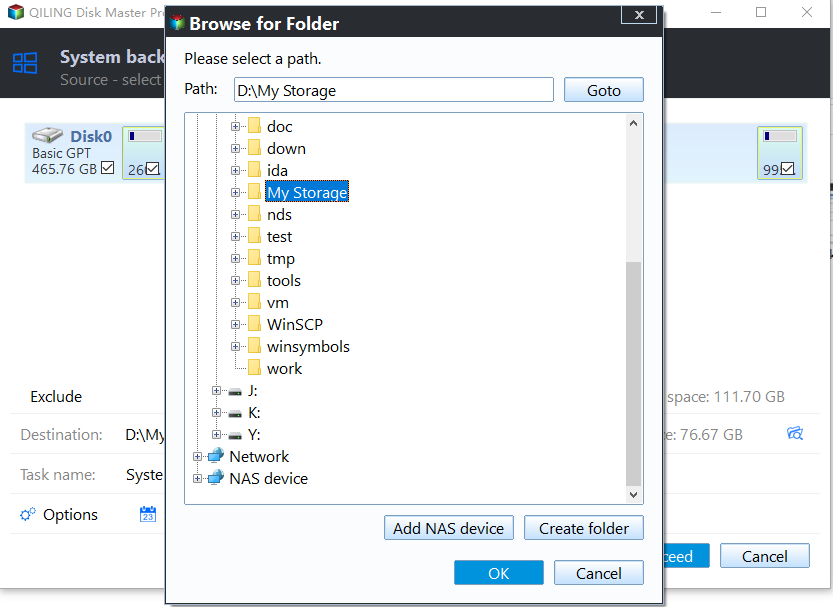
Step 3. Locate the image in Qiling and test that the application can browse it. Copy a few irreplaceable files separately so they remain accessible even if the image cannot be restored immediately.
Prepare for the actual firmware change
Follow the manufacturer's BitLocker guidance before the update; some firmware/TPM changes require temporary suspension of protection. Do not permanently remove protectors or clear the TPM merely to avoid a prompt. Keep the recovery key and power supply ready. After the update, confirm Windows boots, verify firmware settings, and ensure BitLocker protection is active again.
If the firmware update fails before the PC can boot any recovery media, a system image alone is insufficient; use the manufacturer's service process. If Windows starts but system files are damaged, the verified image and separate file copy provide recovery choices.
Related Articles
- Back Up a BitLocker Drive
Keep encryption recovery access with the image. - System Backup and Restore
Understand the image and restore path.
Products
Articles & Tutorials
- Data Recovery
- Data Backup
- File Recovery
- File Backup
- System Backup and Restore
- Disk and Partition Clone
- Technical articles
- Mobile articles
- Disk Master Help
- Windows Data Recovery Tutorials
- Windows Secure Delete Tutorials
- Windows Partition Management Tutorials
- Windows File Backup and Restore Tutorials
- Windows System Backup and Restore Tutorials
- Windows Disk Backup and Restore Tutorials
- Windows Clone Tutorials