Back Up an SD Card with Multiple Partitions in Windows
Back up an SD card with multiple partitions as a full disk image, including hidden, boot, Linux, camera, or device-specific partitions.
Overview
Some SD cards contain more than one partition, especially Raspberry Pi cards, camera cards, bootable cards, and device recovery cards. Copying visible files may miss hidden or Linux partitions.
A full disk image captures every partition and lets you restore the card layout later.
What to Prepare First
- Use a card reader that can read the full SD card capacity.
- Do not format the card if Windows asks to format an unknown partition.
- Choose a backup destination with enough free space.
- Label the backup by device name and date.
Use Windows Built-in Tools First
Windows File Explorer can copy files from partitions it understands, but it may not show Linux, boot, or hidden partitions. Disk Management can display the layout but does not create a complete SD card image.
Use a disk image method when the card must remain bootable or device-ready.
Back Up the Disk with Qiling Disk Master
A disk backup is safer than copying folders when you need to preserve Windows, recovery partitions, boot files, and several data partitions together. Save the image to another physical drive or a network location.
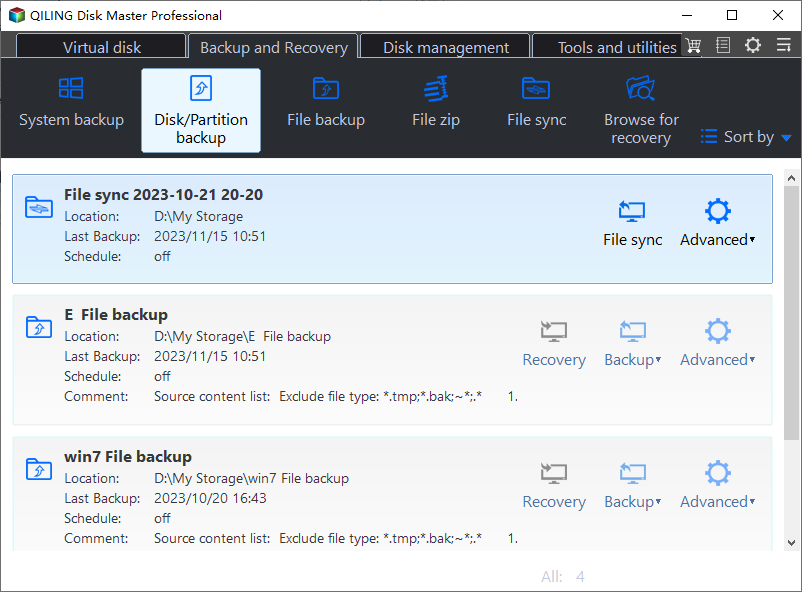
Step 1. Open Qiling Disk Master and choose Disk/Partition Backup. Use this option when the task involves a whole drive, a system image, or several partitions.
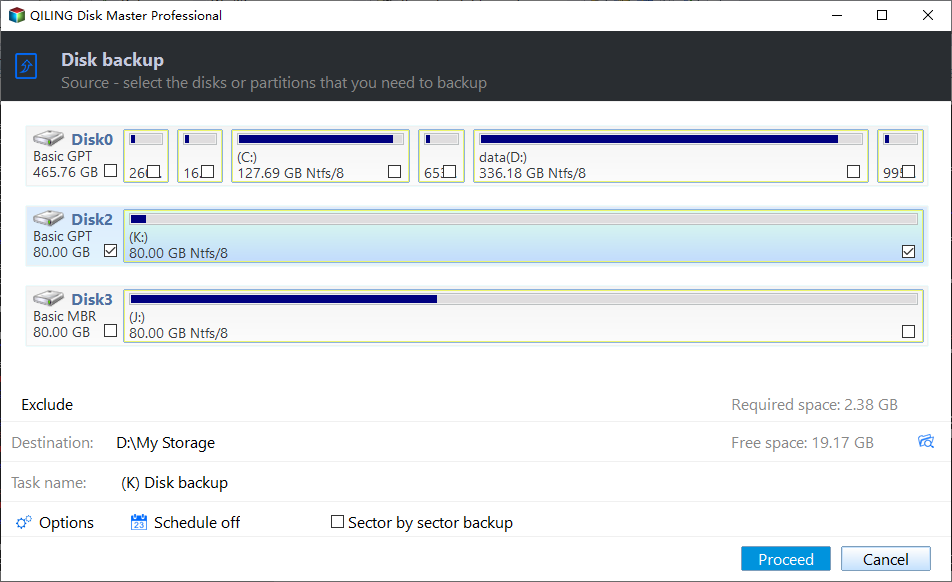
Step 2. In the source selection area, select the SD card directly. Check its capacity and partition layout to make sure you have selected the correct disk. To back up the entire card, select the whole disk and confirm that all its partitions are included. If you select individual partitions instead, include every partition on the card; backing up only the visible partition will not preserve the complete card layout.
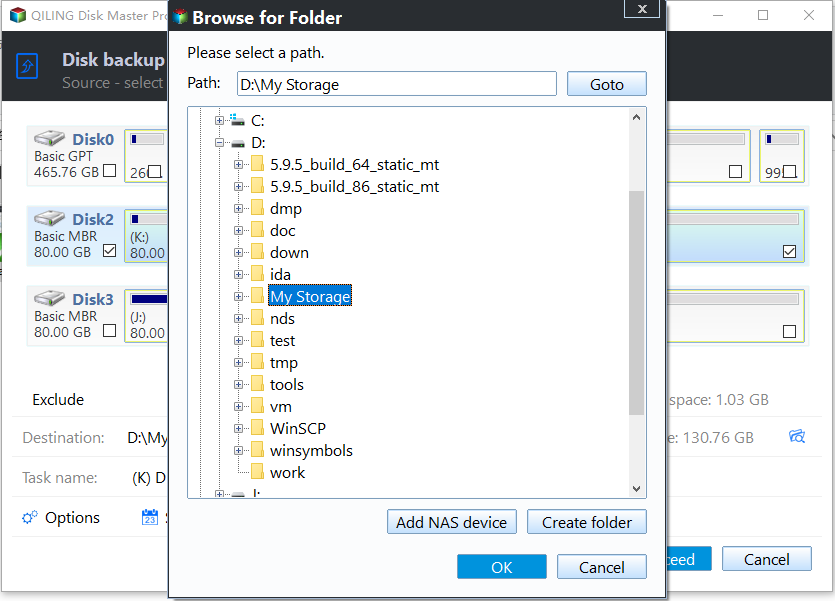
Step 3. Choose a destination on another disk, an external drive, or a NAS folder. Do not store the backup image on the same drive that may fail or be formatted.
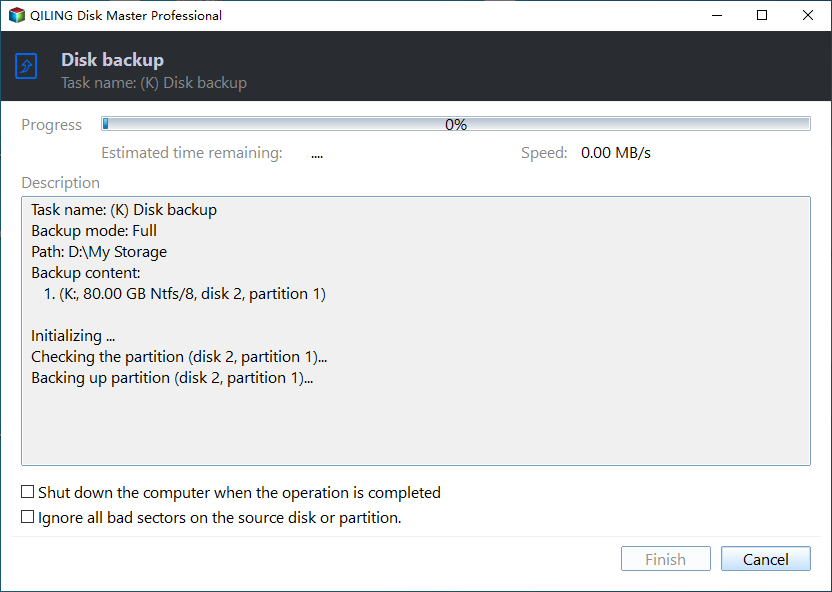
Step 4. Check the source and destination, then click Proceed. Wait until the image is complete and verify that the backup file appears in the destination folder.
Troubleshooting Tips
- If Windows asks to format the card, cancel the prompt and create an image instead.
- If the image restore creates a smaller visible partition, check whether the remaining partitions are hidden or Linux-formatted.
- If the SD card has read errors, try another reader before assuming the card has failed.
FAQ
Should I back up before following these steps? Yes. If the disk is readable and the files matter, create a backup before cloning, repairing, formatting, resetting, or changing hardware.
Can I use Windows built-in tools only? Use built-in tools for simple file copy, restore points, File History, Disk Management, and Windows setup. Use Qiling tools when you need a clearer disk map, bootable recovery media, scheduled backup, or disk clone workflow.
Will these operations erase my target drive? Cloning, restoring an image, formatting, and creating some bootable media can overwrite the target drive. Read the warning message and confirm the disk number before clicking Proceed.
Conclusion
For multi-partition SD cards, back up the whole card as a disk image. File copy is only enough when all needed files are visible and the card does not need to boot.
Related Articles
- Windows System Backup and Restore Tutorials
Browse Windows backup and restore guides for system images, recovery drives, restore points, and safe repair preparation. - Windows Disk Backup and Restore Tutorials
Find Windows disk backup, SSD image backup, external drive backup, and restore tutorials with practical Qiling workflows. - Windows Clone Tutorials
Review Windows cloning guides for system migration, disk clone, SSD upgrade, and safe boot preparation.
Products
Articles & Tutorials
- Data Recovery
- Data Backup
- File Recovery
- File Backup
- System Backup and Restore
- Disk and Partition Clone
- Technical articles
- Mobile articles
- Disk Master Help
- Windows Data Recovery Tutorials
- Windows Secure Delete Tutorials
- Windows Partition Management Tutorials
- Windows File Backup and Restore Tutorials
- Windows System Backup and Restore Tutorials
- Windows Disk Backup and Restore Tutorials
- Windows Clone Tutorials