Can You Copy the Entire C: Drive to an External Hard Drive?
You can copy visible files from C: to an external drive, but that is not the same as preserving a restorable Windows installation. Choose file backup for documents, disk imaging for a recovery copy, or direct cloning for a replacement disk.
Choose the Right Kind of Copy
Dragging C: into File Explorer can omit locked system files, hidden partitions, permissions, and boot information. It is useful for selected personal files, not as a complete Windows recovery plan. A disk image stores the selected disk in backup files that you restore later. A direct clone writes the source layout onto a destination disk and usually replaces everything already there.
If you want an archive on an external HDD alongside other files, choose a disk image. If you are replacing an internal Windows drive, a whole-disk clone may be suitable. In either case, select the entire Windows disk when you need EFI or System Reserved and recovery partitions, not only the visible C: partition.
Prepare the External Drive
Check that the external HDD is healthy, stable, and large enough for the expected image. Keep the image on a physically separate device, not another partition of the source disk. Save your BitLocker or Device Encryption recovery key and note how to start recovery media if the internal drive later fails.
Do not confuse the image file with a bootable USB. The external HDD will not automatically boot Windows merely because it holds the backup. You must use the product's recovery workflow to restore the image to suitable storage.
Create a Qiling Disk Image on the External HDD
Qiling Disk/Partition backup stores an image file without wiping the external drive, provided you choose a folder with enough free space.
Step 1. Connect the external HDD and open Qiling Disk Master. Choose Backup and Recovery > Disk/Partition backup.
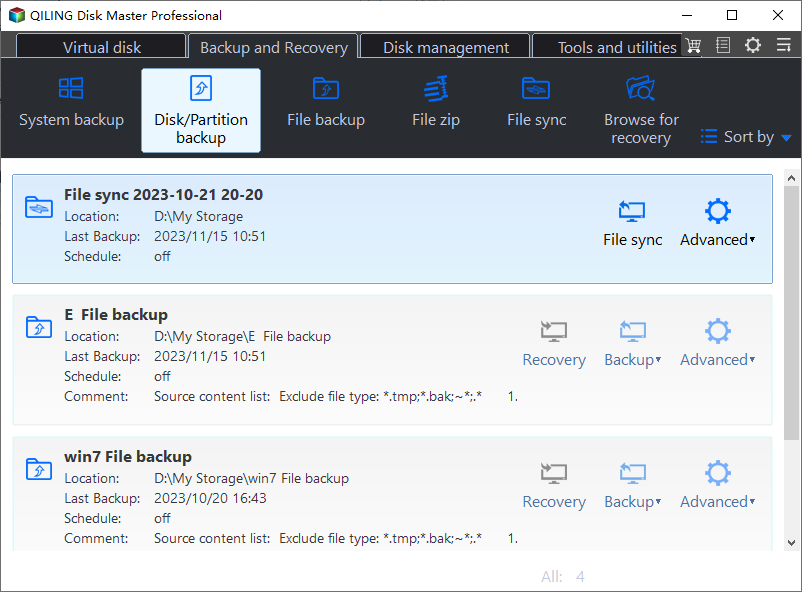
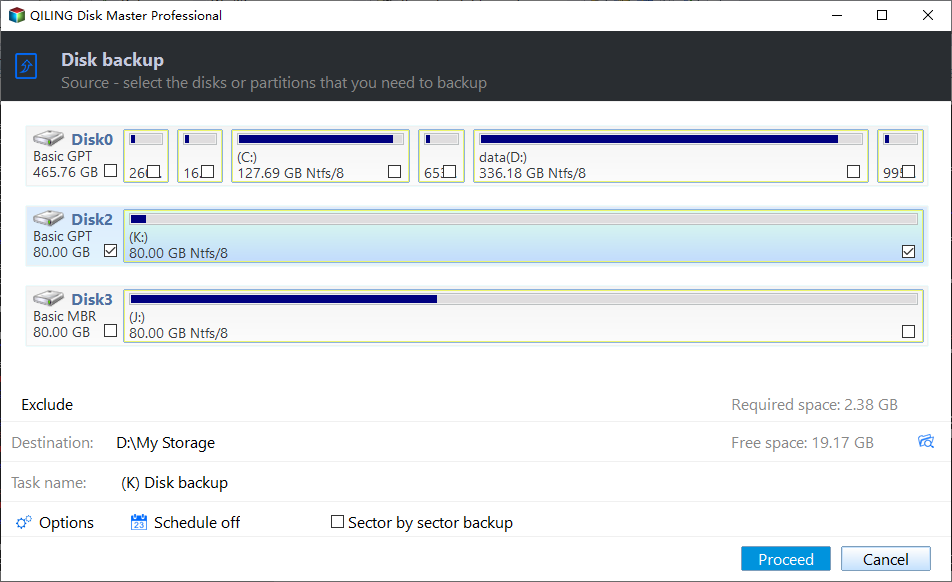
Step 2. In the source disk list, select the whole Windows physical disk by model and capacity, including hidden boot and recovery partitions.
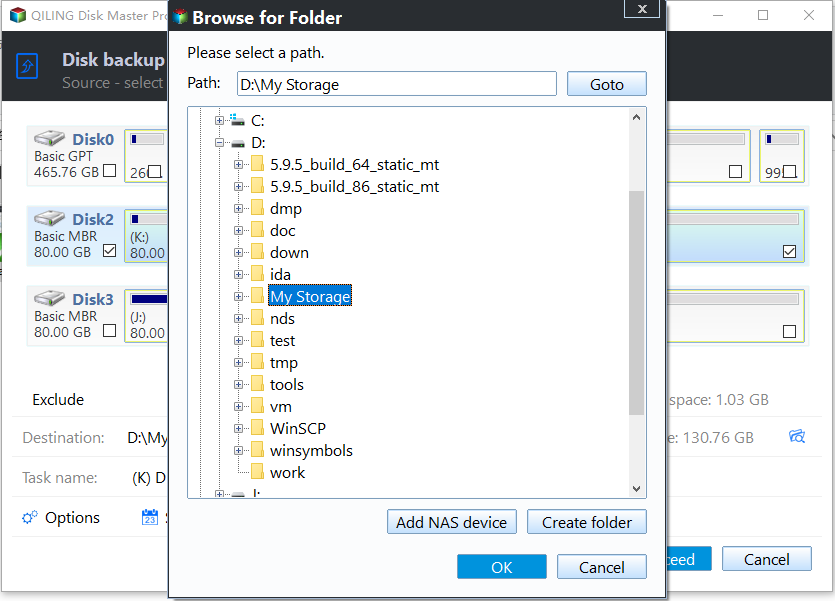
Step 3. Browse to a folder on the external HDD and check that it is not on the source disk. Confirm sufficient capacity.
Step 4. Review the source, destination, and task name. Click Proceed and leave both drives connected until the backup completes.
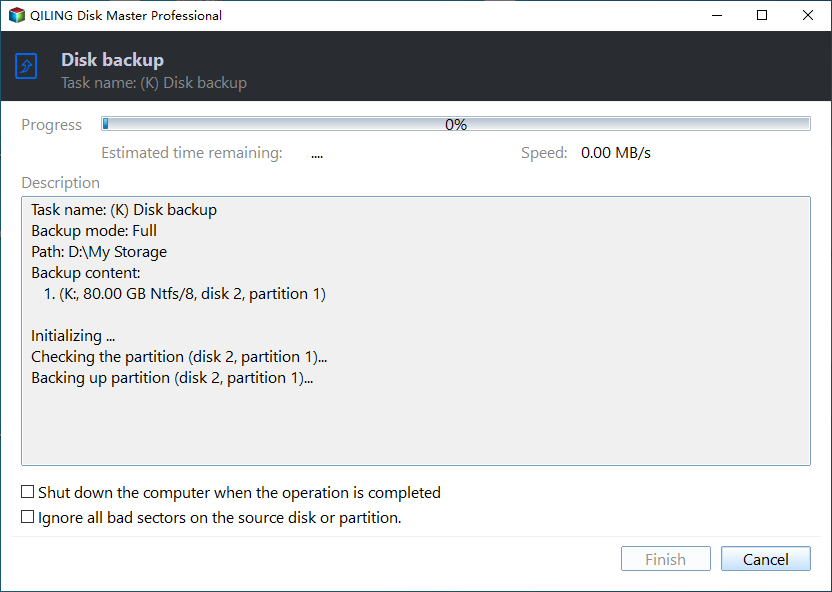
Step 5. Confirm the task reports success and the image file exists. Test a file recovery or a restore to spare storage before relying on it.
Test the Backup
Open sample restored files, keep recovery media and encryption keys accessible, and store another copy if the data is irreplaceable. Repeat the image when the system changes significantly and use more frequent file backups for daily work.
Frequently Asked Questions
Can I boot directly from the image file?
Usually not. Restore it with the appropriate recovery tool to a compatible disk.
Will a C:-only image restore all boot partitions?
Not necessarily. Select the whole Windows disk for a complete system recovery path.
Conclusion
For an external archive, image the entire Windows disk rather than copying only visible C: files, then verify that you can restore it.
Related Articles
- What Is the Best Way to Image a Hard Drive in Windows?
Compare disk imaging with cloning and file backup. - Can I Clone My Hard Drive to a USB Drive?
See when a direct USB-attached disk clone is appropriate.
Products
Articles & Tutorials
- Data Recovery
- Data Backup
- File Recovery
- File Backup
- System Backup and Restore
- Disk and Partition Clone
- Technical articles
- Mobile articles
- Disk Master Help
- Windows Data Recovery Tutorials
- Windows Secure Delete Tutorials
- Windows Partition Management Tutorials
- Windows File Backup and Restore Tutorials
- Windows System Backup and Restore Tutorials
- Windows Disk Backup and Restore Tutorials
- Windows Clone Tutorials