Can an External HDD Replace an Internal Windows Drive?
An external HDD can replace an internal data drive for many file-storage tasks, but it is not automatically a drop-in Windows boot drive. USB boot support, performance, power, and Windows deployment rules make the operating-system case different.
For documents and media, external storage can work
Copy personal files to the external HDD, verify them, and update application library paths. A reliable powered connection matters for large transfers. Keep another backup because an external drive can be disconnected, lost, or damaged.
Some apps and games expect their data drive to remain connected at the same path. Safely eject the drive, avoid moving it during writes, and test programs after changing library locations.
For Windows boot, choose an internal replacement
A normal clone to a USB-attached HDD is not a universal portable Windows installation. Firmware may not offer the external disk as a boot target, Windows may start from a different boot partition, and performance can suffer. USB Windows deployment requires a separately supported method.
If the internal HDD is failing, replace it with a compatible internal SSD or HDD. Back up files first, clone a healthy disk or reinstall Windows, then boot from the internal replacement. Do not erase the only working source until verified.
Plan backup and recovery
An external HDD is an excellent place for a disk image. A restorable image does not need to boot directly from USB; it is restored to the internal replacement using recovery media. Keep the encryption key and recovery instructions accessible.
Test a file restore or spare-disk restoration before relying on the external drive. If the old internal disk clicks or disappears, avoid repeated full scans and assess recovery needs.
Image the Internal HDD to an External Drive with Qiling
This creates a restorable image on the USB-attached HDD. It does not claim that the external HDD becomes a bootable internal-disk substitute.
Step 1. Connect independent storage with sufficient free space. Open Qiling Disk Master and choose Backup and Recovery > Disk/Partition backup. Check the external drive has enough free space and a stable connection.
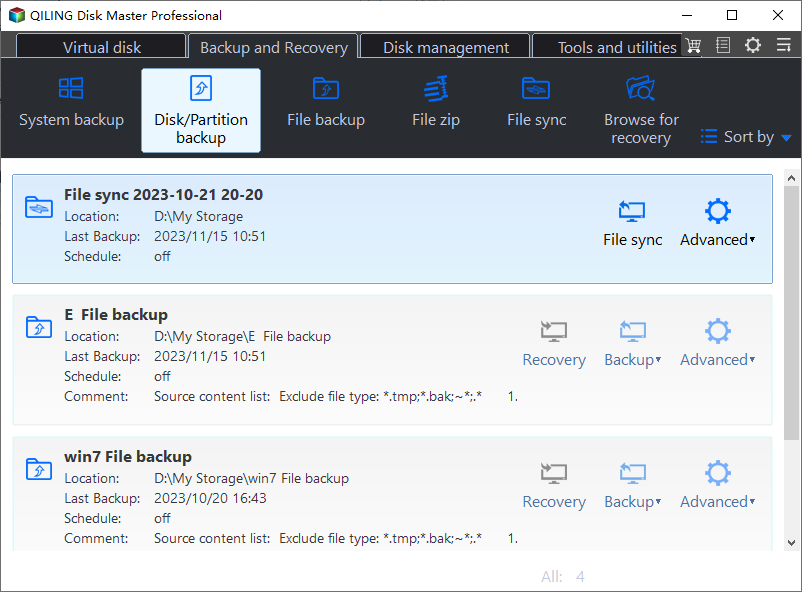
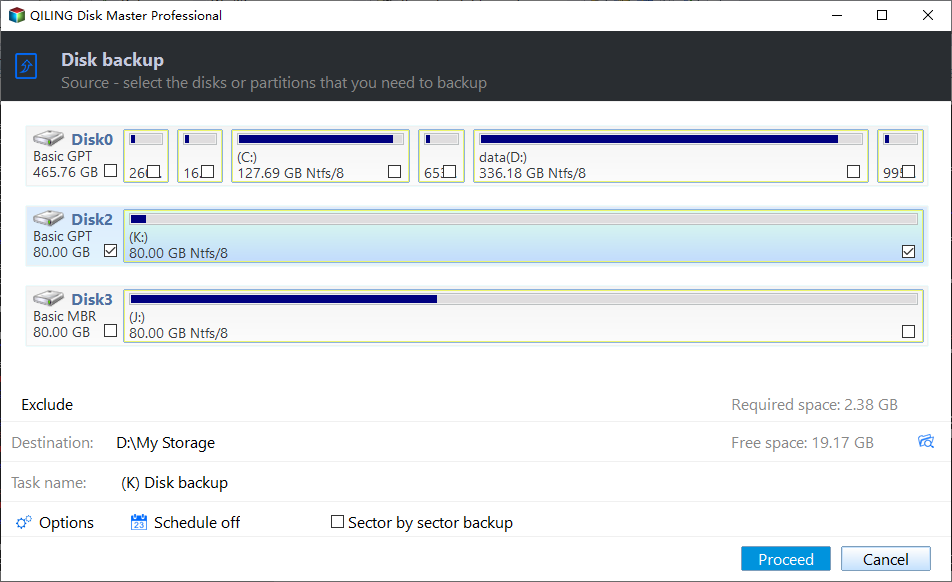
Step 2. Select the source disk directly in the disk list by model and capacity; select a partition only if that narrower scope is intentional. Select the full internal Windows disk when a bare-metal restore is the goal.
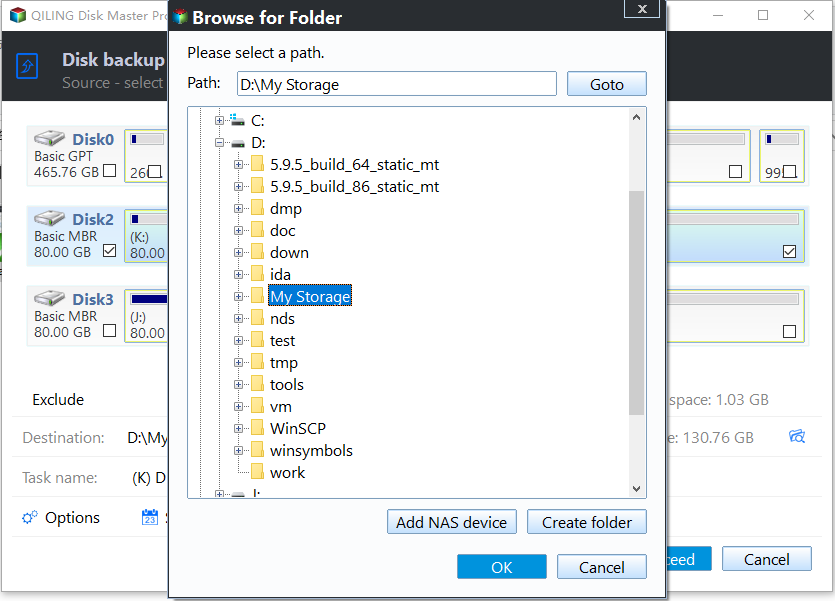
Step 3. Use the destination browse control to choose a folder on the separate storage. Check required space and confirm the image is not being saved to the protected disk. Choose a folder on the external HDD, not on the internal source.
Step 4. Review the source, destination, and task name. Click Proceed; keep the drives connected until the progress window reports completion. Check source and destination before Proceed.
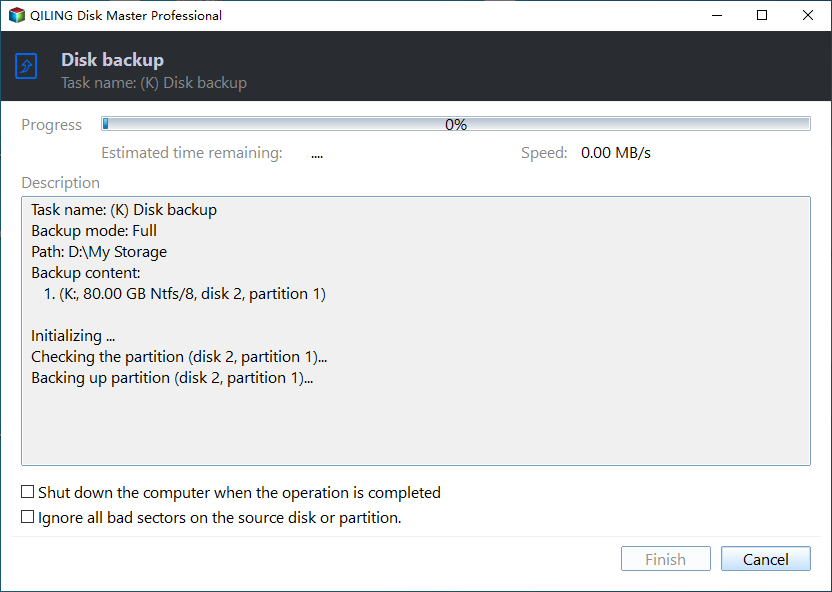
Step 5. Check the backup log and perform a small recovery test or restore to spare storage. Restore to a compatible internal replacement and test Windows startup.
Frequently Asked Questions
Can I run Windows from any external USB HDD?
No. A normal disk clone does not guarantee supported USB boot.
Is an external HDD useful for backup?
Yes, especially for image and file backups, provided recovery is tested.
Conclusion
Use external storage for data or restorable backup images; use a compatible internal disk for an ordinary Windows boot replacement.
Related Articles
- Image a Hard Drive
Create a restorable external backup. - Clone a Hard Drive to USB
See direct-clone limits.
Products
Articles & Tutorials
- Data Recovery
- Data Backup
- File Recovery
- File Backup
- System Backup and Restore
- Disk and Partition Clone
- Technical articles
- Mobile articles
- Disk Master Help
- Windows Data Recovery Tutorials
- Windows Secure Delete Tutorials
- Windows Partition Management Tutorials
- Windows File Backup and Restore Tutorials
- Windows System Backup and Restore Tutorials
- Windows Disk Backup and Restore Tutorials
- Windows Clone Tutorials