How to Clone RAID Disk with RAID Cloning Software
Why do users need to clone RAID
Computer users, especially Windows Server users, often need to clone RAID arrays to upgrade disk space or migrate data from smaller disks to larger ones. This process can be time-consuming, involving backing up data, rebuilding the RAID, and restoring it. However, with Qiling RAID cloning software, this task can be done safely and easily. The software allows users to clone their RAID arrays, making it a convenient solution for upgrading disk space or migrating data.
Brief introduction of RAID
RAID (Redundant Array of Independent Disks) is a storage technology that combines multiple disks into a single, high-performance logical disk. It achieves this by striping data across multiple disks and accessing them in parallel, resulting in higher data security or transfer rates. Various RAID levels offer different protection levels against data loss, capacity, and speed, including RAID 0, RAID 1, RAID 2, RAID 3, RAID 4, RAID 5, and RAID 10.
How to clone RAID array with Qiling RAID cloning software
Raid cloning software - Qiling Backup Server supports file-by-file and sector-by-sector disk cloning, including RAID arrays, through its Windows application and WinPE bootable disk. To clone a RAID array, select the source disk, then choose the target disk, making it the easiest way to clone Raid drives.
Step 1. Launch Qiling Server cloning software and click "Clone".
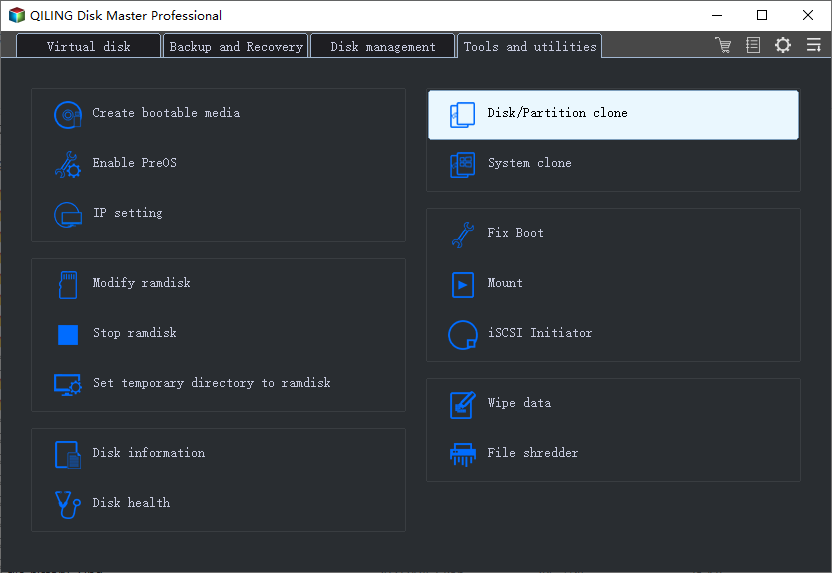
Step 2. Select the source raid disk you want to clone and the destination disk, then choose the sector by sector clone option to clone all sectors from the source disk to the destination disk.
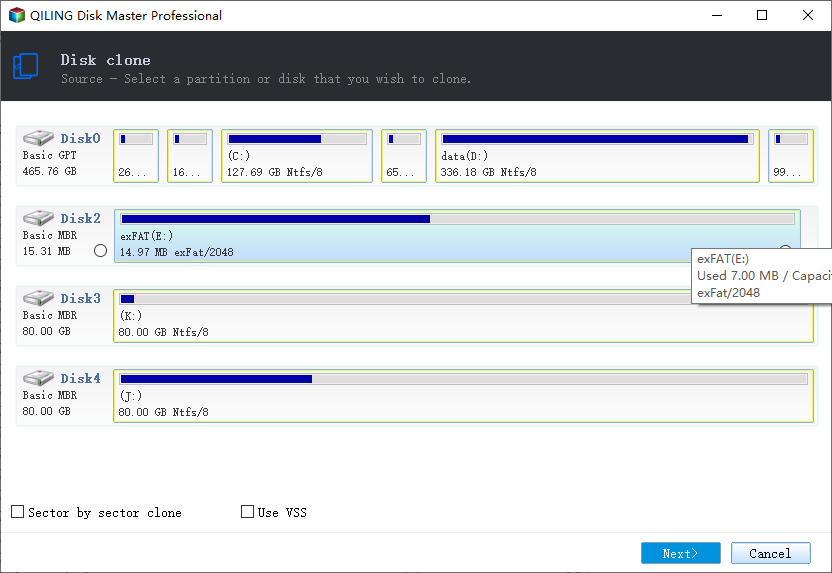
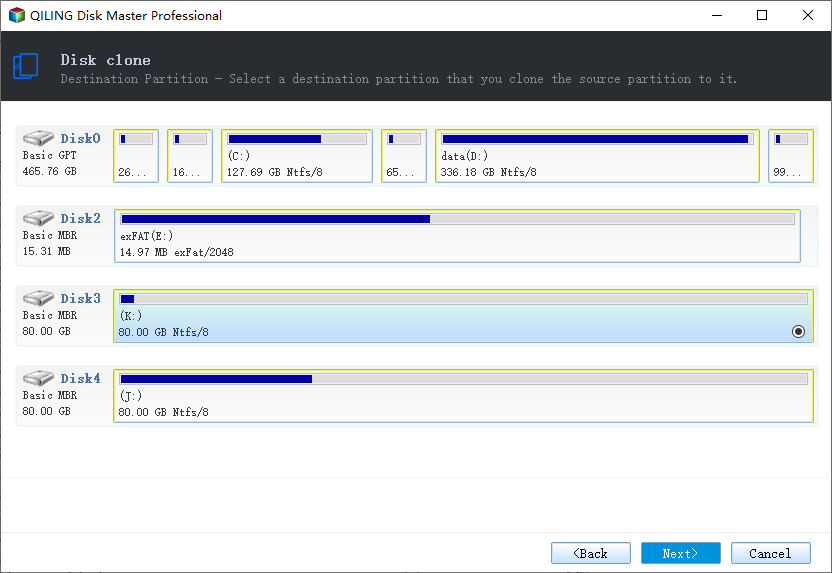
Step 3. Choose the raid disk as the destination disk, then click "Next".
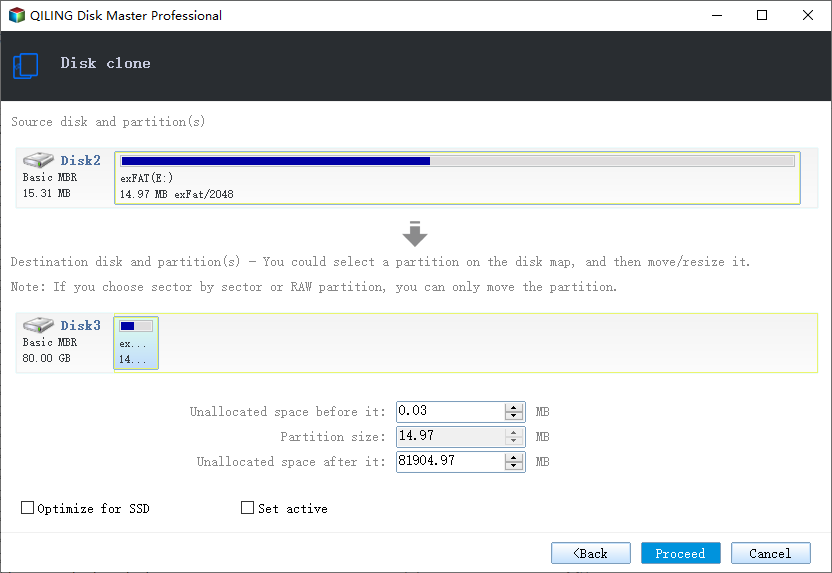
Step 3. Preview the disk layout before cloning.
Conclusion
Most software supports hardware RAID arrays under Windows, but few support RAID arrays with a bootable disk. This means that if you need to restore or clone a system using a bootable disk, many products are not useful for this purpose.
Qiling Backup provides a WinPE bootable disk that allows for easy backup, restoration, or cloning of RAID arrays without needing to enter Windows.
How to clone RAID dive FAQs
Here are a few questions related to the RAID clone. If you also have any of these problems, you can find the methods here.
Can I clone a RAID 1 drive? Or can I clone a RAID 0 drive?
You can clone a RAID drive by using specialized software that supports RAID cloning, such as Qiling Backup. These tools can create a bit-for-bit copy of the RAID array, including its configuration, to a single drive or another RAID array. For RAID 0, which is a striped RAID, you'll need to clone the entire array to a single drive, as it's not possible to clone a striped RAID to another striped RAID. For RAID 1, which is a mirrored RAID, you can clone the entire array to a single drive, but keep in mind that the resulting drive will have the same capacity as the original array. It's worth noting that cloning a RAID array can be a complex process and may require some technical expertise, so it's recommended to use a reputable and user-friendly software to avoid any potential issues.
You can use a professional RAID disk cloning program to clone RAID disks with ease, such as Qiling Backup Server that supports various RAID types.
How to clone RAID 1 or RAID 0 to single drive?
To clone a RAID 1 array to a single drive on a Windows computer, you can use the Qiling Backup utility. This utility allows you to create a bootable clone of your RAID 1 array on a single drive, effectively creating a single drive that contains the same data as your RAID 1 array.
Step 1. Open Qiling Backup and click Clone.
Step 2. Select RAID 0 or RAID 1 as the source disk, then choose the single drive as the destination disk and click Proceed.
Step 3. To clone a RAID 0, RAID 1, or RAID 5 setup to a single drive, set up the necessary settings if required. Then, preview the disk layout to ensure everything is in order. Finally, click Next to initiate the cloning process.
What is the safest raid?
Among the common RAID levels, RAID 5 and RAID 6 are generally considered the most secure due to their ability to protect against drive failures through data parity and disk striping. However, RAID 6 is ultimately the most secure option.
A RAID 6 configuration requires four drives, with parity data written on two drives, allowing it to withstand two simultaneous drive failures.
Which is better, RAID 0 or RAID 1?
RAID-RAID-1 offers the same speed advantage as RAID-0 for reading, but no speed boost for writing. However, it comes with a trade-off: you'll lose half of your storage space. On the other hand, if one of the hard drives fails, you'll still have access to all your data and can continue using your computer normally. If data loss is a major concern, RAID-1 is a good option to consider.
Related Articles
- How to Ghost Hard Drive in Windows 10
- How to Upgrade Windows 7/10 System Hard Drive without Reinstalling Windows
- How to Create Portable Windows 10 to USB Drive
- Best Windows Schedule Backup Software for Automatic Backup
- How to Migrate System/Data/Programs from One Hard Drive to Another
- Best HDD for Backup in 2022 [Most Comprehensive Guide]
This guide recommends the best HDD for backup and list their pros and cons. So, you can choose one of them to protect your data. And you will also know how to back up your computer to HDD.
Products
Articles & Tutorials
- Data Recovery
- Data Backup
- File Recovery
- File Backup
- System Backup and Restore
- Disk and Partition Clone
- Technical articles
- Mobile articles
- Disk Master Help
- Windows Data Recovery Tutorials
- Windows Secure Delete Tutorials
- Windows Partition Management Tutorials
- Windows File Backup and Restore Tutorials
- Windows System Backup and Restore Tutorials
- Windows Disk Backup and Restore Tutorials
- Windows Clone Tutorials