Clone or Back Up a 256GB SSD to an External 2TB HDD?
A 2TB external HDD has plenty of nominal capacity for a 256GB SSD, but the best method depends on what you want next. An image stores one or more backups as files; a direct clone replaces the external drive layout with a copy of the SSD.
Choose a disk image for repeatable protection
If you want ongoing backups, save a disk image on the external HDD rather than overwriting the whole 2TB drive. You can retain versions alongside other files if there is enough space. The image should include the SSD's boot and recovery partitions when bare-metal Windows restoration is the goal.
Check the external drive file system and free space. A compressed image may be smaller than 256GB, but the size depends on used data and backup mode. Keep the drive disconnected or otherwise protected when the job is not running.
Use a direct clone only for a specific replacement
A whole-disk clone to the 2TB HDD erases its existing partitions and may initially leave a large unallocated area. It does not automatically create a portable Windows installation that boots from any USB port. For a replacement boot disk, test it in its intended internal connection.
Back up anything on the external HDD before cloning. If you only need documents, file backup is simpler. A 256GB SSD with failing hardware or encryption needs additional recovery planning.
Verify the chosen result
For an image, check the task status and restore a sample file or test to spare storage. For a direct clone, inspect partitions and boot the target where it will be used. Do not infer success from file size or a completion message alone.
Retain the original SSD until recovery and file checks pass. Update the backup regularly; a one-time copy will not contain later changes.
Image the 256GB SSD to a 2TB HDD with Qiling
A disk image is the recommended path when the 2TB external HDD is long-term backup storage. It leaves room for additional backup versions instead of dedicating the full disk to a clone.
Step 1. Connect independent storage with sufficient free space. Open Qiling Disk Master and choose Backup and Recovery > Disk/Partition backup. Connect the 2TB HDD and check free space and health.
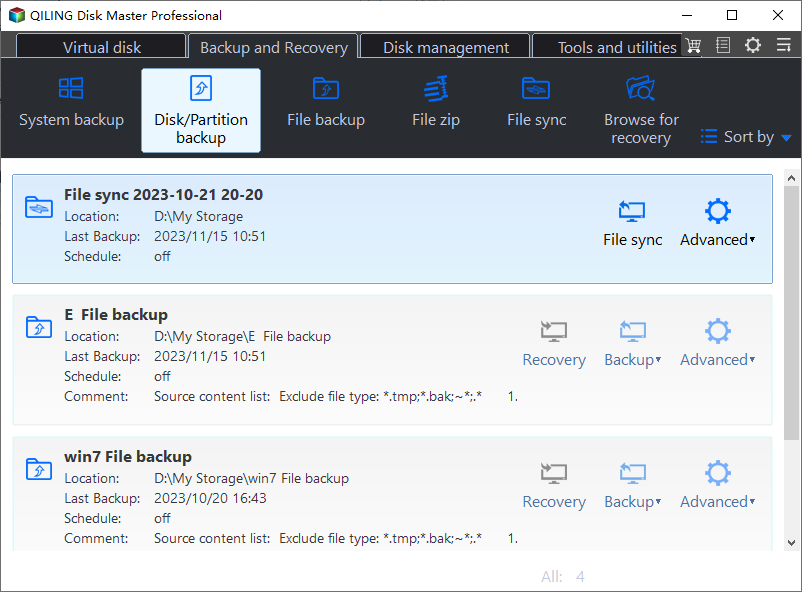
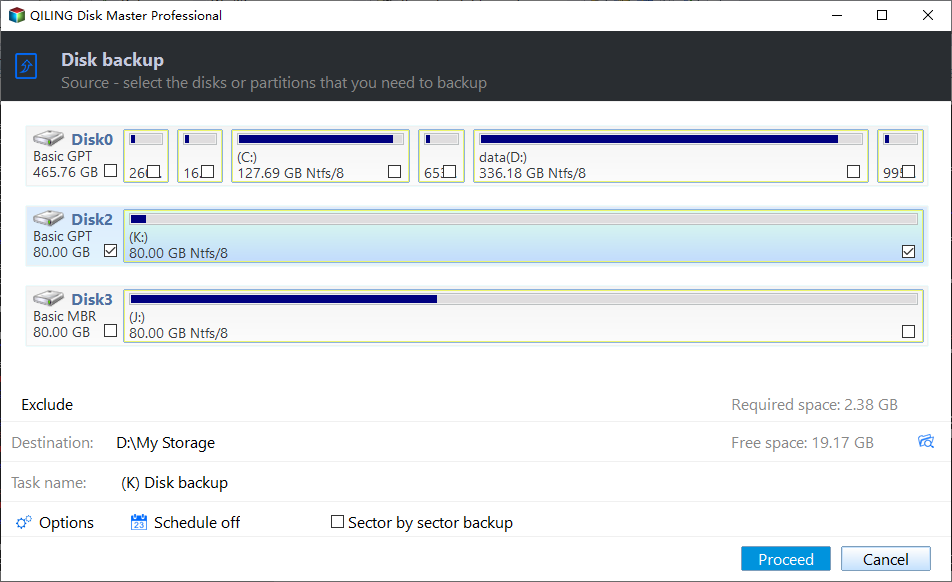
Step 2. Select the source disk directly in the disk list by model and capacity; select a partition only if that narrower scope is intentional. Select the entire 256GB SSD if you want Windows boot and recovery partitions.
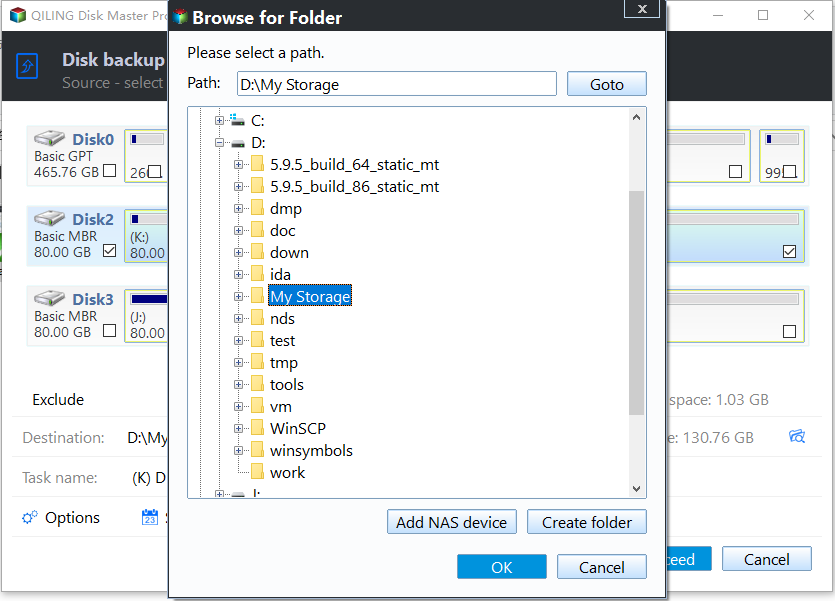
Step 3. Use the destination browse control to choose a folder on the separate storage. Check required space and confirm the image is not being saved to the protected disk. Choose a folder on the external HDD, not on the SSD.
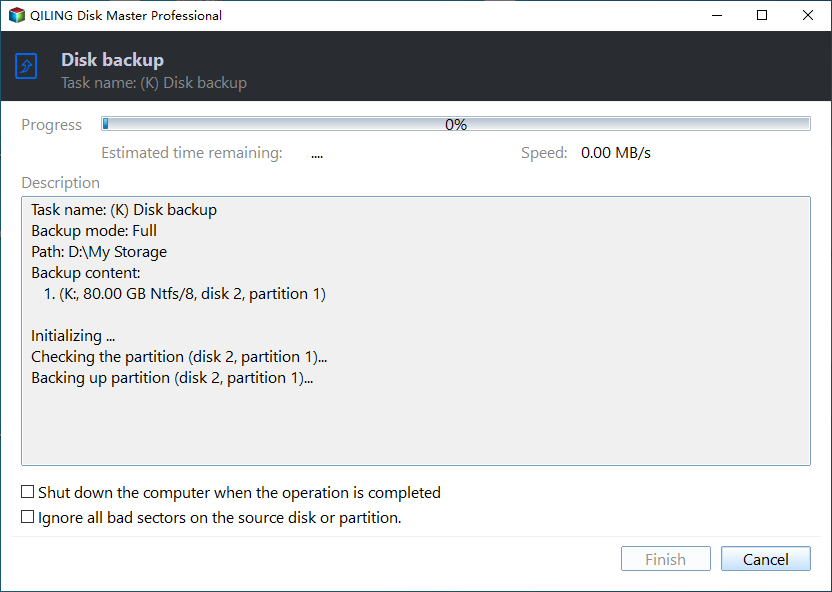
Step 4. Review the source, destination, and task name. Click Proceed; keep the drives connected until the progress window reports completion. Use standard backup mode unless every sector is specifically required.
Step 5. Check the backup log and perform a small recovery test or restore to spare storage. Test restoring a file and keep the external disk separate from the source.
Frequently Asked Questions
Will cloning expand a 256GB partition to 2TB automatically?
Not always. Inspect the target layout and any unallocated space after cloning.
Can a backup image boot directly over USB?
Normally it must be restored to suitable storage using a recovery workflow.
Conclusion
Use an image for recurring backup; use a clone only when you need a dedicated replacement disk and can verify it in its final connection.
Related Articles
- Image a Hard Drive
Compare imaging with cloning. - Clone a Hard Drive to USB
Understand USB boot and overwrite limits.
Products
Articles & Tutorials
- Data Recovery
- Data Backup
- File Recovery
- File Backup
- System Backup and Restore
- Disk and Partition Clone
- Technical articles
- Mobile articles
- Disk Master Help
- Windows Data Recovery Tutorials
- Windows Secure Delete Tutorials
- Windows Partition Management Tutorials
- Windows File Backup and Restore Tutorials
- Windows System Backup and Restore Tutorials
- Windows Disk Backup and Restore Tutorials
- Windows Clone Tutorials