Clone a Larger HDD to a Smaller SSD
The source disk's advertised capacity does not by itself decide whether a clone will fit. Compare the used space of every partition you intend to carry with the SSD's usable capacity. A sector-by-sector clone requires at least as much target space as the source layout and is usually the wrong choice for a smaller SSD.
Reduce what must be copied
Check the HDD's partition map and used space in Disk Management. Move large personal files to a verified backup if necessary, then empty only files you no longer need. Do not delete EFI or recovery partitions merely to save a little space. If you need every data partition, use a full-disk clone only after the preview confirms it fits; otherwise choose a system clone for Windows and copy remaining files separately. Back up the target SSD because cloning overwrites it.
Move Windows with Qiling System clone
These steps choose the system-only route when its selected partitions fit. Qiling Disk Master also has a separate Disk clone mode for a complete disk copy.
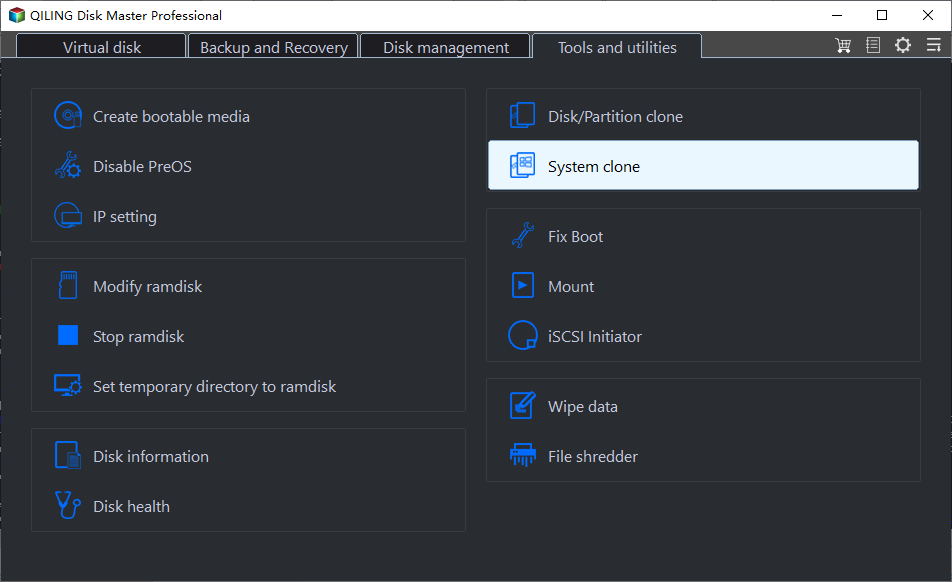
Step 1. Attach the SSD and select Tools and utilities > System clone.
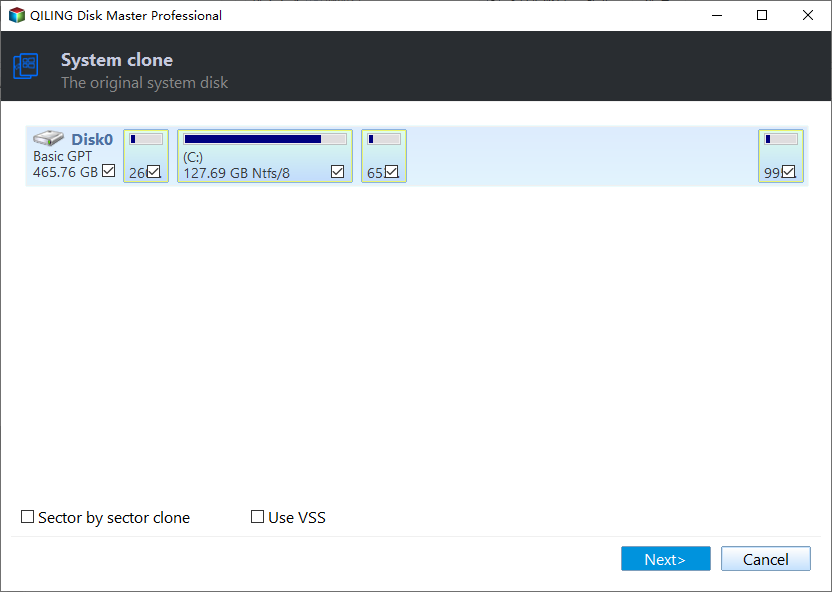
Step 2. Confirm the source Windows installation and automatically selected boot partitions, then click Next.
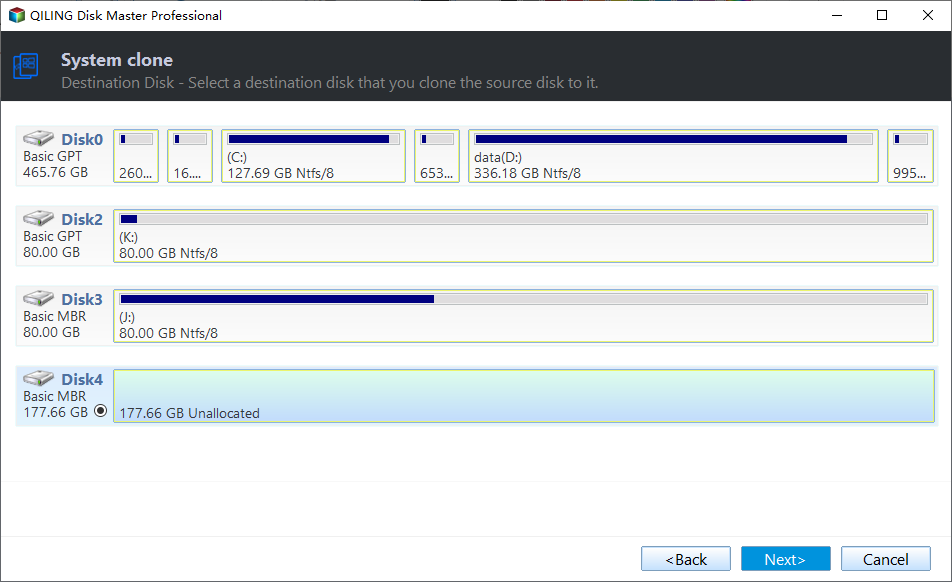
Step 3. Select the smaller SSD as destination by its size and model. Check it has no files you need, then click Next.
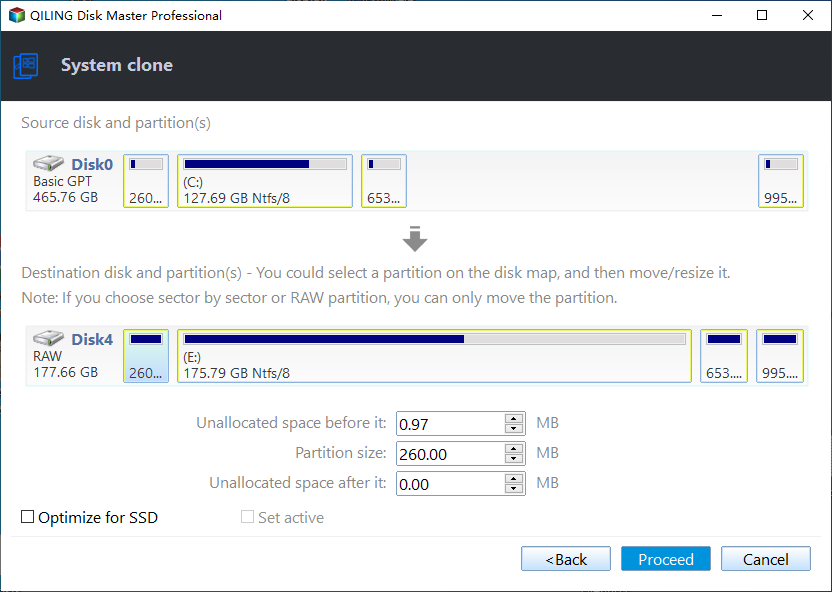
Step 4. Review the partition layout in the preview. If it does not fit, cancel and reduce the source's used data; do not force a truncated clone. If it fits, select Optimize for SSD as appropriate, click Proceed, and confirm the target-data warning.
Step 5. Wait for completion before disconnecting the disks.
Test the SSD, then move remaining files
Install the SSD internally and boot from it in UEFI. Check Windows, installed applications, and disk layout. Only after that, copy any separately backed-up data files. Keep the old HDD untouched until you have verified both the new system and the copied files. See the detailed larger-HDD clone discussion for other layouts.
Related Articles
- Clone Windows 11 to SSD
Complete system-clone workflow and first boot checks.
Products
Articles & Tutorials
- Data Recovery
- Data Backup
- File Recovery
- File Backup
- System Backup and Restore
- Disk and Partition Clone
- Technical articles
- Mobile articles
- Disk Master Help
- Windows Data Recovery Tutorials
- Windows Secure Delete Tutorials
- Windows Partition Management Tutorials
- Windows File Backup and Restore Tutorials
- Windows System Backup and Restore Tutorials
- Windows Disk Backup and Restore Tutorials
- Windows Clone Tutorials