Clone Windows 11 to an SSD Without Reinstalling
System cloning copies the Windows installation and boot partitions to another disk so the replacement can start without a fresh install. It is not the same as copying C: in File Explorer. The destination SSD will be overwritten, so confirm its model and capacity and move any existing files off it first.
Check the SSD and protect your data
Connect the SSD by a suitable internal slot or adapter. Make sure it can hold the used space of the Windows system and boot partitions. Keep a separate file or system backup and your BitLocker recovery key. If the SSD is smaller than the original disk, a system clone may fit even when a full-disk clone does not, but check the software's preview before proceeding.
Use Qiling Disk Master System clone
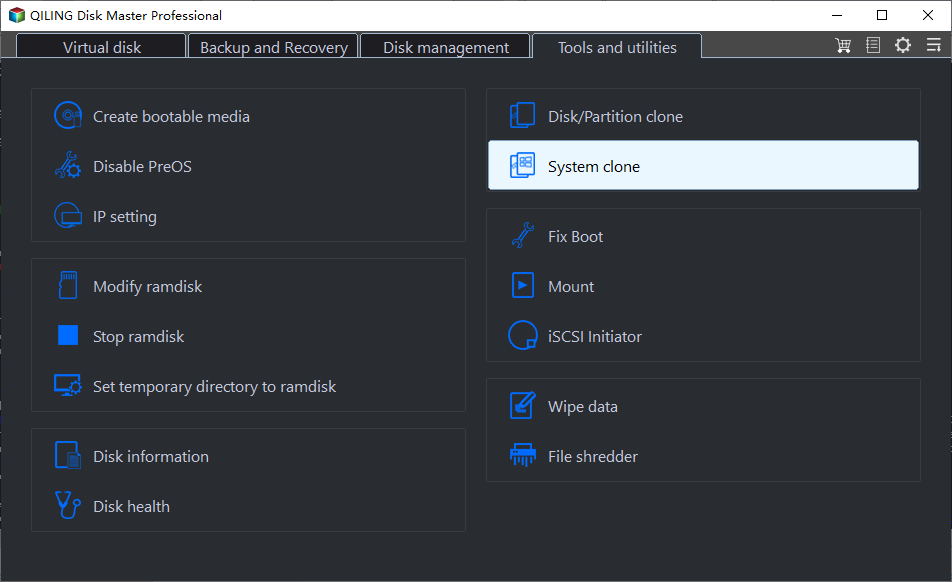
Step 1. Open Tools and utilities and select System clone. Do not choose a file copy or partition copy if you need a bootable Windows installation.
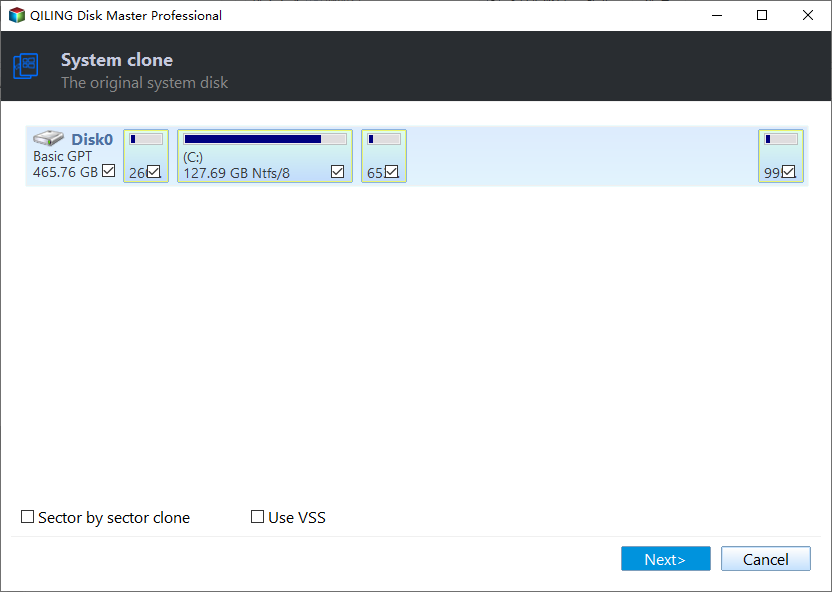
Step 2. Confirm the current Windows source and its boot partitions, then click Next.
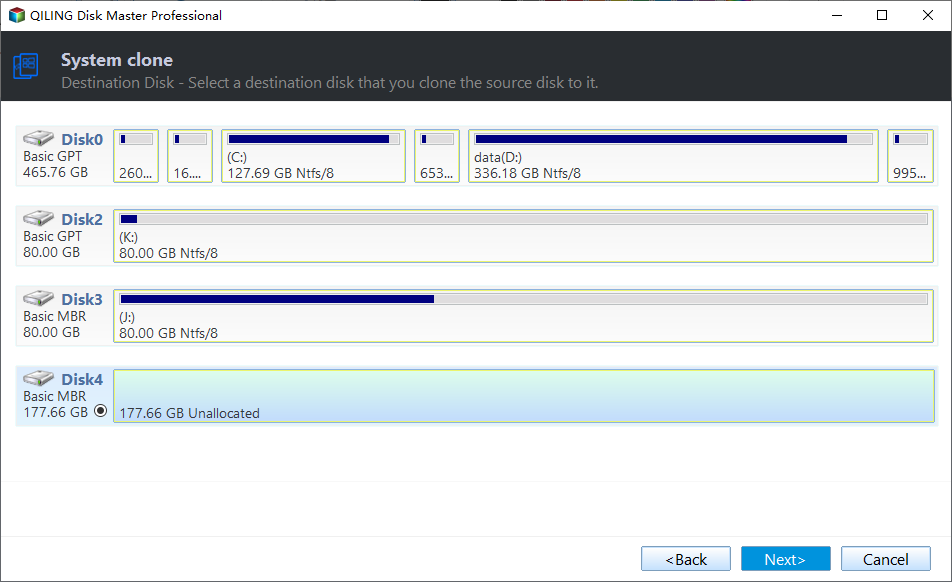
Step 3. Select the SSD by model and capacity as the destination. Confirm it is not the source disk and click Next.
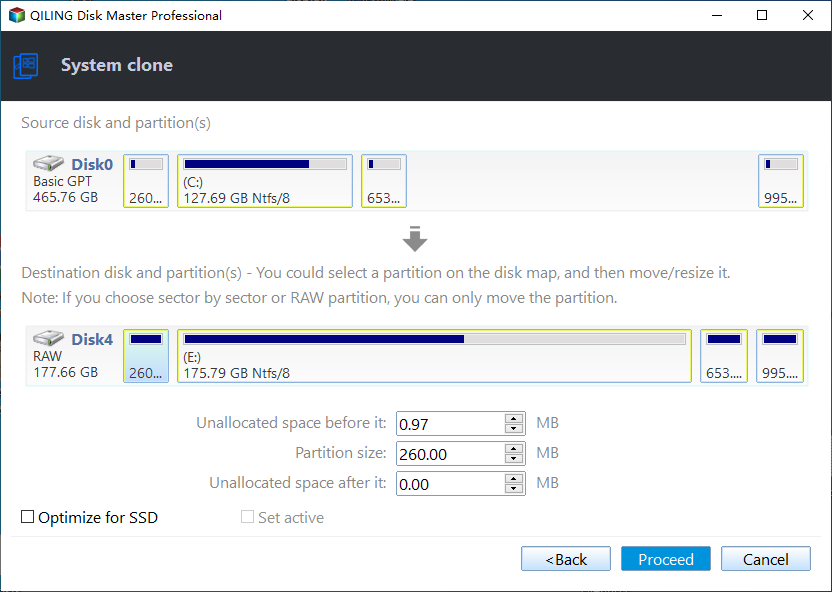
Step 4. Review the source and target disk map. Adjust partition sizes only if necessary, select Optimize for SSD when appropriate, and click Proceed. Confirm the warning that existing target data will be erased.
Step 5. Wait for the clone to finish without disconnecting either disk. Do not infer completion from the warning dialog; use the task's final result.
Test the replacement before reusing the old disk
Shut down, install the SSD internally if it was attached by USB, and select it in UEFI boot settings. To avoid booting the old installation by mistake, temporarily disconnect the original disk for the first test if practical. Check that Windows starts, applications open, files are present, and disk layout is correct. Keep the original disk unchanged until the SSD has passed these checks. See more Windows 11 SSD migration guidance.
Related Articles
- Clone a Windows 11 26H2 System
Version-specific upgrade and clone checks.
Products
Articles & Tutorials
- Data Recovery
- Data Backup
- File Recovery
- File Backup
- System Backup and Restore
- Disk and Partition Clone
- Technical articles
- Mobile articles
- Disk Master Help
- Windows Data Recovery Tutorials
- Windows Secure Delete Tutorials
- Windows Partition Management Tutorials
- Windows File Backup and Restore Tutorials
- Windows System Backup and Restore Tutorials
- Windows Disk Backup and Restore Tutorials
- Windows Clone Tutorials