Move Windows to New SSD Without Reinstalling Apps
Replacing an old hard drive with a new SSD can make Windows start faster and apps respond better. If you do not want to reinstall Windows, programs, and settings one by one, cloning is the cleaner choice.
Qiling Disk Master can migrate the Windows system to an SSD and keep boot-related partitions together.
Before You Move Windows
- Connect the new SSD to the PC and make sure Windows can detect it.
- Back up important files if the SSD already contains data, because cloning may overwrite it.
- Use an SSD with enough space for Windows, apps, and used data.
- Keep a charger connected if you are cloning from a laptop.
Move Windows to SSD with Qiling Disk Master
Step 1. Install and open Qiling Disk Master. Open the clone tool and choose the system or disk clone option that matches your migration plan.

Step 2. Select the original Windows disk as the source disk.

Step 3. Select the new SSD as the destination disk. Confirm that no important files remain on the destination disk.

Step 4. Preview the layout. Enable SSD alignment if the option is available, then click Proceed to start the migration.


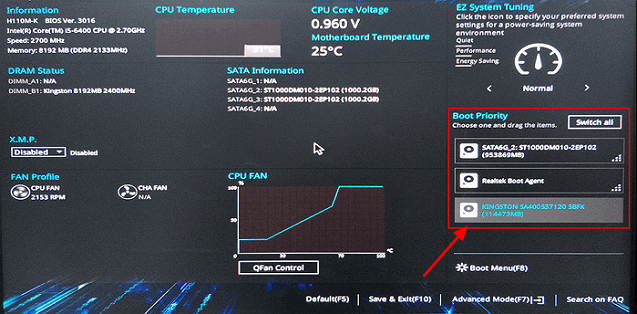
Step 5. After cloning, shut down the PC, install the SSD internally if needed, and set the new SSD as the first boot device in BIOS.
When Should You Use System Clone Instead of Disk Clone?
Use system clone when you only need Windows and boot partitions. Use disk clone when you want to copy the whole old drive, including data partitions and recovery partitions.
Conclusion
Moving Windows to a new SSD is easier with cloning than with manual reinstalling. Check the destination disk carefully, enable SSD alignment, and boot from the new drive after the clone finishes.
For moving Windows while keeping personal files, read How to Transfer Windows to Another Drive and Keep Your Files.
Related Articles
Products
Articles & Tutorials
- Data Recovery
- Data Backup
- File Recovery
- File Backup
- System Backup and Restore
- Disk and Partition Clone
- Technical articles
- Mobile articles
- Disk Master Help
- Windows Data Recovery Tutorials
- Windows Secure Delete Tutorials
- Windows Partition Management Tutorials
- Windows File Backup and Restore Tutorials
- Windows System Backup and Restore Tutorials
- Windows Disk Backup and Restore Tutorials
- Windows Clone Tutorials