Clone Windows 11 25H2 to SSD Without Reinstalling
Upgrading to an SSD is one of the most effective ways to improve boot speed and app response. If your Windows 11 25H2 system is already set up, cloning lets you move Windows, installed programs, and personal files to the new SSD without reinstalling everything.
Before cloning, back up important files and make sure the target SSD has enough capacity for the used space on the source drive.
What You Need Before Cloning
- A new SSD connected internally or by a reliable USB-to-SATA/NVMe adapter.
- Enough space on the SSD for Windows, apps, and files.
- A full backup if the source disk stores important data.
- Qiling disk cloning software.
Clone Windows 11 25H2 to SSD with Qiling Disk Clone
Qiling Disk Clone can copy the Windows system disk to another SSD and help keep the boot structure intact. It is suitable when you want to replace an old drive or move Windows to faster storage.
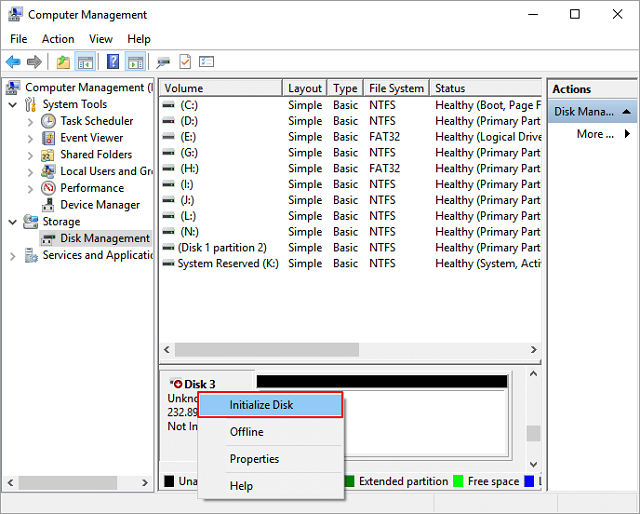
Step 1. Connect the new SSD to the computer. If Windows asks to initialize it, you can initialize the disk, but do not store important files on it because the clone process will overwrite the target disk.
Step 2. Open Qiling Disk Clone and choose a clone mode. Use System Clone when you only need to migrate Windows and boot partitions, or Disk Clone when you want to copy the whole system disk, including data partitions.

Step 3. Select the current Windows 11 25H2 disk as the source disk. Check the disk capacity and partition list carefully so you do not choose an external backup drive by mistake.

Step 4. Select the new SSD as the target disk and confirm the overwrite warning. If the SSD is smaller than the old disk, make sure the used space on the source disk is less than the SSD capacity.

Step 5. Review the target disk layout. Adjust partition size if the software allows it, and enable SSD optimization or 4K alignment when the option is available.

Step 6. Click Proceed to start cloning. Keep both drives connected until the clone finishes, then shut down the computer.

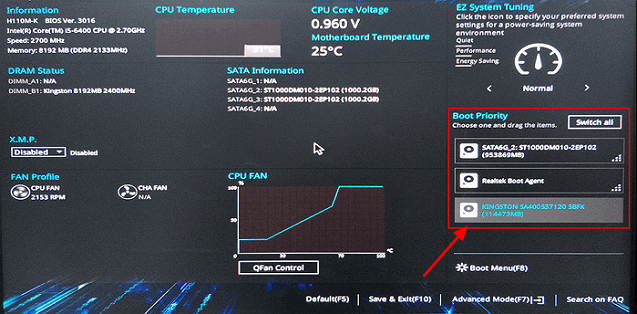
Step 7. Replace the old drive with the SSD or set the SSD as the first boot device in BIOS/UEFI. After Windows starts from the SSD, check that your files and apps open normally.
Common Questions
Can I clone to a smaller SSD? Yes, if the used space on the source disk is smaller than the SSD capacity. Remove unnecessary files first if needed.
Will Windows activation be kept? In most cases, Windows activation remains valid on the same PC. Major hardware changes may require reactivation.
For a broader upgrade guide, see transfer OS to SSD.
Conclusion
Cloning Windows 11 25H2 to SSD is practical when you want a faster PC without rebuilding the system. Use a reliable cloning tool, check the target disk carefully, and boot from the SSD after cloning.
Related Articles
- Can You Replace HDD with SSD Without Cloning
- Free Disk Cloning Software
- Backup Before Windows 11 25H2 Update
- Windows 11 26H2: Release Date, Features and How to Get It
- Windows 11 26H1: What It Is and Who Can Install It
Products
Articles & Tutorials
- Data Recovery
- Data Backup
- File Recovery
- File Backup
- System Backup and Restore
- Disk and Partition Clone
- Technical articles
- Mobile articles
- Disk Master Help
- Windows Data Recovery Tutorials
- Windows Secure Delete Tutorials
- Windows Partition Management Tutorials
- Windows File Backup and Restore Tutorials
- Windows System Backup and Restore Tutorials
- Windows Disk Backup and Restore Tutorials
- Windows Clone Tutorials