Backup Before Windows 11 25H2 Update: Protect Files and System
Windows feature updates can bring security fixes and new system changes, but any major update may also fail, roll back, or leave some files hard to find. Before you install Windows 11 25H2, a complete backup gives you a safer way back.
This guide explains what to back up, which Windows tools you can use, and when Qiling Backup is a better choice for creating a system image or file backup before the update.
For a side-by-side choice of imaging applications, see backup tools to use before a Windows feature update.
What Should You Back Up Before Windows 11 25H2?
- Personal files in Desktop, Documents, Pictures, Downloads, and custom folders.
- Work files saved on another internal drive or external storage device.
- Browser bookmarks, email files, game saves, and software project folders.
- A full system image if you want to restore Windows, installed apps, and settings together.
- BitLocker recovery keys, Microsoft account recovery information, and important license keys.
Method 1. Use Qiling Backup to Create a Safer Update Backup
Qiling Backup can back up files, partitions, disks, or the whole system. It is useful when you want more control than File History or need a system image before installing a Windows update.
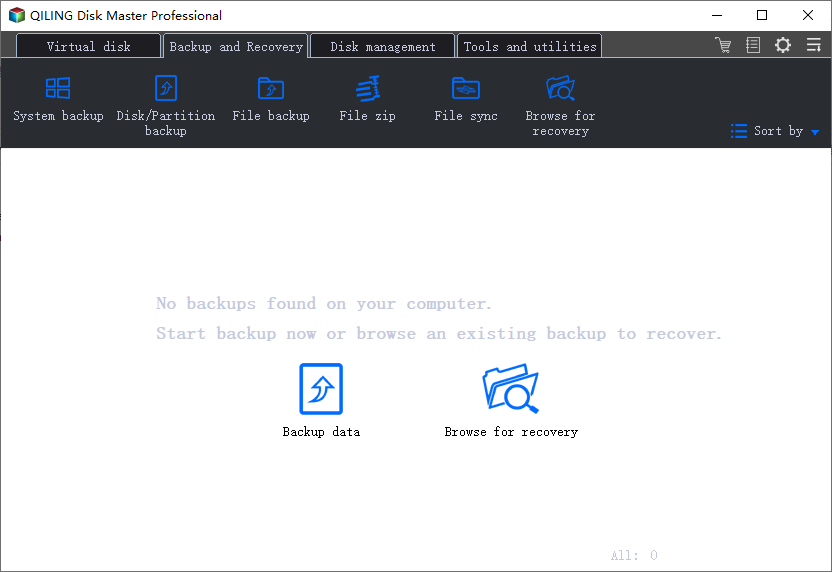
Step 1. Install and open Qiling Backup on your Windows 11 PC. On the main backup page, choose the backup type that matches your risk: System Backup for Windows, apps, boot files, and settings; File Backup for Desktop, Documents, Pictures, Downloads, and work folders; or Disk/Partition Backup for a full storage copy.
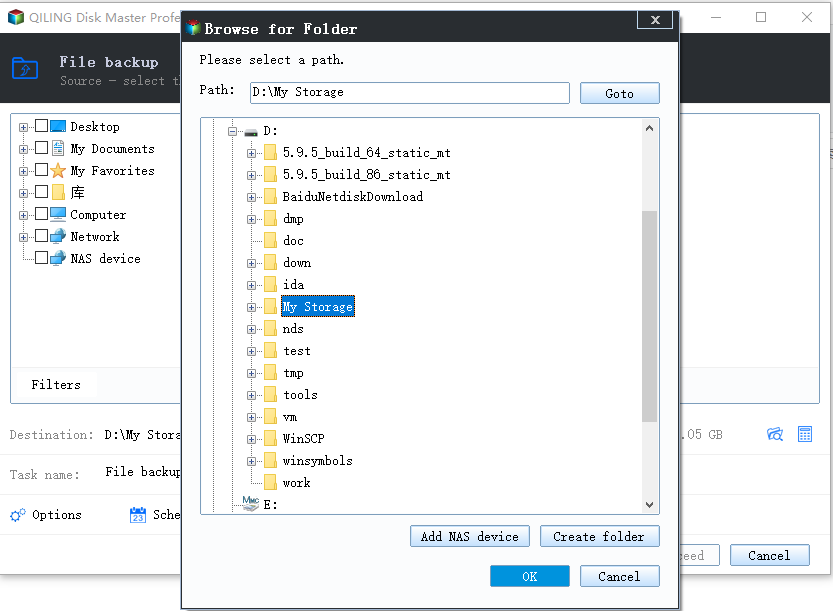
Step 2. Select the source data. For a system backup, Qiling Backup selects the required Windows partitions automatically. For a file backup, expand the folders and tick the files or folders you want to protect before installing Windows 11 25H2.
Step 3. Choose a safe destination, such as an external hard drive, external SSD, USB drive with enough space, NAS, or another internal disk that will not be affected by the update.
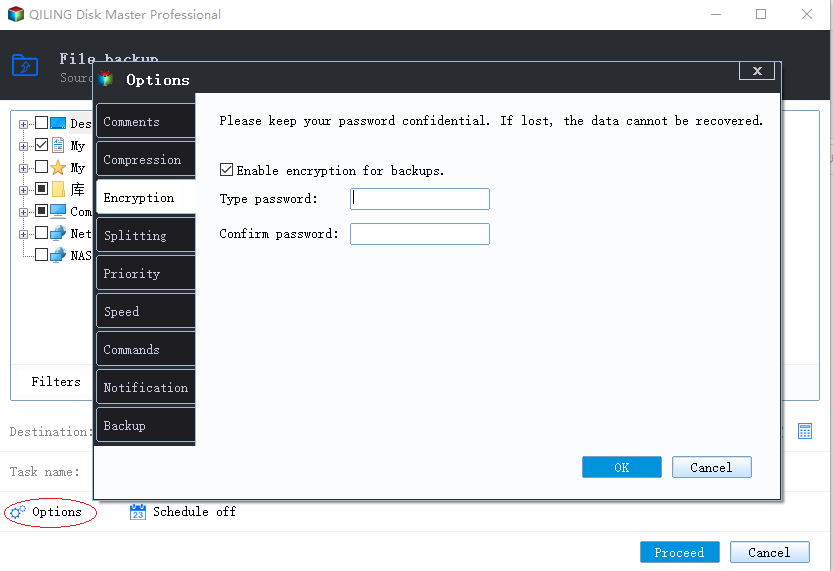
Step 4. Open Options if you want to compress the image, add password protection, or split the backup file. If you want regular protection after the update, use Schedule to create an automatic backup plan.
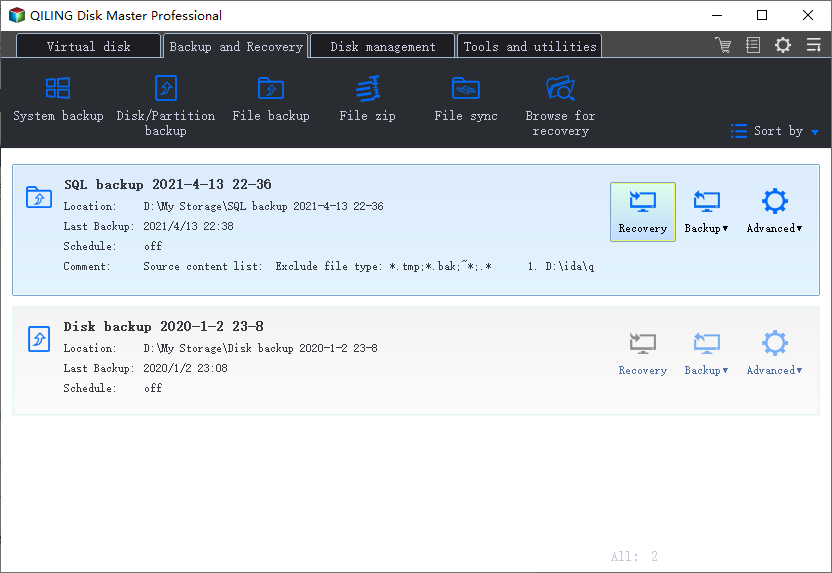
Step 5. Click Proceed and wait until the task finishes. When the backup card appears on the main page, keep the backup drive connected long enough to confirm that the image is available before you start the Windows 11 25H2 update.
Method 2. Use Windows Backup Options
Windows also includes basic backup choices. You can sync selected folders with OneDrive, use File History for personal files, or create a recovery drive. These tools are helpful, but they may not preserve every program and system setting.
If you need a full rollback path, combine Windows backup options with a full system image. You can also compare this topic with Windows Backup vs QILING Backup.
Before You Click Install
- Keep enough free space on the system drive.
- Disconnect unnecessary external devices.
- Save your BitLocker recovery key if drive encryption is enabled.
- Make sure the backup can be opened from another drive.
Conclusion
Backing up before Windows 11 25H2 is a simple way to avoid panic if the update fails or files become missing. Start with personal files, then create a system image if you need a complete restore option.
Related Articles
- Windows Backup vs QILING Backup: Which Is Better for PC Protection
- Recover Lost Files After Windows 11 25H2 Update
- How to Make a Full Backup of Windows 10
- Windows 11 24H2 End of Support: What to Do Next (2026)
- Windows 11 26H1: What It Is and Who Can Install It
Products
Articles & Tutorials
- Data Recovery
- Data Backup
- File Recovery
- File Backup
- System Backup and Restore
- Disk and Partition Clone
- Technical articles
- Mobile articles
- Disk Master Help
- Windows Data Recovery Tutorials
- Windows Secure Delete Tutorials
- Windows Partition Management Tutorials
- Windows File Backup and Restore Tutorials
- Windows System Backup and Restore Tutorials
- Windows Disk Backup and Restore Tutorials
- Windows Clone Tutorials