Windows Backup vs QILING Backup: Which Is Better for PC Protection
Windows includes basic backup and sync options, and they are useful for many daily tasks. But if you need a full system image, disk backup, flexible restore, or a clearer backup plan before a major update, dedicated backup software can be easier to manage.
Quick Comparison
| Item | Windows Backup | QILING Backup |
|---|---|---|
| File backup | Good for selected folders and cloud sync | Supports selected files, folders, partitions, and disks |
| System backup | Limited and varies by Windows feature | Designed for system image backup and restore |
| Disk/partition backup | Not always straightforward | Clear disk and partition backup workflow |
| Update protection | Helpful for some files | Better for full rollback planning before major updates |
When Windows Backup Is Enough
Use Windows Backup or OneDrive if you only need to sync personal folders, save browser settings, or keep a copy of common files. It is simple and already built into Windows.
When QILING Backup Is Better
Use QILING Backup when you want to protect the whole system, clone or back up a disk, save a partition image, or prepare for an update that may affect Windows boot, apps, or storage devices.
For example, before installing a major Windows feature update, you can create a system backup and store it on an external drive. If the update fails, you have a clearer restore path than relying on file sync alone.
How to Create a Backup with QILING Backup
Step 1. Open QILING Backup and choose the task type. Choose System Backup for Windows rollback, File Backup for personal folders, or Disk/Partition Backup when you need a complete image of a drive or partition.
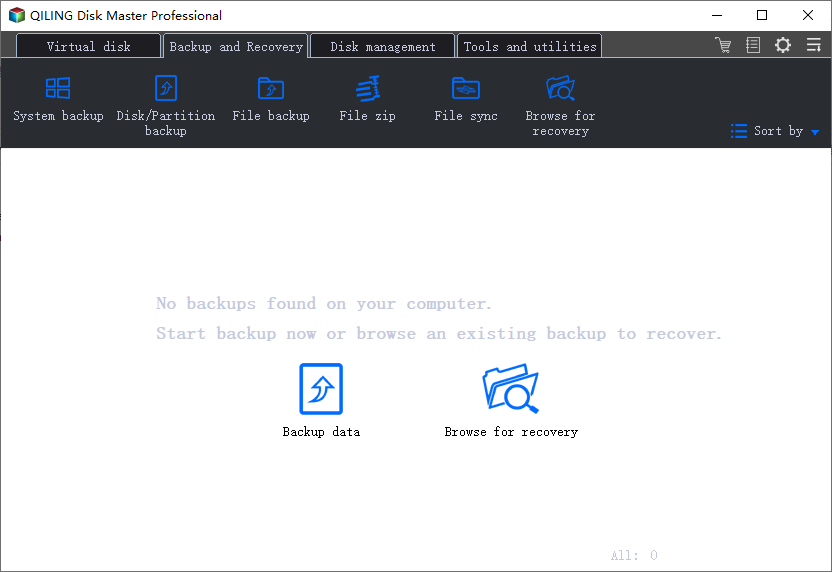
Step 2. Select the source. System Backup usually selects the required boot and system partitions automatically, while File Backup lets you tick Desktop, Documents, Pictures, Downloads, and custom folders.
Step 3. Choose a backup destination. An external hard drive, external SSD, NAS, or a separate internal drive is safer than saving the image on the same system partition.
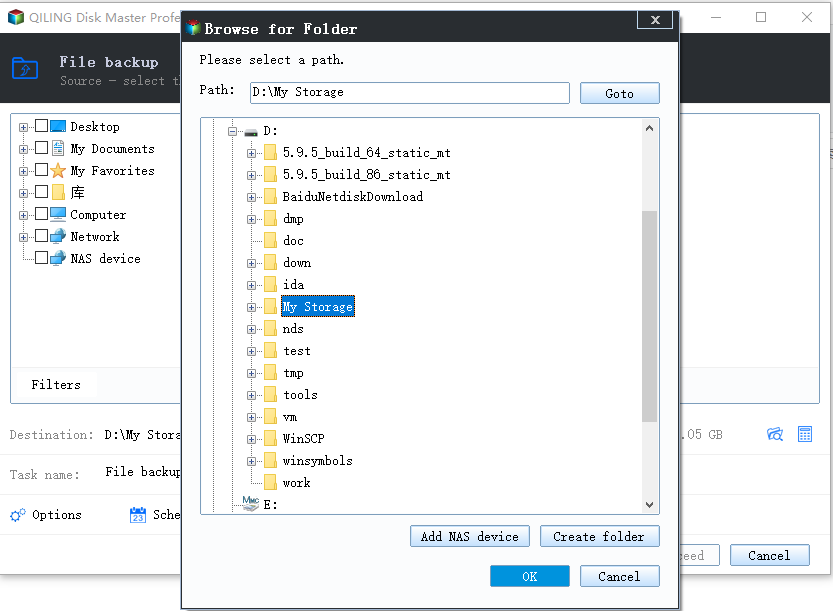
Step 4. Use Options to set compression or encryption if needed. Use Schedule if you want the task to run daily, weekly, or before regular system changes.
Step 5. Click Proceed. After the backup finishes, keep the image and bootable recovery media ready so you can restore Windows or files when a problem occurs.
Best Practice
Use both when possible: Windows Backup or OneDrive for daily personal files, and QILING Backup for system image, disk backup, or high-risk changes. This gives you more than one way to restore important data.
Conclusion
Windows Backup is convenient for basic protection. QILING Backup is better when you need full-system protection, flexible backup types, and a stronger plan before updates, disk changes, or partition operations.
Related Articles
- Backup Before Windows 11 25H2 Update
- Backup Files Before Factory Reset Windows 10
- How to Make a Full Backup of Windows 10
Products
Articles & Tutorials
- Data Recovery
- Data Backup
- File Recovery
- File Backup
- System Backup and Restore
- Disk and Partition Clone
- Technical articles
- Mobile articles
- Disk Master Help
- Windows Data Recovery Tutorials
- Windows Secure Delete Tutorials
- Windows Partition Management Tutorials
- Windows File Backup and Restore Tutorials
- Windows System Backup and Restore Tutorials
- Windows Disk Backup and Restore Tutorials
- Windows Clone Tutorials