Recover Lost Files After Windows 11 25H2 Update
After a Windows 11 feature update, some users may find that desktop files, documents, pictures, or app data are missing. The files may be moved to another profile, hidden in Windows.old, synced to OneDrive, or deleted during a failed update.
Do not save new files to the same drive before recovery. New data can overwrite lost files and reduce the chance of recovery.
First Checks Before Using Recovery Software
- Check the Recycle Bin.
- Open `C:\Windows.old\Users` if Windows created a previous system folder.
- Check OneDrive, Desktop, Documents, Pictures, and Downloads under the correct user profile.
- Use Windows Search with the file name or extension.
- Look for a temporary profile issue if your desktop and settings look new.
Recover Files with Qiling File Recovery Software
If manual checks do not find the files, use Qiling file recovery software to scan the affected drive. The scan is designed to look for deleted or lost files before you save recovered data to another location.
Step 1. Download and install Qiling Data Recovery on a different drive if possible. If lost files were on the C drive, install the program on another partition or an external drive to reduce the chance of overwriting data.

Step 2. Use File Filters the search box to narrow the results by file name, extension, date, or folder.
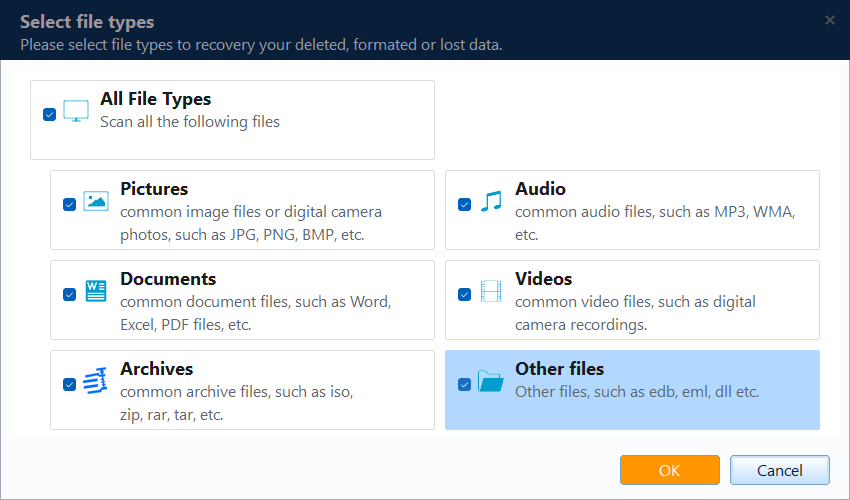
Step 3. Open the program and choose the location where the files were stored before the Windows 11 25H2 update. This may be the Desktop folder, Documents folder, the C drive, an external drive, or the parent drive that contains Windows.old.

Step 4. Preview documents, photos, videos, or other found files when preview is available. This helps you confirm which files are recoverable before saving them.

Step 5. Select the files you need and click Recover. Save the recovered files to another disk or external drive, not the original folder where the files were lost.

When Should You Restore from Backup?
If you created a full backup before the update, restoring from the backup may be faster than file-by-file recovery. For future updates, follow this guide to back up before Windows 11 25H2 update.
Conclusion
Missing files after a Windows update are not always permanently gone. Check common folders first, then use recovery software carefully if the files were deleted or moved during the update process.
Related Articles
- Backup Before Windows 11 25H2 Update
- How to Restore Deleted Files on Windows 10
- Empty Recycle Bin Windows 10 Recovery
Products
Articles & Tutorials
- Data Recovery
- Data Backup
- File Recovery
- File Backup
- System Backup and Restore
- Disk and Partition Clone
- Technical articles
- Mobile articles
- Disk Master Help
- Windows Data Recovery Tutorials
- Windows Secure Delete Tutorials
- Windows Partition Management Tutorials
- Windows File Backup and Restore Tutorials
- Windows System Backup and Restore Tutorials
- Windows Disk Backup and Restore Tutorials
- Windows Clone Tutorials