How to Format a Hard Drive Partition for Free
What Does It Mean to Format a Partition
Formatting a storage device, such as a hard drive, USB flash drive, or memory card, prepares it for data storage by erasing all existing data and setting up a new file system, like NTFS or FAT32, which controls how data is stored and retrieved, acting as a bridge between the device's data and the operating system.
When Do You Need to Format a Hard Drive Partition
Formatting a partition will remove data and assign a file system, preparing the chosen partition for use by Windows. This process is necessary in certain situations, such as when you need to reassign a partition, remove a file system, or prepare a new partition for use.
Partition a Hard Drive
When you create a partition on a disk, formatting the selected space is an automatic process of partitioning the hard drive, as it changes the unusable chunk to a usable one, requiring a file system setup, which formatting can provide. This makes formatting the drive necessary while partitioning a hard disk.
To partition a hard drive, you can create a new partition and format it at the same time, eliminating the need for a separate format step. You can find instructions on how to partition a hard drive on websites.
Fix a RAW Partition
You may be wondering what RAW partition format is, and you're not alone. Many users are confused about this concept. However, after reading the explanation, you'll have a clear understanding of what RAW partition format is.
If a partition is in RAW format, it means the file system is corrupted, missing, or not recognized by the operating system. To fix this, you'll need to convert the RAW partition to a Windows-compatible file system like NTFS or FAT32 by formatting it. However, before formatting, it's essential to recover any data from the RAW partition to prevent losing important files.
Erase Data on the Partition or Disk
To completely wipe a partition, disk, or storage medium, you can use the format feature, which will remove all existing data. However, this does not completely erase the data, and it can be recovered with professional hard drive recovery software. If you want to securely erase the data, you can use a secure erase feature instead.
Users may choose to format a partition to remove a virus or malware, or for other reasons, and can apply the methods below to format a hard drive partition.
How Do You Format a Hard Drive Partition
Formatting a hard drive partition can be done easily via two methods: using the free Qiling Format tool or Disk Management. However, the Qiling Partition Master is a better partition tool worth trying, offering useful features that set it apart from the free partition manager and Windows built-in tool.
Comparison Between the Free Edition Qiling Partition Master and Disk Management
Here is a comparison between Qiling Partition Master and Windows Disk Management:
| Comparison | Disk Management | Qiling Partition Master |
|---|---|---|
| Partition a Hard Drive | Yes | Yes |
| Format a Hard Drive | Yes (Format to NTFS only) |
Yes (Format to FAT, FAT32, NTFS, ReFS) |
| Other Features | Initialize Disk, Convert Disk, Extend Volume, Shrink Volume | The Disk Management tool in Windows offers several features, including initializing a disk, converting a disk, extending a volume, shrinking a volume, cloning disks or partitions, and wiping data. These options allow users to manage and manipulate their disk space, making it easier to organize and utilize their available storage. |
Upgrading Qiling Partition Master to the professional version unlocks advanced features such as OS migration, partition recovery, and dynamic disk management, making it a more comprehensive tool for disk and partition management beyond just partitioning and formatting hard drives.
Method 1. Format a Partition with Qiling Format Tool for Free
The free partition manager - Qiling Partition Master allows you to easily format any hard drive, and also provides features for creating, resizing, moving, merging, and cloning partitions, making it a versatile disk management tool.
The following cases may match what you need in formatting an existing partition or a chunk to several parts.
Case 1: How to format an existing partition
Step 1. Click the hard drive partition and choose the "Format" option.

Step 2. In the new window, set the Partition label, File system, and Cluster size for the partition, then click "Proceed".

Case 2: How to format a new partition
If your disk is not partitioned or formatted, it won't show up in the file explorer. To fix this, you can follow a tutorial that guides you through initializing the partition, creating a new partition, and formatting it. This process will make the disk visible in the file explorer and ready for use.
Step 1. Open Qiling Partition Master. Connect the hard drive or SSD to PC.
Step 2. Click the hard drive partition and choose the "Create" option.
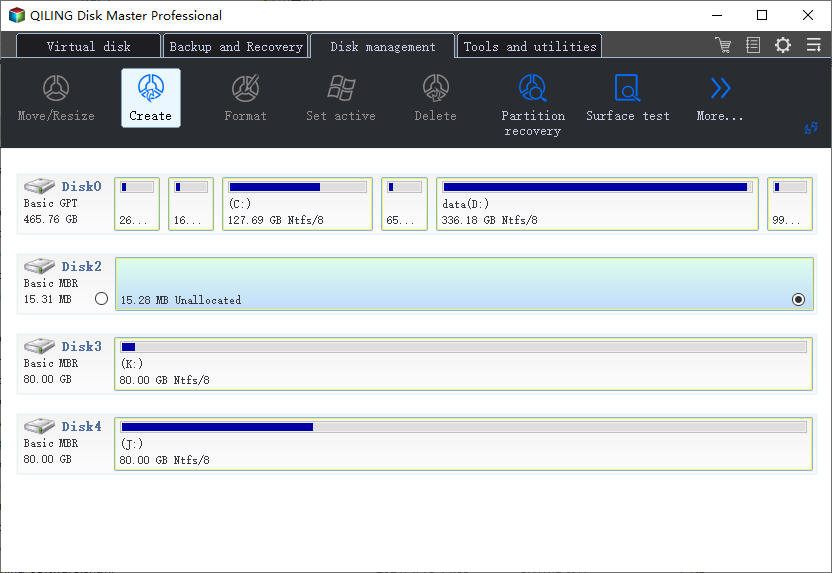
Step 3. In the new window, set the Partition label, File system, and Cluster size for the partition, then click "Proceed".
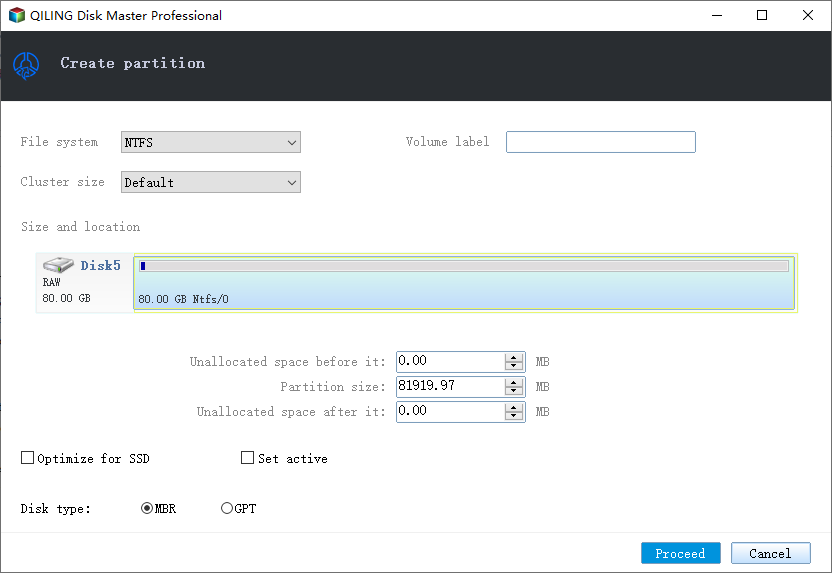
If the disk is empty, you can select the disk type as MBR or GPT.
Method 2. Format a Hard Drive Partition with Disk Management
Disk Management is a built-The tool you're referring to is likely the built-in "Disk Management" utility in Windows. It allows users to manage internal and external disks, including creating, formatting, and resizing partitions, as well as assigning drive letters and converting between different partition types. This utility can be accessed through the Control Panel or by searching for "Disk Management" in the Start menu.
Format A New Partition:
Step 1. Right-click "This PC" and choose "Manage".
Step 2. Go to "Disk Management".
Step 3. Right-click the unallocated space on your hard disk and choose "New Simple Volume".
Step 4. Follow the guide of the New Simple Volume Wizard.
Step 5. Enter the size of the partition you want to create or accept the maximum default size, and then select Next.
Step 6. Accept the default drive letter or choose a different one to identify the partition, and then select Next.
Step 7. In the Format Partition dialog box, do one of the following:
- If you don't want to format the volume right now, select "Do not format this volume" and click Next.
- To format the volume with the default settings, click Next.
Format An Existing Partition:
Step 1. Right-click "This PC" and choose "Manage".
Step 2. Go to "Disk Management".
Step 3. Right-click the target hard drive partition and choose "Format".
Step 4. Set the volume label, file system and click "OK" to start formatting the drive.
The Bottom Line
Formatting a hard drive partition is a necessary step when creating a partition, fixing a RAW partition, or erasing data from a drive. This process can be done using tools like Qiling format or Windows Disk Management, and it's essential to back up any data on the select drive before proceeding, either by manually copying files or using data recovery software if the partition or device is inaccessible.
People Also Ask
1. What does it mean to format a partition?
Formatting a partition means choosing a partition on the hard drive to be set by the file system and deleting all data and settings on it, which can be done using tools like Qiling Partition Master and Disk Management in Windows.
2. Can you format partitions differently?
For formatting a partition, we recommend using Qiling Partition Master, which can set a formatting process, or the Disk Management tool, which is a common solution.
3. What is better exFAT or NTFS?
NTFS is generally faster for reading and writing, but more devices support exFAT. NTFS is suitable for internal drives, while exFAT is better for flash drives, so the choice depends on the device type.
4. What happens if I format a partition?
If you have the necessary data on it, the formatting partition will erase all data and you will lose it permanently. You can safely back up the important part and then move on.
Related Articles
- How to Format C Drive in Windows 11/10/8.1/8/7
- Install Raspberry Pi Operating System on SD Card
- How Do I Use DiskPart to Delete All Partitions in Windows? Your 2021 Guide Is Here
- All You Want to Know about exFAT, FAT32, and NTFS
- Restore from Initial Backup with Lenovo OneKey Recovery (2 Steps)
You can learn how to restore from initial backup using Lenovo OneKey Recovery easily. Also, you can use another powerful software. - (SOLVED)Lenovo Service Partition Has Been Destroyed
You may receive Lenovo service partition has been destroyed issue after a system operation failure. Want to get the way to fix Lenovo service partition has been destroyed? See this article.
Products
Articles & Tutorials
- Data Recovery
- Data Backup
- File Recovery
- File Backup
- System Backup and Restore
- Disk and Partition Clone
- Technical articles
- Mobile articles
- Disk Master Help
- Windows Data Recovery Tutorials
- Windows Secure Delete Tutorials
- Windows Partition Management Tutorials
- Windows File Backup and Restore Tutorials
- Windows System Backup and Restore Tutorials
- Windows Disk Backup and Restore Tutorials
- Windows Clone Tutorials