Sync Files Between Computers Without Cloud
Sync files between Windows computers without cloud storage by using external drives, NAS, or scheduled backup.
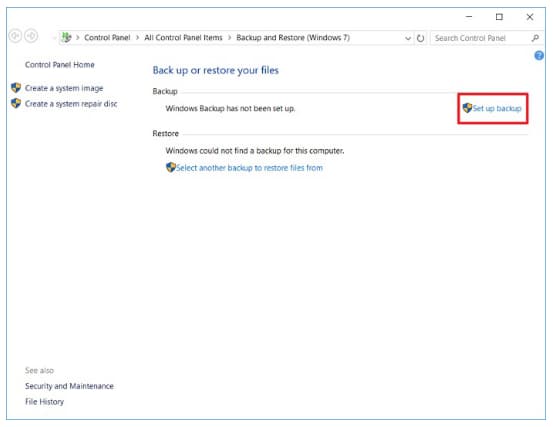
Why Sync Without Cloud?
Local sync is useful when files are large, internet is slow, privacy rules block cloud storage, or you need a copy between office PCs. The safest plan is to define one main source, one destination, and a conflict rule.
Local Sync Options
- Use an external drive for occasional transfer.
- Use a NAS or shared folder for regular sync.
- Use Windows robocopy for scripted copying.
- Use backup software when you need schedules, filters, and recovery points.
Back Up Important Files with Qiling Disk Master
Before you change Windows settings, reset a PC, format a drive, or repair a failing disk, copy user files to a safe location. A file backup is easier to restore when you only need documents, photos, game saves, or work folders.
Choose File Backup
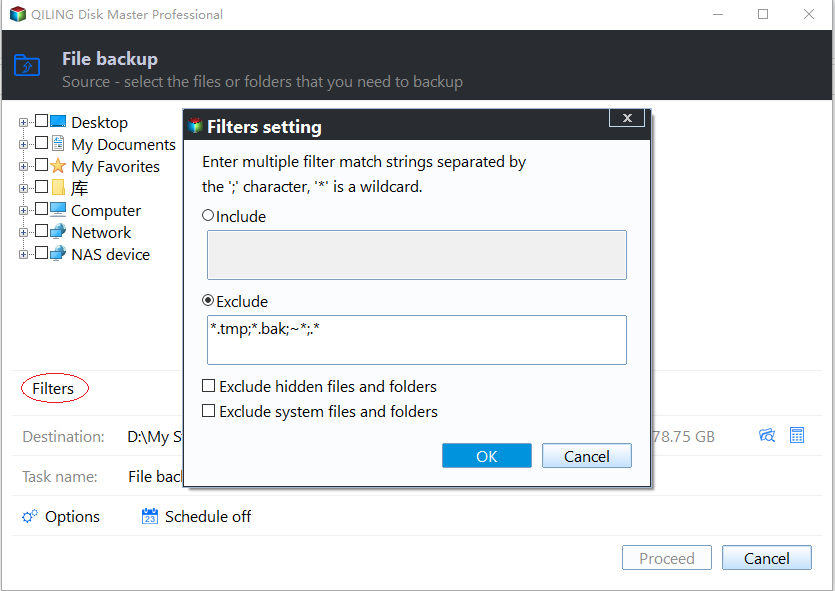
- Open Qiling Disk Master and choose File Backup. Select the folders that matter most, such as Desktop, Documents, Pictures, game save folders, browser profiles, and project folders.

- Use the filter option if you need to include only certain file types or exclude temporary files.
Select a Safe Destination
- Choose an external drive, another internal disk, or a network location as the backup destination. Do not save the backup on the same partition that may be reset, formatted, or repaired.

- Click Proceed to start the backup and wait until it finishes. Open the destination afterward and confirm that the backup image is visible.

Related Articles
- Windows Partition Management Tutorials
Find practical Windows partition guides for resizing, formatting, checking, converting, and repairing disks without unnecessary risk. - Windows System Backup and Restore Tutorials
Browse Windows backup and restore guides for system images, recovery drives, restore points, and safe repair preparation. - Sync Files Between Computer and USB Drive - Qiling
Sync files between a Windows computer and USB drive safely with manual copy, Robocopy, and Qiling Backup workflows.
Products
Articles & Tutorials
- Data Recovery
- Data Backup
- File Recovery
- File Backup
- System Backup and Restore
- Disk and Partition Clone
- Technical articles
- Mobile articles
- Disk Master Help
- Windows Data Recovery Tutorials
- Windows Secure Delete Tutorials
- Windows Partition Management Tutorials
- Windows File Backup and Restore Tutorials
- Windows System Backup and Restore Tutorials
- Windows Disk Backup and Restore Tutorials
- Windows Clone Tutorials