Sync Files Between Computer and USB Drive
Manual copy works for small tasks, but it is easy to miss changed files or overwrite the wrong version.
A sync workflow is safer for repeated transfers between a PC and a USB drive.
PAGE CONTENT
- What This Problem Means
- Before You Start
- Use Windows Built-in Tools First
- Use the Qiling Product Workflow
- Check the Result
- FAQs
What This Problem Means
File sync compares a source folder and destination folder so new or changed files can be copied without recopying everything.
- One-way sync is safer than two-way sync for backups.
- USB drives should be ejected safely after sync.
- exFAT works well for large files shared between devices.
- A failing USB drive should not be the only backup.
- 顦?/i> Important
- Sync is not a substitute for versioned backup if you may need old file versions.
Before You Start
Format the USB drive suitably and decide which computer is the source of truth.
- Confirm the exact disk, partition, USB drive, SD card, or Windows installation you are changing.
- Copy irreplaceable files to another drive if the device is still readable.
- Check whether BitLocker, Secure Boot, UEFI/Legacy mode, or a vendor recovery partition is involved.
- Avoid formatting, deleting, wiping, or running DiskPart clean until you know whether data must be recovered first.
Use Windows Built-in Tools First
Windows can sync simple folder sets with File Explorer or Robocopy.
Step 1. Create a Backup or Sync folder on the USB drive.
Step 2. Copy the source folder manually for the first run if it is small.
Step 3. Use robocopy Source Destination /E /XO for repeat copies.
Step 4. Check the Robocopy summary for failed files.
Step 5. Use Safely Remove Hardware before unplugging.
Detailed Qiling Backup Workflow
Use Qiling Backup before repair, reset, cleanup, partition changes, or repeated file synchronization. A separate backup keeps the original data safe if Windows tools fail or the wrong folder is changed.
Step 1. Connect a USB drive, external hard drive, or network location with enough free space. Do not store the backup on the same partition you are protecting.
Step 2. Open Qiling Backup. Choose File Backup for documents, photos, game saves, and project folders. Choose System Backup before Windows repair or recovery work.
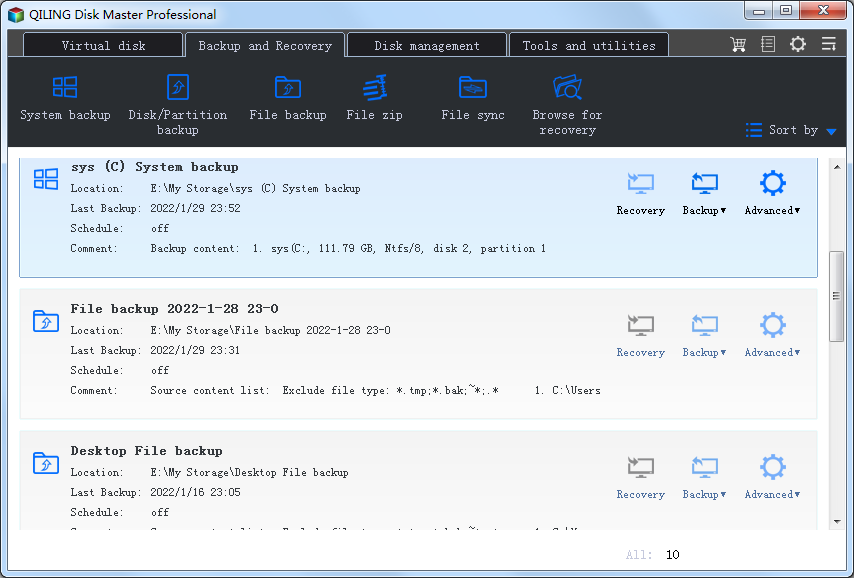
Step 3. Add the source folders or system partitions. Include hidden app data folders when the article topic involves games, user profiles, or application settings.
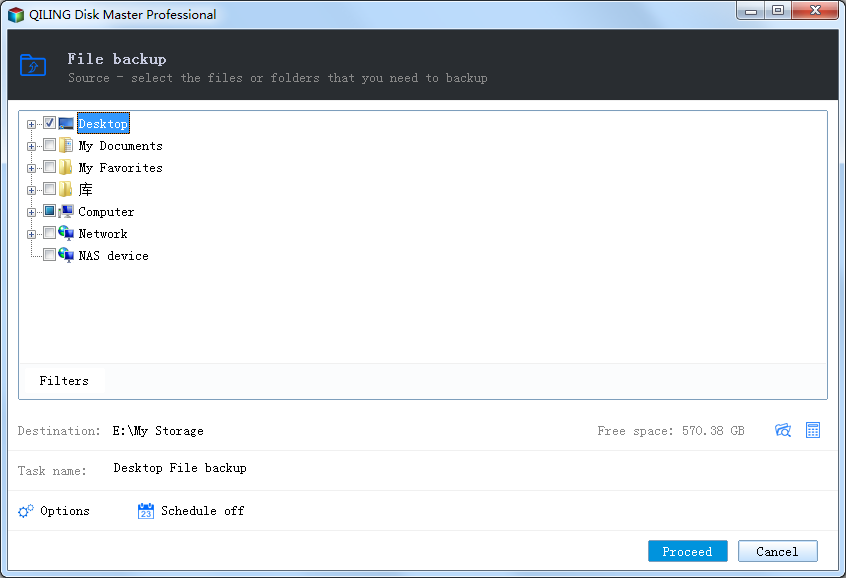
Step 4. Choose the destination. If it is a USB drive, keep it connected until the task completes. If it is a network path, test access first.
Step 5. Set a schedule only when this will be a repeat backup or sync task. For one-time repair preparation, run it manually.
Step 6. Click Proceed. When the task finishes, open several files from the destination to confirm the backup is usable.
Check the Result
Open files from the USB drive and compare dates on important folders.
- Restart Windows and confirm the drive, partition, backup task, or cloned disk appears as expected.
- Open several files instead of only checking that a drive letter exists.
- Keep one recent backup on an external drive before making another high-risk change.
- If the same error returns, check hardware health, cable quality, firmware, and Event Viewer before repeating the same operation.
FAQs
Can sync start automatically?
Yes, use backup software with a schedule or run a saved Robocopy command.
One-way or two-way sync?
Use one-way sync for backup to avoid spreading accidental deletions.
What file system should USB use?
Use exFAT for large cross-device files or NTFS mainly for Windows.
Conclusion
A clear USB sync plan prevents missed files and accidental overwrites. Qiling Backup gives a repeatable workflow.
Related Articles
- Best Free Partition Manager Software of 2026
- How to Clone HDD to SSD in Windows 10/11/7
- Windows System Backup and Restore Tutorials
- Windows Data Recovery Tutorials
Products
Articles & Tutorials
- Data Recovery
- Data Backup
- File Recovery
- File Backup
- System Backup and Restore
- Disk and Partition Clone
- Technical articles
- Mobile articles
- Disk Master Help
- Windows Data Recovery Tutorials
- Windows Secure Delete Tutorials
- Windows Partition Management Tutorials
- Windows File Backup and Restore Tutorials
- Windows System Backup and Restore Tutorials
- Windows Disk Backup and Restore Tutorials
- Windows Clone Tutorials